
MOKiN MODK0701
Contents
MOKiN USB C 16-in-1 Docking Station User Manual
Model: MODK0701
1. Introduction
Thank you for choosing the MOKiN USB C 16-in-1 Docking Station. This device expands the connectivity of your USB-C enabled laptop or device, providing multiple ports for displays, data transfer, networking, and power delivery. Please read this manual carefully to ensure proper setup and operation.
2. Product Overview
The MOKiN 16-in-1 Docking Station features a comprehensive array of ports designed to enhance your productivity and connectivity.

Image: Front and rear view of the MOKiN 16-in-1 USB C Docking Station, highlighting all available ports and their functions.
Port Layout:
- Front/Side Ports:
- 1x USB 3.1 (10Gbps)
- 2x USB 3.0 (5Gbps)
- 2x USB 2.0 (480Mbps)
- 1x USB-C Data (10Gbps)
- 1x USB-C Host (Connect to laptop)
- 1x USB-C PD3.0 (Power Delivery Input, up to 100W)
- 1x Audio/Mic (3.5mm Jack)
- 1x SD Card Slot (Read: 50-104MB/s, Write: 30-80MB/s)
- 1x TF Card Slot (Read: 50-104MB/s, Write: 30-80MB/s)
- Rear Ports:
- 1x DisplayPort (DP) (4K@60Hz)
- 2x HDMI (HDMI 1, HDMI 2) (4K@60Hz each)
- 1x VGA (1080P@60Hz)
- 1x RJ45 Gigabit Ethernet (10/100/1000Mbps)
3. Compatibility
This docking station is designed for devices with a full-featured USB-C port. Ensure your laptop's USB-C port supports Power Delivery, Data Transfer, and DisplayPort Alternate Mode (Alt Mode).

Image: Visual guide for identifying compatible USB-C ports (Thunderbolt 3, Data+DisplayPort Alt, Data+Charging+DisplayPort Alt).
Important: If your laptop's USB-C port only supports data transfer or charging, the docking station's full functionality (especially video output) may not be available.
Supported Operating Systems:
- Windows (Windows 7/8/10/11)
- macOS (MacBook, MacBook Pro, MacBook Air)
- Chrome OS
- Linux
- Android (for compatible devices like Samsung Galaxy S series, Note series, Tab S series; Huawei Mate series)
Compatible Devices (Examples):
- Laptops: MacBook, Huawei MateBook, and other laptops with full-featured USB-C ports.
- Smartphones/Tablets: Samsung Galaxy S10E/S10+/S10/S9+/S9/S8+/S8 Plus; Note 10/9/8; Galaxy Tab S5e/Galaxy Tab S4/Galaxy S20 Ultra; Huawei Mate10/Mate10 pro/Mate20/Mate20 pro/Mate30/Mate30Pro.
4. Setup Instructions
- Connect Power (Optional but Recommended): If your laptop requires charging via the docking station, connect a USB-C Power Delivery (PD) charger (up to 100W) to the docking station's USB-C PD3.0 input port. The docking station will reserve 13W for its own operation, providing up to 87W to your host device.
- Connect to Host Device: Use the provided USB-C to USB-C cable to connect the docking station's 'USB-C Host' port to your laptop's full-featured USB-C port.
- Connect External Displays:
- Connect your monitors to the DisplayPort, HDMI 1, HDMI 2, and/or VGA ports using appropriate cables.
- Ensure your display cables are securely connected.
- Connect USB Peripherals: Plug your USB devices (keyboard, mouse, external hard drives, USB flash drives, etc.) into the available USB 3.1, USB 3.0, and USB 2.0 ports.
- Connect Ethernet: For a stable wired network connection, connect an Ethernet cable from your router/modem to the RJ45 Gigabit Ethernet port on the docking station.
- Connect Audio Devices: Plug your headphones or speakers into the 3.5mm Audio/Mic jack.
- Insert Memory Cards: Insert SD or TF cards into their respective slots for data access.
The docking station is typically plug-and-play, and your operating system should automatically detect and configure the connected devices.
5. Operating the Docking Station
5.1 Display Modes
The docking station supports various display configurations, including mirror and extend modes, depending on your operating system.

Image: Illustration of different display modes: Extended Mode (Windows only), Mirror Mode, and Non-Mirror Mode (Extended for Mac, with limitations).
- Windows Systems:
- Mirror Mode: All external displays show the same content as your laptop screen.
- Extend Mode: Each external display can show different content, extending your desktop across multiple screens. This allows for a quadruple display setup (laptop screen + 3 external monitors, or 4 external monitors if laptop screen is off).
- macOS Systems:
- Mirror Mode: All external displays show the same content as your MacBook screen.
- Extend Mode: macOS typically supports extending to multiple external monitors, but due to macOS limitations, all extended external monitors will display the same content (not distinct extended displays). Your MacBook screen can be distinct from the mirrored external displays.
To configure display settings, refer to your operating system's display settings (e.g., Windows Display Settings, macOS System Settings > Displays).
5.2 Data Transfer
Utilize the various USB ports and card reader slots for high-speed data transfer.

Image: Illustration of USB 3.1 port providing 10Gbps data transfer speed and SD/TF card reader speeds.
- USB 3.1 Port: Offers speeds up to 10Gbps for rapid file transfers with compatible devices.
- USB 3.0 Ports: Provide speeds up to 5Gbps, suitable for most external storage and peripherals.
- USB 2.0 Ports: Ideal for connecting keyboards, mice, and other low-bandwidth devices.
- SD/TF Card Slots: Support simultaneous reading of both SD and Micro SD cards with speeds up to 104MB/s read and 80MB/s write.
5.3 Power Delivery
The USB-C PD3.0 port supports up to 100W power input, allowing you to charge your laptop while using the docking station.

Image: Diagram showing 100W power input to the docking station and 85W power output to the connected laptop.
Connect your laptop's original USB-C power adapter or a compatible PD charger to the docking station's PD port. The docking station will pass through power to your laptop, deducting approximately 13W for its own operation.
5.4 Gigabit Ethernet
The RJ45 port provides a stable and fast wired internet connection.
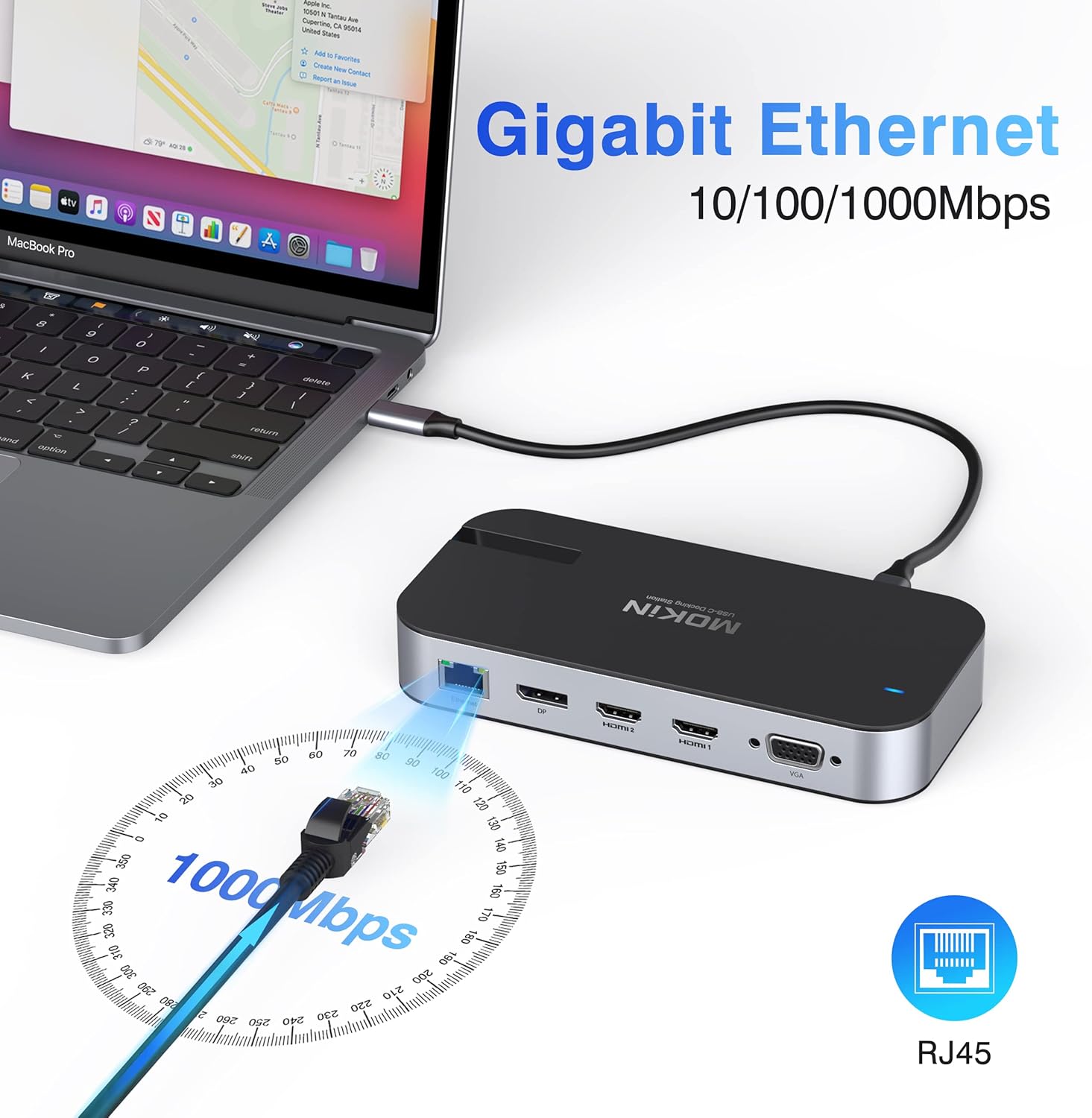
Image: Illustration of a laptop connected to the docking station, which is then connected to an Ethernet cable for Gigabit speeds.
Enjoy reliable network speeds up to 1000Mbps, backward compatible with 100Mbps and 10Mbps networks.
6. Maintenance
- Keep the docking station clean by wiping it with a soft, dry cloth.
- Avoid exposing the device to liquids, moisture, or extreme temperatures.
- Do not attempt to disassemble or repair the docking station yourself.
- Store the docking station in a cool, dry place when not in use.
7. Troubleshooting
- No display output from external monitors:
-
- Ensure your laptop's USB-C port supports DisplayPort Alt Mode (refer to Section 3: Compatibility).
- Check all display cables (HDMI, DP, VGA) for secure connections.
- Verify that the external monitors are powered on and set to the correct input source.
- Try connecting one monitor at a time to isolate the issue.
- Restart your laptop and reconnect the docking station.
- Update your graphics drivers.
- USB devices are not recognized or function intermittently:
-
- Ensure the docking station is securely connected to your laptop.
- Try connecting the USB device to a different port on the docking station.
- If using a high-power USB device (e.g., external hard drive), ensure the docking station is connected to an external power source.
- Disconnect and reconnect the docking station.
- Laptop is not charging or charging slowly:
-
- Ensure a compatible USB-C PD charger (up to 100W) is connected to the docking station's PD input port.
- Verify that your laptop's USB-C port supports Power Delivery.
- Check the power cable and charger for proper function.
- Ethernet connection is not working:
-
- Check the Ethernet cable connection to both the docking station and your router/modem.
- Verify that your network settings are correctly configured on your laptop.
- Try connecting the Ethernet cable directly to your laptop (if applicable) to rule out network issues.
8. Specifications
| Feature | Detail |
|---|---|
| Model Number | MODK0701 |
| Brand | MOKiN |
| Connectivity Technology | USB Type C |
| Input Voltage | 100 Volts (AC) |
| Output Voltage | 20 Volts (DC) |
| Output Current | 4.17 A |
| Power Delivery | 100 Watts (Input), up to 87 Watts (Output to Host) |
| USB Ports | 1x USB 3.1 (10Gbps), 2x USB 3.0 (5Gbps), 2x USB 2.0 (480Mbps), 1x USB-C Data (10Gbps), 1x USB-C Host, 1x USB-C PD3.0 |
| Video Output | 1x DisplayPort (4K@60Hz), 2x HDMI (4K@60Hz), 1x VGA (1080P@60Hz) |
| Ethernet | RJ45 Gigabit (10/100/1000Mbps) |
| Card Reader | SD/TF (supports simultaneous read) |
| Audio | 3.5mm Audio/Mic Jack |
| Special Feature | Plug and Play |
| Material | Aluminum (sides), Plastic (top/bottom) |
9. Warranty and Support
For warranty information and technical support, please refer to the documentation included with your purchase or contact MOKiN customer service directly. Details regarding spare parts availability and software updates are not available at this time.
Ask a question about this manual
Ask about setup, troubleshooting, compatibility, parts, safety, or missing instructions. Manuals+ will review the question and use this page’s manual context to help answer it.