
1. Introduction
The Thinkware SNAP-G is a handheld 3-axis video gimbal stabilizer with an integrated 4K camera, designed for content creators, vloggers, and influencers. It features a 2-inch LCD touchscreen, replaceable battery, and various intelligent functions to enhance your video recording experience.

Image: The Thinkware SNAP-G handheld gimbal stabilizer with its integrated camera.
2. What's in the Box
Verify that all items are present in your SNAP-G Creator Package:
- SNAP-G Gimbal Camera
- Rechargeable Battery (1ea)
- USB-C Charging Cable
- Wrist Strap
- Soft Pouch

Image: All components included in the SNAP-G Creator Package: the gimbal, battery, USB-C cable, wrist strap, and soft pouch.
3. Product Features
3.1. 2-inch LCD Touchscreen and Ergonomic Design
The SNAP-G features a 2-inch LCD touchscreen, allowing for precise framing and settings adjustments directly on the device. Its triangular body is ergonomically designed for a stable and comfortable grip during extended use.

Image: Close-up of the SNAP-G's 2-inch LCD touchscreen, highlighting its size compared to other gimbal cameras.
3.2. Replaceable Battery
Equipped with a 2000mAh replaceable battery, the SNAP-G offers up to 120 minutes of recording time (at 1080p/30fps with LCD off), ensuring longer shooting sessions without interruption. The replaceable design allows for quick battery swaps.

Image: Illustration showing the replaceable battery compartment and the 2000mAh battery.
3.3. 4K @ 60 FPS Camera
Capture stunning visuals in 4K resolution at 60 frames per second. The 1/2.3" CMOS sensor and 24mm f/2.8 aperture lens provide clear video quality in various lighting conditions. It also supports 2.7K@60fps and 1080p@120/60fps recording.
3.4. Wide Angle Lens
The 133.9° wide-angle lens allows for expansive shots, capturing more of the scene. Users can select between Narrow, Linear, and Wide angles to suit different recording needs.

Image: Comparison illustrating the 133.9° ultra-wide angle of SNAP-G versus a general gimbal camera's 93° viewing angle, alongside a 4K 60FPS icon.
3.5. Joystick & Trigger Controls
Intuitive controls include a joystick for changing the camera's direction and a trigger for quick actions. Double-clicking the trigger centers the lens, while triple-clicking switches to selfie mode. The joystick also facilitates easy zooming.

Image: Diagram showing the location and function of the joystick and trigger controls on the SNAP-G.
3.6. Wi-Fi Live Streaming
Connect the SNAP-G to Wi-Fi for direct live streaming to platforms like YouTube, Twitch, Facebook, and via RTMP, enabling real-time content sharing.
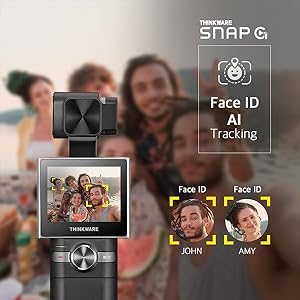
Image: Graphic illustrating the SNAP-G's Wi-Fi live streaming capability to various social media platforms.
3.7. Face ID AI Tracking
Utilize Face ID AI Tracking to automatically keep subjects in frame, ensuring smooth and professional-looking footage even when moving.

Image: Visual representation of the Face ID AI Tracking feature, showing the gimbal tracking multiple faces.
4. Setup Guide
4.1. Charging the Battery
- Insert the rechargeable battery into the SNAP-G's battery compartment.
- Connect the USB-C charging cable to the SNAP-G and a power source (e.g., USB wall adapter, computer USB port).
- The charging indicator light will show the charging status. Ensure the device is fully charged before first use.
4.2. Powering On/Off
- To power on, press and hold the Power/Mode button until the screen illuminates.
- To power off, press and hold the Power/Mode button until the device shuts down.
4.3. Initial Gimbal Calibration
Upon first power-on or if the gimbal appears misaligned, perform a calibration:
- Place the SNAP-G on a flat, stable surface.
- Navigate to the settings menu on the LCD touchscreen.
- Select "Gimbal Calibration" and follow the on-screen prompts.
5. Operating Instructions
5.1. Basic Recording
- Photo Mode: From the main screen, tap the camera icon to switch to photo mode. Press the shutter button once to take a photo.
- Video Mode: From the main screen, tap the video icon to switch to video mode. Press the shutter button once to start recording, and press again to stop.
5.2. Using the Joystick and Trigger
- Joystick: Move the joystick to control the pan and tilt of the camera. Push up/down to tilt, left/right to pan.
- Trigger (Front Button):
- Single Press: Locks the gimbal's orientation (Pan Follow mode).
- Double Press: Re-centers the gimbal and camera.
- Triple Press: Switches between front-facing and rear-facing (selfie) camera modes.
5.3. Zoom Function
Use the joystick to digitally zoom in or out. Push the joystick forward to zoom in, and pull backward to zoom out. Note that this is a digital zoom.
5.4. Live Streaming Setup
- Ensure the SNAP-G is connected to a Wi-Fi network via the settings menu.
- Select the "Live Stream" option on the touchscreen.
- Choose your desired platform (YouTube, Twitch, Facebook, RTMP) and follow the on-screen instructions to link your account or enter stream keys.
6. Maintenance
- Cleaning: Use a soft, dry cloth to clean the device. For the lens and screen, use a microfiber cloth specifically designed for optics. Avoid harsh chemicals.
- Storage: Store the SNAP-G in its soft pouch in a cool, dry place away from direct sunlight and extreme temperatures.
- Battery Care: For long-term storage, charge the battery to approximately 50-60% to preserve its lifespan. Avoid fully discharging the battery frequently.
- Firmware Updates: Periodically check the official Thinkware website for firmware updates to ensure optimal performance and access to new features.
7. Troubleshooting
| Problem | Possible Cause | Solution |
|---|---|---|
| Device does not power on. | Low or depleted battery. | Charge the battery fully. Ensure the battery is correctly inserted. |
| Gimbal is unstable or vibrates. | Improper calibration; physical obstruction. | Perform gimbal calibration. Check for any obstructions around the gimbal motors. |
| Poor video quality. | Dirty lens; incorrect resolution settings. | Clean the camera lens. Adjust video resolution settings to 4K or 2.7K for best quality. |
| Wi-Fi connection issues. | Incorrect password; out of range. | Verify Wi-Fi password. Move closer to the Wi-Fi router. Restart the device and router. |
8. Specifications
| Feature | Detail |
|---|---|
| Product Dimensions | 2.09 x 1.93 x 6.34 inches |
| Item Weight | 8 ounces (228 Grams) |
| Model Number | TW-SNAPG |
| Battery Type | 1 Lithium Ion battery (included) |
| Camera Sensor | 1/2.3" CMOS |
| Lens Aperture | f/2.8 |
| Video Resolution | 4K@60fps, 2.7K@60fps, 1080p@120/60fps |
| Field of View (FOV) | 133.9° Wide Angle |
| Screen Size | 2-inch LCD Touchscreen |
| Connectivity | Wi-Fi |
| Color | Black |
9. Warranty and Support
For warranty information and technical support, please refer to the official THINKWARE website or contact their customer service. Keep your proof of purchase for warranty claims.
THINKWARE Official Website: www.thinkware.com