Introduction
This manual provides detailed instructions for the safe and efficient use of your mophie Snap+ Powerstation Wireless Stand. Please read this manual thoroughly before using the device and retain it for future reference.
The mophie Snap+ Powerstation Wireless Stand is a versatile portable charger designed to provide wireless power to MagSafe-compatible iPhones and other Qi-enabled smartphones. It features an integrated adjustable stand and a standard tripod socket for enhanced usability during video calls or media consumption.
Package Contents
- mophie Snap+ Powerstation Wireless Stand
- Snap Adapter (metallic ring)
- USB-C to USB-C Cable
- Quick Start Guide (not included in this manual)
Product Overview

Figure 1: Front view of the mophie Snap+ Powerstation Wireless Stand with its integrated stand deployed.

Figure 2: The mophie Snap+ Powerstation Wireless Stand actively charging a smartphone, displaying a 100% charge indicator.
The Snap+ Powerstation features a magnetic charging surface, an adjustable kickstand, and a USB-C port for charging the powerstation itself or for wired output. It also includes a standard 1/4-inch tripod socket for versatile mounting options.
Setup
Initial Charging of the Powerstation
- Connect the supplied USB-C to USB-C cable to the USB-C port on the mophie Snap+ Powerstation.
- Connect the other end of the cable to a compatible USB-C power adapter (not included).
- The LED indicator lights on the powerstation will illuminate to show the charging status. Allow the powerstation to fully charge before first use.
Attaching the Snap Adapter (for non-MagSafe devices)

Figure 3: A hand carefully applying the metallic Snap Adapter ring to the back of a smartphone, enabling magnetic compatibility.
If your smartphone is not MagSafe compatible, use the included Snap Adapter to enable magnetic alignment and wireless charging:
- Clean the back surface of your phone or phone case where the adapter will be placed.
- Peel off the adhesive backing from the Snap Adapter.
- Carefully align the adapter over the wireless charging coil area of your phone. For optimal alignment, you may need to consult your phone's manual for the exact location of its wireless charging coil.
- Press firmly to secure the adapter in place.
Operating Instructions
Wireless Charging Your Device
- Ensure the mophie Snap+ Powerstation is sufficiently charged.
- Align your MagSafe-compatible iPhone or Qi-enabled smartphone (with Snap Adapter if necessary) onto the magnetic charging surface of the powerstation. The magnets will help snap your device into the correct position.
- Charging will begin automatically upon proper alignment. The LED indicators on the powerstation may briefly illuminate to confirm charging.

Figure 4: Side profile of the mophie Snap+ Powerstation with a smartphone magnetically attached and the stand deployed for viewing.

Figure 5: Rear view of the mophie Snap+ Powerstation, illustrating the phone attached and the stand supporting the device.
Using the Adjustable Stand
The integrated stand allows for hands-free viewing or video calls:
- Gently pull out the kickstand from the back of the powerstation until it locks into position.
- Place the powerstation with your device on a flat surface.
- To fold the stand back, push it gently until it retracts flush with the powerstation body.
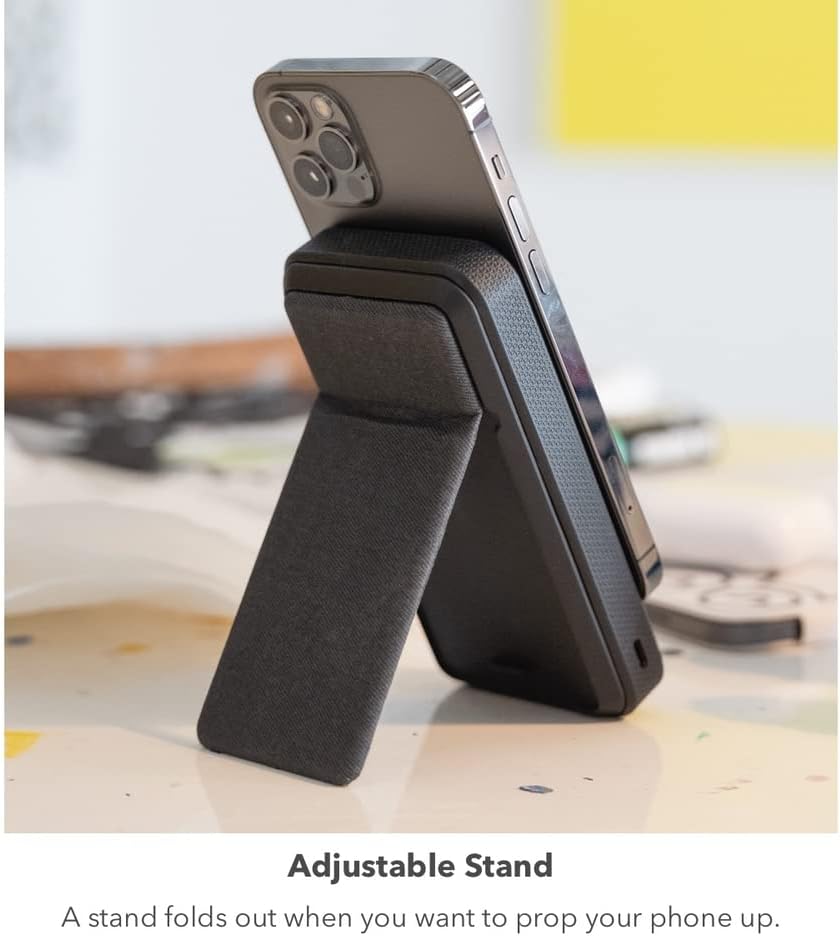
Figure 6: The mophie Snap+ Powerstation with a phone attached, positioned on a desk with its adjustable stand deployed for convenient viewing.
Using the Tripod Socket
The 1/4-inch tripod socket at the bottom of the powerstation allows for mounting on standard tripods or stands:
- Locate the 1/4-inch screw thread at the bottom of the powerstation.
- Screw the powerstation onto a compatible tripod or mounting accessory.
- Ensure the connection is secure before attaching your device.

Figure 7: The mophie Snap+ Powerstation mounted on a mini tripod, demonstrating the use of its integrated tripod socket for stable positioning during video calls or streaming.
Recharging the Powerstation Wirelessly
The Snap+ Powerstation can also be recharged wirelessly using a Qi-enabled charging pad or stand:
- Place the mophie Snap+ Powerstation onto a Qi-enabled wireless charging pad.
- Ensure proper alignment for charging to initiate.
- The LED indicators will show the charging status.
Maintenance
- Cleaning: Use a soft, lint-free cloth to clean the surface of the powerstation. Avoid using harsh chemicals or abrasive materials.
- Storage: Store the powerstation in a cool, dry place away from direct sunlight and extreme temperatures.
- Battery Care: To prolong battery life, avoid fully discharging the powerstation frequently. Recharge it regularly, even if not in active use.
Troubleshooting
| Problem | Possible Cause | Solution |
|---|---|---|
| Device not charging wirelessly. | Improper alignment; Powerstation battery low; Phone case too thick; Foreign object between phone and powerstation. | Realign device on charging surface; Recharge powerstation; Remove phone case or use thinner one; Remove any objects. |
| Powerstation not recharging. | Charging cable or adapter faulty; Improper wireless charging alignment. | Try a different cable/adapter; Ensure proper placement on wireless charging pad. |
| Magnetic connection is weak. | Phone case interfering; Snap Adapter not properly installed or missing. | Remove phone case or use a MagSafe-compatible case; Ensure Snap Adapter is correctly applied for non-MagSafe devices. |
Specifications
- Model Number: SNP-PS-STND-10K
- Battery Capacity: 10,000 mAh
- Connector Type: Wireless (Qi), USB-C
- Special Features: Magnetic alignment, Adjustable Stand, 1/4-inch Tripod Socket
- Dimensions: 7.8 x 4.33 x 1.26 inches (Package Dimensions, actual product dimensions not explicitly stated but inferred from images)
- Weight: 12 ounces
- Batteries: 2 Lithium Polymer batteries (included)
Safety Information
- Do not expose the device to extreme temperatures, direct sunlight, or moisture.
- Do not disassemble or attempt to repair the device. Refer to qualified service personnel.
- Keep out of reach of children.
- Dispose of the device responsibly according to local regulations.
Warranty and Support
For warranty information and customer support, please visit the official mophie website or contact their customer service department. Keep your proof of purchase for warranty claims.
mophie Official Website: www.mophie.com