
Phomemo D35
Phomemo D35 Wireless Bluetooth Label Maker
User Instruction Manual
Introduction
The Phomemo D35 is a compact and portable wireless Bluetooth label maker designed for efficient organization in various settings, including home, office, and school. This device utilizes thermal printing technology, eliminating the need for ink, toner, or ribbons, which contributes to lower operating costs. It connects seamlessly with smartphones via Bluetooth, allowing users to design and print custom labels using the dedicated PrintMaster Design&Print App.
Key features include a built-in rechargeable battery, Type-C fast charging, and a convenient integrated cutter for easy label separation. The D35 offers a wide array of customization options with multiple templates, symbols, frames, and fonts available through the app, supporting various label sizes from 0.24 to 0.47 inches.

Figure 1: Phomemo D35 Label Maker with included labels.
Setup
1. Unboxing and Initial Inspection
Upon receiving your Phomemo D35 Label Maker, carefully open the packaging and verify that all components are present. The standard packing list includes:
- 1x Phomemo D35 Label Maker
- 1x Roll of 80-PCS Label Tape (12x40mm)
- 1x USB Cable (Type-C)
- 1x User Manual

Figure 2: Contents of the Phomemo D35 Label Maker package.
2. Charging the Device
Before first use, ensure the label maker is fully charged. Connect the provided Type-C USB cable to the charging port on the device and plug the other end into a compatible USB power adapter (not included). The charging indicator light will provide feedback on the charging status.

Figure 3: The Phomemo D35 features Type-C fast charging.
3. Installing Label Tape
To install the label tape:
- Open the label compartment cover on the device.
- Insert the label roll with the printing surface facing upwards, ensuring the leading edge of the label tape extends slightly out of the slot.
- Close the cover securely.
Video 1: Demonstration of label tape installation in the Phomemo D35. This video also addresses common user queries regarding app permissions.
4. App Installation and Bluetooth Connection
Download the free "PrintMaster Design&Print" app from your smartphone's app store (iOS or Android). Once installed:
- Enable Bluetooth on your smartphone.
- Turn on the Phomemo D35 by pressing the power button.
- Open the PrintMaster app and follow the on-screen instructions to connect to your D35 device via Bluetooth. The app will typically auto-detect nearby Phomemo devices.
Operating Instructions
1. Designing Labels
The PrintMaster app provides extensive tools for label creation:
- Text: Enter custom text and choose from over 120 fonts.
- Icons & Symbols: Access a library of over 2000 symbols and icons for various categories.
- Frames & Borders: Select from over 60 decorative borders.
- Templates: Utilize pre-designed templates for common labeling needs (e.g., price tags, cable identification, food date marking).
- ID Code & QR Code: Generate barcodes and QR codes directly within the app.
- Pictures: Integrate images into your label designs.
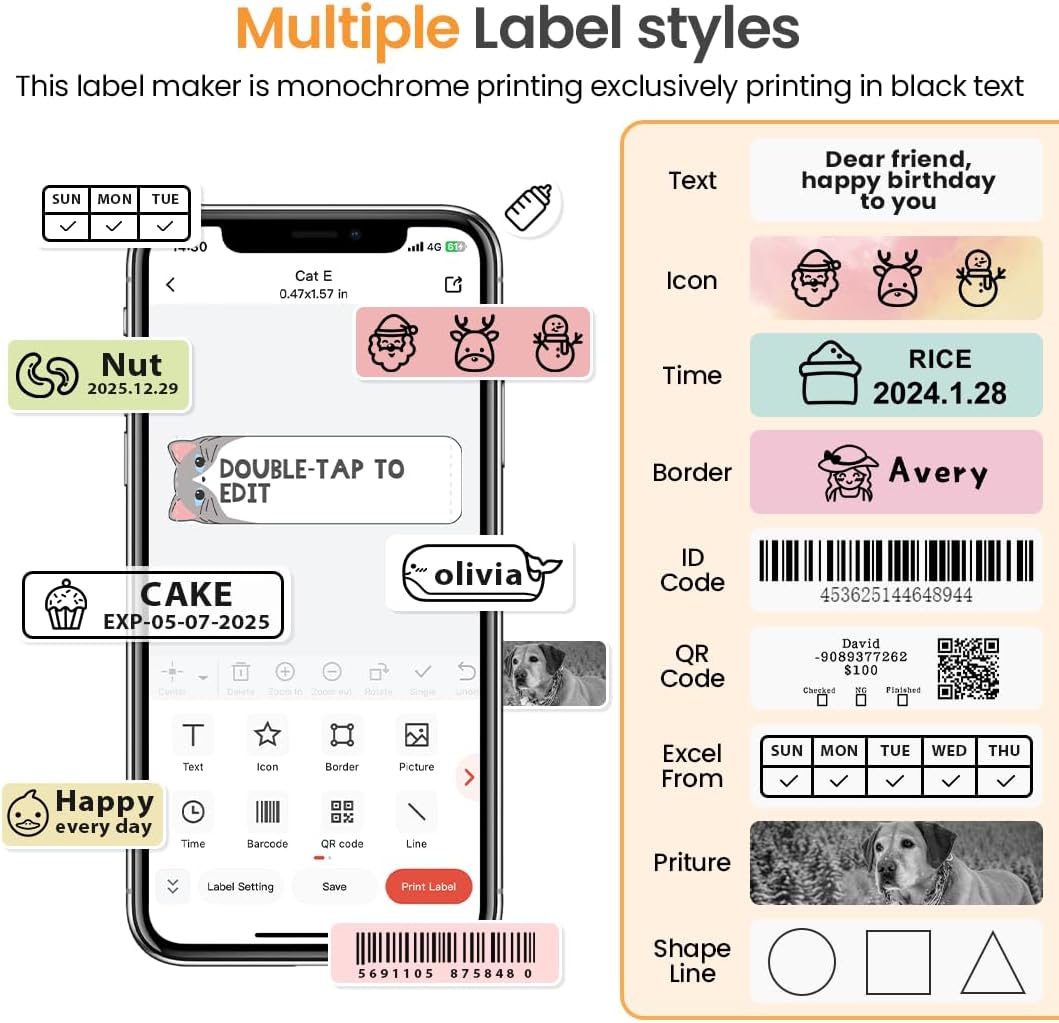
Figure 4: The PrintMaster app offers diverse design options including text, icons, and borders.

Figure 5: Explore over 1000 patterns and various fonts within the PrintMaster app for creative label designs.
2. Printing Labels
Once your label design is complete in the app, tap the "Print" button. The D35 will quickly print your label with high clarity. Ensure the label maker is within Bluetooth range and has sufficient battery life.
3. Using the Built-in Cutter
The Phomemo D35 features a built-in cutter for easy and clean separation of printed labels. After printing, gently pull the label forward and use the integrated cutter to detach it from the roll.

Figure 6: The Phomemo D35 includes a built-in cutter for convenient label separation and a Type-C charging port.
4. Label Applications
The Phomemo D35 is versatile for various labeling needs:
- Home Organization: Labeling spice jars, storage bins, pantry items, and personal belongings.
- Office Use: Organizing files, documents, cables, and office supplies.
- School Projects: Labeling notebooks, school supplies, and craft items.
- Retail/Small Business: Creating price tags, product identification, and inventory labels.

Figure 7: Examples of Phomemo D35 label applications in school, office, organization, and gifting contexts.
Video 2: An overview of the Phomemo D35 Label Maker's features and capabilities.
Maintenance
1. Cleaning the Print Head
To maintain optimal print quality, periodically clean the print head. Use a soft, lint-free cloth lightly dampened with rubbing alcohol. Gently wipe the print head surface. Ensure the device is turned off and disconnected from power before cleaning.
2. Battery Care
The D35 uses a built-in Lithium Polymer battery. To prolong battery life:
- Avoid fully discharging the battery frequently.
- Store the device in a cool, dry place when not in use for extended periods.
- Charge the device regularly, even if not in frequent use, to prevent deep discharge.
3. Label Storage
Phomemo D35 uses thermal labels, which are sensitive to heat and direct sunlight. Store unused label rolls in a cool, dark place away from direct heat sources or prolonged exposure to light to prevent fading or discoloration.
Troubleshooting
If you encounter issues with your Phomemo D35 Label Maker, refer to the following common problems and solutions:
| Problem | Possible Cause | Solution |
|---|---|---|
| No power/Device won't turn on | Low battery; Power button not pressed correctly | Charge the device fully; Press and hold the power button for a few seconds. |
| Cannot connect via Bluetooth | Bluetooth off; Device out of range; App issue | Ensure Bluetooth is enabled on phone; Move device closer; Restart app and device. |
| Poor print quality (faint, blurry) | Print head dirty; Incorrect label installation; Low battery | Clean print head; Reinstall label roll correctly; Charge device. |
| Labels not feeding or jamming | Label roll improperly installed; Obstruction in paper path | Reinstall label roll, ensuring it's straight; Check for and remove any debris. |
| App crashes or freezes | Software bug; Outdated app version | Restart the app; Check for app updates in your app store. |
For further assistance, please refer to the official Phomemo support resources or contact customer service.
Specifications
| Feature | Detail |
|---|---|
| Model Name | D35 |
| Item Model Number | 7YW0--CA-D35-WH-1 |
| Printing Technology | Direct Thermal |
| Connectivity Technology | Bluetooth, USB (Type-C for charging) |
| Resolution | 203 x 203 DPI |
| Max Print Speed (Monochrome) | 40 mm/s |
| Compatible Label Width | 0.24 - 0.47 inches (6mm - 12mm) |
| Battery | 1000 mAh Lithium Polymer (included) |
| Item Weight | 5.6 ounces (160 grams) |
| Product Dimensions | 1.97 x 0.79 x 3.15 inches (5.2"H x 2.3"W x 1.2"D) |
| Control Method | App (PrintMaster Design&Print) |
Warranty and Support
Phomemo products are designed for reliability and performance. For detailed warranty information, please refer to the warranty card included in your product packaging or visit the official Phomemo website. For technical support, troubleshooting assistance, or inquiries regarding replacement parts and accessories, please contact Phomemo customer service through their official channels.
An electronic version of the user guide is available for download: Phomemo D35 User Guide (PDF)
Related documentsD35


Ask a question about this manual
Ask about setup, troubleshooting, compatibility, parts, safety, or missing instructions. Manuals+ will review the question and use this page’s manual context to help answer it.