
1. Introduction
This manual provides essential information for the safe and efficient use of your Philips 24PHS5507/12 24-inch HD TV. This compact LED TV is designed for versatile placement in various environments such as offices, kitchens, or bedrooms. It features a triple tuner, HDMI, USB, and CI+ connectivity, delivering sharp and vibrant images.
2. Important Safety Information
Please read all safety instructions carefully before using your TV. Keep this manual for future reference.
- External Use Only: This product is intended for indoor, external use only.
- Power Supply: Connect the TV only to the specified power voltage (220 VAC 50 Hz). Ensure the power cord is not damaged or pinched.
- Ventilation: Ensure adequate ventilation around the TV. Do not block ventilation openings. Avoid placing the TV on soft surfaces that may block airflow.
- Heat: Do not place the TV near heat sources such as radiators, heat registers, stoves, or other apparatus that produce heat.
- Water and Moisture: Do not expose the TV to rain or moisture. Do not place objects filled with liquids, such as vases, on the TV.
- Cleaning: Unplug the TV from the wall outlet before cleaning. Use a dry cloth for cleaning. Do not use liquid cleaners or aerosol cleaners.
- Servicing: Do not attempt to service this product yourself. Refer all servicing to qualified service personnel.
3. What's in the Box
Carefully unpack the box and ensure all items are present:
- Philips 24PHS5507/12 TV
- Remote Control
- 2 x AAA Batteries
- Power Cable
- Quick Guide
- Legal and Safety Information Brochure
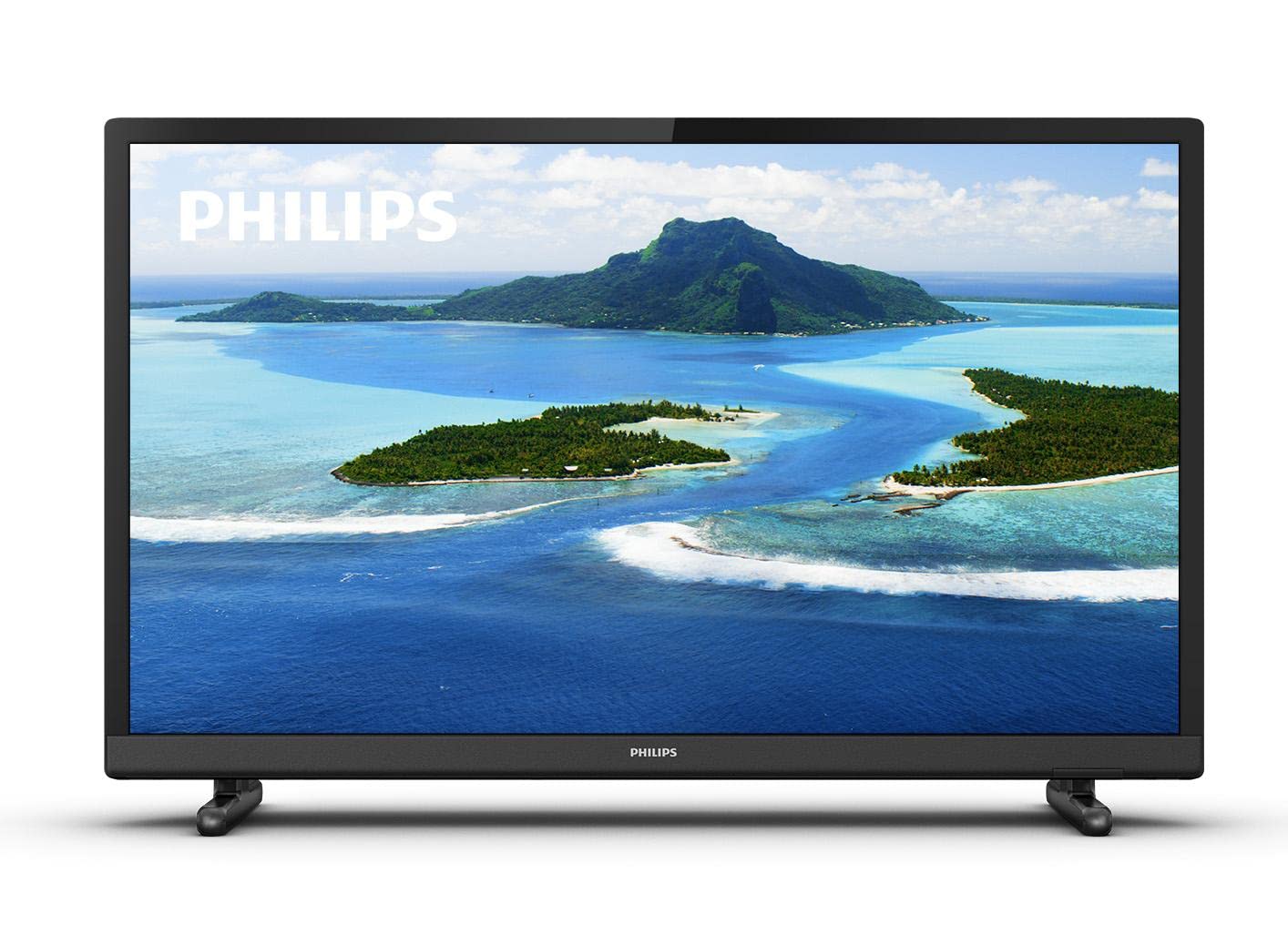
Image 1: Front view of the Philips 24PHS5507/12 TV with a scenic landscape displayed on the screen.
4. Setup
4.1. Unpacking and Placement
Remove the TV and all accessories from the packaging. Place the TV on a stable, flat surface or mount it on a wall using a compatible VESA mount (sold separately). Ensure there is sufficient space around the TV for proper ventilation.
4.2. Attaching the Stand
If using the included stand, carefully attach the stand feet to the bottom of the TV using the provided screws. Refer to the Quick Guide for detailed illustrations.
4.3. Connecting Devices
Connect your devices to the TV using the available ports:
- Power: Connect the power cable to the TV's power input and then to a wall outlet.
- HDMI: Use an HDMI cable to connect external devices such as a set-top box, DVD/Blu-ray player, or gaming console to one of the two HDMI ports.
- USB: Connect a USB storage device (e.g., USB flash drive) to the USB port for media playback.
- Antenna/Cable: Connect your antenna or cable signal to the TV's antenna input for DVB-T2 reception.
- VGA: Connect older computers or retro consoles via the VGA port.
- Audio Output: For external audio systems, use the digital audio output or headphone jack.
4.4. First-Time Installation
- Plug in the TV and press the power button on the remote control or TV.
- Follow the on-screen instructions to select your preferred language.
- The TV will guide you through the channel scanning process to find available TV channels.
5. Operating Your TV
5.1. Remote Control Overview
The included remote control allows you to operate all functions of your TV. Insert the two AAA batteries into the remote control, ensuring correct polarity.
- Power Button: Turns the TV on or off.
- Volume Buttons (+/-): Adjusts the volume level.
- Channel Buttons (P+/P-): Changes TV channels.
- Source/Input Button: Selects the input source (HDMI 1, HDMI 2, USB, TV, VGA).
- Menu Button: Accesses the TV's main menu for settings.
- Navigation Buttons (Arrows, OK): Navigates through menus and confirms selections.
5.2. Basic TV Functions
- Power On/Off: Press the power button on the remote control.
- Adjusting Volume: Use the Volume + or - buttons.
- Changing Channels: Use the Channel P+ or P- buttons.
- Selecting Input Source: Press the Source/Input button and use the navigation arrows to select the desired input (e.g., HDMI 1, USB).
5.3. Picture and Sound Settings
Access the TV's main menu to customize picture and sound settings:
- Press the Menu button on the remote control.
- Navigate to Picture settings to adjust brightness, contrast, color, sharpness, and select picture modes. The Philips Pixel Plus HD Engine optimizes image quality for sharp pictures and rich colors.
- Navigate to Sound settings to adjust bass, treble, balance, and select sound modes.
5.4. Media Playback via USB
You can play music and other media files from a USB storage device:
- Connect your USB device to the TV's USB port.
- Select the USB input source using the Source/Input button.
- Navigate through the files and folders on your USB device to select and play your media.
5.5. Smart TV Features
The TV includes a web browser. For additional Smart TV functionalities and streaming services, you can connect a streaming dongle to one of the HDMI ports.
6. Maintenance
6.1. Cleaning the TV
- Always unplug the TV before cleaning.
- Use a soft, dry cloth to clean the screen and casing.
- Do not use abrasive cleaners, waxes, or solvents as they can damage the TV's surface.
6.2. Software Updates
Periodically check the Philips support website for any available software updates for your TV model to ensure optimal performance and access to the latest features.
7. Troubleshooting
If you encounter any issues with your TV, refer to the following common problems and solutions:
| Problem | Possible Solution |
|---|---|
| No power | Ensure the power cable is securely connected to the TV and the wall outlet. Check if the wall outlet is working. |
| No picture, but sound is present | Check the input source. Ensure the connected device is powered on and functioning correctly. |
| No sound, but picture is present | Check the volume level and mute status. Ensure audio cables are correctly connected if using external speakers. |
| Remote control not working | Check the batteries and replace them if necessary. Ensure there are no obstructions between the remote and the TV's IR sensor. |
| Poor picture quality | Check antenna/cable connection. Adjust picture settings in the menu. If using an external device, check its output resolution. |
8. Technical Specifications
Detailed specifications for the Philips 24PHS5507/12 TV:
| Feature | Specification |
|---|---|
| Model Name | 24PHS5507/12 |
| Screen Size | 24 inches (60 cm) |
| Display Technology | LED |
| Resolution | 1080p (HD) |
| Refresh Rate | 60 Hz |
| Aspect Ratio | 16:9 |
| Connectivity | 2 x HDMI, 1 x USB, CI+, VGA |
| Tuner Technology | DVB-T2 (Triple Tuner) |
| Audio Output Power | 6 Watts (Surround Sound Mode) |
| Power Consumption | 6 Watts (Efficiency E) |
| Voltage | 220 VAC 50 Hz |
| Product Dimensions (D x W x H) | 18.5D x 73.2B x 47.9H cm |
| Item Weight | 3 Kilograms |
| Special Features | Motion Sensor, Pixel Plus HD |

Image 2: Side view of the Philips 24PHS5507/12 TV with dimensions indicated: 33.31cm height, 8.2cm depth, 55.15cm width.
9. Warranty and Support
Your Philips 24PHS5507/12 TV comes with a 2-year warranty from the date of purchase. This warranty covers manufacturing defects under normal use conditions.
For technical support, warranty claims, or further assistance, please contact Philips customer service. Refer to the contact information provided in the legal and safety information brochure included with your product or visit the official Philips support website.


