1. Introduction
Thank you for choosing the UCMDA 15.6 Inch Portable Monitor. This manual provides essential information for the safe and efficient use of your new device. Please read it thoroughly before operation and retain it for future reference.
This portable monitor is designed to enhance your productivity and entertainment experience, offering a Full HD 1080p IPS display with wide compatibility for various devices.
2. Package Contents
Verify that all items listed below are present in your package:
- 1x UCMDA 15.6" Portable Monitor
- 1x Protective Case
- 1x Mini HDMI to HDMI Cable
- 1x USB Type-C to USB Type-C Cable
- 1x Power Adapter (Charger)
- 1x User Manual (this document)
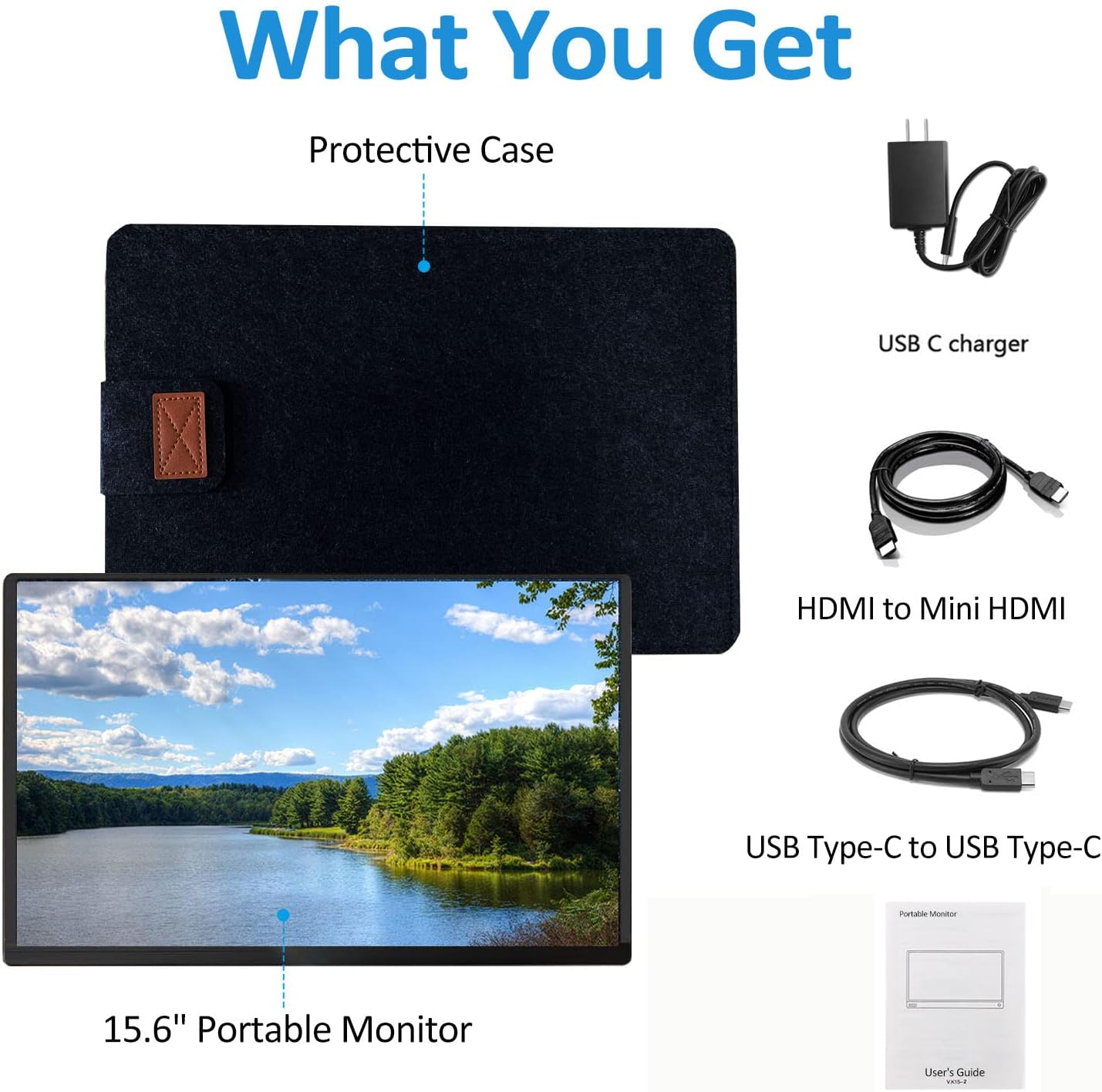
Figure 2.1: Included Accessories
3. Product Features
- Display: 15.6-inch Full HD (1920x1080) IPS LCD panel with 178° viewing angle.
- Color Accuracy: 16.7M (8-bit) true color display with 72% color gamut.
- Brightness: 250 cd/m² for clear visuals.
- HDR Support: Delivers enhanced contrast and color for vivid images.
- Connectivity: Two USB Type-C ports (one for power/data, one for data) and one Mini HDMI port.
- Audio: Integrated dual speakers for audio output.
- Portability: Ultra-thin 0.3-inch profile and lightweight design (1.76 lbs / 750g).
- Plug & Play: No driver installation required for most compatible devices.
- Versatile Stand: Integrated stand for quick setup and adjustable viewing angles.
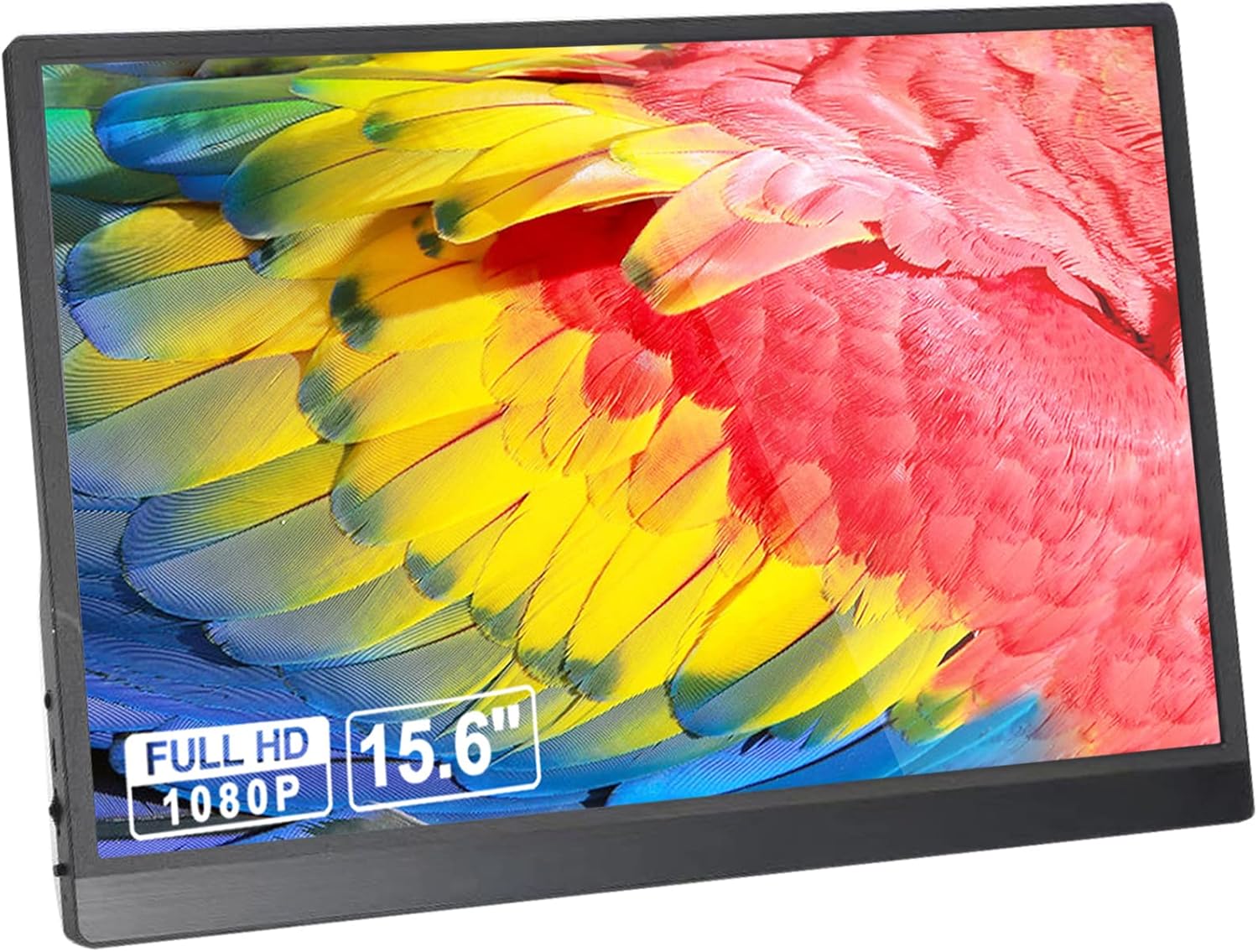
Figure 3.1: UCMDA 15.6 Inch Portable Monitor

Figure 3.2: Display Technology Features
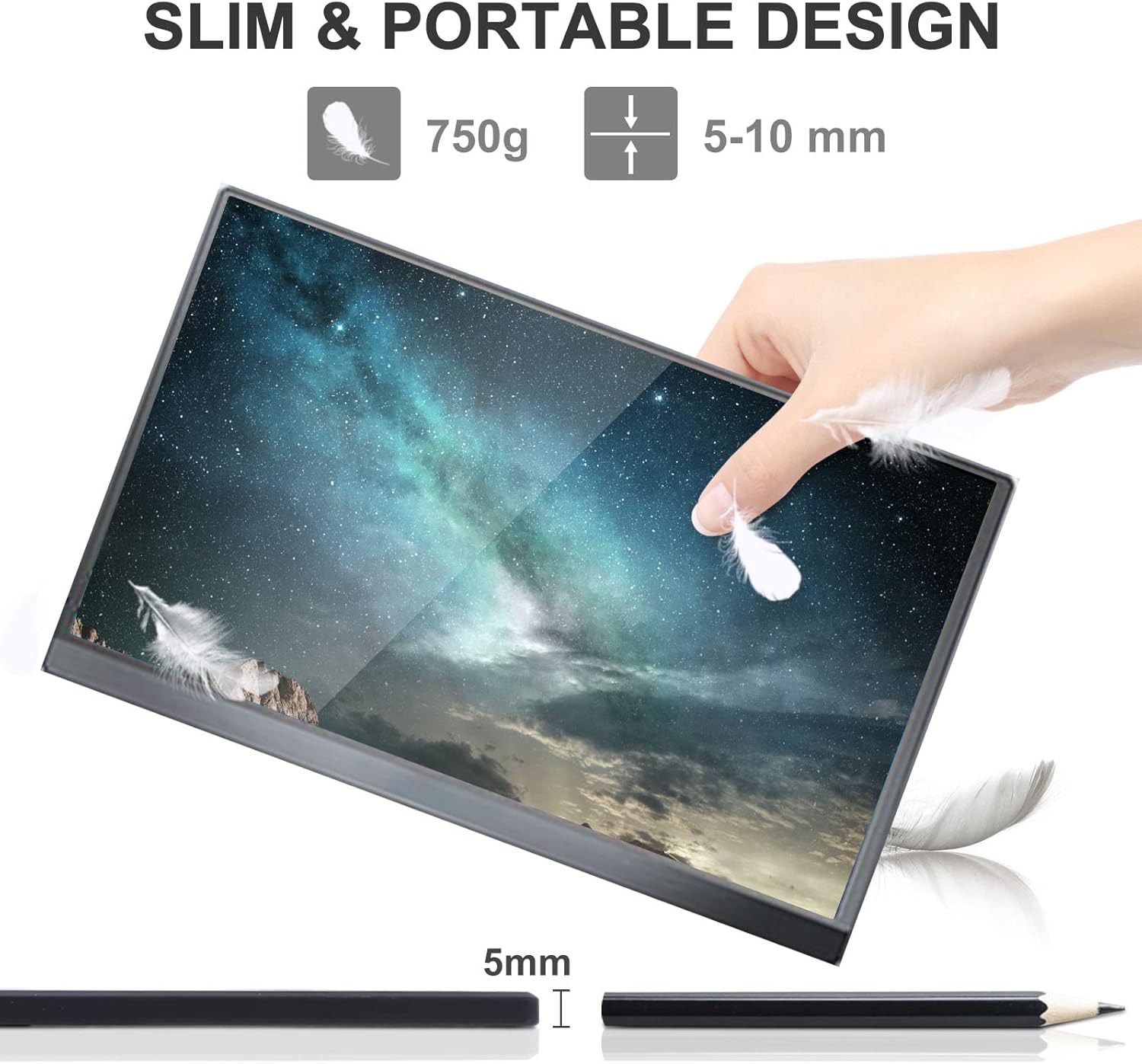
Figure 3.3: Slim and Portable Design
4. Setup Guide
Follow these steps to set up your portable monitor:
- Unpack: Carefully remove the monitor and all accessories from the packaging.
- Position: Place the monitor on a stable, flat surface. Utilize the integrated stand to adjust the viewing angle.
- Connect Power:
- If using a USB Type-C connection that supports power delivery (e.g., Thunderbolt 3, USB 3.1/3.2 with DP Alt Mode), connect the provided USB Type-C to Type-C cable from your device to the monitor's designated USB-C port (usually the top one on the right side). This single cable can provide both power and video signal.
- If your device's USB Type-C port does not support power delivery, or if you are using the Mini HDMI connection, connect the provided power adapter to the monitor's power input (USB-C port) and then to a power outlet.
- Connect Video:
- USB Type-C: Connect the USB Type-C to Type-C cable from your compatible device to the monitor's USB-C port. Ensure your device's USB-C port supports video output (DP Alt Mode).
- Mini HDMI: Connect the Mini HDMI to HDMI cable from your device's HDMI output to the monitor's Mini HDMI input.
- Power On: The monitor typically powers on automatically when a signal is detected and power is supplied. If not, press the power button located on the side.
- Adjust Settings: Use the monitor's OSD (On-Screen Display) menu to adjust brightness, contrast, and other display settings as desired.

Figure 4.1: Monitor Ports Overview

Figure 4.2: Top Edge Ports (USB Type-C, Mini HDMI)

Figure 4.3: Side Edge Ports (Headphone, USB, Power)
5. Operating Instructions
5.1 Connecting to Various Devices
The UCMDA portable monitor offers wide compatibility with various devices. Ensure your device has the necessary output ports.
- Laptops/PCs: Connect via USB Type-C (if supported) or Mini HDMI.
- Smartphones: Connect via USB Type-C for mirror mode (requires DP Alt Mode support on phone).
- Gaming Consoles (PS3/PS4, Xbox One, Nintendo Switch): Connect via Mini HDMI.

Figure 5.1: Multi-Device Compatibility

Figure 5.2: Detailed Compatibility Chart

Figure 5.3: Gaming and Mobile Setup
5.2 Display Modes (for Laptops/PCs)
When connected to a laptop or PC, you can configure the display mode:
- Duplicate Mode: The monitor displays the same content as your primary screen.
- Extend Mode: The monitor acts as a secondary screen, extending your desktop space.
- Second Screen Only: Only the portable monitor displays content.
These settings are typically adjusted within your operating system's display settings (e.g., Windows Display Settings or macOS System Preferences).
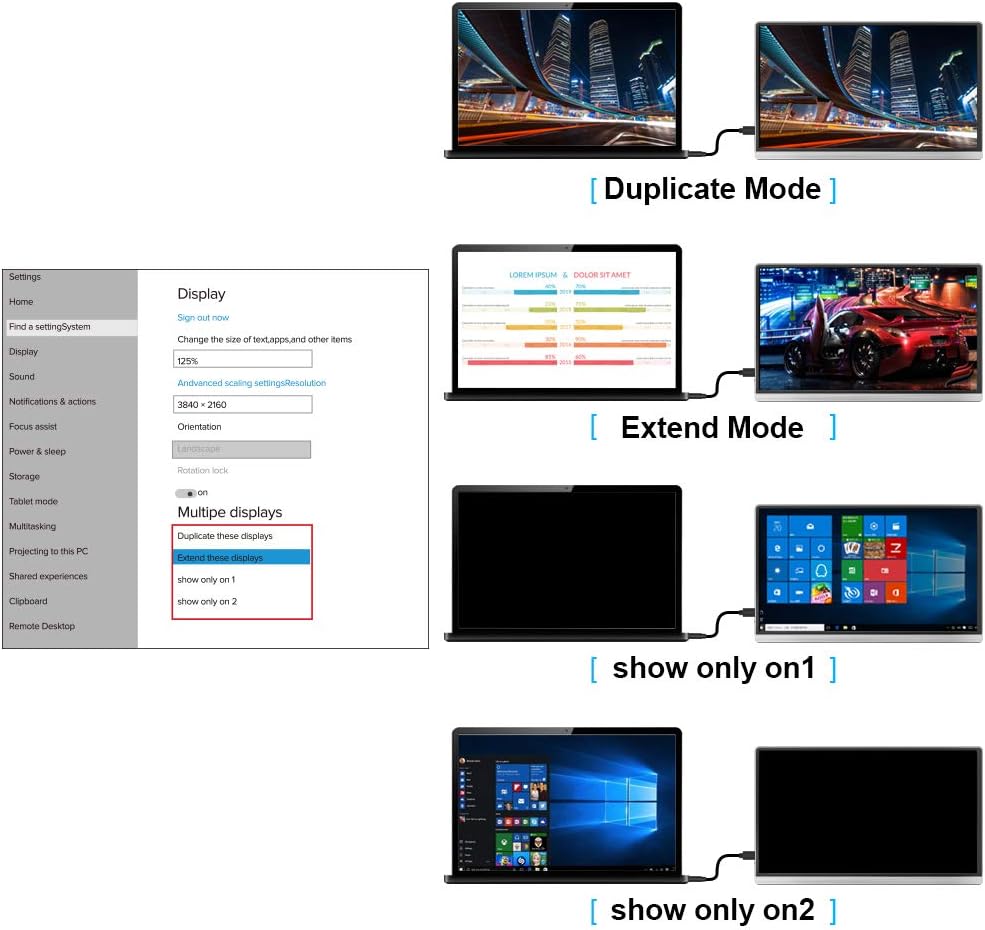
Figure 5.4: Display Modes

Figure 5.5: Dual Monitor Productivity Setup
5.3 On-Screen Display (OSD) Menu
The OSD menu allows you to adjust various monitor settings. Refer to the physical buttons on the side of your monitor for navigation. Common adjustable settings include:
- Brightness and Contrast
- Color Temperature
- Volume Control
- Input Source Selection
- HDR Mode

Figure 5.6: Entertainment Use Case
6. Maintenance
To ensure the longevity and optimal performance of your UCMDA portable monitor, follow these maintenance guidelines:
- Cleaning the Screen:
- Always power off the monitor before cleaning.
- Use a soft, lint-free cloth (microfiber is recommended).
- For stubborn marks, lightly dampen the cloth with water or a screen-specific cleaning solution. Never spray liquid directly onto the screen.
- Avoid using harsh chemicals, alcohol, or abrasive materials, as these can damage the screen surface.
- Cleaning the Casing: Use a soft, dry cloth to wipe the exterior casing.
- Storage: When not in use, store the monitor in its protective case to prevent scratches and dust accumulation. Avoid placing heavy objects on top of the monitor.
- Environmental Conditions: Keep the monitor away from extreme temperatures, direct sunlight, and high humidity.
- Cable Care: Handle cables gently. Avoid bending or twisting them sharply, which can cause internal damage.
7. Troubleshooting
If you encounter issues with your monitor, refer to the following common problems and solutions:
7.1 No Signal / Black Screen
- Check Power: Ensure the monitor is receiving power. If using a single USB-C cable, confirm your device's USB-C port supports power delivery. Otherwise, connect the external power adapter.
- Check Cables: Verify that all video cables (USB-C or Mini HDMI) are securely connected to both the monitor and your source device. Try re-seating them.
- Input Source: Use the OSD menu to manually select the correct input source (USB-C or HDMI).
- Device Compatibility: Confirm your source device's USB-C port supports video output (DP Alt Mode). Not all USB-C ports have this capability.
- Restart Devices: Try restarting your source device (laptop, phone, console).
- Test with Another Device/Cable: If possible, test the monitor with a different compatible device or a different cable to isolate the issue.
7.2 Dim or Unclear Picture
- Adjust Brightness/Contrast: Access the OSD menu to increase brightness and contrast settings.
- Resolution: Ensure your source device is outputting at the monitor's native resolution (1920x1080).
- Cable Quality: A faulty or low-quality cable can affect picture clarity. Try a different cable.
- HDR Setting: If HDR is enabled on your source device but not properly supported or configured, it might affect image quality.
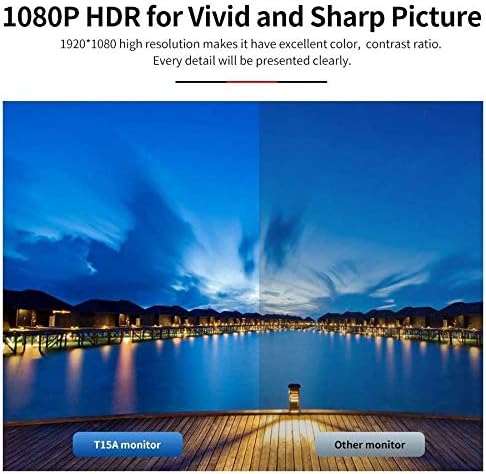
Figure 7.1: 1080P HDR for Vivid Picture
7.3 No Audio from Speakers
- Volume Level: Check the monitor's volume setting in the OSD menu and ensure your source device's volume is not muted or too low.
- Audio Output: Ensure your source device is configured to output audio through the connected display (the portable monitor).
- Cable Connection: Verify the video cable (USB-C or HDMI) is properly connected, as these carry audio signals.
7.4 Monitor Not Detected by Laptop/PC
- Display Settings: On your laptop/PC, go to display settings and click "Detect" or "Identify" displays.
- Driver Updates: Ensure your graphics drivers on your laptop/PC are up to date.
- USB-C Functionality: Reconfirm that your laptop's USB-C port supports video output (DP Alt Mode).
8. Specifications
| Feature | Detail |
|---|---|
| Brand | UCMDA |
| Model Number | HBY-497-15.6 |
| Screen Size | 15.6 Inches |
| Display Technology | IPS LCD |
| Resolution | 1920 x 1080 (Full HD 1080p) |
| Refresh Rate | 60 Hz |
| Response Time | 3 Milliseconds |
| Brightness | 250 cd/m² |
| Contrast Ratio | 800:1 |
| Viewing Angle | 178 Degrees (Horizontal/Vertical) |
| Aspect Ratio | 16:9 |
| Color Support | 16.7 Million (8-bit), 72% colors |
| Hardware Interface | 2x USB Type-C, 1x Mini HDMI, 1x USB (for peripherals), 1x 3.5mm Audio Jack |
| Special Features | Built-In Speakers, Portable, HDR Support |
| Product Dimensions | 36 x 22 x 1 cm (14.17 x 8.66 x 0.39 inches) |
| Weight | 1.39 kg (3.06 lbs) / Approximately 750g (1.65 lbs) for monitor only |
| Batteries Required | No (external power or USB-C PD required) |
9. Warranty and Support
UCMDA provides professional technical support and high-quality after-sales service for this product.
- Warranty Information: Specific warranty duration and terms may vary by region. Please refer to the warranty card included with your product or contact UCMDA customer support for details.
- Customer Support: For any issues, questions, or technical assistance, please contact UCMDA customer service. Contact information can typically be found on the product packaging, the official UCMDA website, or through your purchase platform.
- Online Resources: Visit the official UCMDA website for FAQs, driver updates (if applicable), and additional support resources.


