
1. Product Overview
The DOCKCASE Visual Smart M.2 NVMe SSD Enclosure is designed to provide high-speed data transfer and robust data protection for M.2 NVMe SSDs. It features a unique HD screen that displays real-time SSD status, including health, lifespan, power cycles, and remaining capacity. With support for 10Gbps data transfer and 10-second Power Loss Protection (PLP), this enclosure ensures both performance and data integrity.

Image: The DOCKCASE Visual Smart M.2 NVMe SSD Enclosure, showcasing its sleek design and the integrated display, alongside its accompanying USB-C cables.
2. Key Features
- Visual Smart Screen: Detects and displays SSD status (health, lifespan, power cycles, remaining capacity) upon power-on.
- 10-Second Power Loss Protection (PLP): Provides approximately 5 seconds of writing time after power failure to prevent data loss and disk damage.
- 10 Gbps High-Speed Transfer: Utilizes Realtek RTL9210 control chip and USB 3.1 Gen 2 Type-C interface, supporting UASP acceleration protocol for speeds up to 10Gbps.
- Dual Heat Dissipation: Features smart temperature control and a graphite thermal pad for efficient heat dissipation, extending SSD lifespan.
- Wide Compatibility: Supports NVMe PCIe M.2 SSDs of sizes 2230, 2242, 2260, 2280, and M-Key/B+M Key UASP, up to 2TB capacity.

Image: The enclosure's innovative visual smart screen, showing detailed SSD information and status indicators.

Image: A visual representation of the 10-second power loss protection in action, indicating data protection during unexpected power outages.
3. Package Contents
Please verify that all items are present in your package:
- DOCKCASE Visual Smart M.2 NVMe SSD Enclosure
- USB-C to USB-C Cable
- USB-C to USB-A Adapter
- Screwdriver
- Spare Screws
- Thermal Pad
4. Setup Guide
Installing an M.2 NVMe SSD
Follow these steps to install your M.2 NVMe SSD into the enclosure:
- Loosen the screw on the back cover of the enclosure.
- Gently slide and fully insert your M.2 NVMe SSD into the PCB slot at an angle of 30 degrees.
- Tighten the screw to secure the SSD in place.
- Replace and tighten the screw on the back cover to close the enclosure.

Image: Step-by-step instructions for SSD installation, from loosening the cover to securing the drive.
5. Operating Instructions
Display Functions
The integrated HD screen provides various information and navigation options:
- Double Click Side Button: Rotates the display by 90 degrees.
- Long Press Side Button: Switches between different information pages (SSD Info, About Me, Monitor).
- Short Press Side Button (Function Pages): Returns to the main page or switches options within the 'About Me' page.
- Long Press for 3 Seconds (Function Pages): Applies or modifies options indicated by the cursor.
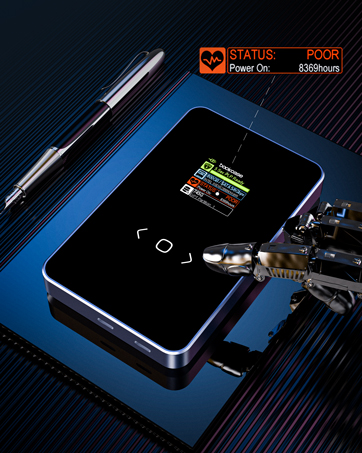
Image: A detailed view of the enclosure's display, showing real-time monitoring of SSD temperature, status, and other vital statistics.
Data Transfer
Connect the enclosure to your computer using the provided USB-C cable. The enclosure supports up to 10Gbps transfer speeds, making it suitable for large file transfers, running applications, or backing up data.

Image: The enclosure connected to a laptop, demonstrating its capability for high-speed data transfer at 10Gbps.
Power Loss Protection (PLP)
The built-in 10-second PLP feature uses onboard supercapacitors to sustain power to the SSD, allowing data in the SSD's cache buffer to be written to flash memory and mapping tables updated in case of sudden power loss. This minimizes the risk of data corruption.

Image: The enclosure displaying its Power Loss Protection status, indicating when it's charging and actively protecting data.
Auxiliary Power Supply
For SSDs that require more power than a standard USB port can provide, the enclosure supports an optional 15W auxiliary power supply. This prevents performance issues or boot failures due to insufficient power.

Image: A comparison showing the enclosure's performance with and without the 15W auxiliary power supply, highlighting improved stability with external power.
Read-Only Mode
The enclosure supports a read-only mode to protect sensitive data from accidental changes or malicious software. This feature ensures data integrity when you only need to access information without modifying it.

Image: A user accessing data from the enclosure in read-only mode, indicated by a lock icon on the display.
6. Maintenance
Heat Dissipation
The DOCKCASE enclosure is designed with dual heat dissipation mechanisms, including aluminum alloy fins and a graphite thermal pad. These components work together to maximize heat dissipation and airflow, which helps reduce SSD temperature by up to 20% and ensures stable performance and extended lifespan for your SSD.

Image: An exploded diagram illustrating the aluminum alloy fins and graphite thermal pad, key components for effective heat dissipation.
General Care
To ensure the longevity and optimal performance of your enclosure, keep it clean and free from dust. Use a soft, dry cloth for cleaning. Avoid exposing the device to extreme temperatures, humidity, or direct sunlight. Handle with care to prevent physical damage.
7. Troubleshooting
Common Issues
- SSD Not Detected or Performance Issues: Ensure the SSD is fully seated and secured. If using a high-power SSD, connect an auxiliary 15W power supply to prevent power insufficiency from the host USB port.
- Display Not Working: Check the USB connection. Ensure the enclosure is receiving sufficient power.
- Slow Transfer Speeds: Verify that your host device's USB port supports USB 3.2 Gen 2 (10Gbps). Ensure the cable is properly connected. For Linux systems, disabling UASP might be necessary for some configurations, though this may halve throughput.
- Enclosure Feels Warm: This is normal during operation, especially during heavy data transfer, due to efficient heat dissipation. The design actively moves heat away from the SSD.
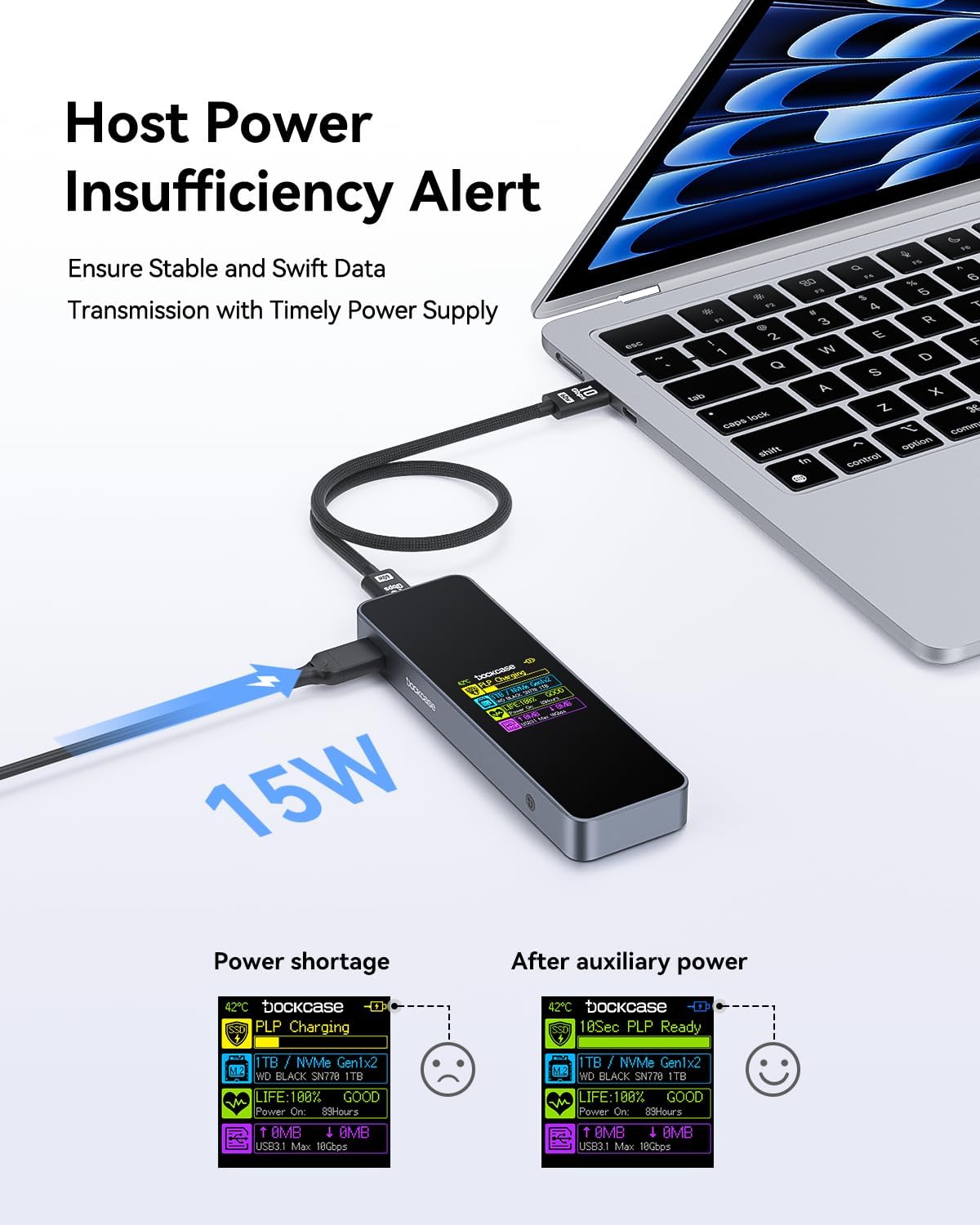
Image: The enclosure connected to a laptop, displaying a 'Host Power Insufficiency Alert' and suggesting auxiliary power for stable data transmission.
8. Specifications
| Feature | Detail |
|---|---|
| Model Number | US-10S |
| Memory Storage Capacity | Up to 2 TB (Supports up to 4TB as per A+ content) |
| Compatible Devices | Laptop, PC, Mac, Linux |
| Hard Disk Form Factor | M.2 (2230/2242/2260/2280) |
| Data Transfer Rate | 10 Gigabits Per Second (USB 3.2 Gen 2) |
| Hardware Interface | USB Type-C |
| Material | Aluminum |
| Product Dimensions | 5 x 1.5 x 0.55 inches |
| Item Weight | 3.53 ounces (100 Grams) |
Compatibility
The enclosure is compatible with NVMe PCIe M.2 SSDs of various sizes (2230, 2242, 2260, 2280) and supports M-Key and B+M Key interfaces. It is not compatible with B-Key (NGFF/SATA) M.2 SSDs.

Image: A visual guide to compatible M.2 NVMe SSD sizes (2230, 2242, 2260, 2280) and supported M-Key and B+M Key interfaces.
Recommended SSDs (Not a complete list):

Image: A partial list of SSD brands and models that are recommended for use with the DOCKCASE enclosure.
Not Recommended SSDs:

Image: A partial list of SSD brands and models that are not recommended for use with the DOCKCASE enclosure.
9. Warranty and Support
DOCKCASE provides 12-months product support after purchase. For any inquiries or assistance, please contact our customer service team.
Customer Service: amazon@dockcase.com

Image: Information regarding DOCKCASE's customer service and 12-month product support.


