
DeLUX M800PRO 3370
Contents
DeLUX M800PRO Wireless Gaming Mouse User Manual
Model: M800PRO 3370
Introduction
This user manual provides comprehensive instructions for the DeLUX M800PRO Wireless Gaming Mouse. It covers setup, operation, maintenance, and troubleshooting to ensure optimal performance and longevity of your device. The DeLUX M800PRO is designed for both gaming and professional use, offering high precision, versatile connectivity, and customizable features.
What's in the Box
- DeLUX M800PRO Wireless Gaming Mouse
- USB-C Charging Cable
- USB Receiver (2.4G)
- User Manual (this document)
- Replacement PTFE Feet
Key Features
Ultra-Lightweight Design
Weighing just 70 grams, the M800PRO minimizes fatigue during extended use. Its ambidextrous shape supports various grip styles, including claw and fingertip, for enhanced control and comfort.

The DeLUX M800PRO mouse is designed for comfortable use with both claw and fingertip grip styles, as demonstrated by a hand holding the mouse.
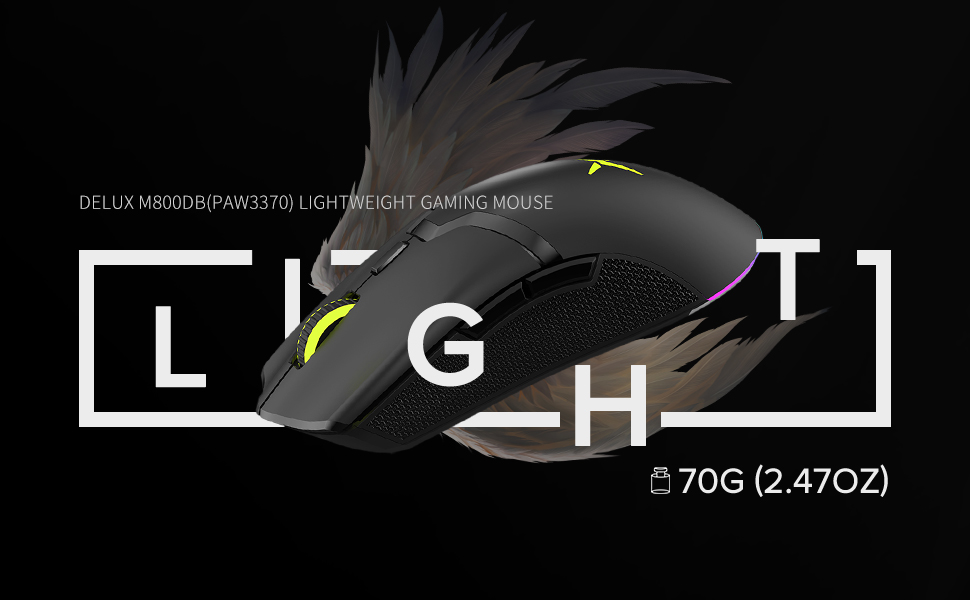
The mouse is exceptionally lightweight at 70 grams, contributing to agile and comfortable handling.
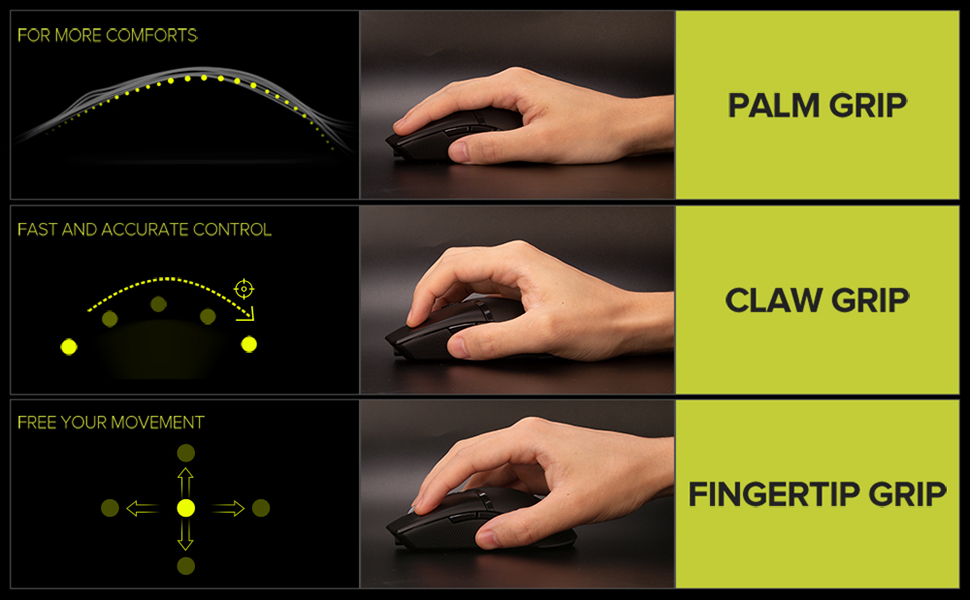
Visual representation of different ergonomic grip styles supported by the mouse: palm, claw, and fingertip.
Multi-Device Connectivity
The M800PRO offers versatile connection options: wired USB-C, 2.4G wireless, and Bluetooth 5.0. It can pair with up to 4 devices, making it suitable for various environments and workflows.

The mouse supports tri-mode connection (2.4G wireless, Bluetooth, and wired USB-C) for flexible use across different devices.
High Precision PAW3370 Sensor
Equipped with the PAW3370 optical tracking sensor, the mouse provides exceptional precision with adjustable DPI settings (800/1600/3200/8000/19000), 400 IPS tracking speed, 50g acceleration, and a 1000Hz refresh rate.

The bottom of the mouse highlights the PAW3370 sensor, indicating high precision with 19000 DPI, 400 IPS, and 1000 Refresh Rate.
Customizable Performance
Utilize the onboard memory and driver to customize 6 programmable buttons for lighting, DPI, parameters, LOD (Lift-Off Distance), and macro settings. A battery capacity indicator is also included.

An illustration detailing the six programmable buttons (G1-G6) on the DeLUX M800PRO mouse.
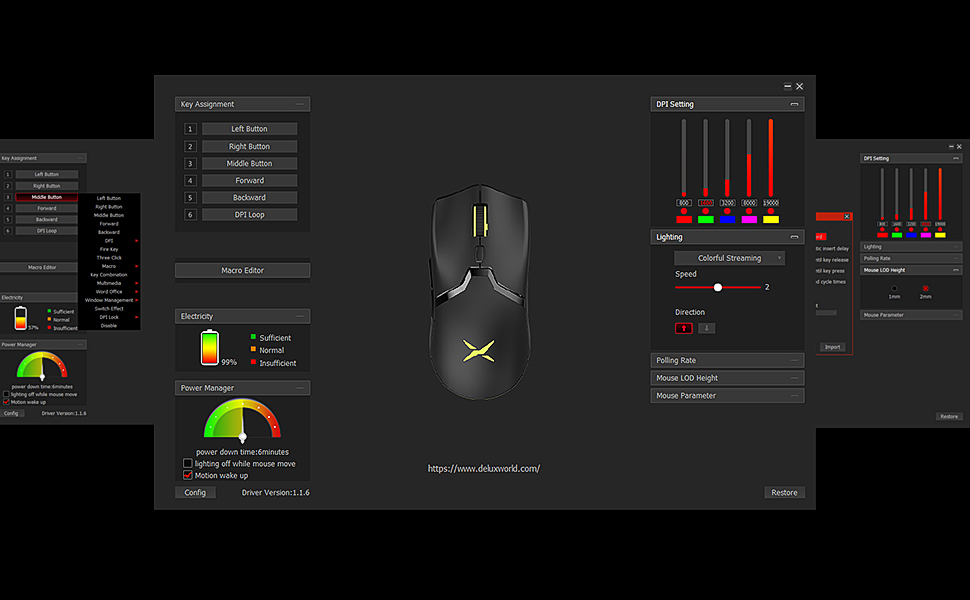
The mouse's software interface allows for comprehensive customization of buttons, lighting, DPI, and other settings.
Advanced Components
Features Kailh GM 8.0 switches for durability and crisp feedback, a TTC wheel encoder for smooth scrolling, PTFE feet for low friction, and anti-slip side patterns for a secure grip.

A close-up view of the Kailh GM 8.0 Micro Switch, highlighting its precise trigger and crisp feedback.

The TTC Wheel Encoder ensures fast, accurate, and consistent scroll feedback.
Long Battery Life
Enjoy up to 56 hours of playtime on a single charge thanks to the built-in rechargeable battery. The mouse includes a charging indicator and a battery indicator that blinks when capacity is low.

The mouse features a USB-C charging port and indicators for charging status and low battery.
Setup
Initial Charging
Before first use, fully charge the mouse using the provided USB-C cable. Connect the USB-C end to the mouse and the USB-A end to a computer's USB port or a compatible USB wall adapter. The charging indicator will show charging status.
Connection Modes
The DeLUX M800PRO supports three connection modes:
- 2.4G Wireless:
Insert the 2.4G USB receiver into an available USB port on your computer. Turn on the mouse. The mouse should automatically connect. This mode offers a stable and fast connection ideal for gaming.
- Bluetooth 5.0:
Ensure your computer's Bluetooth is enabled. Put the mouse into Bluetooth pairing mode (refer to the mouse's physical switch or button combination for Bluetooth mode). Search for "DeLUX M800PRO" in your computer's Bluetooth settings and pair. This mode is suitable for general use and connecting to multiple devices.
- Wired USB-C:
Connect the mouse directly to your computer using the USB-C cable. This mode provides a direct, lag-free connection and simultaneously charges the mouse.
Operating Instructions
DPI Adjustment
The mouse features a dedicated DPI button (usually located behind the scroll wheel) to cycle through preset DPI levels (800/1600/3200/8000/19000). Press the button to switch between sensitivities. The current DPI level may be indicated by LED color changes (refer to software for specific mappings).
Official product video demonstrating the DeLUX M800PRO Wireless Gaming Mouse features, including its PAW 3370 sensor and customizable options. This video is provided by the seller, Delux Technology Co., Ltd.
Programmable Buttons
The 6 programmable buttons (Left, Right, Middle, Forward, Backward, DPI Loop) can be customized using the DeLUX software. Download the official software from the DeLUX website (refer to the product packaging or official website for the download link). The software allows you to:
- Reassign button functions.
- Create and assign macros.
- Adjust RGB lighting effects.
- Fine-tune DPI settings and LOD.
- Manage polling rate.
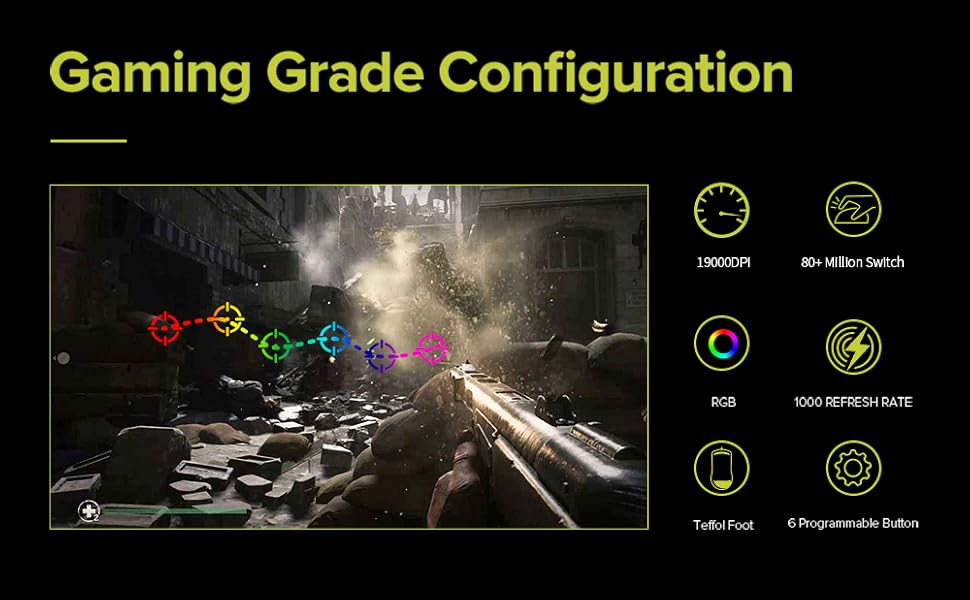
An overview of the mouse's gaming-grade features, including its high DPI, durable switches, RGB lighting, and programmable buttons.
Maintenance
- Cleaning: Use a soft, dry cloth to clean the mouse surface. For stubborn dirt, slightly dampen the cloth with water. Avoid harsh chemicals or abrasive materials.
- Sensor Care: Keep the optical sensor on the underside of the mouse clean and free of dust or debris to ensure accurate tracking.
- Battery Care: To prolong battery life, avoid fully discharging the mouse frequently. Charge it when the low battery indicator blinks.
- Storage: Store the mouse in a cool, dry place away from direct sunlight and extreme temperatures.
Troubleshooting
| Problem | Possible Cause | Solution |
|---|---|---|
| Mouse not responding (Wireless) | Low battery; USB receiver not connected; Incorrect mode; Interference. | Charge the mouse; Ensure USB receiver is securely plugged in; Switch to 2.4G or Bluetooth mode; Move receiver closer to mouse or away from other wireless devices. |
| Mouse not responding (Bluetooth) | Not paired; Bluetooth off on device; Low battery. | Enter pairing mode and re-pair; Enable Bluetooth on your device; Charge the mouse. |
| Inconsistent tracking | Dirty sensor; Unsuitable surface; Low battery. | Clean the optical sensor; Use on a clean, uniform mouse pad; Charge the mouse. |
| Buttons not working as expected | Software settings; Driver issue. | Check and reconfigure settings in the DeLUX software; Reinstall mouse drivers. |
| RGB lighting not working | Software settings; Low battery. | Adjust lighting settings in the DeLUX software; Charge the mouse. |
Specifications
| Feature | Detail |
|---|---|
| Model Number | M800PRO 3370 |
| Dimensions | 4.88 x 2.52 x 1.5 inches |
| Item Weight | 2.47 ounces (70 grams) |
| Sensor | PAW 3370 Optical Sensor |
| DPI Settings | 800/1600/3200/8000/19000 (Adjustable) |
| Tracking Speed | 400 IPS |
| Acceleration | 50g ACC |
| Refresh Rate | 1000 Hz |
| Switches | Kailh GM 8.0 (80 Million clicks lifespan) |
| Encoder | TTC Wheel Encoder |
| Connectivity | USB-C Wired, 2.4G Wireless, Bluetooth 5.0 |
| Battery Life | Up to 56 hours |
| Programmable Buttons | 6 |
| Feet Material | PTFE |
| Country of Origin | China |
Warranty and Support
DeLUX products come with a standard manufacturer's warranty. For specific warranty terms, duration, and support, please refer to the warranty card included with your product or visit the official DeLUX website. You can also contact DeLUX customer support for technical assistance or service inquiries.
Official Website: www.deluxworld.com
Documents and downloads
Ask a question about this manual
Ask about setup, troubleshooting, compatibility, parts, safety, or missing instructions. Manuals+ will review the question and use this page’s manual context to help answer it.