
Glorious GLO-GMMK2-96-RGB-B
Glorious GMMK 2 Gaming Keyboard Base - Full Size Barebones Kit User Manual
Model: GLO-GMMK2-96-RGB-B
Product Overview
The Glorious GMMK 2 Gaming Keyboard Base is a full-size, barebones mechanical keyboard kit designed for customization. It features hot-swappable switch sockets, RGB backlighting, and a durable metal build, allowing users to personalize their typing and gaming experience.
Key features include:
- 5-Pin Hotswap Versatility: Experience effortless switch customization with support for mechanical switches from Glorious, Cherry, Kailh, Gateron, Glorious Panda Switches, and more.
- Top-Grade Metal Build: Our modular keyboard base is designed with a sleek, low-profile look and a premium brushed finish. It provides robust coverage, ensuring maximum strength and durability.
- Immersive Sound Experience: Lubricated stabilizers deliver a consistent sound profile. The thick interior keyboard foam acts as a dampener, eliminating base ping.
- Vibrant RGB Illumination: Immerse yourself in a colorful world with a selection of 16.8 million RGB options. Effortlessly switch between 18 pre-installed lighting effects using shortcuts.
- Enhanced Compatibility: Engineered to adapt to your unique requirements, seamlessly working with Windows, Mac OS, and Linux. The removable USB-C cord streamlines connectivity.
Setup and Assembly
This section guides you through the assembly of your Glorious GMMK 2 keyboard base. As a barebones kit, switches and keycaps are sold separately and must be installed by the user.
1. Installing Mechanical Switches
The GMMK 2 supports 5-pin hot-swappable mechanical switches. Ensure the switch pins are straight before insertion to avoid damage.

Image: The Glorious GMMK 2 barebones keyboard base, showing the empty switch sockets and vibrant RGB underglow. This image illustrates the starting point for assembly.

Image: A close-up view of Glorious Panda mechanical switches, which are compatible with the GMMK 2's hot-swappable sockets. These switches provide a satisfying tactile feedback.
- Align the pins on the bottom of each mechanical switch with the corresponding holes on the keyboard's PCB (Printed Circuit Board).
- Gently press the switch down until it clicks into place. Ensure it is seated firmly and flush with the plate.
- Repeat for all desired keys.
2. Installing Keycaps
Once all switches are installed, you can attach your preferred keycaps.

Image: A fully assembled Glorious GMMK 2 keyboard featuring pink and purple keycaps and a matching coiled cable, demonstrating a customized setup. Keycaps and switches are sold separately.
- Align the cross-shaped stem on the underside of each keycap with the stem on the top of the installed switch.
- Press the keycap down firmly until it is securely attached.
- Repeat for all keys.
3. Connecting the Keyboard
Connect the keyboard to your computer using the provided USB-C cable.
- Insert the USB-C end of the cable into the port on the keyboard.
- Insert the USB-A end of the cable into an available USB port on your computer.
- The keyboard should be automatically recognized by your operating system.
Setup Video Guide
Video: This official Glorious PC Gaming video demonstrates how to customize the GMMK 2 keyboard with different switches and keycaps, providing a visual guide for the assembly process.
Operating Your Keyboard
The Glorious GMMK 2 offers various functionalities and customization options.
RGB Lighting Customization
The keyboard features vibrant RGB illumination with 16.8 million color options. You can switch between 18 pre-installed lighting effects using keyboard shortcuts. For advanced per-key backlighting customization and key remapping, use the Glorious Core software.
- Glorious Core Software: Requires Windows 7 or higher. Download from the official Glorious website.
- QMK Open-Source Configurator: For advanced users, QMK allows for custom keymaps.
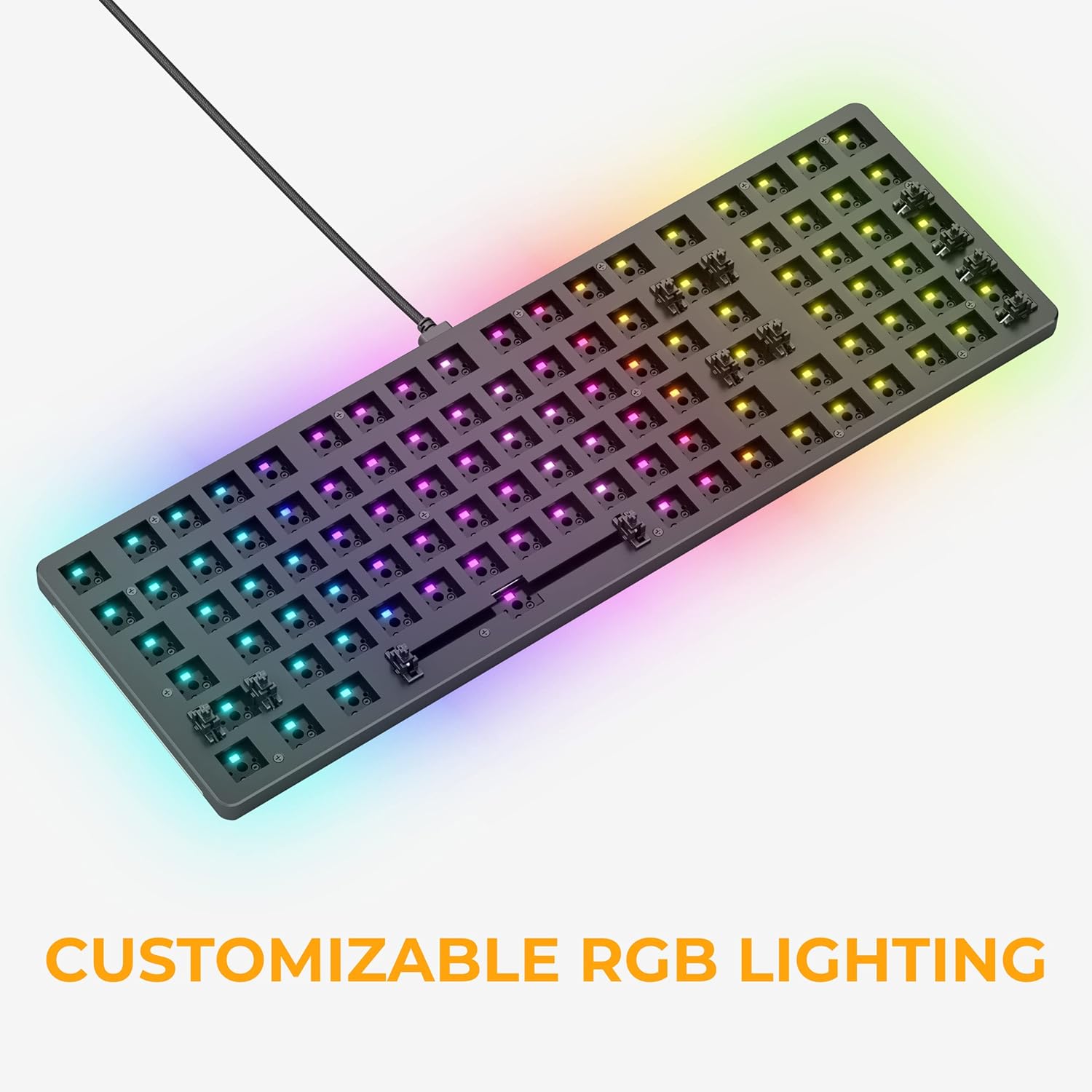
Image: The Glorious GMMK 2 keyboard showcasing its customizable RGB lighting, which can be adjusted to various colors and effects to match user preferences.
Compatibility
The GMMK 2 is engineered for broad compatibility:
- Operating Systems: Windows, Mac OS, Linux.
- Devices: Desktop PCs, Laptops, PS4, PS5, Xbox.
Maintenance
To ensure the longevity and optimal performance of your Glorious GMMK 2 keyboard, follow these maintenance tips:
- Regular Cleaning: Use compressed air to remove dust and debris from between keycaps. For deeper cleaning, remove keycaps and gently wipe the keyboard surface with a soft, damp cloth.
- Switch Care: The hot-swappable design allows for easy switch replacement. If a switch feels inconsistent, it can be replaced without soldering.
- Stabilizer Lubrication: The keyboard features lubricated stabilizers for a consistent sound profile. Over time, if the stabilizers begin to feel scratchy or sound different, re-lubrication may be considered by advanced users.
- Cable Management: Utilize the removable USB-C cable to prevent strain on the port and cable.
Troubleshooting
For common issues and solutions, please refer to the official Troubleshooting Guide:
Download Troubleshooting Guide (PDF)
If you encounter issues not covered in the guide, please contact Glorious customer support.
Specifications
| Feature | Detail |
|---|---|
| Brand | Glorious |
| Series | Glorious GMMK 2 Full Size Barebones ANSI - Black |
| Model Number | GLO-GMMK2-96-RGB-B |
| Hardware Platform | Laptop, Linux, PC |
| Operating System | Linux, Mac OS 9, Supported Gaming Console, Windows 10, Windows 11 |
| Item Weight | 2.76 pounds |
| Product Dimensions | 14.8 x 4.9 x 1.5 inches |
| Color | Black |
| Power Source | USB |
| Connectivity Technology | USB-C |
| Keyboard Description | Gaming |
| Recommended Uses | Gaming |
| Special Feature | 5-Pin Hot Swap Support |
| Number of Keys | 99 |
| Keyboard Backlighting | RGB |
Warranty and Support
Warranty Information
Glorious offers a 2-Year Warranty on all Glorious electronic devices. This includes hassle-free return and replacement for eligible products.
Customer Support
For any questions, concerns, or assistance with your Glorious GMMK 2 keyboard, please visit the official Glorious Store or contact their customer support team.
Related documentsGLO-GMMK2-96-RGB-B


Ask a question about this manual
Ask about setup, troubleshooting, compatibility, parts, safety, or missing instructions. Manuals+ will review the question and use this page’s manual context to help answer it.