1. Introduction
The NZXT C650 PSU is a high-quality, fully modular power supply unit designed to provide stable and efficient power to your computer system. This manual provides essential information for the proper installation, operation, maintenance, and troubleshooting of your C650 power supply.
Key Features:
- More Efficient: At 50% load and high-line input voltage, power conversion efficiency reaches 2% higher than 80 Plus Gold Standard.
- Fully Modular: Use only the cables you need to keep your system clean and organized. Black sleeved cables and a matte black finish seamlessly fit any PC style.
- Compatible and Highly-Tested: C series is built and tested with strict standards for trouble-free installation. It fits most ATX cases and supports the latest NVIDIA and AMD GPUs up to 30 series and AMD 6000 Series.
- More Precise and Error-Free: Micro controller (MCU) enabled protection mechanism monitors current and voltage and output wattage.
- Optimized and Silent: Gold PSU includes low thermal dissipation optimization with upgraded components and optimized circuit design.
2. Product Overview
The NZXT C650 PSU is designed with a sleek, matte black finish and a compact form factor to integrate seamlessly into various PC builds. Its fully modular design allows for clean cable management.

Figure 2.1: Front-side view of the NZXT C650 Power Supply Unit.
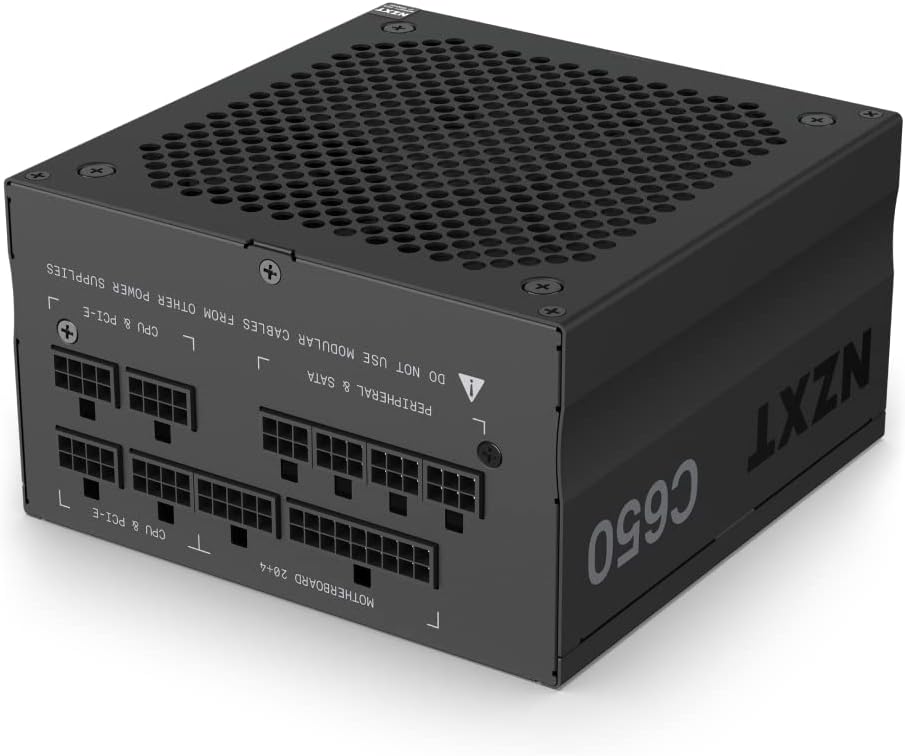
Figure 2.2: Modular cable connection ports on the NZXT C650 PSU. These ports allow you to connect only the necessary cables for your system.

Figure 2.3: Rear view of the NZXT C650 PSU, showing the AC power inlet and the main power switch.

Figure 2.4: Top view of the NZXT C650 PSU, highlighting the fan grill for optimal airflow and cooling.
3. Setup and Installation
Before beginning installation, ensure your computer system is powered off and unplugged from the wall outlet. Always handle components with care and refer to your PC case and motherboard manuals for specific installation guidelines.
Installation Steps:
- Mount the PSU: Secure the NZXT C650 PSU into the designated power supply bay of your PC case using the provided screws. Ensure the fan is oriented correctly for optimal airflow (typically facing downwards or upwards, depending on case design).
- Connect Modular Cables: Identify the necessary cables for your motherboard (24-pin ATX, 8-pin CPU), graphics card(s) (PCIe), and peripherals (SATA, Molex). Connect these cables to the corresponding modular ports on the PSU.
- Route Cables: Route the connected cables through your case's cable management channels to their respective components. This helps improve airflow and aesthetics.
- Connect to Components: Plug the 24-pin ATX cable into your motherboard, the 8-pin CPU cable into the CPU power header, and PCIe cables into your graphics card(s). Connect SATA and Molex cables to your storage drives and other peripherals.
- Secure Connections: Ensure all cable connections are firmly seated to prevent power delivery issues.
- Power On: Once all connections are secure, plug the AC power cord into the PSU and a wall outlet. Flip the power switch on the back of the PSU to the 'ON' position. You can now power on your computer system.

Figure 3.1: The NZXT C650 PSU installed within a computer case, demonstrating its compact fit and modular cable connections.
4. Operation
The NZXT C650 PSU is designed for efficient and quiet operation. Its 80 Plus Gold certification ensures high power efficiency, reducing wasted energy and heat generation. The optimized circuit design and low thermal dissipation contribute to its silent performance, even under load.
The micro-controller (MCU) enabled protection mechanism continuously monitors current, voltage, and output wattage, providing stable and safe power delivery to your components. This intelligent monitoring helps prevent damage from power fluctuations.
5. Maintenance
Proper maintenance can extend the lifespan of your power supply and ensure optimal performance.
- Dust Removal: Periodically clean dust from the PSU's fan and ventilation grilles using compressed air. Ensure the system is powered off and unplugged before cleaning.
- Airflow: Ensure your PC case has adequate airflow to prevent heat buildup around the PSU. Avoid blocking the PSU's intake or exhaust vents.
- Cable Management: Maintain tidy cable management to prevent cables from obstructing airflow within the case.
6. Troubleshooting
If you encounter issues with your NZXT C650 PSU, refer to the table below for common problems and solutions.
| Issue | Possible Cause / Solution |
|---|---|
| Power Supply Not Turning On |
|
| System Instability or Crashes |
|
| Excessive Fan Noise |
|
If the issue persists after attempting these solutions, please contact NZXT customer support for further assistance.
7. Specifications
Detailed specifications for the NZXT C650 PSU (Model: PA-6G1BB-US):
| Feature | Detail |
|---|---|
| Brand | NZXT |
| Model Name | PA-6G1BB-US |
| Output Wattage | 650 Watts |
| Form Factor | ATX |
| Efficiency Rating | 80 Plus Gold Certified |
| Modularity | Fully Modular |
| Cooling Method | Air |
| Item Weight | 4 Pounds |
| Product Dimensions (LxWxH) | 9 x 5 x 13 inches |
| Compatible Devices | Personal Computer, Monitor |
8. Warranty and Support
NZXT products are backed by a manufacturer's warranty. For specific warranty terms and conditions applicable to your C650 PSU, please refer to the warranty information included with your product packaging or visit the official NZXT website.
For technical support, troubleshooting assistance beyond this manual, or warranty claims, please contact NZXT customer support through their official website:
Please have your product model number (PA-6G1BB-US) and serial number ready when contacting support.


