
1. Introduction
Thank you for choosing the DIHOOM Wireless Outdoor Security Camera expansion unit. This camera is designed to be added to an existing DIHOOM wireless security camera system (ASIN: B09YRCF943). It features 5-megapixel (2K) resolution, advanced AI face and human detection, full-color night vision, two-way audio communication, and an IP66 weatherproof rating for reliable outdoor surveillance. Please read this manual carefully before installation and operation to ensure proper use and optimal performance.
2. Safety Information
- Ensure the power adapter (sold separately) is compatible with the camera's power requirements and local electrical standards.
- Do not expose the camera to extreme temperatures outside its operating range.
- Avoid placing the camera near strong electromagnetic fields.
- Do not attempt to disassemble or modify the camera. This will void the warranty.
- Mount the camera securely to prevent accidental falls.
- Keep the camera and its accessories out of reach of children.
3. Package Contents
Please check the package for the following items:
- DIHOOM Wireless Outdoor Security Camera Unit
- Mounting Screws and Wall Plugs
- Waterproof Cap for Network Cable (if applicable)
- Quick Start Guide
Note: A power adapter is not included and must be purchased separately. This camera is an expansion unit and requires an existing DIHOOM wireless security camera system (ASIN: B09YRCF943) to function.
4. Product Overview
The DIHOOM Wireless Outdoor Security Camera features a robust design suitable for outdoor environments. Key components include the camera lens, infrared LEDs, white LED lights for full-color night vision, a microphone, a speaker for two-way audio, and an antenna for wireless connectivity.

Image: DIHOOM Wireless Outdoor Security Camera showing its main body and white LED lights. The camera is white with a black lens area and two prominent white LED lights on the front. An antenna extends from the top.
5. Setup
5.1. Mounting the Camera
- Choose a suitable outdoor location that provides the desired viewing angle and is within range of your DIHOOM NVR/system's Wi-Fi signal.
- Use the included mounting screws and wall plugs to securely attach the camera bracket to a wall or ceiling. Ensure the camera is stable.
- Adjust the camera's angle for optimal coverage. The antenna is foldable for flexible positioning.

Image: A diagram illustrating the simple installation process, showing the camera mounted on a wall and its foldable antenna being adjusted. Another part of the image shows a multi-camera setup connected to a monitor.
5.2. Power Connection
Connect a compatible 12V DC power adapter (not included) to the camera's power input. Ensure the connection is secure and protected from moisture, especially for outdoor installations.
5.3. Adding to Your DIHOOM System
This camera is designed to be an expansion unit for the DIHOOM wireless security camera set (ASIN: B09YRCF943). Refer to your main DIHOOM NVR system's manual for specific instructions on how to add new cameras. Generally, this involves:
- Power on the new camera.
- Access the NVR's camera management interface.
- Initiate the 'Add Camera' or 'Pair Camera' function. The NVR will automatically search for and connect to the new camera.
- Once connected, the camera's live feed should appear on your NVR monitor or linked mobile application.
6. Operating Instructions
6.1. Live View and Recording
Access the live video feed through your DIHOOM NVR or the dedicated smartphone application. The system supports various recording modes:
- Continuous Recording: Records 24/7.
- Motion Detection Recording: Records only when motion is detected.
- Scheduled Recording: Records during specific time periods.

Image: A smartphone screen displaying the DIHOOM app interface, showing options for recording modes (continuous, motion detection, alarm recording) and user management settings.
6.2. Night Vision Modes
The camera offers two night vision modes:
- Infrared Night Vision: Provides clear black and white images in complete darkness using infrared LEDs.
- Full-Color Night Vision: Utilizes built-in white LED lights to illuminate the area, providing vivid full-color video even in low-light conditions. This mode can be activated automatically upon detection of an intruder. The night vision range is up to 20 meters.
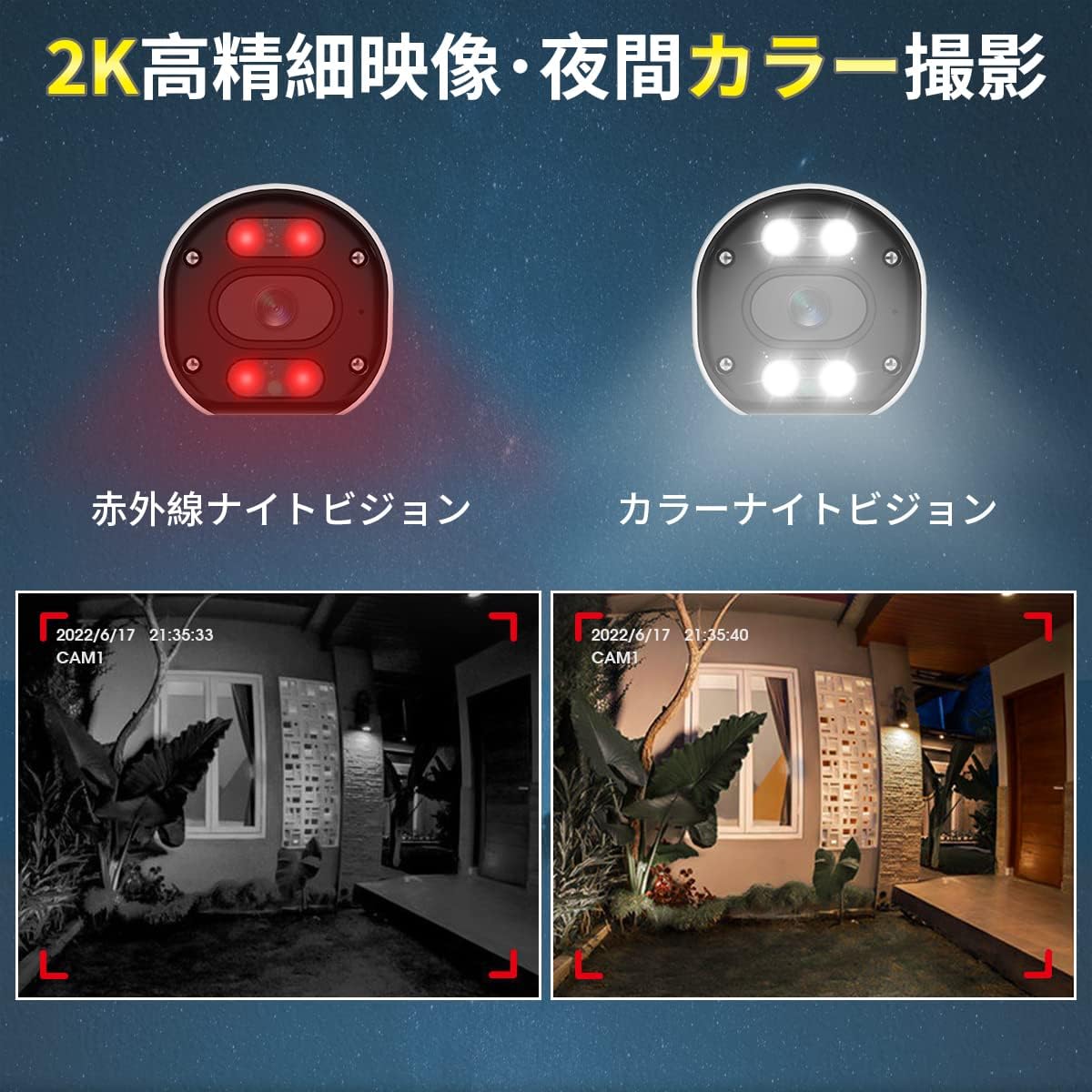
Image: A split image comparing infrared night vision (monochrome) and full-color night vision footage from the camera, demonstrating the clarity and color retention of the latter.
6.3. Two-Way Audio
The camera is equipped with a built-in microphone and speaker, enabling two-way audio communication. Through the mobile app, you can listen to the camera's surroundings and speak through the camera's speaker. This feature is useful for deterring intruders or communicating with visitors.

Image: An illustration showing a person at a door communicating with someone via the camera's two-way audio feature. Another section highlights the camera's IP66 waterproof design under rain.
6.4. AI Detection Features
The camera integrates advanced AI for enhanced security:
- AI Human Detection: Accurately identifies human movement, significantly reducing false alarms triggered by animals, insects, or swaying trees (up to 99% false alarm reduction). When a human is detected, you will receive instant app notifications.
- AI Face Recognition: The system can detect and identify faces from recorded footage. You can register up to 10,000 faces and search for specific individuals' video clips. Up to 8 faces can be detected simultaneously.
- Sound and Light Alarm: Upon detecting an intruder, the camera can activate a 110dB siren and flash its 200LM white LED lights to deter unwanted visitors. This feature is configurable via the app.

Image: A diagram illustrating AI human detection, where a person entering a monitored area triggers an app notification, a sound siren, and flashing white lights from the camera.

Image: An illustration demonstrating AI face recognition, showing a face being detected and highlighted, with a note indicating simultaneous detection of up to 8 people and registration of up to 10,000 faces.
6.5. Detection Area and Sensitivity
You can customize the detection area and adjust the sensitivity of motion detection to suit your specific surveillance needs. This helps to focus monitoring on critical zones and further reduce unwanted alerts.

Image: A diagram showing a person walking into a defined 'alert area' with a 'warning line'. Below, a slider indicates 6 levels of detection sensitivity, allowing users to fine-tune the camera's responsiveness.
7. Maintenance
- Cleaning: Regularly clean the camera lens with a soft, dry cloth to ensure clear image quality. Do not use harsh chemicals.
- Firmware Updates: Check the DIHOOM app or website periodically for firmware updates. Keeping your camera's firmware up-to-date ensures optimal performance and access to new features.
- Cable Inspection: Periodically inspect power and network cables for any signs of wear or damage, especially in outdoor installations.
8. Troubleshooting
- No Image/Offline:
- Ensure the camera is properly powered on.
- Check the Wi-Fi connection between the camera and the NVR.
- Verify the camera is correctly added to your DIHOOM NVR system.
- Restart the camera and NVR.
- Poor Image Quality:
- Clean the camera lens.
- Ensure there are no obstructions in front of the lens.
- Check for strong light sources directly facing the camera.
- Verify the camera's resolution settings in the app/NVR.
- Frequent False Alarms:
- Adjust the motion detection sensitivity to a lower level.
- Define a specific detection area to exclude irrelevant zones (e.g., swaying trees, busy roads).
- Ensure AI human detection is enabled.
- Two-Way Audio Issues:
- Check microphone and speaker volume settings in the app.
- Ensure there are no physical obstructions blocking the microphone or speaker.
- Verify network stability for real-time audio transmission.
9. Specifications
| Feature | Specification |
|---|---|
| Model Number | B09YYB1261 |
| Brand | DIHOOM |
| Video Resolution | Up to 5 Megapixel (2K / 1440p) |
| Image Sensor | SONY CMOS Sensor |
| Connectivity | Wireless (Wi-Fi) |
| Night Vision | Infrared Night Vision, Full-Color Night Vision (20m range) |
| Audio | Two-Way Talk (Built-in Mic & Speaker) |
| Detection Features | AI Human Detection, AI Face Recognition, Motion Sensor |
| Alarm | 110dB Siren, 200LM White Light Alarm |
| Weatherproof Rating | IP66 Dustproof and Waterproof |
| Lightning Protection | 4KV |
| Compatible Devices | Smartphone (via app), DIHOOM NVR System (ASIN: B09YRCF943) |
| Dimensions | 19.6 x 10.9 x 9.7 cm |
| Weight | 430 g |
10. Warranty and Support
DIHOOM products come with a standard manufacturer's warranty. For specific warranty terms and conditions, please refer to the warranty card included with your original DIHOOM NVR system or visit the official DIHOOM website. For technical support, troubleshooting assistance, or any inquiries, please contact DIHOOM customer service through the contact information provided on the official website or within your product packaging.


