
MAIWO 2 Bay - HUB
MAIWO Dual Bay Hard Drive Docking Station User Manual
Model: 2 Bay - HUB
1. Introduction
The MAIWO Dual Bay Hard Drive Docking Station is a versatile device designed for efficient data management, including backup, transfer, and cloning of 2.5-inch and 3.5-inch SATA HDDs and SSDs. It features high-speed USB 3.0 connectivity and an offline cloning function, making it an ideal solution for both personal and professional use.

Image: The MAIWO Dual Bay Hard Drive Docking Station, showcasing its capacity for two hard drives and integrated USB 3.0 ports.
2. What's in the Box
Please verify that all items are present and in good condition upon opening the package:
- 1x 2.5/3.5 inch SATA Hard Drive Reader Cloner
- 1x USB-B to USB-A Data Cable
- 1x 12V 3A Power Adapter
- 1x User Manual
3. Setup Instructions
3.1 Connecting the Docking Station
- Connect Power: Plug the 12V 3A power adapter into the DC 12V port on the back of the docking station, then plug the adapter into a power outlet.
- Connect to Computer (Optional for Offline Clone): Connect the USB-B end of the provided USB 3.0 cable to the USB 3.0 port on the back of the docking station. Connect the USB-A end to an available USB 3.0 port on your computer.
- Insert Hard Drives:
- Ensure the docking station is powered off before inserting drives.
- Gently slide your 2.5-inch or 3.5-inch SATA HDD/SSD into the drive slots until securely seated. The slots are designed to accommodate both sizes.
- Power On: Flip the ON/OFF switch on the back of the docking station to the 'ON' position. The power indicator light will illuminate.
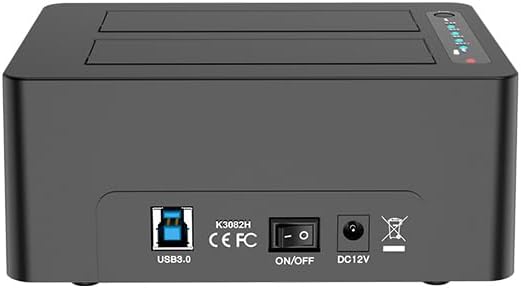
Image: Rear panel of the docking station, showing connection ports.

Image: Drive compatibility overview, illustrating support for 2.5" and 3.5" SATA drives.
3.2 Initializing New Drives (Windows)
If you are using a brand new hard drive, it may need to be initialized and formatted before it can be used. Follow these steps:
- Right-click on the "Start" button (Windows icon) and select "Disk Management".
- In the Disk Management window, locate your new drive (it will likely be marked as "Unallocated" or "Offline").
- Right-click on the disk number (e.g., Disk 1) and select "Online" if it's offline, then "Initialize Disk".
- Choose MBR (Master Boot Record) or GPT (GUID Partition Table) as the partition style. GPT is recommended for drives larger than 2TB. Click "OK".
- Right-click on the "Unallocated" space of the new drive and select "New Simple Volume".
- Follow the New Simple Volume Wizard to assign a drive letter and format the drive (NTFS is recommended for Windows).
4. Operating Instructions
4.1 Data Read & Write Function
When connected to a computer via USB, the docking station functions as an external drive enclosure, allowing you to read and write data to the inserted HDDs/SSDs. Both bays can be accessed simultaneously.

Image: High-speed data transfer via USB 3.0.
4.2 Offline Clone Function
The offline clone function allows you to duplicate a source drive to a target drive without connecting to a computer. This is ideal for creating backups or upgrading drives.
- Prepare Drives: Ensure the docking station is powered off. Insert the Source HDD/SSD into the "Source" slot (HDD1) and the Target HDD/SSD into the "Target" slot (HDD2).
- Important: The capacity of the Target drive must be equal to or larger than the Source drive.
- Warning: All data on the Target drive will be erased during the cloning process. Back up any important data from the Target drive beforehand.
- Start Clone: Power on the docking station. Press and hold the "Clone" button for approximately 3-5 seconds until the progress indicator lights (25%, 50%, 75%, 100%) begin to flash.
- Confirm Clone: Release the "Clone" button, then quickly press it again to confirm and start the cloning process.
- Monitor Progress: The indicator lights will show the cloning progress (25%, 50%, 75%, 100%). All four lights will remain solid when the cloning is complete.
- Completion: Once all lights are solid, the cloning is finished. Power off the docking station before removing the drives.

Image: Visual representation of the offline cloning process.
4.3 USB 3.0 Hub Extension
The docking station includes three USB 3.0 Type-A ports on the front, functioning as a USB hub. These ports can be used to connect other USB devices such as flash drives, keyboards, mice, or for charging mobile devices.
- One of the USB 3.0 ports supports 2.4A power charging for mobile phones and tablets.

Image: USB 3.0 hub in use with various devices.
4.4 Official Product Video
For a visual guide on setting up and using your MAIWO Dual Bay Hard Drive Docking Station, please watch the official product video below:
Video: Official MAIWO product demonstration video, covering setup and key features.
5. Maintenance
- Cleaning: Use a soft, dry cloth to clean the exterior of the docking station. Do not use liquid cleaners or aerosols.
- Storage: Store the device in a cool, dry place away from direct sunlight and extreme temperatures.
- Handling: Avoid dropping or subjecting the device to strong impacts, as this can damage internal components.
- Ventilation: Ensure the docking station has adequate ventilation to prevent overheating, especially during prolonged operation or cloning.
6. Troubleshooting
| Problem | Possible Cause / Solution |
|---|---|
| Drive not detected by computer. |
|
| Offline clone fails or does not start. |
|
| Slow data transfer speeds. |
|
7. Specifications
| Feature | Detail |
|---|---|
| Model Number | 2 Bay - HUB |
| Compatibility | 2.5" & 3.5" SATA I/II/III HDD/SSD |
| Max Capacity | Up to 48TB (2 x 24TB) |
| Interface | USB 3.0 Type-B (to PC), 3x USB 3.0 Type-A (Hub) |
| Transfer Speed | Up to 5Gbps (USB 3.0) |
| Power Supply | 12V 3A Power Adapter |
| Dimensions (L x W x H) | 5.98 x 4.29 x 2.44 inches |
| Item Weight | 1.72 pounds |
| Offline Clone | Supported (PC-independent) |
| USB Hub Charging | One port supports 2.4A fast charging |
8. Warranty and Support
MAIWO products are designed for reliability and performance. For warranty information and technical support, please refer to the official MAIWO website or contact their customer service directly.
For further assistance, please visit the MAIWO Store on Amazon or consult the provided PDF user manual: Instructions for Use (PDF).
Related Documents - 2 Bay - HUB
 |
Sabrent USB 3.0 SATA 2.5" Dual Bay Hard Drive Docking Station User Manual User manual for the Sabrent USB 3.0 SATA 2.5" Dual Bay Hard Drive Docking Station, detailing features, package contents, parts, and usage instructions for both docking and cloning functions. |
 |
MAIWO K3084U3S 4-Bay USB 3.0 Hard Drive Docking Station User Manual User manual for the MAIWO K3084U3S 4-bay hard drive docking station. Covers installation, connection, and formatting of 2.5-inch and 3.5-inch HDDs/SSDs via USB 3.0. |
 |
MAIWO K3082H Dual Bay Hard Drive Docking Station with USB 3.0 Hub - User Manual Comprehensive user guide for the MAIWO K3082H Dual Bay Hard Drive Docking Station. Features offline cloning, USB 3.0 hub, and support for 2.5/3.5 inch SATA HDD/SSD. |
 |
Wavlink WL-ST334UA USB 3.0 Dual Bay HDD SSD Docking Station User Manual User manual for the Wavlink WL-ST334UA USB 3.0 Dual Bay External Hard Drive Docking Station. This guide covers setup, specifications, precautions, and the offline cloning function for HDD and SSDs. |
 |
MAIWO Dual Bay External Hard Drive Docking Station with Offline Clone - User Manual User manual for the MAIWO dual bay external hard drive docking station, featuring offline cloning, USB 3.0, UASP support, and capacity for 2.5/3.5 inch SATA HDDs/SSDs up to 36TB. |
 |
WAVLINK 334UA-RD Dual-Bay HDD Docking Station & Duplicator User Guide User guide for the WAVLINK 334UA-RD Dual-Bay External Hard Drive Docking Station and Duplicator. Learn about installation, system compatibility, drive removal, partitioning, formatting, and the offline cloning function. |
Ask a question about this manual
Ask about setup, troubleshooting, compatibility, parts, safety, or missing instructions. Manuals+ will review the question and use this page’s manual context to help answer it.