1. Introduction
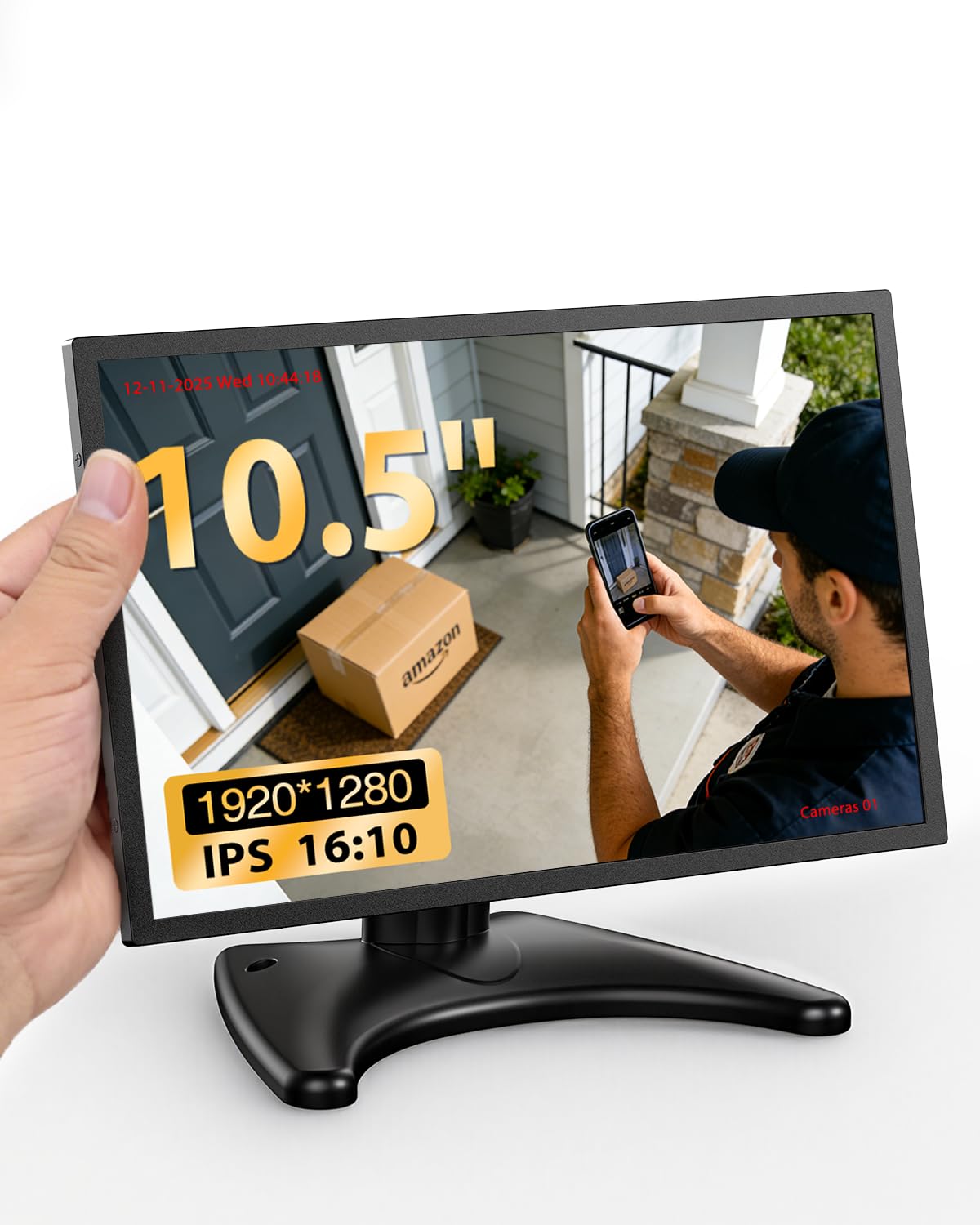
Thank you for choosing the Miktver 10.5 inch 16:10 1920x1280 Security Monitor. This compact and versatile monitor is designed for various applications, including security surveillance, mini PCs, retro gaming, and as a portable secondary display. Its high-resolution IPS panel, durable metal casing, and multiple input options ensure reliable performance and clear visuals.
What's in the Box:
- 1 x 10.5 inch Monitor
- 1 x Moon-shaped Stand
- 1 x Power Adapter
- 1 x User Manual
2. Safety Information
Please read and follow these safety guidelines to ensure safe operation and prolong the life of your monitor:
- Power Source: Use only the provided power adapter. Ensure the voltage matches your local power supply.
- Ventilation: Do not block ventilation openings. Allow adequate space around the monitor for proper airflow to prevent overheating.
- Liquid Exposure: Keep the monitor away from water, moisture, and high humidity. Do not place liquid containers on or near the monitor.
- Cleaning: Disconnect the power cable before cleaning. Use a soft, dry cloth. Avoid liquid cleaners or aerosol sprays.
- Placement: Place the monitor on a stable, flat surface. Avoid placing it in direct sunlight or near heat sources.
- Handling: Handle the monitor with care. Avoid dropping or subjecting it to strong impacts.
- Servicing: Do not attempt to service the monitor yourself. Refer all servicing to qualified personnel.
3. Product Overview
Key Features:
- 10.5 inch 16:10 FHD Resolution: 1920x1280 resolution for clear detail and optimal screen ratio.
- Metal Body & Efficient Cooling: Premium metal housing with vented back panel for enhanced heat dissipation and durability.
- Compact Size & Dual Mounting Options: Space-saving design with included moon-shaped stand and VESA mount compatibility (VESA mount not included).
- HDMI + VGA Connectivity: Versatile input options for mini PCs, Raspberry Pi, security cameras, and more.
- High Brightness & Dual Speakers: IPS panel with 420 cd/m brightness and built-in dual speakers for vivid images and clear audio.
Ports and Controls:
Refer to the diagram below for the location of ports and controls.

Image: Rear view of the Miktver 10.5 inch monitor, highlighting the HDMI, VGA, PC Audio In, DC 12V ports, and control buttons (Down/Volume, Up/Volume, Menu/Enter, Back, Turn on/off monitor).
- Down / Volume - Decreases volume or navigates down in menus.
- Up / Volume - Increases volume or navigates up in menus.
- Menu button / Enter - Opens the OSD menu or confirms selection.
- Back - Returns to the previous menu or exits the OSD.
- Turn on / off monitor - Powers the monitor on or off.
- HDMI - HDMI input port for digital video and audio.
- VGA - VGA input port for analog video.
- PC Audio In - 3.5mm audio input jack for VGA connection.
- DC - DC 12V power input port.
4. Setup
Stand Assembly:
The monitor comes with a moon-shaped stand for desktop placement. Simply attach the monitor to the stand base using the provided screw, ensuring it is securely fastened.
Connecting Power:
- Connect the provided power adapter to the DC 12V port on the monitor.
- Plug the power adapter into a suitable power outlet.
Connecting Video Sources:
The monitor supports HDMI and VGA inputs.
- HDMI Connection: Connect an HDMI cable (not included) from your device (e.g., mini PC, security camera, game console) to the HDMI port on the monitor.
- VGA Connection: Connect a VGA cable (not included) from your device to the VGA port on the monitor. If using VGA, connect an audio cable (not included) from your device's audio output to the PC Audio In port on the monitor for sound.
Installation Methods:
The monitor offers flexible installation options:

Image: Two installation methods for the Miktver 10.5 inch monitor. One shows it mounted on a wall (VESA mount not included), and the other shows it placed on a table using the included stand.
- Desktop Placement: Use the included moon-shaped stand to place the monitor on any flat surface.
- Wall Mount: The monitor is VESA mount compatible (75x75mm). A VESA mount is not included and must be purchased separately.
5. Operating Instructions
Powering On/Off:
Press the 'Turn on / off monitor' button (5) to power the monitor on or off.
Switching Input Sources:
When multiple devices are connected, press the 'Menu' button (3) to access the OSD menu, then navigate to 'Input Source' and select your desired input (HDMI or VGA).
Adjusting Volume:
Use the 'Up / Volume' (2) and 'Down / Volume' (1) buttons to adjust the audio output level.
Navigating the OSD Menu:
- Press the 'Menu' button (3) to open the On-Screen Display (OSD) menu.
- Use the 'Up / Volume' (2) and 'Down / Volume' (1) buttons to navigate through menu options.
- Press the 'Menu' button (3) again to select an option or enter a sub-menu.
- Use the 'Back' button (4) to return to the previous menu or exit the OSD.
Common OSD Settings:
- Brightness: Adjusts the overall luminance of the screen.
- Contrast: Adjusts the difference between the brightest and darkest areas of the image.
- Color Settings: Allows adjustment of color temperature, hue, and saturation.
- Aspect Ratio: Selects the display aspect ratio (e.g., 16:10, 4:3).
6. Maintenance
Cleaning the Monitor:
- Always unplug the monitor from the power outlet before cleaning.
- Use a soft, lint-free cloth to gently wipe the screen and exterior.
- For stubborn marks, lightly dampen the cloth with water or a mild, non-abrasive screen cleaner. Do not spray liquid directly onto the screen or monitor body.
- Avoid using benzene, thinner, ammonia-based cleaners, or abrasive materials, as these can damage the surface.
Storage:
If storing the monitor for an extended period, ensure it is clean, dry, and stored in a cool, well-ventilated area. Protect it from dust and extreme temperatures.
7. Troubleshooting
If you encounter issues with your Miktver monitor, refer to the following common problems and solutions:
| Problem | Possible Solution |
|---|---|
| No power / Monitor does not turn on. |
|
| "No Signal" message on screen. |
|
| No sound from speakers. |
|
| Image is distorted or unclear. |
|
| Stuck or dead pixels. |
|
8. Specifications
| Feature | Detail |
|---|---|
| Model Number | MK10-6 |
| Screen Size | 10.5 Inches (Standing screen display size: 10.1 Inches) |
| Resolution | 1920 x 1280 (FHD) |
| Aspect Ratio | 16:10 |
| Image Brightness | 420 Candela |
| Voltage | 12 Volts |
| Product Dimensions | 1.65 x 13.39 x 14.96 inches |
| Item Weight | 2.57 pounds |
| Manufacturer | Miktver |
| Screen Surface Description | Glossy |
9. Warranty and Support
Warranty Information:
Miktver products are covered by a manufacturer's warranty. Please refer to the warranty card included with your purchase or contact Miktver customer support for specific details regarding warranty periods and terms. Keep your proof of purchase for warranty claims.
Customer Support:
For technical assistance, troubleshooting, or any questions regarding your Miktver monitor, please contact Miktver customer support. Contact information can typically be found on the manufacturer's website or on the packaging.
10. Product Media
Product Images: