1. Introduction
This manual provides essential information for the installation, operation, and maintenance of your ASRock AMD Radeon RX 6400 Challenger ITX Graphics Card. Please read this guide thoroughly before proceeding with installation to ensure proper setup and optimal performance.
2. Safety Information
- Always disconnect the computer from the power outlet before installing or removing any hardware components.
- Handle the graphics card by its edges to avoid touching sensitive components and to prevent electrostatic discharge (ESD). Consider using an anti-static wrist strap.
- Ensure your computer case has adequate ventilation to prevent overheating.
- Keep the graphics card away from moisture, dust, and extreme temperatures.
- Do not attempt to repair the card yourself. Refer to qualified service personnel.
3. Package Contents
Verify that all items are present in your package:
- ASRock AMD Radeon RX 6400 Challenger ITX Graphics Card
- Quick Installation Guide
- Driver CD or link to driver download (check ASRock's official website for the latest drivers)
4. Product Overview
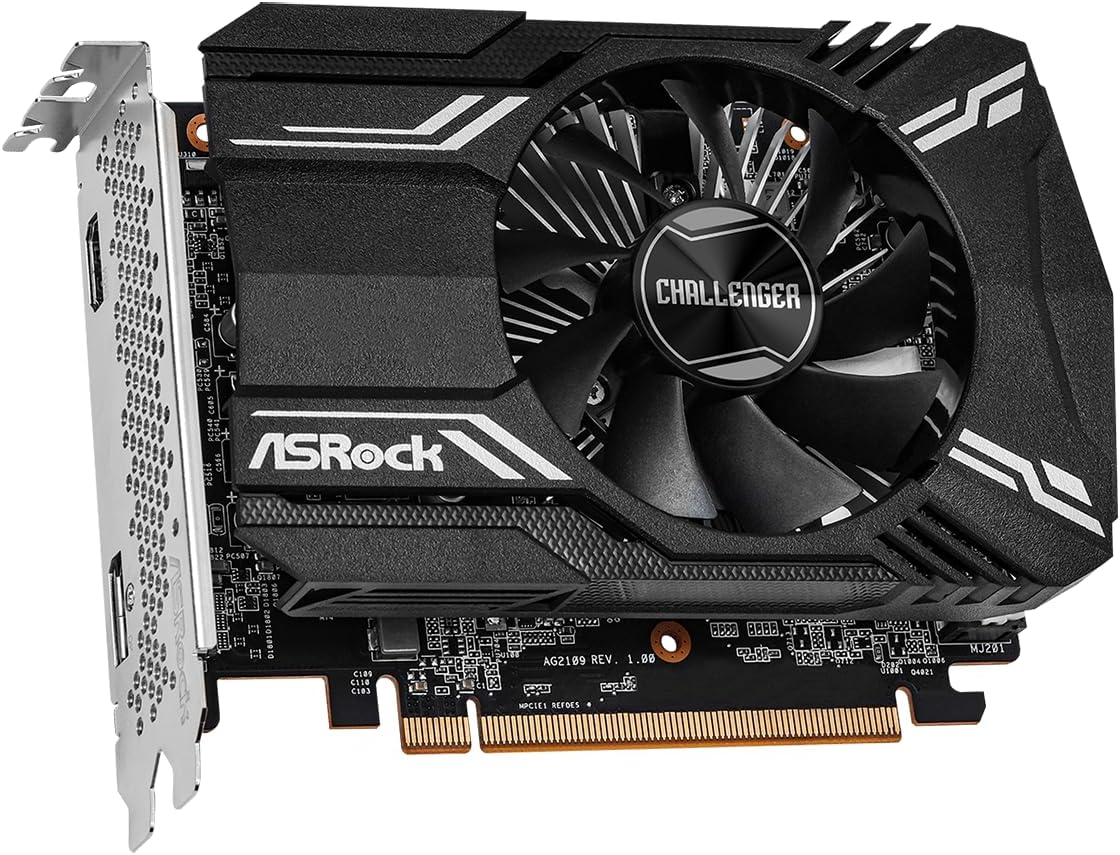
The ASRock AMD Radeon RX 6400 Challenger ITX is a compact graphics card designed for efficient performance. It features a single fan for optimized cooling, ensuring your system remains cool during operation. Built on the 6nm AMD Radeon RX 6400 GPU with RDNA 2 Architecture, it includes 4GB of GDDR6 memory and supports PCI Express 4.0 and DirectX 12 Ultimate.



5. Setup and Installation
Follow these steps to install your graphics card:
- Prepare Your System: Power off your computer and unplug the power cord from the wall outlet. Open your computer case.
- Locate PCIe Slot: Find an available PCI Express 4.0 x16 slot on your motherboard. Remove any expansion slot covers that may be blocking the slot.
- Insert Graphics Card: Carefully align the graphics card with the PCIe slot. Press down firmly and evenly until the card is fully seated in the slot. A click may be heard when it is properly seated.
- Secure the Card: Secure the graphics card to the computer case using the screw from the expansion slot cover or the case's retention mechanism.
- Connect Display Cables: Close your computer case and reconnect the power cord. Connect your monitor(s) to the graphics card's HDMI or DisplayPort outputs.
- Power On and Install Drivers: Power on your computer. Once the operating system loads, install the latest graphics drivers from the ASRock or AMD official website.
6. Operating Instructions
- Driver Installation: After physical installation, download and install the latest AMD Radeon drivers from the official ASRock or AMD website. This ensures optimal performance and access to all features.
- Display Connection: Use the HDMI or DisplayPort outputs on the graphics card to connect to your monitor. Ensure your monitor is set to the correct input source.
- Resolution and Refresh Rate: Adjust your display resolution and refresh rate settings within your operating system's display settings or through the AMD Radeon Software. The card supports resolutions up to 7680x4320 pixels.
- Software Configuration: Utilize the AMD Radeon Software for fine-tuning graphics settings, monitoring performance, and updating drivers.
7. Maintenance
- Keep Drivers Updated: Regularly check for and install the latest graphics drivers from ASRock or AMD to benefit from performance improvements and bug fixes.
- Ensure Proper Airflow: Keep your computer case clean and ensure that the graphics card's fan and heatsink are not obstructed. Good airflow is crucial for efficient cooling.
- Dust Cleaning: Periodically clean dust from the graphics card's fan and heatsink using compressed air. Ensure the computer is powered off and unplugged before cleaning.
8. Troubleshooting
- No Display Output:
- Ensure the graphics card is fully seated in the PCIe slot.
- Verify that the monitor cable is securely connected to both the graphics card and the monitor.
- Check if your monitor is set to the correct input source (HDMI/DisplayPort).
- Test with a different display cable or monitor if possible.
- Driver Installation Issues:
- Uninstall any previous graphics drivers using a utility like Display Driver Uninstaller (DDU) in Safe Mode.
- Download the latest drivers directly from the ASRock or AMD website and perform a clean installation.
- Overheating or Fan Noise:
- Ensure adequate airflow within your computer case.
- Clean any dust accumulation on the fan and heatsink.
- Monitor temperatures using AMD Radeon Software or third-party tools.
- System Instability or Crashes:
- Ensure your power supply unit (PSU) meets the minimum wattage requirements for your system, including the graphics card.
- Check for conflicting software or outdated motherboard BIOS.
9. Specifications
| Feature | Specification |
|---|---|
| Brand | ASRock |
| Series | RX6400 CLI 4G |
| Model Number | RX6400 CLI 4G |
| Graphics Coprocessor | AMD Radeon RX 6400 |
| Chipset Brand | AMD |
| Graphics Card RAM Size | 4 GB GDDR6 |
| Max Screen Resolution | 7680x4320 Pixels |
| Video Output Interface | DisplayPort, HDMI |
| PCI Express Version | 4.0 |
| Item Weight | 9.7 ounces |
| Product Dimensions | 9.89 x 8.55 x 2.52 inches |
| Cooling Solution | Single Fan Design (0dB Silent Cooling) |
10. Warranty and Support
For detailed warranty information, please refer to the official ASRock website or the warranty card included with your product. ASRock provides technical support for its products. If you encounter any issues that cannot be resolved using this manual, please visit the ASRock support page or contact their customer service for assistance.
ASRock Official Website: www.asrock.com


