
Thinkcar Thinkscan Max2 (XKB05)
Thinkcar Thinkscan Max2 OBD2 Scanner User Manual
Model: Thinkscan Max2 (XKB05)
Brand: Thinkcar
1. Introduction
The Thinkcar Thinkscan Max2 is a professional-grade wireless OBD2 diagnostic scan tool designed for comprehensive vehicle analysis. It offers all-system diagnosis, over 28 maintenance reset functions, and supports advanced protocols like CAN-FD and FCA AutoAuth. This manual provides detailed instructions for setting up, operating, maintaining, and troubleshooting your device to ensure optimal performance.

Figure 1: Thinkcar Thinkscan Max2 Diagnostic Tool and Carrying Case.

Figure 2: Key features of Thinkscan Max2 including OE-Level All System Diagnosis, 28+ Reset Functions, CANFD Protocol, Wireless Connection, and Android 10.0 System.
2. Setup Guide
2.1 Package Contents
Before starting, verify all items are present in the package:
- Thinkscan Max2 Diagnostic Tool
- VCI Dongle (Wireless Connector)
- Charging Cable
- Charging Adapter
- Convertible Plugs (x3)
- EVA Storage Bag
- Multilingual Manual

Figure 3: Complete package contents of the Thinkscan Max2.
2.2 Initial Device Setup
Follow these steps for the initial setup of your Thinkscan Max2:
- Power On: Press and hold the power button to turn on the device.
- Language Selection: Choose your preferred language from the list.
- Wi-Fi Connection: Connect the device to a stable Wi-Fi network for updates and online features.
- Time Zone Setting: Select your local time zone.
- Account Registration & Activation: Create a new account or log in. You will need the serial number and activation code provided with your device to activate it.
2.3 Connecting to Vehicle
The Thinkscan Max2 uses a wireless VCI (Vehicle Communication Interface) dongle for connection:
- Locate your vehicle's OBD-II port, typically under the dashboard on the driver's side.
- Plug the VCI dongle into the OBD-II port. Ensure a secure connection.
- The Thinkscan Max2 tablet will automatically connect to the VCI dongle via Bluetooth.
2.4 Software Updates
Regular software updates ensure your device has the latest vehicle coverage and diagnostic functions. Connect to Wi-Fi and navigate to the 'Update' section on the main menu to check for and install available updates.
Video 1: Comprehensive guide on setting up, registering, connecting, and updating the Thinkscan Max2. This video demonstrates initial power-on, language and Wi-Fi setup, account activation, VCI dongle connection, system scanning, data stream analysis, report generation, and various maintenance functions.
3. Operating the Device
3.1 Basic Navigation
The Thinkscan Max2 operates on Android 10.0 with a 5.99-inch touch screen. Navigate through menus by tapping icons and swiping. The main interface provides quick access to key functions like Scan, OBD, Maintenance & Service, ThinkFile, ThinkStore, Setup, Repair Info, and Update.
3.2 All System Diagnosis
This function allows you to scan all available electronic control units (ECUs) in the vehicle, such as Engine, ABS, SRS, Transmission, etc.
- Auto VIN Scan: The device can automatically identify the vehicle's VIN for quick diagnosis. Tap 'Scan' and select 'AutoSearch'.
- Health Report: After VIN identification, the device performs a comprehensive health report, scanning all systems for diagnostic trouble codes (DTCs).
- Read/Clear DTCs: View detailed descriptions of fault codes and clear them after repairs.
- Live Data Stream: Monitor real-time data parameters from various sensors and modules. You can combine up to 4 data streams for graphical display, aiding in complex diagnostics.
- ECU Information: Read control module information such as unit type, version numbers, etc.

Figure 4: Auto-VIN scan feature for automatic vehicle identification.
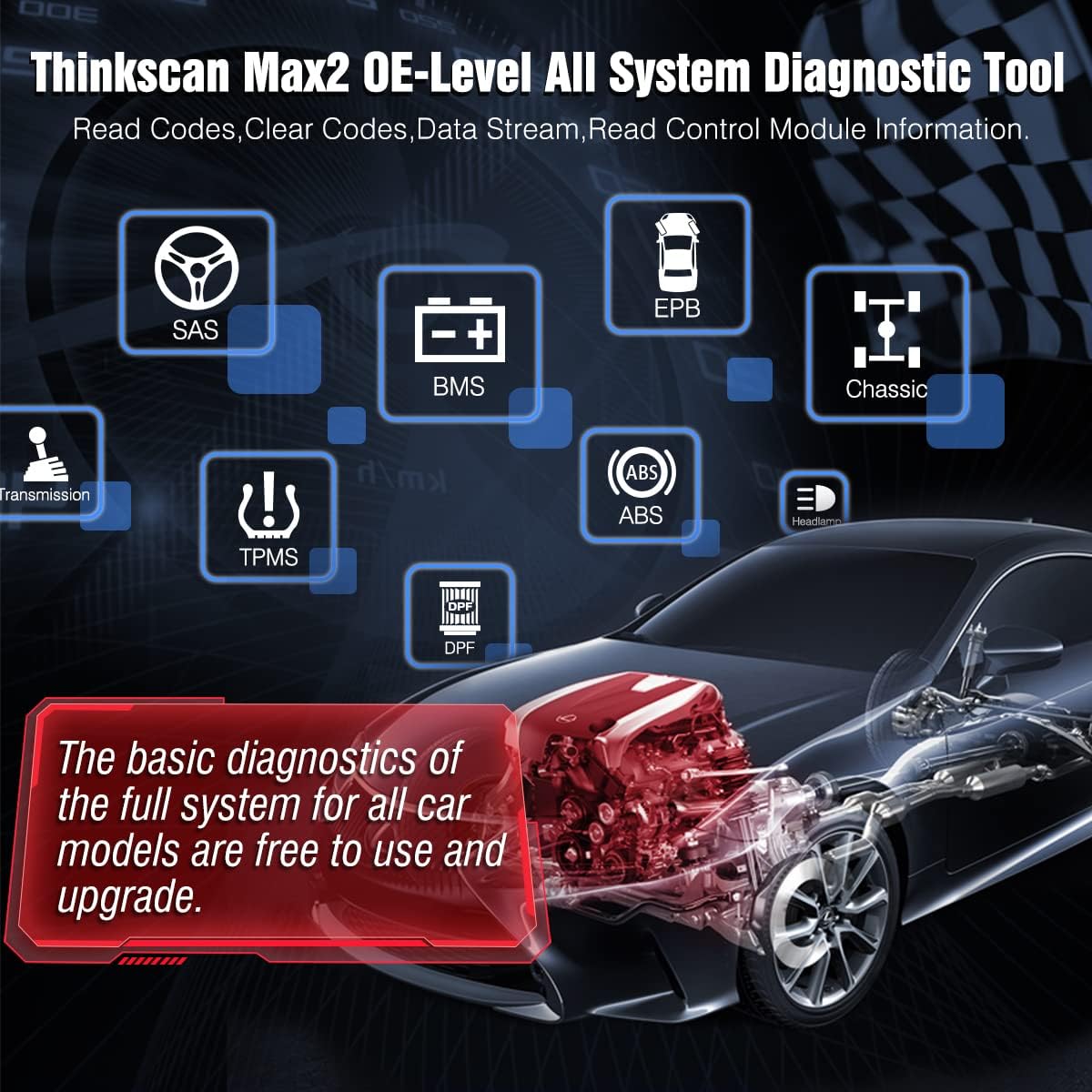
Figure 5: Overview of OE-Level All System Diagnostic capabilities, including SAS, BMS, EPB, ABS, TPMS, and Transmission.
3.3 Maintenance & Service Functions (28+ Resets)
The Thinkscan Max2 provides lifetime free access to over 28 popular maintenance reset functions. Access these by tapping 'Maintenance & Service' on the main menu.

Figure 6: Visual representation of the 28+ maintenance reset functions available on the device.
Key functions include:
- Oil Light Reset: Recalculate engine oil life system after an oil change.
- Steering Angle (SAS) Reset: Reset steering angle to zero.
- Injector Coding: Write new injector codes into the car system.
- ABS Bleeding: Exhaust air from the ABS system to restore braking sensitivity.
- AdBlue Reset: Reset urea after diesel exhaust treatment fluid replacement.
- Throttle Matching: Initialize throttle actuators.
- TPMS Reset: Reset tire pressure after maintenance or sensor replacement.
- EPB Reset: Replace and reset brake pads.
- Tire Reset: Set size parameters for modified or replaced tires.
- AFS Headlamp Reset: Initialize adaptive headlamp system.
- Sunroof Initialization: Initialize sunroof when locked off or closed.
- Battery Reset: Register battery after replacement.
- Seat Calibration: Calibrate memory in replaced or repaired seats.
- Airbag (SRS) Reset: Reset airbag data and turn off warning light after replacement.
- A/F Reset: Set or learn Air/Fuel ratio parameters.
- Gearbox Reset: Complete gearbox self-learning.
- Transport Mode: Deactivate transport mode.
- Windows Calibration: Perform door window matching.
- Language Change: Change vehicle central control system language.
- GEAR Reset: Re-correct gear position information communication.
- ODO Reset: Copy, write, or correct kilometer value (cannot decrease).
- NOx Sensor Reset: Reset catalytic converter learned value.
- Stop/Start Reset: Set up automatic start-stop function.
- Coolant Bleeding: Activate electronic water pump.
- Suspension Reset: Adjust vehicle body height sensor for level calibration.
3.4 CAN-FD Protocol Support
The Thinkscan Max2 is compatible with the CAN-FD protocol, supporting GM vehicles manufactured after 2020. This allows for faster communication and reduces the risk of undetected errors.

Figure 7: CAN-FD protocol support for GM vehicles (2020-2025).
3.5 FCA AutoAuth Support
The device supports AutoAuth, enabling you to unlock the protected FCA vehicle SGW (Security Gateway) module on Chrysler, Dodge, Jeep, Alfa Romeo, and Fiat vehicles. Note: This requires purchasing a registration number on the AutoAuth website separately.
3.6 Diagnostic Report & Sharing
After a diagnosis, the device automatically generates a diagnostic report. This report can be shared via email or by scanning a QR code with your phone.

Figure 8: Diagnostic report generation and sharing options via QR code or email.
3.7 Built-in Google Chrome
The device includes a built-in Google Chrome browser, allowing for quick online troubleshooting and access to repair information directly from the tool.
4. Maintenance
To ensure the longevity and optimal performance of your Thinkscan Max2, adhere to the following maintenance guidelines:
- Software Updates: Regularly check for and install software updates as described in Section 2.4. These updates provide new features, bug fixes, and expanded vehicle compatibility.
- Cleaning: Use a soft, dry cloth to clean the device's screen and body. Avoid abrasive cleaners or solvents.
- Battery Care: To prolong battery life, avoid extreme temperatures and do not leave the device fully discharged for extended periods. Charge the device regularly.
- Storage: Store the device in its EVA storage bag when not in use to protect it from dust and physical damage.
5. Troubleshooting
If you encounter issues with your Thinkscan Max2, consider the following:
- Connection Issues: Ensure the VCI dongle is securely plugged into the OBD-II port and that Bluetooth is enabled on the Thinkscan Max2. Verify Wi-Fi connection for online features.
- Software Malfunctions: If an application crashes or behaves unexpectedly, try restarting the device. Ensure all software is up-to-date.
- Feedback Function: The device includes an online feedback function. If you encounter a persistent issue or a function that doesn't work as expected, you can submit a detailed report directly from the device. This helps the manufacturer address problems efficiently.
- Remote Technical Support: Utilize the built-in TeamViewer feature for 1-to-1 professional remote assistance from technicians.
6. Specifications
| Feature | Specification |
|---|---|
| Brand | Thinkcar |
| Model Number | XKB05 |
| Operating System | Android 10.0 |
| Display | 5.99-inch Touch Screen (720x1440 resolution) |
| Battery Capacity | 3100mAh Lithium Ion (included) |
| Internal Storage | 32GB |
| Connectivity | Wi-Fi, Bluetooth (VCI Dongle supports up to 33 feet) |
| Item Weight | 3.35 pounds |
| Product Dimensions | 8 x 4 x 2 inches |
| Supported Protocols | OBDII (10 modes), CAN-FD, FCA AutoAuth |
| Supported Car Brands | 93+ American, Asian, and European vehicle makes |

Figure 9: High-end hardware configuration of the Thinkscan Max2, including Android 10.0, 5.99-inch touch screen, 3150mAh battery, 32GB storage, Wi-Fi & Bluetooth, and built-in Google Browser.
7. Warranty and Support
Thinkcar provides comprehensive support for the Thinkscan Max2:
- Lifetime Free Upgrades: Enjoy free lifetime software upgrades for basic diagnostic functions and 28+ reset functions, saving on annual subscription fees.
- 7/24 Service: For any questions or issues, contact Thinkcar's customer service.
- Remote Technical Support: Utilize the built-in TeamViewer feature for 1-to-1 professional remote assistance from technicians.
Related documentsThinkscan Max2 (XKB05)

Ask a question about this manual
Ask about setup, troubleshooting, compatibility, parts, safety, or missing instructions. Manuals+ will review the question and use this page’s manual context to help answer it.