
TOPDON Phoenix Smart
TOPDON Phoenix Smart Car Diagnostic Tool User Manual
Model: Phoenix Smart | Brand: TOPDON
1. Introduction
The TOPDON Phoenix Smart is an advanced intelligent car diagnostic tool designed for professional automotive technicians and workshops. It offers comprehensive OE-level diagnostics, ECU programming and coding capabilities, and a wide array of maintenance functions for over 200 vehicle brands. This manual provides detailed instructions for setting up, operating, maintaining, and troubleshooting your Phoenix Smart device.
2. What's in the Box
Upon unboxing your TOPDON Phoenix Smart, verify that all components listed below are present. The device comes securely packaged in a durable carrying case.
- 1x Phoenix Smart Diagnostic Tablet
- 1x Phoenix MDCI Pro (VCI Dongle)
- 1x OBDI Adapter Box Transfer Line
- 1x OBDII Extension Cable
- 1x Cigarette Lighter Cable
- 1x Type-C to USB Cable
- 1x Battery Clamps/Cable Set
- 1x User Manual
- 10x Non-16pin Adaptor Cable Kit (NN-14+16, BZ-38, TA-17, TA-22, G/V-12, B-20, CR-6, HA-3, M/H-12+16, FT-3)
- 4x Fuse (φ5*20mm)
- 2x Fuse (φ6*30mm)
- 1x Type A to B Cable
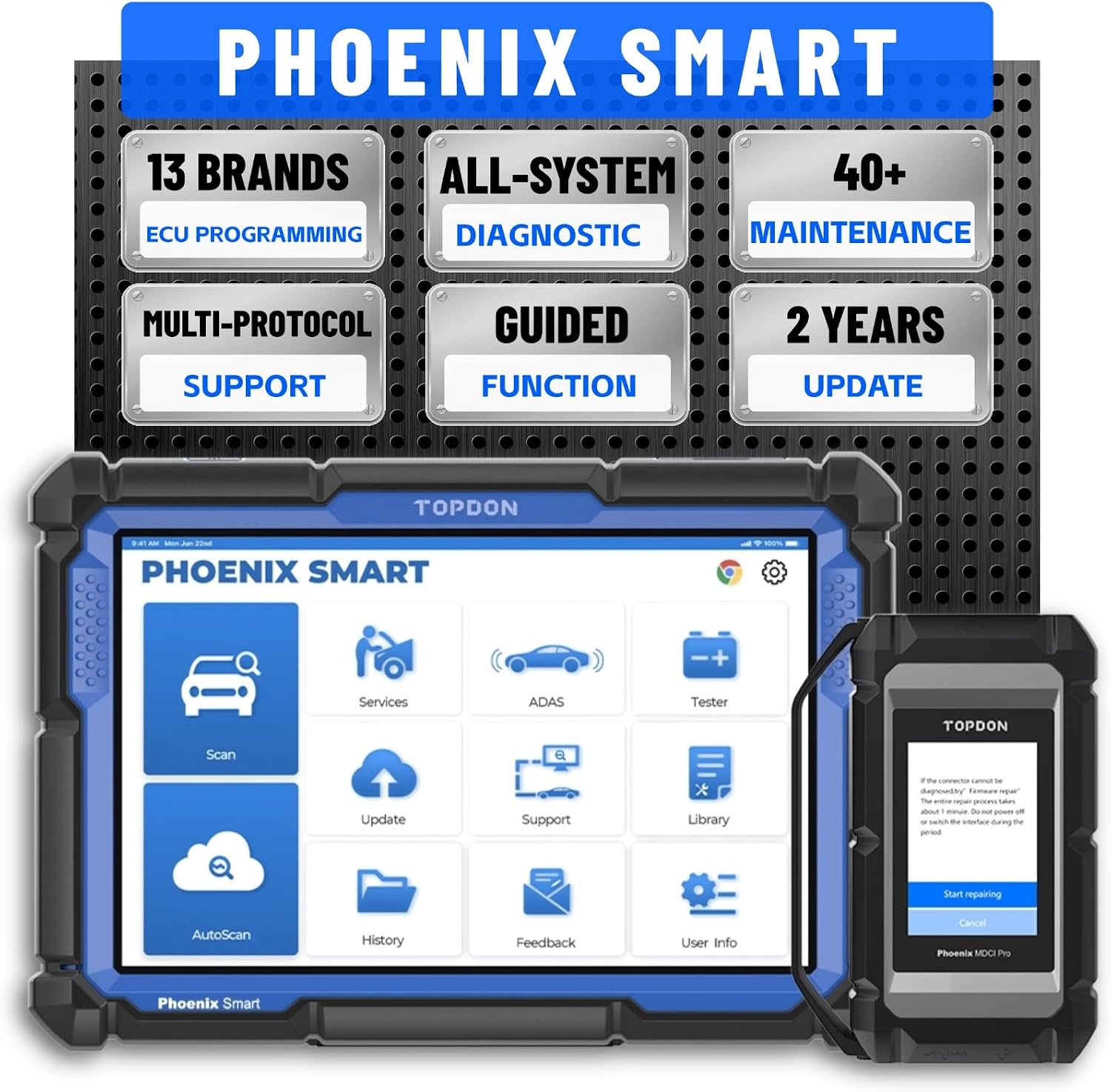
Image: The TOPDON Phoenix Smart diagnostic tablet and its accompanying MDCI Pro VCI module.
Video: An unboxing demonstration of the TOPDON Phoenix Smart diagnostic tool, showcasing the main unit, VCI, and various cables and adapters included in the package.
3. Setup and Initial Use
Follow these steps to set up your Phoenix Smart device for the first time:
- Charging the Device: Connect the Phoenix Smart tablet to a power source using the provided power adapter. Ensure the device is fully charged before initial use.
- Powering On: Press and hold the power button located on the side of the tablet until the TOPDON logo appears on the screen.
- Initial Configuration: Follow the on-screen prompts to select your language, time zone, and connect to a Wi-Fi network.
- VCI Connection: The Phoenix MDCI Pro (VCI) dongle communicates wirelessly with the tablet. Ensure the VCI is charged or connected to the vehicle's OBD-II port for power.
- Software Updates: It is recommended to perform a software update immediately after initial setup to ensure you have the latest vehicle coverage and diagnostic functions. Navigate to the "Update" icon on the main screen.
4. Operating the Device
4.1. Intelligent Full System Diagnostic
The Phoenix Smart provides a graphical representation of the vehicle's modules and their interconnections, enabling quick identification of potential issues across the entire system. This includes reading and clearing Diagnostic Trouble Codes (DTCs), viewing live data streams, and performing active tests.

Image: The Phoenix Smart's topology mapping feature, showing interconnected vehicle systems for comprehensive diagnostics.
4.2. ECU Programming & Coding
The Phoenix Smart supports ECU programming and coding for various vehicle brands, allowing for module replacement, updates, and vehicle customization. It provides direct OEM-level software access and guided programming procedures.

Image: Overview of cloud-based programming and online coding capabilities, highlighting J2534 PassThru and support for various protocols.
4.3. Maintenance Functions
The Phoenix Smart offers over 40 maintenance and reset functions to address common vehicle service needs. These functions include, but are not limited to:
- Oil Reset
- TPMS Reset
- SAS Calibration
- DPF Reset and Regeneration
- Throttle Body Reset
- Transmission Adaptation
- ABS Bleeding
- Injector Coding
- EPB Reset
- Headlight Matching
- And many more.

Image: A visual representation of some of the 40+ maintenance services available on the Phoenix Smart, such as ABS Bleeding, Inject Coding, TPMS Reset, EPB Reset, SAS Reset, and DPF Reset.
4.4. Enhanced Diagnostic Functions
The device includes advanced features such as Online FFS Activation (VW, Audi), Benz DTC Guided Function, Step-by-Step Diagnostic Guidance (BMW, Porsche, Audi, VW), FCA Secure Gateway access, and a comprehensive Repair Data Library.

Image: Display of enhanced diagnostic functions including Online FFS Activation, Benz DTC Guided Function, FCA Secure Gateway, Flash Hidden Function, and Repair Data Library.
4.5. Add-On Tools Compatibility
The Phoenix Smart is designed to be expandable with various add-on modules (sold separately) to further enhance diagnostic capabilities. These include an oscilloscope (Phoenix Scope), battery tester (BTmobible Pros), thermal imaging cameras (TC001/TC001Plus/TS001), ADAS calibration tools, and heavy-duty diagnostic kits.

Image: Various add-on tools compatible with the Phoenix Smart, such as T-Ninja Box, Phoenix ADAS, BTMobile Pros, TC001/TC001Plus, EV Package, and HD Package.
5. Maintenance
Proper maintenance ensures the longevity and optimal performance of your TOPDON Phoenix Smart device.
- Software Updates: Regular software updates are crucial for maintaining vehicle compatibility and accessing new features. Your Phoenix Smart includes 2 years of free updates. Connect the device to Wi-Fi and check for updates regularly via the "Update" icon.
- Cleaning: Use a soft, damp cloth to clean the screen and exterior of the device. Avoid abrasive cleaners or solvents.
- Storage: Store the device in its original carrying case in a cool, dry place when not in use to protect it from dust, moisture, and physical damage.
- Battery Care: To prolong battery life, avoid fully discharging the battery frequently. Charge the device regularly, even if not in constant use.
6. Troubleshooting
If you encounter issues with your TOPDON Phoenix Smart, consider the following general troubleshooting steps:
- Device Not Powering On: Ensure the device is fully charged or connected to a power source. Check the power adapter and cable for damage.
- VCI Connection Issues: Verify the VCI dongle is properly connected to the vehicle's OBD-II port and that the vehicle's ignition is on. Ensure the VCI is charged if it has an internal battery.
- Software Malfunctions: Restart the device. If the issue persists, check for available software updates.
- Communication Errors: Ensure the vehicle's battery is adequately charged. Check all cable connections.
For persistent issues or specific error codes, refer to the detailed user manual included with your product or contact TOPDON customer support directly. The device features advanced diagnostic feedback capabilities, allowing you to upload problems directly to TOPDON for expert analysis.
7. Specifications
| Feature | Detail |
|---|---|
| Brand | TOPDON |
| Model | Phoenix Smart |
| Product Dimensions | 7.52"L x 1.89"W x 10.94"H |
| Operating System | Android 10.0 |
| Display Resolution | 1280x800 |
| Battery | 12600 mAh Lithium Polymer (included) |
| Processor | 4-Core, 2.0 GHz |
| RAM/ROM | 4G RAM / 128G ROM |
| Supported Protocols | J2534, Do-IP, CANFD, D-PDU, RP1210 |
| Languages Supported | 18+ languages (e.g., EN, DE, FR, SP, JP) |
| Item Weight | 19.56 pounds |
| Country of Origin | China |
8. Warranty and Support
The TOPDON Phoenix Smart comes with a 2-Years Free Update guarantee, ensuring you have access to the latest features, vehicle coverage, and diagnostic capabilities without additional costs. TOPDON is committed to providing excellent customer support.
If you encounter any issues during use, please refer to the troubleshooting section of this manual or contact TOPDON's technical support team. You can also utilize the device's built-in diagnostic feedback feature to directly report problems for expert analysis.
For further assistance, visit the official TOPDON website or contact their customer service hotline.
Related documentsPhoenix Smart


Ask a question about this manual
Ask about setup, troubleshooting, compatibility, parts, safety, or missing instructions. Manuals+ will review the question and use this page’s manual context to help answer it.