1. Introduction
This manual provides detailed instructions for the installation, operation, and maintenance of your 10Gtek 150Mbps Free Driver Wireless USB WiFi Adapter. This device is designed to provide wireless network connectivity to your desktop or laptop computer, offering a maximum speed of 150Mbps on the 2.4GHz band. Its 'free driver' functionality simplifies the setup process, eliminating the need for manual driver installation from a CD or online download for compatible operating systems.

Image 1.1: The 10Gtek 150Mbps Free Driver Wireless USB WiFi Adapter, featuring a compact design with 'WiFi 4 Free Driver' branding.
2. Product Features
- Chipset: Realtek 8811GU for reliable performance.
- Wireless Speed: Maximum speed up to 2.4GHz 150Mbps.
- Wireless Standards: Compatible with 802.11 b/g/n.
- Operating System Compatibility: Supports Windows 10, 8.1, 8, 7, and XP.
- Driver Installation: Free driver design, eliminating the need for a CD or online download for driver installation.
- Compact Design: Mini size for portability and discreet use.

Image 2.1: Key features of the USB WiFi Adapter, highlighting 150Mbps speed, USB 2.0 interface, single band 2.4GHz, and high gain antenna.

Image 2.2: Visual representation of the adapter's 150 Mbps speed, free driver capability, 802.11n standard, and USB 2.0 interface.
3. Package Contents
Please check the package for the following items:
- 1x 10Gtek 150Mbps Free Driver Wireless USB WiFi Adapter (Model: WD-1513B)
4. Setup Instructions
The 10Gtek 150Mbps Free Driver Wireless USB WiFi Adapter is designed for easy plug-and-play installation on compatible Windows operating systems. For Linux users, many distributions offer native support.
4.1. Windows Installation (Windows 10/8.1/8/7/XP)
- Insert the Adapter: Plug the USB WiFi Adapter into an available USB port on your desktop or laptop computer.
- Automatic Driver Installation: Upon insertion, the adapter will typically be recognized as a storage device containing the necessary drivers. An auto-run program should appear. If it does not, navigate to 'This PC' or 'My Computer', locate the new drive (often labeled 'CD Drive' or similar), and double-click the setup executable (e.g., 'setup.exe' or 'install.exe').
- Follow On-Screen Prompts: Proceed with the driver installation by following the instructions provided by the setup wizard.
- Completion: Once the installation is complete, the adapter will be recognized as a WiFi network adapter, and the virtual storage device will disappear. You can then proceed to connect to a wireless network.
4.2. Linux Installation
For many modern Linux distributions (e.g., Ubuntu, Mint, Zorin OS), the adapter may be plug-and-play, meaning it will be recognized automatically upon insertion without requiring manual driver installation. If the adapter is not recognized, you may need to consult your distribution's documentation or online forums for specific instructions on installing Realtek 8811GU chipset drivers.

Image 4.1: Diagram illustrating the compatibility of the USB WiFi adapter with various Windows operating systems (Windows 7, 8, 8.1, 10, XP) for notebooks, smartphones, tablets, and desktop computers.

Image 4.2: A circular graphic depicting the adapter's compatibility with Windows XP, Windows 7, Windows 10, and Windows 8/8.1.
5. Operating Instructions
5.1. Connecting to a Wireless Network
- Enable WiFi: Ensure your computer's WiFi is enabled. The adapter should be listed in your network connections.
- Scan for Networks: Open your operating system's network settings or WiFi icon in the system tray. It will display a list of available wireless networks.
- Select Network: Choose your desired WiFi network from the list.
- Enter Password: If the network is secured, enter the WiFi password (security key) when prompted.
- Connect: Click 'Connect' to establish a connection. Once connected, you should have internet access.
5.2. Soft-AP Mode (Access Point Mode)
The adapter supports Soft-AP mode, allowing your computer to function as a wireless hotspot. This enables other devices (like smartphones or tablets) to connect to your computer's internet connection wirelessly. This feature is typically configured through the adapter's utility software or your operating system's network settings.

Image 5.1: Illustration of the Soft-AP Mode, where the USB WiFi adapter allows a laptop to share its internet connection with other wireless devices like a desktop computer, smartphone, and tablet.
5.3. Wireless Security
The adapter supports various security mechanisms to protect your wireless network, including WPA-PSK/WPA2-PSK and WEP Encrypt. It is recommended to use WPA2-PSK for the strongest security.
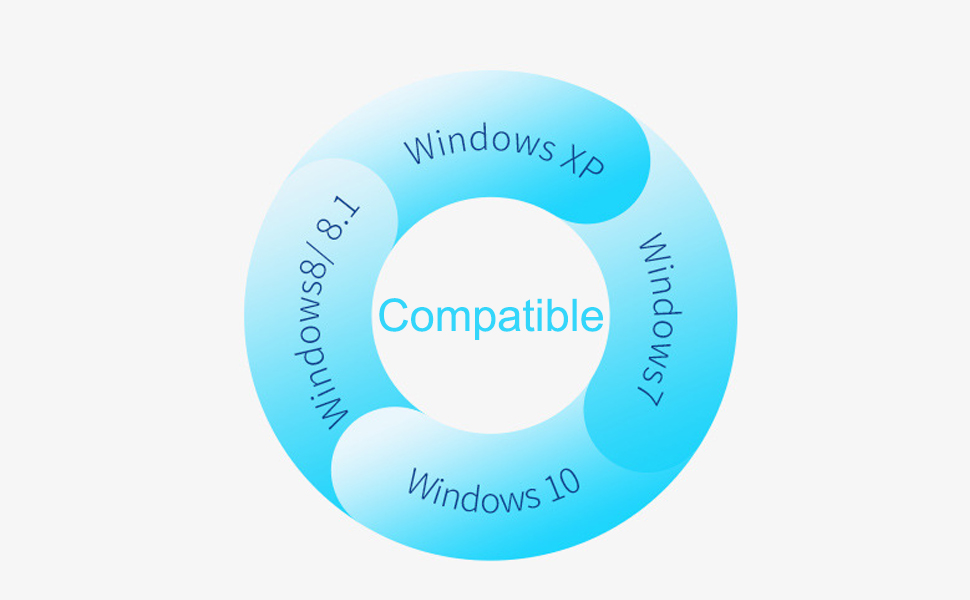
Image 5.2: Depiction of the adapter's security features, including WPA-PSK/WPA2-PSK and WEP encryption, ensuring a secure wireless network.
6. Troubleshooting
If you encounter issues with your USB WiFi Adapter, please refer to the following common solutions:
- No WiFi Networks Found:
- Ensure the adapter is securely plugged into a USB port.
- Verify that the driver is correctly installed (check Device Manager in Windows).
- Restart your computer.
- Check if your router is powered on and broadcasting a WiFi signal.
- Slow Connection Speed:
- Ensure your computer is within range of your wireless router.
- Minimize interference from other electronic devices (e.g., microwaves, cordless phones).
- Update your router's firmware.
- If using Soft-AP mode, ensure no other devices are heavily utilizing bandwidth.
- Frequent Disconnections:
- Try plugging the adapter into a different USB port.
- Ensure your computer's power management settings are not turning off the USB device to save power.
- Update the adapter's driver if a newer version is available (though this is a 'free driver' model, occasional updates might be released).
- Check for conflicting software or network utilities.
- Driver Installation Issues:
- If the auto-run does not work, manually browse the adapter's virtual drive for the setup file.
- Temporarily disable antivirus software during installation if it interferes.
- Ensure your operating system is supported by the adapter.
7. Specifications
| Feature | Specification |
|---|---|
| Model Number | WD-1513B |
| Brand | 10Gtek |
| Hardware Interface | USB 2.0 |
| Data Link Protocol | USB |
| Data Transfer Rate | 150 Megabits Per Second |
| Wireless Standards | 802.11 b/g/n |
| Frequency Band | 2.4GHz Single Band |
| Chipset | Realtek 8811GU |
| Compatible Operating Systems | Windows 10/8.1/8/7/XP, Linux (some distributions) |
| Compatible Devices | Desktop, Laptop |
| Item Weight | 0.317 ounces (0.01 Kilograms) |
| Package Dimensions | 3.98 x 3.07 x 0.35 inches |

Image 7.1: Detailed dimensions of the USB WiFi Adapter, showing its compact size of approximately 15mm width, 21mm height (USB connector included), and 6.5mm depth.
8. Maintenance
To ensure optimal performance and longevity of your USB WiFi Adapter, consider the following maintenance tips:
- Keep Clean: Periodically clean the adapter's exterior with a soft, dry cloth. Avoid using liquid cleaners.
- Proper Handling: Always grasp the adapter by its body when inserting or removing it from a USB port. Avoid pulling by the cap or twisting.
- Storage: When not in use, store the adapter in a cool, dry place, away from direct sunlight and extreme temperatures.
- Avoid Physical Damage: Protect the adapter from drops, impacts, and excessive force, which can damage internal components or the USB connector.
9. Warranty and Support
For warranty information and technical support, please refer to the documentation included with your purchase or visit the official 10Gtek website. Keep your proof of purchase for any warranty claims.
If you require further assistance or have questions not covered in this manual, please contact 10Gtek customer support through their official channels.


