
Introduction
This manual provides detailed instructions for the installation, operation, and maintenance of your REVODATA 5MP PIR POE IP Camera. Please read this manual thoroughly before using the product to ensure proper functionality and safety.

Image: Front view of the REVODATA 5MP PIR POE IP Camera, a white rectangular device with a dark lens area.
Key Features
- UltraHD 5MP Quality: CMOS 1/3'' Image Sensor & 5.0 Megapixel (2880 x 1620P) at 20 fps for clear and smooth high-quality images/videos.
- 3.7mm Lens & Mini PIR Type Design: Features a flat 3.7mm lens with an approximate 80-degree view angle, designed for discreet placement. The case is PIR-shaped for camouflage (without actual PIR function).
- 940nm IR LED: Invisible infrared LEDs (940nm) provide clear black and white images in dark conditions without visible red glow.
- Standard 48V POE 802.3af: Supports Power Over Ethernet for simplified installation with a single Cat5/6 cable. Also includes an auxiliary 12V/2A power connector for flexibility.
Package Contents
Verify that all items are present in the package:
- 1 x REVODATA 5MP PIR POE IP Camera
- 1 x User Manual
- 1 x Screws Set
Note: A power adapter is not included with this product.
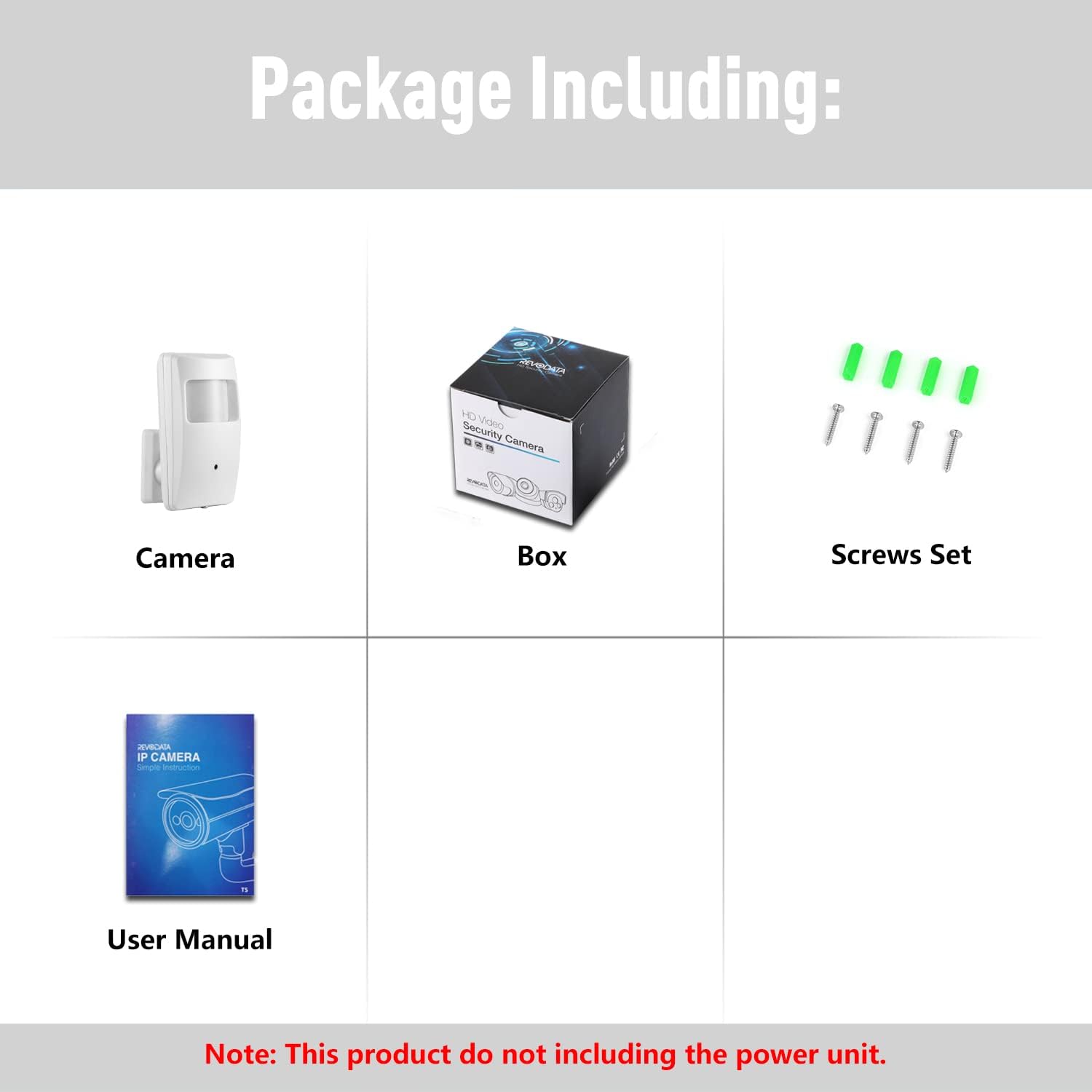
Image: Visual representation of the package contents, showing the camera, product box, screw set, and user manual.
Setup and Installation
1. Physical Installation
The camera is designed for indoor use and can be placed on a table or mounted on a wall. Its compact size and PIR-shaped casing allow for discreet placement.
- Dimensions: 2.36 x 1.06 x 4.02 inches
- Weight: 6.2 ounces

Image: Detailed view of the camera's dimensions and key components, including the lens, LED board, and connection ports.
2. Power and Network Connection
The camera supports Power Over Ethernet (POE) for simplified installation. Connect the camera to a POE switch using a Cat5/6 Ethernet cable. Alternatively, use a 12V/2A power adapter (not included) with the auxiliary power connector.

Image: Illustration of the camera's POE connection, showing the POE cable and the integrated POE module.
3. Initial Configuration and Access
The camera can be accessed via a web browser, smartphone application, or Network Video Recorder (NVR).
Video: This video demonstrates how to connect the camera via a web browser, smartphone app, and NVR. It shows the steps for logging into the camera's web interface, adding the device to the TSEYE smartphone app, and connecting to a compatible NVR system.
3.1. Browser Access
To access the camera via a web browser, connect your computer to the same network as the camera. The camera's default IP address is 192.168.1.108. Enter this IP address into your browser's address bar. The default username is 'admin' and the default password is 'admin123'. It is highly recommended to change the default password immediately after the first login for security purposes.
3.2. Smartphone App Setup
Download the free 'TSEYE' app from your smartphone's app store. Follow the in-app instructions to add your camera. You can search for local devices or manually add the camera using its serial number or IP/Domain. Ensure you change the default password for enhanced security.

Image: Screenshots demonstrating the TSEYE smartphone application, including its availability in an app store, login interface, and live preview screen with various control options.
3.3. NVR Connection
To connect the camera to an NVR, ensure your NVR supports 5MP resolution. The camera can be found and connected via Onvif protocol. If your NVR does not support 5MP, you may need to lower the camera's resolution settings to fit your NVR's capabilities.
Operation
1. Live View and Recording
Once connected, you can view the live feed from your camera through the web interface, TSEYE app, or NVR. The camera provides 5MP (2880x1620P) resolution at 20 frames per second (fps) for main stream and 15 fps for sub-stream, ensuring clear and smooth video.

Image: A computer screen displaying the VMS (Video Management Software) interface, showing a live feed from the IP camera.
2. Motion Detection
The camera features smart motion detection. When motion is detected, an alarm notification can be sent to your connected smartphone via the TSEYE app.

Image: A smartphone displaying a motion detection notification from the TSEYE app, with a visual representation of motion being detected in an indoor environment.
3. Night Vision
Equipped with 940nm IR LEDs, the camera provides clear black and white images in complete darkness. These LEDs are invisible to the naked eye, ensuring discreet surveillance. When ambient light levels drop, the camera automatically switches to night vision mode.

Image: A split image demonstrating the camera's performance, showing a clear color image during the day and a clear black and white image at night using its invisible IR night vision.
Maintenance
- Cleaning: Use a soft, dry cloth to clean the camera lens and body. Avoid abrasive cleaners or solvents.
- Firmware Updates: Periodically check the manufacturer's website or app for available firmware updates to ensure optimal performance and security.
- Environmental Conditions: Ensure the camera is operated within its specified temperature range (up to 60 degrees Celsius) and in an indoor environment.
Troubleshooting
- Camera Not Powering On: Verify the POE connection to a compatible POE switch or ensure the 12V/2A auxiliary power adapter (if used) is correctly connected and functional.
- Cannot Access Camera via Browser:
- Ensure your computer is on the same network segment as the camera.
- The camera's default IP is 192.168.1.108. If your network uses a different IP range, you may need to temporarily adjust your computer's IP settings to access the camera and change its IP.
- Confirm the default username 'admin' and password 'admin123' are entered correctly.
- Poor Image Quality: Ensure the lens is clean and free from obstructions. Check network bandwidth if experiencing lag or pixelation.
- NVR Compatibility Issues: Confirm your NVR supports 5MP resolution. If not, adjust the camera's resolution settings to match your NVR's capabilities.
- Motion Detection Not Working: Check the motion detection settings within the camera's web interface or TSEYE app to ensure it is enabled and configured correctly.
Specifications
| Feature | Detail |
|---|---|
| Brand | REVODATA |
| Model Number | IPIR-M-P-TS-RD |
| Resolution | 5MP (2880 x 1620P) |
| Lens | 3.7mm Pinhole Lens |
| IR Night Vision | 940nm Invisible LEDs, up to 10 meters |
| Power Source | Standard 48V POE 802.3af, or 12V/2A DC (adapter not included) |
| Mounting Type | Tabletop, Wall Mount |
| Compatible Devices | Smartphone (TSEYE App), Computer (VMS Software for Windows) |
| Recommended Use | Indoor |
| Upper Temperature Rating | 60 Degrees Celsius |
| Product Dimensions | 2.36 x 1.06 x 4.02 inches |
| Item Weight | 6.2 ounces |
| Date First Available | April 29, 2022 |
Warranty and Support
REVODATA provides a 1-year warranty for this product. Lifetime technical support is also available. For assistance, please contact REVODATA customer service.
The free 'TSEYE' app is available for smartphones. VMS software for Windows is also provided (not compatible with MAC OS or Linux).


