1. Introduction
This manual provides detailed instructions for the installation, operation, and maintenance of your ESSGOO Double Din Car Stereo. Please read this manual thoroughly before using the product to ensure proper function and safety. Keep this manual for future reference.
2. Safety Information
- Ensure professional installation to avoid damage to the unit or vehicle.
- Do not operate the device in a way that distracts you from driving.
- Avoid exposing the unit to extreme temperatures, direct sunlight, or moisture.
- Use only specified accessories and parts.
- Disconnect the car battery before installation or maintenance.
3. Package Contents
Verify that all items are present in the package:
- ESSGOO Double Din Car Stereo Unit
- Remote Control
- Backup Camera
- Microphone
- Power Cable
- Speaker Cable
- Camera Power Cord
- Mounting Screws
- User Manual (this document)

Image: Overview of the ESSGOO Double Din Car Stereo and its included accessories, such as the remote control, backup camera, microphone, and various connection cables.
4. Setup and Installation
4.1 Wiring Diagram
Refer to the following diagram for proper wiring connections. Incorrect wiring can damage the unit or vehicle's electrical system.

Image: Detailed wiring diagram illustrating connections for power (ACC, BATT, GND), illumination, steering wheel control, reverse camera, parking brake, and speaker outputs. Also shows input/output ports on the back of the unit.
- Red (ACC): Connect to ignition switch +12V.
- Black (GND): Connect to ground wire B-.
- Yellow (BATTERY): Connect to power supply +12V.
- Orange (BRAKE): Connect to parking brake cable.
- Brown (KEY): Connect to steering wheel control.
- Pink (REVERSE): Connect to reversing camera signal.
- Blue (ANT): Connect to radio antenna.
- Green (ILLUMINATION): Connect to illuminate.
- Speaker Wires: Ensure correct polarity for front and rear speakers (White/White-black, Gray/Gray-black, Green/Green-black, Purple/Purple-black).
Important Notes:
- When the yellow B+ line and the red ACC line have a 12V positive power at the same time, the unit can be turned on normally.
- The yellow B+ line keeps the power on and the machine has a memory function.
- 8 speaker cables: Each cable cannot be grounded, cannot be shared, and cannot touch other lines; otherwise, there will be no sound output, sound distortion, machine fever, and so on.
5. Operating Instructions
5.1 General Operation

Image: The main screen of the ESSGOO car stereo displaying various application icons, including Phone, Music, Maps, Messages, Now Playing, Podcasts, News, and Audiobooks, indicating its multimedia capabilities.
- Power Button: Press to turn the unit on/off.
- Volume Control: Use VOL+ and VOL- buttons to adjust the volume level.
- EQ Button: Access equalizer settings to customize audio output.
- MUTE Button: Mute or unmute audio output.
- MODE Button: Switch between different audio sources (FM, USB, AUX, Bluetooth).
- SET Button: Access system settings.
5.2 Mirror Link (Phone Link)
The Mirror Link function allows you to project your smartphone screen onto the car stereo display. Connect your phone via USB cable.

Image: The Mirror Link feature in action, demonstrating how a smartphone's display, showing a basketball game, is mirrored onto the car stereo's larger screen. Icons for Android and Apple indicate compatibility.
- Android Phone: Supports two-way connection (control from phone and stereo).
- iPhone: Supports one-way projection (view only on stereo, control from phone).
- Use the data cable to connect the phone to the machine to achieve interconnection.
5.3 Bluetooth Handsfree Call
Connect your smartphone via Bluetooth for hands-free calling and audio streaming.
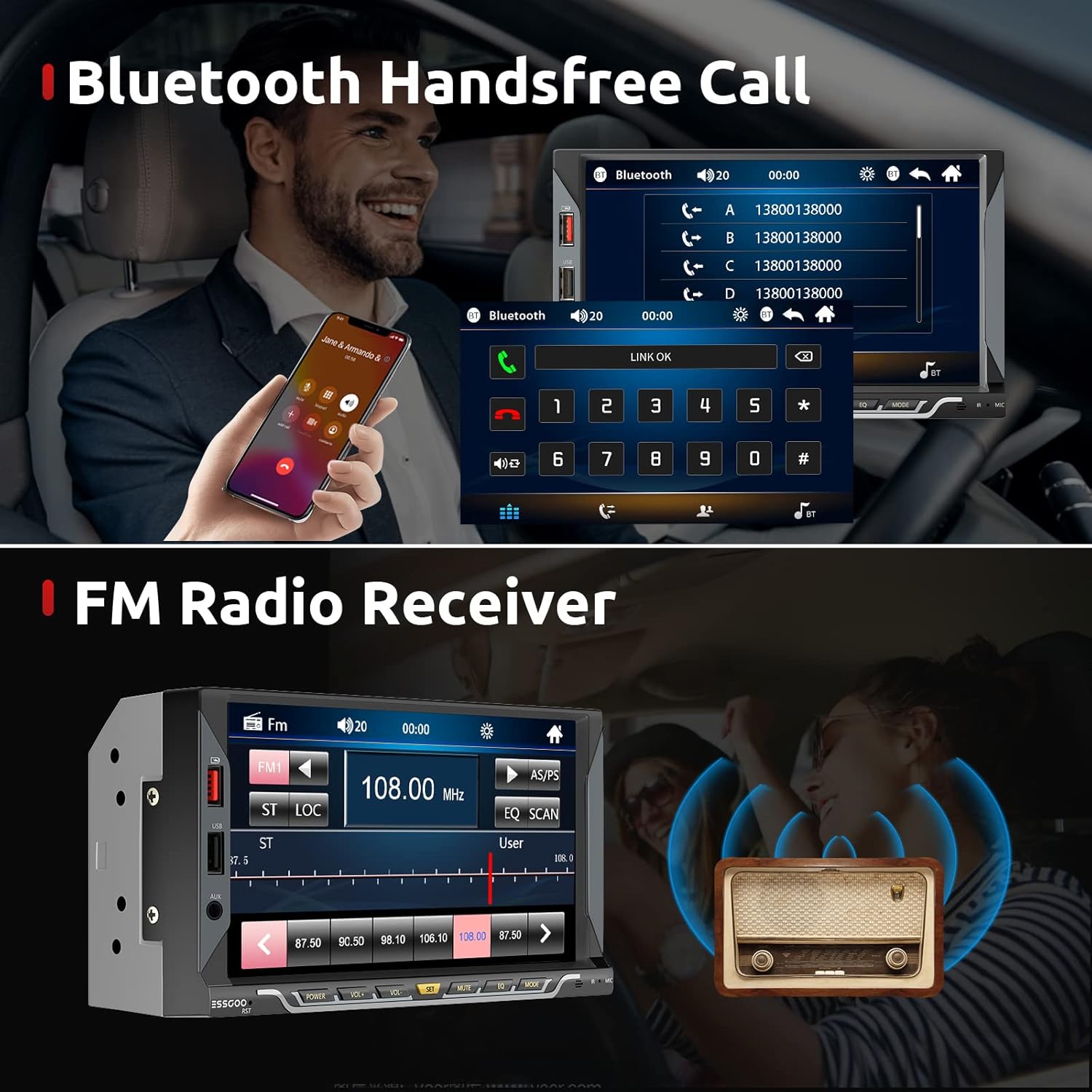
Image: Top half shows the Bluetooth hands-free calling interface on the car stereo, displaying a dial pad and call history. Bottom half shows the FM radio interface with frequency tuning and station presets.
- Pair your phone with the stereo via Bluetooth settings.
- Once paired, you can make and receive calls directly from the stereo's touchscreen.
- Audio from calls will play through your car's speakers.
5.4 FM Radio Receiver
Tune into your favorite FM radio stations.
- Select the FM mode.
- Use the scan function to automatically search for and save stations, or manually tune to a frequency.
- Save preferred stations to presets for quick access.
5.5 USB/AUX Input
Play media from USB drives or external devices via the AUX input.

Image: A diagram illustrating the multi-functionality of the USB and AUX ports. It shows USB ports for playing music from flash drives, playing videos from flash drives, and charging mobile phones, as well as an AUX input for external audio devices.
- Insert a USB flash drive into the USB port to play audio or video files.
- Connect an external audio device (e.g., MP3 player) to the 3.5mm AUX input jack.
- The USB port also supports mobile device charging.
5.6 HD Rear View Camera
When properly installed, the rear view camera automatically displays the rear view when the vehicle is in reverse gear.

Image: The car stereo display showing the view from the HD rear view camera, with parking guidelines overlaid. Icons highlight key features: High Definition, Night Vision, 170° Viewing Angle, and Waterproof Protection.
- Features include High Definition, Night Vision, 170° Wide Viewing Angle, and Waterproof Protection.
- Ensure the camera is connected correctly to the "REVERSE" trigger wire.
5.7 Steering Wheel Control
Control basic functions of the stereo directly from your vehicle's steering wheel buttons (if compatible and wired correctly).
- The unit supports steering wheel control. Refer to the wiring diagram for connection.
- Configuration may be required in the stereo's settings menu to map steering wheel buttons.
5.8 Remote Control
Use the included remote control for convenient operation of the stereo.

Image: A detailed diagram of the remote control for the car stereo, showing each button labeled with its corresponding function, such as Mute, Mode Switch, Power On/Off, Volume, Enter/Play/Pause, Next/Previous Track, Menu, and Number buttons.
- 1. Mute On/off
- 2. Mode Switch
- 3. Power On/off
- 4. Volume +
- 5. Enter; Play / Pause
- 6. Next Track
- 7. Volume -
- 8. End Call
- 9. Number Button
- 10. Menu
- 11. Previous Track
- 12. Answer Call
5.9 7 Color LED Backlight
Customize the button backlight color to match your vehicle's interior or personal preference.
- Access the backlight settings in the system menu.
- Choose from various colors including Red, Green, Blue, Yellow, Cyan, Purple, and White.
6. Maintenance
- Cleaning: Use a soft, dry cloth to clean the unit's surface. For stubborn dirt, dampen the cloth slightly with water. Do not use abrasive cleaners or solvents.
- Screen Care: The touchscreen is sensitive. Avoid pressing it with sharp objects. Clean with a microfiber cloth.
- Temperature: Avoid exposing the unit to extreme temperatures.
7. Troubleshooting
| Problem | Possible Cause | Solution |
|---|---|---|
| No Power | Incorrect wiring; Blown fuse; Loose connection. | Check power (ACC, BATT) and ground connections. Inspect vehicle's fuse box and unit's fuse. Ensure all wires are securely connected. |
| No Sound | Speaker wires shorted or disconnected; Volume too low; Mute activated. | Check speaker wiring for shorts or disconnections. Increase volume. Deactivate mute function. |
| Bluetooth Not Connecting | Phone's Bluetooth off; Stereo not in pairing mode; Interference. | Ensure phone's Bluetooth is on and discoverable. Put stereo in Bluetooth pairing mode. Move away from other Bluetooth devices. |
| Mirror Link Not Working | Incorrect USB cable; Phone settings; App compatibility. | Use a high-quality data USB cable. Check phone's USB debugging or mirroring settings. Ensure the phone's OS version is compatible. |
| Rear Camera Not Displaying | Camera not powered; Reverse trigger wire not connected; Faulty camera. | Check camera power supply. Ensure the "REVERSE" wire is correctly connected to the vehicle's reverse light signal. Test camera functionality. |
8. Specifications
| Feature | Detail |
|---|---|
| Product Dimensions | 7.87 x 6.69 x 4.45 inches |
| Item Weight | 2.05 pounds |
| Brand | ESSGOO |
| Connectivity Technology | Auxiliary, Bluetooth, USB |
| Controller Type | Android, iOS (via Mirror Link) |
| Special Feature | Equalizer, Touchscreen |
| Compatible Devices | Speaker |
| Connector Type | 3.5mm Jack, USB |
| Audio Output Mode | Stereo |
| Number of Channels | 4 |
| Output Wattage | 45 Watts |
| Supported Internet Services | Maps (via Mirror Link) |
9. Warranty and Support
ESSGOO is committed to providing high-quality products and excellent customer service.
- Quality Assurance: The product comes with 1 Year Quality Assurance.
- Customer Support: If you have any questions or require technical guidance, please contact ESSGOO Support via Amazon Messages. Online replies are typically provided within 24 hours.