
GYMAX 2 in 1 Under Desk Treadmill
GYMAX Walking Pad, 2.25HP Foldable Treadmill User Manual
Brand: GYMAX | Model: 2 in 1 Under Desk Treadmill
1. Introduction
This manual provides essential information for the safe and effective use of your GYMAX Walking Pad, 2.25HP Foldable Treadmill. This innovative 2-in-1 fitness equipment is designed for both walking and running, offering versatility for home and office environments. Please read this manual thoroughly before operating the treadmill and retain it for future reference.

Image 1.1: The GYMAX Walking Pad shown in both its under-desk walking mode and upright running mode, alongside its remote control.
2. Important Safety Information
To reduce the risk of serious injury, read all important precautions and instructions in this manual before using the treadmill. GYMAX assumes no responsibility for personal injury or property damage sustained by or through the use of this product.
- WARNING: Do not use the treadmill on carpet, especially with long fur, to avoid overheating of the motor and potential damage to the unit.
- Ensure the treadmill is placed on a flat, stable surface with adequate clear space around it (at least 2 feet on all sides and 6 feet behind).
- Always wear appropriate athletic footwear when using the treadmill.
- Keep children and pets away from the treadmill during operation.
- Use the safety key/lock feature at all times. In case of an emergency, the safety key will immediately stop the treadmill.
- Do not attempt to service the treadmill yourself. Contact customer support for assistance.
- The maximum user weight recommendation for this treadmill is 265 pounds.
3. Package Contents
Upon unpacking, please verify that all components are present and undamaged. The GYMAX Walking Pad is largely pre-assembled, requiring minimal setup.
- GYMAX Walking Pad Treadmill Unit
- Remote Control
- Power Cord
- Safety Key
- User Manual (this document)
4. Product Overview
Familiarize yourself with the various parts of your GYMAX Walking Pad treadmill.

Image 4.1: Detailed view of the treadmill with key components labeled for identification.
- Handle: Provides support and stability during running mode.
- Safety Lock: Magnetic key that must be in place for the treadmill to operate. Pulling it off stops the machine.
- Phone Holder: Convenient slot to place your smartphone or tablet.
- LED Display: Shows real-time exercise data such as time, speed, distance, and calories.
- Bluetooth Speaker: Allows audio playback from connected devices.
- Non-slipping Belt: The running surface designed for traction and safety.
- Tail Cap: Protective cover at the rear of the treadmill.
- Folding Handle: Mechanism for folding and unfolding the treadmill's upright section.
- Moving Wheels: Integrated wheels for easy transport and storage.
- Power Switch: Controls the main power supply to the treadmill.
5. Setup and Initial Use
The GYMAX Walking Pad arrives mostly pre-assembled. Follow these steps for initial setup:
- Unpack: Carefully remove the treadmill from its packaging.
- Position: Place the treadmill on a firm, level surface, ensuring sufficient clear space around it.
- Unfold (for Running Mode): If you intend to use the running mode, gently lift the handle assembly until it locks into the upright position. Ensure it is securely locked before use.
- Connect Power: Plug the power cord into the treadmill and then into a grounded electrical outlet.
- Insert Safety Key: Attach the safety key to the designated slot on the console. The treadmill will not operate without the safety key in place.
- Power On: Flip the main power switch to the 'ON' position. The LED display should illuminate.
6. Operating Modes
Your GYMAX Walking Pad offers two distinct operating modes:
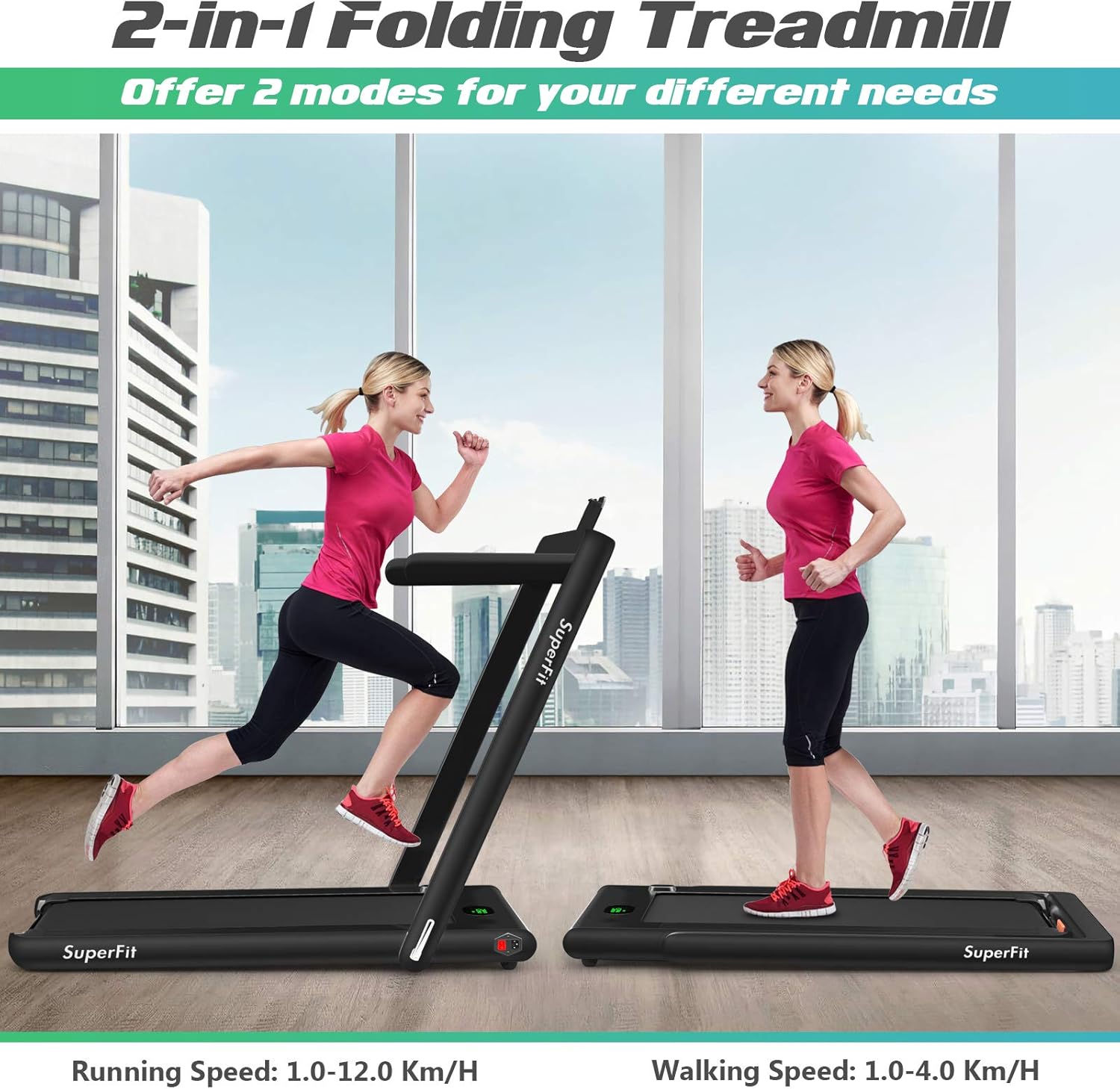
Image 6.1: Illustration of the treadmill's dual functionality, supporting both running and walking exercises.
6.1. Under Desk Walking Mode
This mode is ideal for light exercise while working or performing other tasks. The handrails are folded down, allowing the treadmill to be placed under a desk.
- Activation: Ensure the handrails are folded down.
- Speed Range: In this mode, the speed is limited to 1.0-4.0 km/h (or equivalent mph).
- Control: Use the remote control or the smart app to start, stop, and adjust speed.

Image 6.2: The treadmill in use as an under-desk walking pad, integrated into a workspace.
6.2. Running Mode
For more intense workouts, raise the handrails to engage the running mode.
- Activation: Lift and secure the handrails in the upright position.
- Speed Range: The running speed can be adjusted between 1.0-12.0 km/h (or equivalent mph).
- Control: Use the remote control or the smart app to manage your workout.
7. Smart App Control
Enhance your workout experience by connecting your treadmill to the GYMAX smart app via Bluetooth. The app allows for comprehensive control and tracking of your exercise data.

Image 7.1: The GYMAX app interface showing real-time exercise data, alongside the treadmill's LED display.
7.1. Connecting to the App
- Download App: Search for the "GYMAX" app on the Google Play Store or Apple App Store and install it on your smartphone.
- Enable Bluetooth: Ensure Bluetooth is enabled on your smartphone.
- Power On Treadmill: Turn on your GYMAX Walking Pad.
- Pair Device: Open the GYMAX app and follow the on-screen instructions to pair with your treadmill.
7.2. App Features
- Real-time Data: View time, speed, distance, and calories burned.
- Treadmill Control: Start, stop, and adjust the speed of the treadmill directly from your phone.
- Unit Switching: Switch the speed unit between miles and kilometers per hour.
- Workout History: Track and review your past workout sessions.
8. Remote Control Operation
The included remote control provides convenient access to basic treadmill functions.
- Start/Stop: Press the designated button to start or stop the treadmill belt.
- Speed Adjustment: Use the '+' and '-' buttons to increase or decrease the treadmill speed.
- Mode Selection: Some remotes may offer quick mode selection or preset speed options. Refer to the remote's specific markings.
Ensure the remote control has working batteries and is pointed towards the treadmill's receiver for optimal functionality.
9. Maintenance
Regular maintenance ensures the longevity and optimal performance of your treadmill.
9.1. Cleaning
- Always unplug the treadmill before cleaning.
- Wipe down the console and exterior surfaces with a soft, damp cloth. Avoid abrasive cleaners or solvents.
- Periodically vacuum underneath the treadmill to prevent dust and debris buildup.
9.2. Running Belt Lubrication
The running belt requires periodic lubrication to reduce friction and extend its lifespan. Refer to the specific instructions provided with your treadmill's lubrication kit, or consult customer support for guidance on appropriate lubricants and application frequency.
9.3. Belt Adjustment
If the running belt becomes off-center or slips, it may require adjustment. Consult the troubleshooting section or contact customer support for detailed instructions on how to properly adjust the belt tension and alignment.
10. Troubleshooting
This section addresses common issues you might encounter with your treadmill.
| Problem | Possible Cause | Solution |
|---|---|---|
| Treadmill does not power on. | Power cord not plugged in; Power switch off; Safety key not inserted. | Ensure power cord is securely plugged into both the treadmill and a working outlet. Turn the power switch to 'ON'. Insert the safety key fully into its slot. |
| Running belt stops or slows unexpectedly. | Safety key dislodged; Overload (user weight exceeds limit); Motor overheating. | Re-insert safety key. Ensure user weight is within specifications. Allow treadmill to cool down if used for extended periods. Avoid using on thick carpets. |
| Remote control not responding. | Dead batteries; Remote out of range; Obstruction. | Replace remote control batteries. Ensure remote is pointed towards the treadmill's console. Remove any obstructions between the remote and treadmill. |
| App cannot connect to treadmill. | Bluetooth off on phone; Treadmill not powered on; App not updated. | Ensure Bluetooth is enabled on your smartphone. Power on the treadmill. Update the GYMAX app to the latest version. Restart both phone and treadmill. |
| Unusual noise during operation. | Loose components; Belt misalignment; Lack of lubrication. | Inspect for any loose screws or parts. Check belt alignment and adjust if necessary. Lubricate the running belt if due. If noise persists, contact customer support. |
If you encounter an issue not listed here, or if the suggested solutions do not resolve the problem, please contact GYMAX customer support for further assistance.
11. Product Specifications
Detailed technical specifications for the GYMAX Walking Pad, 2.25HP Foldable Treadmill.
| Feature | Specification |
|---|---|
| Brand | GYMAX |
| Model Name | 2 in 1 Under Desk Treadmill |
| Color | Black |
| Product Dimensions (Unfolded) | 52"D x 27"W x 42"H |
| Folded Size | 52" x 27" x 5" (L x W x H) |
| Item Weight | 74 Pounds |
| Material | Acrylonitrile Butadiene Styrene (ABS), Iron |
| Maximum Speed | 12 Kilometers per Hour |
| Walking Speed Range | 1.0-4.0 km/h |
| Running Speed Range | 1.0-12.0 km/h |
| Special Feature | Compact Design, Foldable |
| Target Audience | Adult |
| Maximum Horsepower | 2.25 Horsepower |
| Assembly Required | No (minimal setup) |
| Display Type | LED |
| Power Source | Electric |
| Connectivity Technology | Bluetooth |
| Included Components | Remote Control |
| Metrics Measured | Speed, Distance |
| Maximum Weight Recommendation | 265 Pounds |
| Deck Length | 40 Inches |
| Deck Width | 16 Inches |
| Input Power | 160 Watts |
12. Storage
The GYMAX Walking Pad features a foldable design and integrated moving wheels for convenient storage and transport.
12.1. Folding the Treadmill
- Power Off: Ensure the treadmill is turned off and unplugged from the power outlet.
- Lower Handrails: Release the locking mechanism for the handrails and gently lower them until they are flat against the deck.
- Compact Position: The treadmill is now in its compact, folded state, measuring 52" x 27" x 5" (L x W x H).

Image 12.1: Visual guide to folding the treadmill and examples of its compact storage options.
12.2. Moving the Treadmill
Once folded, the built-in moving wheels allow for easy relocation.
- Tilt: Gently tilt the folded treadmill onto its moving wheels.
- Roll: Roll the treadmill to your desired storage location, such as under a bed or sofa, or upright against a wall.

Image 12.2: A user demonstrating the ease of moving the folded treadmill with its transport wheels.
13. Warranty and Support
13.1. Warranty Information
The GYMAX Walking Pad comes with a 90-day warranty from the date of purchase. This warranty covers manufacturing defects under normal use. Please retain your proof of purchase for warranty claims.
13.2. Customer Support
For any questions, concerns, troubleshooting assistance, or warranty claims, please contact GYMAX customer support. Refer to your purchase documentation or the GYMAX official website for contact details.
Ask a question about this manual
Ask about setup, troubleshooting, compatibility, parts, safety, or missing instructions. Manuals+ will review the question and use this page’s manual context to help answer it.