1. Introduction
The Autel MaxiSys MS906 Pro is an advanced diagnostic scanner designed for comprehensive vehicle system analysis. This device offers a wide range of functions including OE-level diagnostics, ECU coding, bi-directional control, and numerous special services. It is engineered to provide efficient and accurate automotive repair and maintenance solutions for professional technicians.

Image 1.1: The Autel MaxiSys MS906 Pro diagnostic tablet and its VCI (Vehicle Communication Interface) module, presented within a durable protective case. The tablet's screen displays various service icons.
2. Key Features
The MaxiSys MS906 Pro incorporates several advanced features and hardware upgrades to enhance diagnostic capabilities and user experience:
- Enhanced Configuration: Operates on Android 10.0 OS with an Exynos Octa-Core Processor, 4GB RAM, and 128GB storage. Features 5MP front and 16MP rear cameras, an 8-inch 1920x1200 HD touchscreen, and an 11600mAh battery for extended operation.
- FCA AutoAuth Support: Provides direct access to 2017 and later FCA vehicles for diagnostics and bi-directional functions, bypassing the SGW module without a bypass cable.
- Advanced ECU Coding & Adaptation: Supports high-end online coding and offline programming for various vehicle brands, including BMW F & E chassis, Porsche, VW, and Ford. Allows for module replacement matching, activation of hidden features, customization of OE-settings, and VAG guided functions.
- Bi-Directional Control: Enables active tests on various vehicle components to quickly pinpoint system issues and verify repairs.
- 40+ Special Services: A comprehensive suite of maintenance and reset functions, including Oil Reset, ABS Bleed, EPB, SAS, Injector Coding, Throttle, DPF, Gear Learning, Headlamp, SRS, A/F Setting, Trans Adaptation, Cylinder, Odometer, and Crankshaft position sensor relearn.
- OE-Level Full System Diagnostics: Offers extensive vehicle coverage (99% of global car models) with support for D-PDU, RP1210, DoIP, and CAN FD protocols. Includes full OBD2 capabilities, Auto VIN, Auto Scan, and Wi-Fi printing.
- Smart Cloud Services: Integrates cloud-based services such as Remote Expert, Report Management, AccuFix (coming soon), and Repair Data for streamlined repair and diagnosis.

Image 2.1: A comparison chart highlighting the upgraded configurations and new features of the Autel MaxiSys MS906 Pro compared to the previous MS906BT model, including operating system, memory, battery, and supported protocols.
3. Setup Guide
3.1. Package Contents
Before starting, verify that all components are present in your package:

Image 3.1: An overview of the Autel MaxiSys MS906 Pro package contents, including the main tablet, VCI module, various cables, power adapter, and documentation, all neatly arranged in the protective case.
3.2. Initial Charging
Upon first use, fully charge the MaxiSys MS906 Pro tablet. Connect the power adapter to the tablet's charging port and plug it into a power outlet. The charging indicator will illuminate.
3.3. Powering On and Initial Setup
- Press and hold the Power button on the tablet until the Autel logo appears.
- Follow the on-screen instructions to select your language, region, and Wi-Fi network.
- Register your device with Autel to activate warranty and receive software updates.
3.4. VCI Connection
The MaxiSys MS906 Pro communicates with the vehicle via the MaxiVCI V200 module. Ensure the VCI is charged or connected to the vehicle's OBDII port.
- Plug the MaxiVCI V200 into the vehicle's OBDII port, usually located under the dashboard.
- On the tablet, navigate to the VCI Manager application.
- Select Bluetooth as the connection method and pair with the MaxiVCI V200. The VCI status indicator on the tablet should show a stable connection.
4. Operating the Device
4.1. Vehicle Diagnostics
The primary function of the MS906 Pro is to perform comprehensive vehicle diagnostics.
- Connect the VCI to the vehicle and ensure it is paired with the tablet.
- From the main menu, select 'Diagnostics'.
- Choose 'Auto Scan' for automatic vehicle identification or manually select the vehicle make, model, and year.
- The system will scan all available modules and display any Diagnostic Trouble Codes (DTCs).
- You can view live data, freeze frame data, and clear DTCs as needed.
4.2. Special Services
Access a wide array of maintenance and reset functions from the 'Service' menu.
- Select 'Service' from the main menu.
- Choose the desired service function (e.g., Oil Reset, EPB, DPF).
- Follow the on-screen prompts to execute the service.
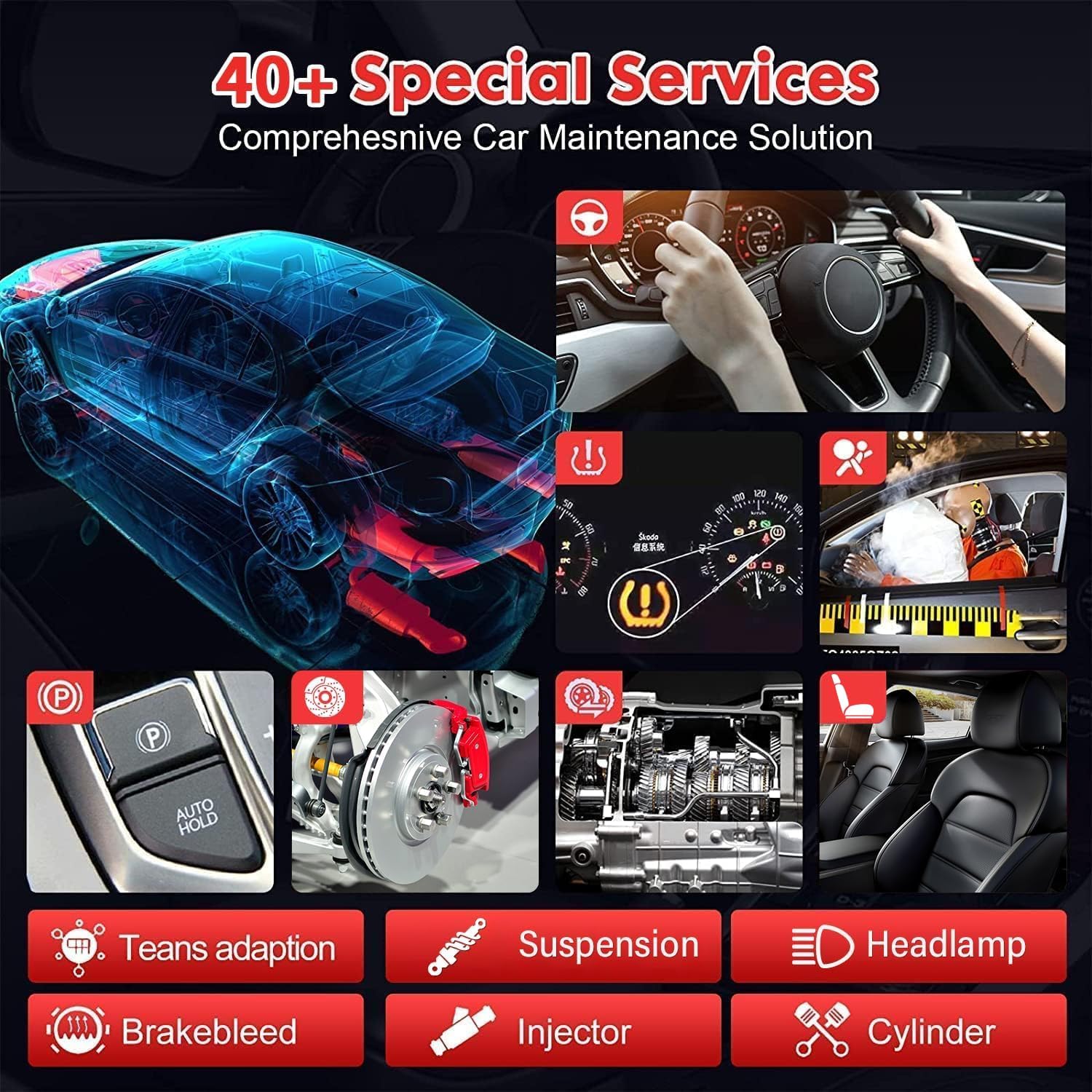
Image 4.1: The tablet interface showing a selection of over 40 special service functions available on the Autel MaxiSys MS906 Pro, including oil reset, ABS bleed, EPB, and injector coding.
4.3. Bi-Directional Control (Active Tests)
Perform active tests to command vehicle components and verify their functionality.
- After selecting the vehicle, navigate to the 'Active Test' section within the diagnostic menu.
- Select the component you wish to test (e.g., fuel pump, wipers, headlamps).
- Activate the component and observe its response to diagnose issues.

Image 4.2: An illustration demonstrating the bi-directional control capabilities of the Autel MaxiSys MS906 Pro, showing how the tool can send commands to and receive feedback from various vehicle systems like the engine, ABS, and headlamps.
4.4. ECU Coding and Adaptation
Utilize advanced coding functions to customize vehicle settings or replace modules.
- Access the 'Coding' or 'Adaptation' function for the specific vehicle system.
- Follow the guided procedures for online coding, offline programming, or module matching.
- Ensure stable internet connection for online coding functions.

Image 4.3: A visual representation of the online ECU coding and offline programming features, illustrating functions such as replacement module matching, activating hidden features, and customizing OE-settings.
4.5. Cloud Services
Leverage Autel's cloud services for enhanced support and data management.
- Remote Expert: Connect with remote technicians for assistance.
- Report Management: Store and manage diagnostic reports in the cloud.
- Repair Data: Access a vast database of repair information.

Image 4.4: The Autel MaxiSys MS906 Pro displaying its Smart Cloud Services interface, which includes options for Remote Expert, AccuFix, Repair Data, and Report Management.
5. Maintenance
5.1. Cleaning the Device
Regularly clean the tablet and VCI module to ensure optimal performance.
- Use a soft, damp cloth to wipe the screen and exterior surfaces.
- Avoid using abrasive cleaners or solvents that could damage the device.
- Keep the charging ports and connectors free of dust and debris.
5.2. Battery Care
To prolong battery life:
- Avoid fully discharging the battery frequently.
- Store the device in a cool, dry place when not in use for extended periods.
- Charge the device regularly, even if not in active use, to maintain battery health.
5.3. Software Updates
Ensure your device's software is always up-to-date to access the latest vehicle coverage and features.
- Connect the tablet to a stable Wi-Fi network.
- Navigate to the 'Update' application on the main menu.
- Download and install available updates.
6. Troubleshooting
This section addresses common issues you might encounter with your MaxiSys MS906 Pro.
6.1. Device Not Powering On
- Check Battery: Ensure the device is sufficiently charged. Connect it to the power adapter and allow it to charge for at least 30 minutes before attempting to power on again.
- Power Button: Confirm you are pressing and holding the Power button for the required duration (typically 3-5 seconds).
6.2. VCI Connection Issues
- VCI Power: Ensure the VCI module is properly plugged into the vehicle's OBDII port and receiving power (indicated by LED lights).
- Bluetooth Pairing: Re-check the Bluetooth connection in the VCI Manager on the tablet. Ensure the VCI is discoverable and paired.
- Distance: Maintain a close proximity between the tablet and the VCI module for a stable Bluetooth connection.
6.3. Communication Errors with Vehicle
- Ignition On: Ensure the vehicle's ignition is in the ON position (engine off or running, as required by the diagnostic procedure).
- Vehicle Compatibility: Verify that the selected vehicle make, model, and year are correct.
- Software Update: Ensure the diagnostic software for the specific vehicle brand is up-to-date.
- OBDII Port: Inspect the vehicle's OBDII port for any damage or obstructions.
6.4. Software Freezing or Slow Performance
- Restart Device: Restart the tablet to clear any temporary software glitches.
- Close Applications: Close any unnecessary background applications to free up system resources.
- Clear Cache: Periodically clear the application cache through the Android settings.
7. Specifications
Technical specifications for the Autel MaxiSys MS906 Pro:
| Feature | Specification |
|---|---|
| Operating System | Android 10.0 |
| Processor | Exynos Octa-Core |
| Memory | 4GB RAM, 128GB Storage |
| Display | 8-inch LCD with 1920x1200 Resolution Touchscreen |
| Battery | 11600 mAh Lithium-Polymer Battery |
| Cameras | Rear: 16MP, Front: 5MP |
| Connectivity | Bluetooth (MaxiVCI V200), Wi-Fi |
| Supported Protocols | D-PDU, RP1210, DoIP, CAN FD |
| Item Weight | 6.8 pounds |
| Product Dimensions | 3.15 x 3.94 x 2.36 inches |
| Manufacturer Part Number | MS906 PRO |
8. Warranty Information
The Autel MaxiSys MS906 Pro comes with a manufacturer's warranty. For detailed information regarding warranty terms, duration, and coverage, please refer to the warranty card included in your product package or visit the official Autel website. Keep your proof of purchase for warranty claims.
9. Customer Support
For technical assistance, product inquiries, or support, please contact Autel customer service through the following channels:
- Official Website: Visit www.autel.com for FAQs, software downloads, and support resources.
- In-App Support: Utilize the 'Remote Expert' feature within the MaxiSys MS906 Pro for direct assistance from Autel technicians.
- Email/Phone: Refer to the contact information provided in your product documentation or on the official Autel website for email and phone support options.
Note: No official product videos were provided in the source data for embedding in this manual.