
1. Introduction
This manual provides comprehensive instructions for the setup, operation, and maintenance of your REVODATA 5MP POE IP Mini Camera (Model: I706-2-P-TS-RD). Designed for indoor surveillance, this camera offers Ultra HD 2880x1620P resolution, a 3.7mm lens with a 70° FOV, H.265 compression, and flexible power options including Power Over Ethernet (POE). Please read this manual thoroughly before using the product to ensure proper installation and functionality.

Figure 1.1: REVODATA 5MP POE IP Mini Camera
2. What's in the Box
Please verify that all components are present and in good condition upon opening the package:
- 1 x Camera
- 1 x User Manual
- 1 x Screws Set

Figure 2.1: Included Package Contents
3. Specifications
| Feature | Description |
|---|---|
| Model Name | I706-2-POE-TS |
| Indoor/Outdoor Usage | Indoor |
| Video Capture Resolution | 5 MP (2880 x 1620P) |
| Lens | 3.7mm |
| Viewing Angle | 70 Degrees |
| Frame Rate | 20fps |
| Connectivity Protocol | Ethernet (ONVIF compatible) |
| Power Source | 48V POE / 12V DC |
| Video Compression | H.265/H.264 |
| Material | Metal |
| Dimensions (L x W x H) | 2.24 x 1.73 x 1.54 inches |
| Item Weight | 7 ounces |
| Compatible Devices | Smartphone, NVR |
| Alert Type | Motion Only |
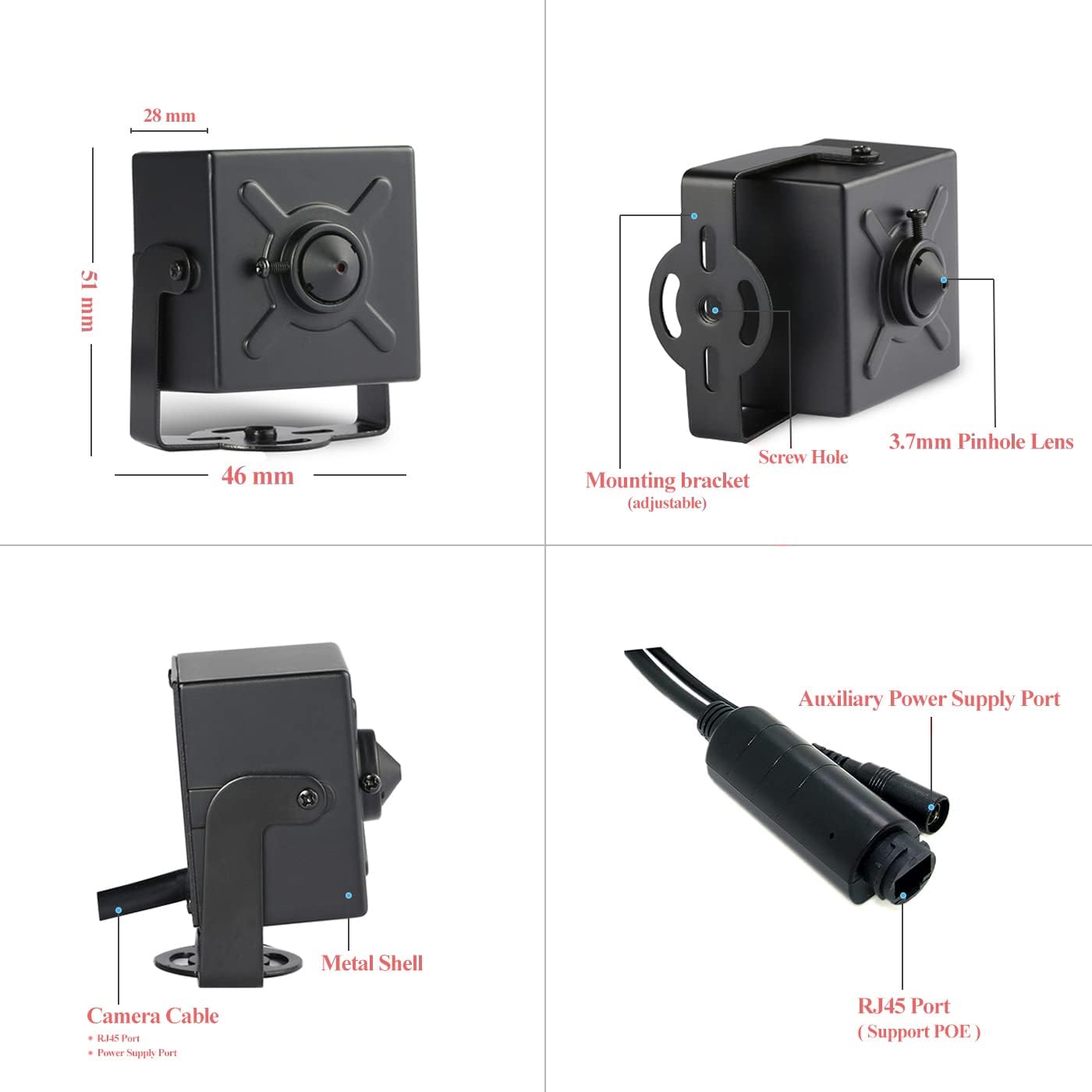
Figure 3.1: Camera Dimensions and Ports
4. Setup and Installation
The REVODATA 5MP POE IP Mini Camera supports both Power Over Ethernet (POE) and 12V DC power. For POE, connect the camera directly to a POE switch or POE injector using a Cat5/6 Ethernet cable. For 12V DC, use a compatible 12V/2A power adapter (not included) and connect it to the auxiliary power connector.

Figure 4.1: Camera connected to network cable
4.1. Connecting to Browser
To access the camera via a web browser, ensure your computer is on the same local network as the camera. The camera typically uses a default static IP address (e.g., 192.168.1.108). You may need to configure your computer's network settings to match this subnet initially if your network uses a different range. Once connected, open a web browser and enter the camera's IP address. The default username is admin and the default password is admin123. It is highly recommended to change these credentials immediately after initial setup for security purposes.
Video 4.1: Demonstrates how to connect the camera via browser, smartphone app, and NVR. This video shows the steps for logging into the camera's web interface and navigating its settings.
4.2. Connecting to Smartphone App
The camera can be accessed and controlled via the "TSEYE" smartphone application, available on app stores. Download and install the app, then follow the in-app instructions to add your device. You can typically search for local devices on your network or manually add the camera using its serial number or IP address. Ensure your smartphone is connected to the same Wi-Fi network as the camera during the initial setup.
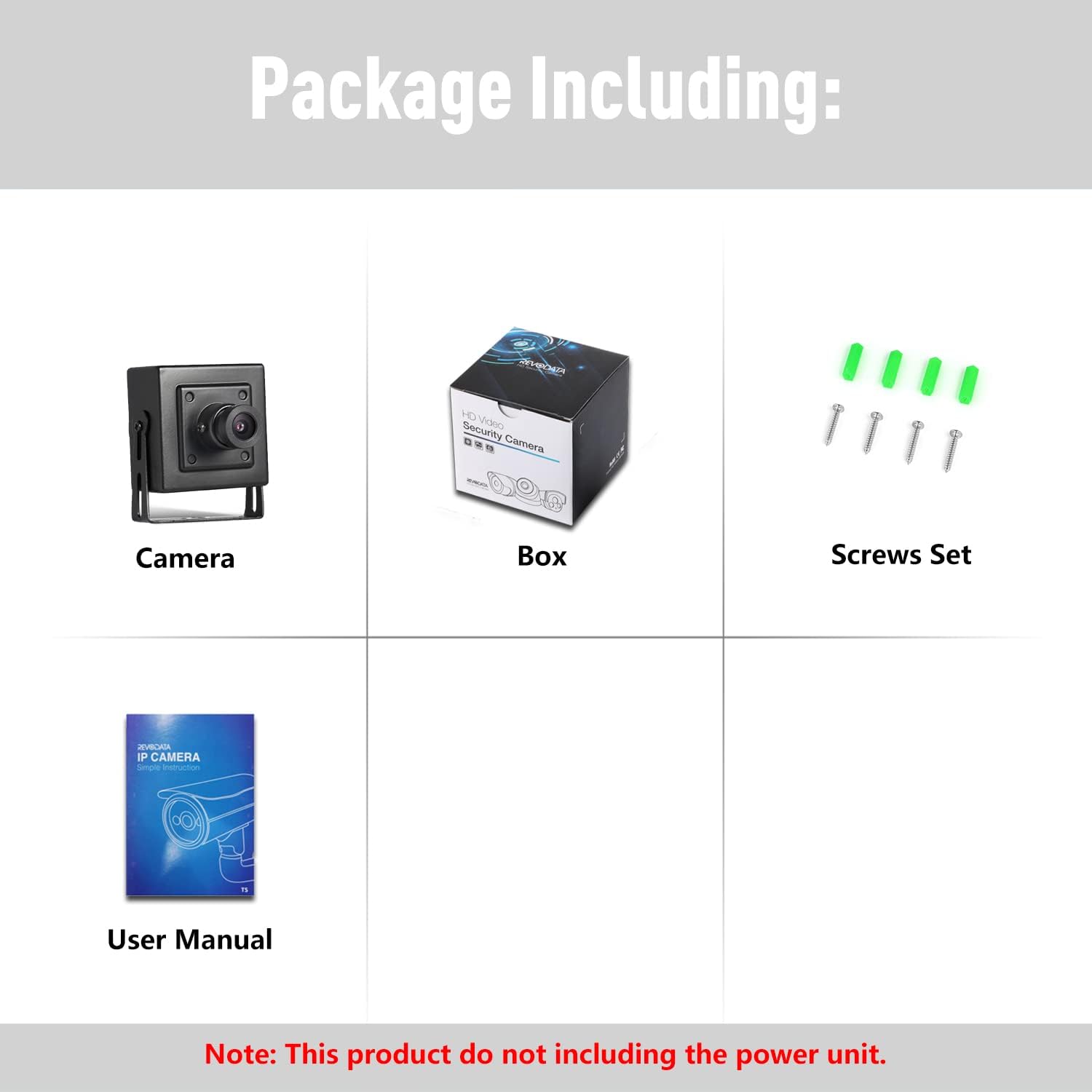
Figure 4.2: TSEYE App Interface for Smartphone Viewing
4.3. Connecting to NVR (Network Video Recorder)
The REVODATA 5MP POE IP Mini Camera is ONVIF compatible, allowing integration with most Network Video Recorders (NVRs). Ensure your NVR supports 5MP resolution for optimal performance. If your NVR does not support 5MP, you may need to lower the camera's resolution settings via the web interface to match your NVR's capabilities. Use the NVR's device search function to find and add the camera to your surveillance system.
5. Operating the Camera
5.1. Ultra HD 5MP Quality
The camera features a 1/3'' CMOS image sensor, delivering 5.0 Megapixel (2880 x 1620P) resolution at 20 frames per second. This ensures clear and smooth images and videos with enhanced detail, crucial for effective surveillance.

Figure 5.1: Resolution Comparison (1080P vs 5MP)
5.2. Motion Detection
The camera supports smart motion detection. Once motion is detected within the configured area, the camera can send alarm notifications directly to your smartphone via the TSEYE app. This feature helps you stay informed of any activity in the monitored area.
Figure 5.2: Motion Detection Feature
5.3. H.265 Video Encoding
The camera utilizes Dual H.265/H.264 encoding. H.265 (High Efficiency Video Coding) offers significant advantages over H.264 by providing the same video quality with approximately half the bandwidth and storage requirements. This allows for more efficient video streaming and longer recording times.
Figure 5.3: H.265 vs H.264 Compression Efficiency
5.4. Day and Night Vision
The camera is equipped to provide clear surveillance footage in varying light conditions. It automatically adjusts to optimize image quality during both day and night. For low-light environments, the camera features a minimum illumination of 0.1Lux @(F1.2,AGC ON).

Figure 5.4: Day and Night Vision Capability
6. Maintenance
To ensure the longevity and optimal performance of your REVODATA IP Mini Camera, follow these maintenance guidelines:
- Cleaning: Gently wipe the camera lens and body with a soft, dry cloth. Avoid using harsh chemicals or abrasive cleaners, as they may damage the surface or lens coating.
- Environment: Ensure the camera is installed in an indoor environment within its specified operating temperature range (up to 60°C). Avoid exposing it to direct sunlight, extreme humidity, or dusty conditions.
- Firmware Updates: Periodically check the manufacturer's website or the TSEYE app for any available firmware updates. Keeping the firmware updated can improve performance, add new features, and enhance security.
- Cable Management: Ensure all cables are securely connected and not under strain. Avoid bending cables sharply, especially the Ethernet cable, to prevent damage.
7. Troubleshooting
If you encounter issues with your camera, refer to the following common problems and solutions:
- Camera Not Connecting to Network:
- Verify the Ethernet cable is securely connected to both the camera and the POE switch/router.
- Ensure the POE switch or injector is providing power to the camera.
- Check if your network's IP address range is compatible with the camera's default static IP (e.g., 192.168.1.xxx). You may need to temporarily adjust your computer's IP or use a network scanner to find the camera's assigned IP.
- If using the smartphone app, ensure your phone is on the same local network during initial setup.
- Poor Video Quality or Stuttering:
- Check the camera's resolution and frame rate settings in the web interface. Lowering these settings may improve performance if your network bandwidth is limited or your NVR does not support higher resolutions.
- Ensure your network connection is stable and has sufficient bandwidth.
- Verify the lens is clean and free from obstructions.
- Cannot Log In to Web Interface:
- Confirm you are using the correct default username (admin) and password (admin123).
- If you have changed the password and forgotten it, refer to the user manual PDF or contact customer support for password reset procedures.
- Motion Detection Not Working:
- Ensure motion detection is enabled in the camera's configuration settings (via web interface or app).
- Adjust the sensitivity settings for motion detection.
- Verify that notification settings are correctly configured in the TSEYE app.
8. Warranty and Support
REVODATA products are designed for reliability and performance. For detailed warranty information, please refer to the warranty card included with your product or visit the official REVODATA website. If you require technical assistance or have questions not covered in this manual, please contact REVODATA customer support.
You can also refer to the comprehensive User Manual (PDF) for additional information and detailed diagrams.


