
1. Introduction
This manual provides detailed instructions for the VVB 9-in-1 USB C Docking Station. This device expands a single USB-C/Thunderbolt 3 port on your laptop into multiple ports, including HDMI, DisplayPort, USB 3.0, SD/TF card readers, and Power Delivery charging. Please read this manual carefully before use to ensure proper operation and to maximize the functionality of your docking station.
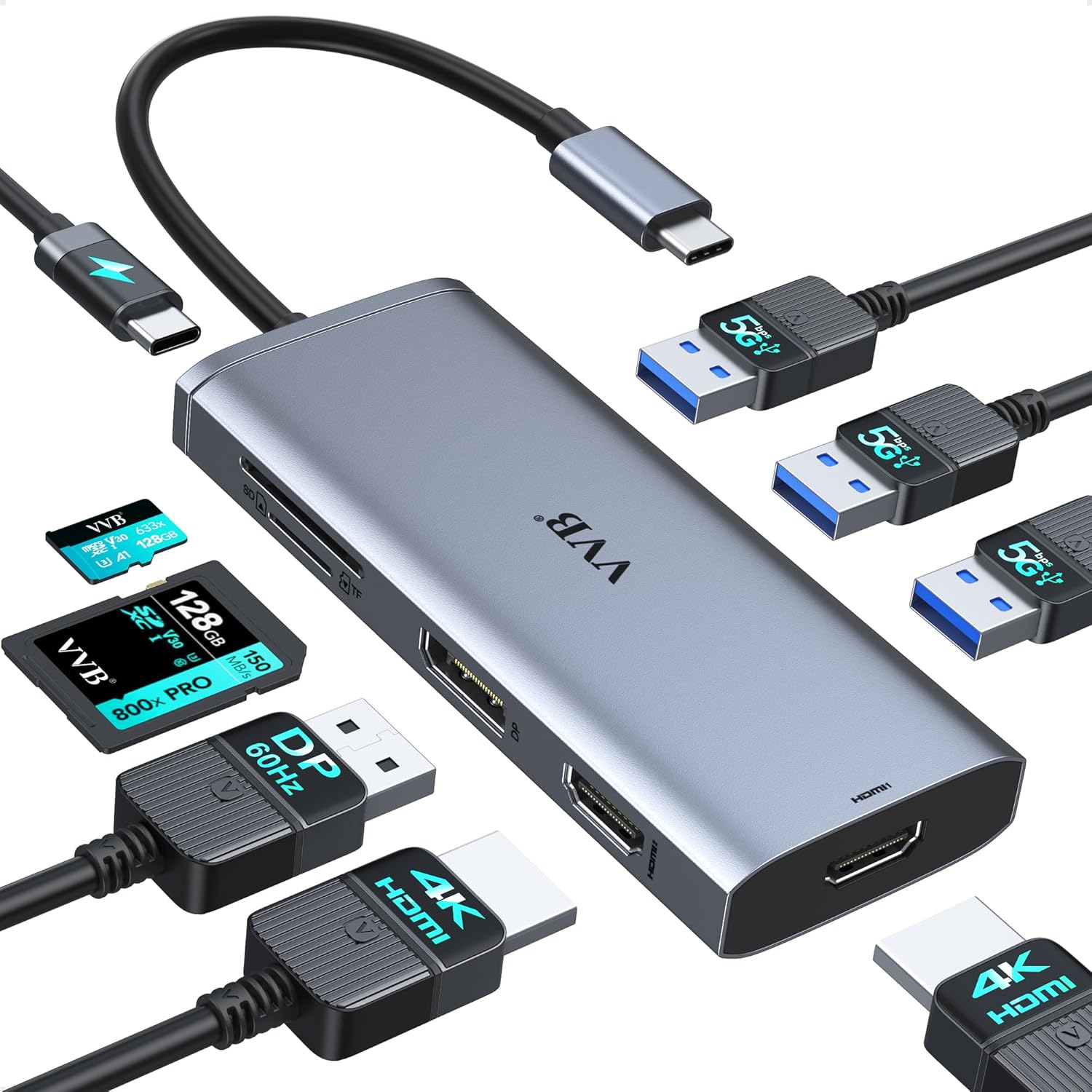
Image 1.1: The VVB 9-in-1 USB C Docking Station, showcasing its compact design and various ports.
2. Product Overview
The VVB 9-in-1 USB C Docking Station is designed to enhance your laptop's connectivity. It features the following ports:
- 2 x HDMI Ports: Supports up to 4K resolution at 30Hz.
- 1 x DisplayPort: Supports up to 4K resolution at 60Hz.
- 3 x USB 3.0 Ports: Data transfer speeds up to 5Gbps.
- 1 x SD Card Reader: Data transfer speeds up to 104MB/s.
- 1 x TF (Micro SD) Card Reader: Data transfer speeds up to 104MB/s.
- 1 x USB-C Power Delivery (PD) Port: Supports up to 100W input, with a safe power output of 87W for laptop charging.

Image 2.1: Detailed view of the VVB 9-in-1 USB C Docking Station ports and their functions.
3. Compatibility Requirements
This docking station is compatible with laptops and computers featuring a Full-featured USB Type-C port that supports DisplayPort Alternate Mode (Alt Mode), Power Delivery, and data transfer protocols.
3.1. Supported Operating Systems
- Windows
- macOS
- Linux
- iPad OS
- Android
3.2. Important Note on USB-C Port Functionality
Before purchase and use, please confirm that your laptop's USB-C port supports the necessary functions. Not all USB-C ports are identical.

Image 3.1: Visual guide to identifying full-function USB-C ports versus charge-only or data-only ports.
3.3. Examples of Compatible Devices
This docking station is compatible with many devices, including but not limited to:
- Dell: Latitude 5330, 5420, 5430, 5530, 5431, 5531, 7330, 7420, 7430, 7530, 9420, 9430; Inspiron; Vostro; XPS 9380/13/15/17.
- HP: Elitebook Zbook G7/G8, Probook, Elitebook 630/640/645/650/655 G9, 840/850 G6/G7/G8/G9, 845, Elitebook 830 G7/G8/G9/G10, EliteBook x360 G9/G10, 1030 G2/G3/G4/G7/G8, 1040 G5/G6/G7/G8/G9/G10, X2, Probook 440 G6, 445 G7, 450 G5/6/7/9/10, 455 G9/10, 650 G8; Zbook Firefly 14/15 G7/G8; Zbook 15 G3; Spectre x360.
- Lenovo: Yoga 720/910/920/930, Thinkpad, T14/s/T480/T490s/ThinkPad X1 Carbon/Yoga Gen6/7/8.
- Microsoft Surface: Surface Pro 7/X/Go/Laptop 3, Surface Pro X/9/8/7, Surface Laptop 3/4/5.
- Apple: MacBook Pro (2018-2023), MacBook Air/Mac mini (2018-2023), iMac Pro (2018-2023), iPad/Pro (2018-Newest).

Image 3.2: Overview of compatible laptop brands and models.
3.4. Incompatible Devices
Some devices may not be fully compatible due to limitations in their USB-C port functionality or specific hardware configurations. Examples of potentially incompatible devices include:
- HP Pavilion x360, HP Probook 650b/650 G2/640 G8/655 G4
- Dell Latitude E7480/E5430/E6520/E6230/3390/5510
- Dell Inspiron 15 3535/3520/3530/3511/5000/5379/7706 2n1/3593
- Dell Vostro 15 3530/3535/3430/3420/Chromebook 5190
- Lenovo ThinkPad L13 Gen 3 (13" AMD), L14 Gen 3 (14" AMD), L15 Gen 3 (15" AMD), T14 Gen 4 (14" AMD), X13 (13" Snapdragon), P14s Gen 4 (14" AMD)
- IdeaPad Slim 3 Chromebook, IdeaPad Pro 5i (16" Intel), IdeaPad Flex 5 (16" AMD), IdeaPad Flex 3 Chromebook
- Acer Chromebook, Acer Aspire series (e.g., E15, F5-573G, A717-72G, Nitro 5 AN515-15, AN517-41)
- ASUS Vivobook Flip 14, ASUS Chromebook, ASUS Vivobook 15 X1500EA/X1500E, ASUS Vivobook E210MA-GJ96WS, ASUS Vivobook 17, ASUS Laptop Model # F 1502 ZA-S896
- Samsung Galaxy Tab A 2018, Galaxy Tab S3/S4, Galaxy Tab E, Galaxy S23 FE phones, Galaxy S5/S6/S7 or older version
- Nintendo Switch, Honor View 10, Lenovo Tab 4, ASUS Zenpad x10, Google Pixelbook 2, Blu Vivo, Motorola G7/G5/G6/G5/G4/G3, Google Pixel, Pixel 2, Pixel XL, Pixel C, OnePlus 2/3/3T/5/6T/7/7T/7T Pro, ZTE/Zmax Pro/ZTE Blade X Max/Zxon 7

Image 3.3: List of devices that may not be compatible with the docking station.
4. Setup Instructions
The VVB 9-in-1 USB C Docking Station is designed for plug-and-play functionality, requiring no additional drivers or software installation for most operating systems.
- Connect Power (Optional but Recommended): If you intend to charge your laptop through the docking station, connect a USB-C power adapter (not included) to the docking station's USB-C PD port. A 100W power adapter is recommended for optimal performance.
- Connect to Laptop: Plug the integrated USB-C cable from the docking station into a full-featured USB-C/Thunderbolt 3 port on your laptop.
- Connect Peripherals: Connect your external monitors, USB devices (keyboard, mouse, external drives), and SD/TF cards to the corresponding ports on the docking station.
- Configure Display Settings: Your operating system should automatically detect the connected displays. If not, or to adjust display modes (extend, mirror), refer to your operating system's display settings.
Note: It is recommended to connect the power supply to the docking station first, then connect the docking station to your laptop, and finally connect other peripherals.
5. Operating the Docking Station
5.1. Display Modes for Windows Laptops
For Windows systems, the docking station supports dual and triple extended displays, allowing for different content on each screen.
- Single Display: Connect one monitor to either HDMI 1, HDMI 2, or DisplayPort.
- HDMI 1 / DisplayPort: Up to 4K@60Hz
- HDMI 2: Up to 4K@30Hz
- Dual Monitors: Connect two monitors.
- HDMI 1 + HDMI 2: 4K@30Hz and 1080P@60Hz (DP1.4)
- HDMI 1 + DisplayPort: 4K@30Hz and 1080P@60Hz (DP1.4)
- HDMI 2 + DisplayPort: 4K@30Hz and 1080P@60Hz (DP1.4)
- Triple Monitors: Connect three monitors (HDMI 1, HDMI 2, and DisplayPort).
- All three monitors will display at 1080P resolution.
- Note: If your laptop uses DP1.2, one of the external monitors' resolutions will be lower than 1080P in triple display mode.

Image 5.1: Visual representation of dual and triple monitor setups for Windows laptops.
5.2. Display Modes for macOS Laptops
Due to limitations in macOS (Multi-Stream Transport - MST is not supported), MacBook laptops only support mirror display across external monitors. This means all connected external monitors will show the same image.
- Mirror Display: All external monitors will mirror the laptop's display.
- Maximum Resolution: Up to 4K@30Hz for all mirrored displays.

Image 5.2: Illustration of macOS display limitations, showing only mirrored external displays.
5.3. Data Transfer and Charging
- USB 3.0 Ports: Connect USB devices for data transfer at up to 5Gbps. These ports do not support charging or video output.
- SD/TF Card Readers: Insert SD or Micro SD cards for fast data transfer up to 104MB/s.
- USB-C PD Port: Use this port to power your laptop. Ensure your laptop supports the Power Delivery protocol. A 65W or higher power adapter is required; a 100W adapter is recommended. The hub reserves 8W for its own operation.

Image 5.3: Depiction of 5Gbps data transfer via USB 3.0 ports.

Image 5.4: Illustration of 104MB/s data transfer for SD/TF card readers.

Image 5.5: Diagram explaining 100W input and 87W output for USB-C Power Delivery.
6. Maintenance and Care
- Keep the docking station away from water, fire, and corrosive liquids.
- Avoid dropping or subjecting the device to strong impacts.
- Clean the device with a soft, dry cloth. Do not use harsh chemicals or abrasive materials.
- Store in a cool, dry place when not in use.
- The docking station may become warm during extended use, which is normal. Ensure adequate ventilation.
7. Troubleshooting
If you encounter issues, please refer to the following common solutions:
- No Display Output:
- Ensure your laptop's USB-C port supports DisplayPort Alt Mode.
- Verify that all cables (USB-C to laptop, HDMI/DP to monitors) are securely connected.
- Check your laptop's display settings to ensure external monitors are detected and configured (extend/mirror).
- Try connecting one monitor at a time to isolate the issue.
- Ensure HDMI/DP cables do not exceed 3 meters in length.
- Laptop Not Charging:
- Confirm your laptop supports USB-C Power Delivery.
- Ensure the power adapter connected to the docking station is at least 65W (100W recommended).
- Verify the power adapter and USB-C charging cable are functional and securely connected.
- A lower power charger may cause a low charging warning or prevent charging.
- USB Devices Not Working:
- Ensure USB devices are properly plugged into the USB 3.0 ports.
- Test the USB device directly on your laptop to confirm it is functional.
- Some high-power USB devices may require additional power, ensure the docking station is connected to a power source.
- SD/TF Card Not Detected:
- Ensure the card is fully inserted into the correct slot.
- Check if the card is damaged or corrupted.
- Test the card directly on your laptop or another device.
- Intermittent Connectivity:
- Ensure all connections are firm.
- Avoid using other converters in conjunction with the docking station, as this can cause compatibility issues.
- Ensure the docking station is receiving adequate power, especially when multiple devices are connected.
Image 7.1: Important tips regarding power supply, display limitations, and general compatibility.
8. Specifications
| Brand | VVB |
| Model Number | 9 IN 1 usb c hub |
| Connectivity | USB-C (Host) |
| Output Ports | 2x HDMI, 1x DisplayPort, 3x USB 3.0, 1x SD Card Reader, 1x TF Card Reader, 1x USB-C PD |
| HDMI Resolution | Up to 4K@30Hz |
| DisplayPort Resolution | Up to 4K@60Hz |
| USB 3.0 Data Speed | Up to 5Gbps |
| SD/TF Card Speed | Up to 104MB/s |
| USB-C PD Input | 100W Max |
| USB-C PD Output | 87W (8W reserved for hub operation) |
| Operating System | Windows, Linux, Mac OS, iPad OS, Android |
| Item Weight | 3.2 ounces |
| Product Dimensions (LxWxH) | 2.8 x 0.67 x 5.16 inches |
9. Warranty and Support
For warranty information or technical support, please refer to the contact details provided with your product packaging or visit the official VVB website. If you have any questions or operational problems, please contact customer support for assistance.
Please retain your proof of purchase for warranty claims.


