Introduction
This manual provides comprehensive instructions for the assembly, setup, operation, and maintenance of your LAFVIN 2WD Smart Robot Car Kit with ESP32 Camera. This kit is designed for beginners to learn electronics and programming, compatible with Arduino IDE. Please read all instructions carefully before beginning assembly.
Package List
Verify that all components listed below are present in your kit.

An image showing all components included in the LAFVIN 2WD Smart Robot Car Kit, neatly arranged and labeled. This includes the ESP32 CAM module, L298N motor driver, power supply module, WiFi receiver, tires and motors, various acrylic plates, universal wheel, battery case, Dupont wires, USB cable, screwdriver, ties, and screws.
- ESP32 CAM x1
- L298N Motor Driver x1
- Power Supply Module x1
- WiFi Receiver x1
- Tire & Motor x2
- Acrylic A1 x1
- Acrylic A2 x1
- Acrylic A3 x1
- Bottom Acrylic Layer x1
- Universal Wheel x1
- Battery Case x1
- 10pin F-F Dupont Wire x1
- USB Cable x1
- Screwdriver x1
- Tie x2
- Screw bag x1
Assembly Instructions
Follow these steps to assemble your robot car. Ensure all connections are secure.
- Prepare the Chassis: Attach the motors to the bottom acrylic layer using the provided screws. Ensure the motor shafts are facing inwards.

A diagram showing the installation of the two yellow DC motors onto the grey bottom acrylic chassis plate, with screw holes indicated for secure attachment. Also shows the battery case placement.
- Install Wheels: Press the yellow wheels onto the motor shafts firmly.
- Mount the Universal Wheel: Secure the universal wheel to the front underside of the bottom acrylic layer.
- Attach Battery Case: Mount the battery case to the top side of the bottom acrylic layer. (Refer to the image above for placement.)
- Assemble ESP32 Camera Module Housing: Assemble the acrylic pieces (A1, A2, A3) to create the housing for the ESP32 CAM module. Insert the ESP32 CAM module into this housing.

A diagram showing the assembly of the acrylic housing for the ESP32 CAM module, with screws and standoffs used to secure the module within the protective casing.
- Mount ESP32 Camera Module: Attach the assembled ESP32 CAM module housing to the top acrylic layer or directly to the chassis, depending on the design.

A close-up image of the ESP32 CAM module securely mounted within its black acrylic housing, showing the WiFi antenna and connection points.
- Connect Motor Driver (L298N): Connect the L298N motor driver to the motors and the power supply module. Refer to the wiring diagram for correct polarity.
A detailed view of the L298N motor driver board with wires connected to its screw terminals, indicating power input and motor output connections.
- Connect Power Supply Module: Connect the battery case to the power supply module. Ensure the power supply module is securely mounted.

A close-up image of the power supply module, showing the DC input jack, USB output, and various pin headers for connecting to other components.
- Final Wiring: Connect the ESP32 CAM module to the motor driver and power supply using the Dupont wires. Double-check all connections against the provided wiring diagram (if available in the kit's tutorial).

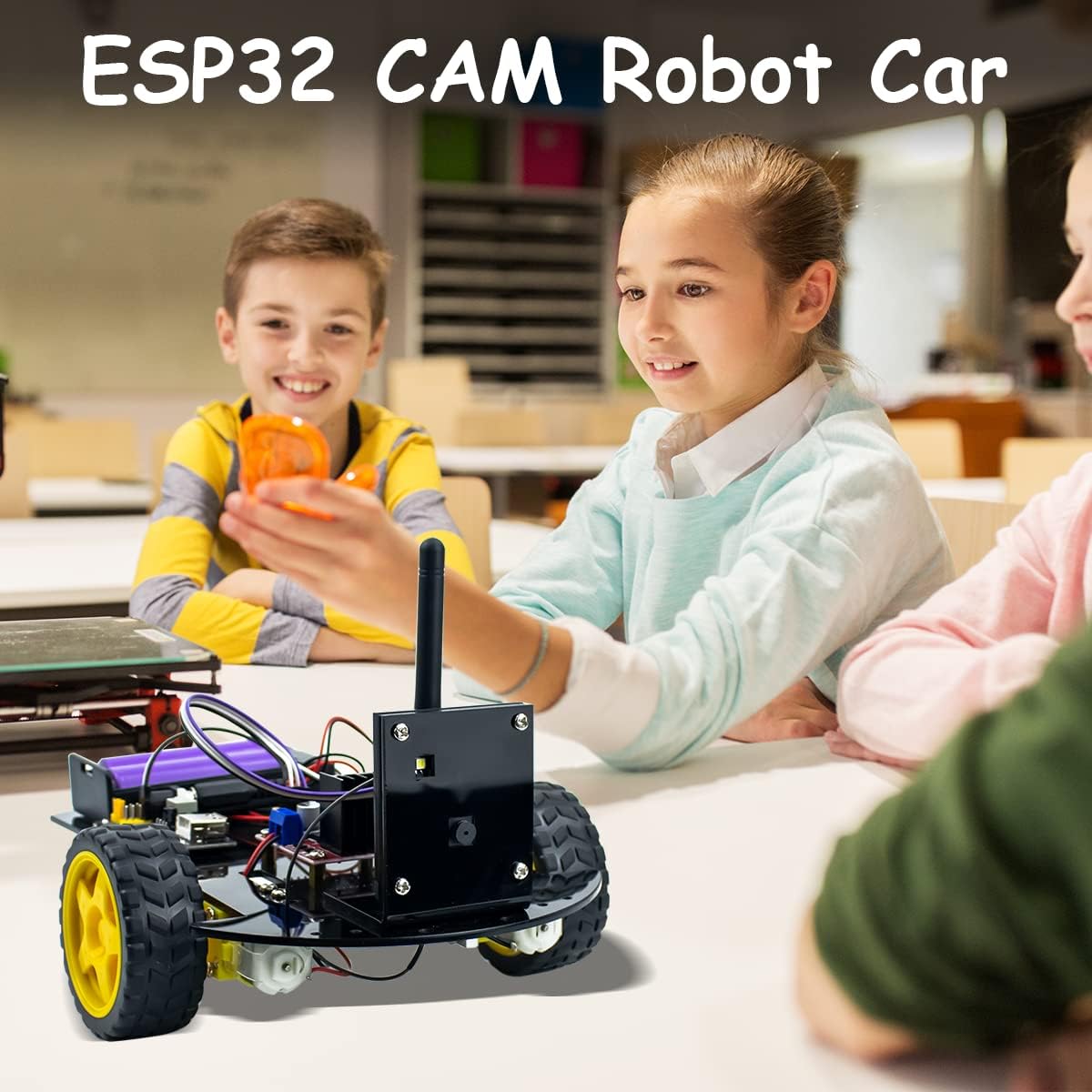
The fully assembled LAFVIN 2WD Smart Robot Car with the ESP32 CAM module, shown alongside a smartphone displaying the control interface and live camera feed. A red laser beam indicates the camera's field of view.
Setup
1. Software Installation
To program the ESP32 CAM module, you will need the Arduino IDE. Download and install it from the official Arduino website: https://www.arduino.cc/en/software.
Install the ESP32 board package in the Arduino IDE. Go to File > Preferences, and add the following URL to "Additional Board Manager URLs": https://raw.githubusercontent.com/espressif/arduino-esp32/gh-pages/package_esp32_index.json.
Then, go to Tools > Board > Board Manager, search for "esp32", and install the "esp32 by Espressif Systems" package.
Select the correct ESP32 CAM board (e.g., AI Thinker ESP32-CAM) from Tools > Board.
2. Connecting the ESP32
Connect the ESP32 CAM module to your computer using the provided USB cable. Ensure the correct COM port is selected in Tools > Port in the Arduino IDE.
Upload the example code (typically found in the kit's tutorial or online resources) to the ESP32 CAM module. This code will enable the camera and WiFi functionality.
Operating Instructions
1. Powering On
Insert two 18650 batteries (not included) into the battery case. Ensure correct polarity.
Switch on the power supply module. The robot car will power up, and the ESP32 CAM module will begin its initialization process.
2. Connecting to the Robot Car
The ESP32 CAM module creates its own WiFi access point. On your smartphone or computer, connect to the WiFi network named by the ESP32 (e.g., "ESP32-CAM-AP").
Open a web browser and navigate to the IP address provided by the ESP32 (usually 192.168.4.1). This will open the control interface.
A smartphone screen displaying the web-based control interface for the robot car, with buttons for 'Stop', 'Forward', 'Left', 'Right', 'Reverse', 'Light On', 'Light Off', and a speed slider. A live camera feed is visible at the top.
3. Controlling the Robot Car
Use the on-screen buttons to control the robot's movement: Forward, Reverse, Left, Right, and Stop.
Adjust the speed using the provided slider or input field.
The camera provides a live video feed to your device, allowing for remote observation.
The camera can also detect obstacles, depending on the uploaded program.
Maintenance
- Keep the robot car clean and free from dust and debris.
- Regularly check all screw connections and tighten if necessary.
- Ensure battery contacts are clean and free of corrosion.
- Store the robot car in a dry, cool place when not in use.
- Avoid exposing electronic components to moisture or extreme temperatures.
Troubleshooting
- Robot not moving:
- Check battery charge and polarity.
- Verify all motor and power connections are secure.
- Ensure the motor driver (L298N) is correctly wired and receiving power.
- Confirm the program is uploaded correctly to the ESP32.
- No camera feed or WiFi connection:
- Ensure the ESP32 CAM module is powered on.
- Check the WiFi antenna connection.
- Verify the ESP32 program for WiFi and camera functionality is uploaded and running.
- Confirm your device is connected to the ESP32's WiFi network.
- Try restarting the robot car and your controlling device.
- Loose components:
- Tighten any loose screws. Some users have reported issues with component mounting; consider adding additional fasteners if parts feel unstable.
Specifications
| Feature | Detail |
|---|---|
| Model | 2WD Smart Robot Car Kit ESP32 Camera |
| Main Controller | ESP32 CAM Module |
| Motor Driver | L298N |
| Power Supply | 2 x 18650 Batteries (not included) |
| Connectivity | WiFi |
| Compatibility | Arduino IDE |
| Product Dimensions | 11.02 x 7.09 x 1.97 inches |
| Item Weight | 1.21 pounds |
Warranty and Support
For warranty information and technical support, please refer to the official LAFVIN website or contact their customer service directly. Keep your purchase receipt for any warranty claims.


