1. Introduction
Thank you for choosing the Powerwerks PWR10 Powered Speaker Cabinet. This manual provides essential information for the safe and efficient operation of your new speaker. The PWR10 is a high-performance active speaker designed for various audio applications, featuring robust power output, versatile input options, and integrated digital signal processing (DSP).
Please read this manual thoroughly before operating the unit and retain it for future reference.
2. Safety Information
To reduce the risk of electric shock, fire, or injury, always follow these basic safety precautions:
- Power Source: Connect the unit only to a power supply of the type described in this manual or on the unit.
- Grounding: Ensure the power cord is properly grounded to prevent electric shock.
- Ventilation: Do not block ventilation openings. Ensure adequate airflow around the unit.
- Water and Moisture: Do not expose the unit to rain or moisture. Do not place objects filled with liquids on the unit.
- Heat: Keep the unit away from heat sources such as radiators, heat registers, stoves, or other heat-producing appliances.
- Servicing: Do not attempt to service this product yourself. Refer all servicing to qualified service personnel.
- Cleaning: Unplug the unit from the power outlet before cleaning. Use a dry cloth for cleaning.
3. Package Contents
The Powerwerks PWR10 package includes the following items:
- Powerwerks PWR10 Powered Speaker Cabinet
- Power Cord
- User Manual (this document)
4. Product Features
The Powerwerks PWR10 Powered Speaker Cabinet offers a range of features designed for optimal audio performance and versatility:
- High Power Output: 600 watts of Class D amplification.
- Two-Way Speaker System: Features one 10-inch low-frequency driver and one high-frequency compression driver.
- Multiple Audio Inputs: Two channels with XLR / Line combo inputs for microphones or line-level devices.
- Integrated DSP: Four selectable EQ presets: Main, Monitor, DJ, and Speech.
- Bluetooth Connectivity: Seamless wireless audio streaming from compatible devices.
- True Stereo Linking: Connect wirelessly to another Powerwerks PWR series speaker for stereo sound.
- XLR Thru Output: Allows for system expansion by connecting to other powered speakers.
- Portable Design: Durable wooden cabinet with integrated handles for easy transport.
- Standard Pole Mount: Compatible with standard speaker poles for elevated placement.

Image 1: Front view of the Powerwerks PWR10 Powered Speaker Cabinet, showcasing its protective grille and Powerwerks logo.
5. Controls and Connections
Familiarize yourself with the control panel located on the rear of the PWR10 speaker. This section details each control and connection point.

Image 2: Detailed view of the rear control panel of the Powerwerks PWR10, showing inputs, outputs, and control knobs.
5.1. Input Section
- INPUT 1 (XLR / Line Combo): This input accepts both XLR (microphone level) and 1/4-inch TRS/TS (line level) connectors. Use for microphones, mixers, or other audio sources.
- INPUT 2 (XLR / Line Combo): Similar to Input 1, this input also accepts XLR and 1/4-inch TRS/TS connectors for additional audio sources.
- GAIN 1 & 2: Rotary controls to adjust the input sensitivity for Input 1 and Input 2 respectively. Adjust these to achieve an optimal signal level without distortion.
5.2. Bluetooth Section
- LINK Button: Used for wirelessly linking two PWR series speakers for True Stereo operation.
- PAIR Button: Initiates Bluetooth pairing mode to connect with a Bluetooth audio source (e.g., smartphone, tablet).
- Bluetooth Indicator LED: Illuminates when a Bluetooth device is connected.
5.3. Output and DSP Section
- DSP EQ PRESETS: A rotary selector to choose between four optimized sound modes:
- MAIN: General purpose setting for front-of-house sound.
- MONITOR: Optimized for stage monitoring applications.
- DJ: Enhanced bass and treble for music playback.
- SPEECH: Optimized for vocal clarity in spoken word applications.
- MASTER VOLUME: Controls the overall output level of the speaker.
- OUTPUT (XLR Thru): An XLR output that sends a mix of the input signals to another powered speaker or audio device for system expansion.
- POWER LED: Indicates when the unit is powered on.
- LIMIT LED: Illuminates when the internal limiter is active, indicating that the signal is approaching distortion. Reduce input gain or master volume if this LED frequently lights up.
5.4. Power Section
- AC INLET: Connect the supplied power cord here.
- POWER SWITCH: Turns the speaker on or off.
6. Setup
Proper setup ensures optimal performance and safety.
6.1. Placement
- Floor Placement: Place the speaker on a stable, flat surface.
- Pole Mounting: The PWR10 features a standard pole mount receptacle on the bottom. Insert the speaker onto a sturdy speaker pole stand. Ensure the stand is stable and capable of supporting the speaker's weight.
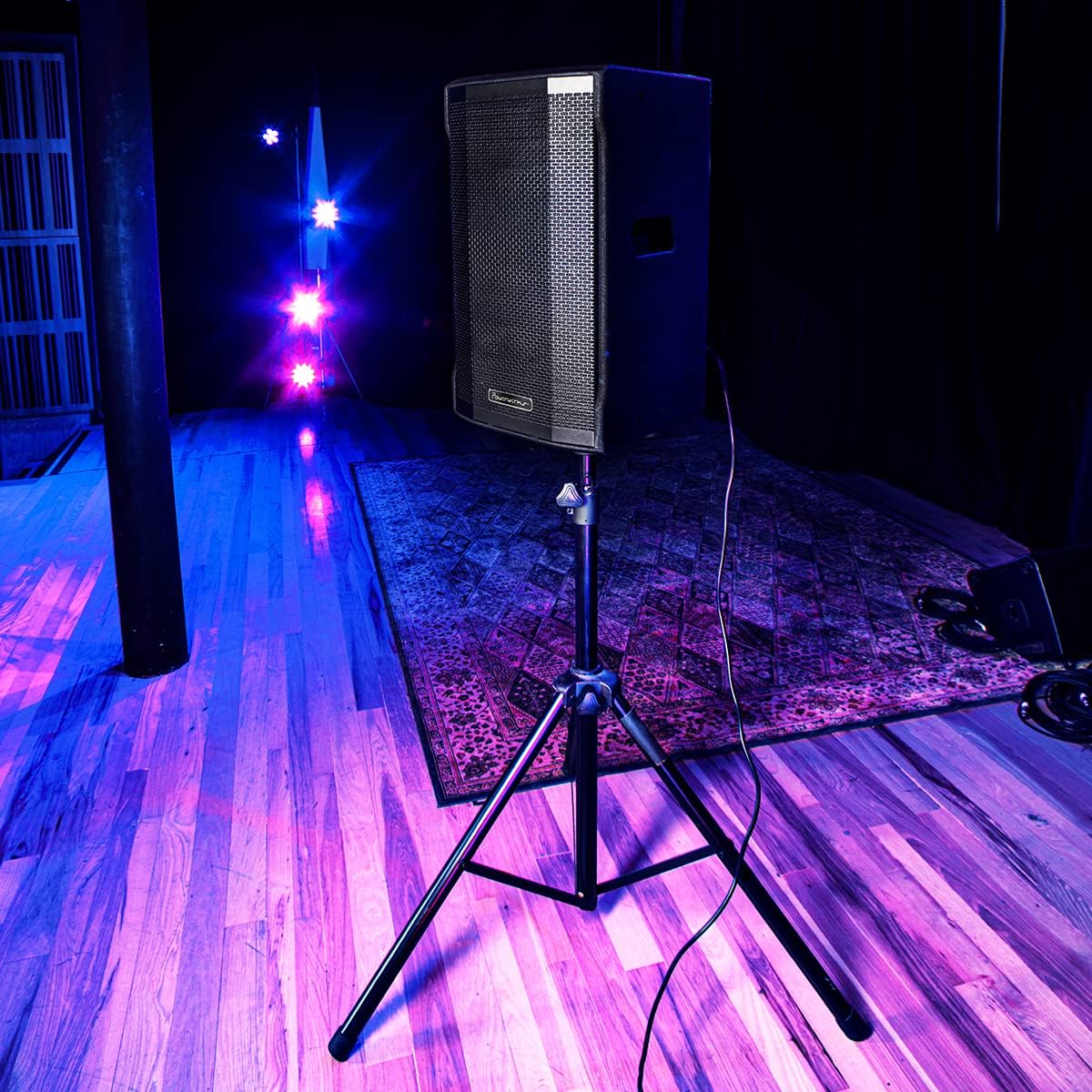
Image 3: The Powerwerks PWR10 speaker positioned on a stand, illustrating a typical setup for live sound applications.
6.2. Power Connection
- Ensure the POWER switch on the rear panel is in the OFF position.
- Connect the supplied power cord to the AC INLET on the speaker.
- Plug the other end of the power cord into a grounded electrical outlet.
6.3. Initial Checks
- Before powering on, ensure all gain controls are set to their minimum (fully counter-clockwise) position.
- Verify all audio cables are securely connected.
7. Operating Instructions
7.1. Powering On/Off
- To power on, flip the POWER switch to the ON position. The POWER LED will illuminate.
- To power off, flip the POWER switch to the OFF position.
7.2. Connecting Audio Sources
- Connect your microphone or line-level device (e.g., mixer, instrument pre-amp) to INPUT 1 or INPUT 2 using an appropriate XLR or 1/4-inch cable.
- Slowly increase the corresponding GAIN control for the connected input until the desired volume is achieved without the LIMIT LED flashing excessively.
- Adjust the MASTER VOLUME to control the overall output level.
7.3. Bluetooth Pairing
- Press the PAIR button on the rear panel. The Bluetooth indicator LED will flash, indicating it is in pairing mode.
- On your Bluetooth-enabled device (smartphone, tablet), search for available Bluetooth devices.
- Select "Powerwerks PWR10" from the list.
- Once connected, the Bluetooth indicator LED will glow solid. You can now stream audio wirelessly to the speaker.
7.4. Using DSP Presets
Rotate the DSP EQ PRESETS knob to select the desired sound profile:
- MAIN: Standard flat response for general use.
- MONITOR: Tailored for stage monitoring, often with reduced bass to prevent muddiness.
- DJ: Boosted bass and treble for impactful music playback.
- SPEECH: Optimized for vocal clarity, often with a mid-range boost.
7.5. True Stereo Linking (with another PWR series speaker)
- Ensure both PWR series speakers are powered on and within Bluetooth range.
- On the first speaker (which will act as the master), pair your Bluetooth audio source as described in section 7.3.
- On the master speaker, press the LINK button. The Bluetooth indicator LED will flash.
- On the second speaker (slave), press its LINK button. The Bluetooth indicator LED will flash.
- Once linked, both speakers' Bluetooth indicator LEDs will glow solid, and audio will play in stereo.
8. Maintenance
Regular maintenance helps prolong the life of your speaker.
- Cleaning: Disconnect the power cord before cleaning. Use a soft, dry cloth to wipe down the cabinet. Do not use abrasive cleaners, solvents, or waxes.
- Storage: When not in use for extended periods, store the speaker in a dry, dust-free environment.
- Inspection: Periodically check the power cord and audio cables for any signs of damage.
9. Troubleshooting
If you encounter issues with your PWR10 speaker, refer to the following common problems and solutions:
- No Power:
- Ensure the power cord is securely connected to both the speaker and a working electrical outlet.
- Check the POWER switch is in the ON position.
- Verify the electrical outlet is functional by plugging in another device.
- No Sound:
- Check that the MASTER VOLUME is turned up.
- Ensure the GAIN controls for the active inputs are adjusted appropriately.
- Verify audio cables are securely connected and not damaged.
- If using Bluetooth, ensure the device is paired and streaming audio.
- Test with a different audio source or cable.
- Distorted Sound:
- Reduce the GAIN controls for the inputs.
- Reduce the MASTER VOLUME.
- If the LIMIT LED is frequently lit, reduce the input signal level.
- Check the audio source for distortion.
- Bluetooth Not Connecting:
- Ensure the speaker is in PAIRING mode (Bluetooth LED flashing).
- Make sure Bluetooth is enabled on your device.
- Move your device closer to the speaker.
- Try unpairing and re-pairing the device.
- Ensure no other devices are currently connected to the speaker via Bluetooth.
10. Specifications
Detailed technical specifications for the Powerwerks PWR10 Powered Speaker Cabinet:

Image 4: Diagram illustrating the dimensions of the Powerwerks PWR10 speaker.
| Model Name | Powerwerks 600 Watt 1 x 10" Speaker |
| Speaker Type | 2-Channel Active Speaker, Component |
| Woofer Diameter | 10 Inches |
| Wattage | 600 Watts (Peak) |
| Connectivity Technology | Bluetooth, XLR, 1/4-inch Line |
| Audio Output Mode | Stereo (via True Stereo Linking) |
| DSP EQ Presets | Main, Monitor, DJ, Speech |
| Product Dimensions (D x W x H) | 28.3" x 15" x 15.6" |
| Item Weight | 42.9 pounds (19.5 Kilograms) |
| Power Source | Corded Electric |
| Mounting Type | Floor Standing, Pole Mount |
| Color | Black |
| UPC | 701963063117 |
11. Warranty and Support
The Powerwerks PWR10 Powered Speaker Cabinet comes with a limited warranty. Please refer to the warranty card included with your product or contact Powerwerks customer support for specific details regarding coverage and duration.
For technical assistance, troubleshooting beyond this manual, or warranty claims, please contact Powerwerks customer support through their official website or the contact information provided with your purchase documentation.


