
Introduction
This manual provides detailed instructions for the setup, operation, and maintenance of your j5create USB-C 4K Triple Display Hub (JCD397). Please read this manual thoroughly to ensure proper usage and to maximize the performance of your device. The JCD397 is designed to expand the connectivity of compatible USB-C laptops, offering multiple display outputs, high-speed USB ports, a card reader, and Ethernet connectivity.

Image: The j5create USB-C 4K Triple Display Hub (JCD397) in Space Gray, featuring its compact design and integrated USB-C cable.
Product Features
The j5create JCD397 offers a comprehensive set of features to enhance your workstation:
- Triple Display Output: Supports dual or triple 4K display configurations via two HDMI ports and one DisplayPort, compatible with USB-C laptops featuring DisplayPort 1.4 and Multi-Stream Transport (MST).
- High Refresh Rate Support: Extend one display up to 3840 x 2160 @ 60Hz, or achieve higher refresh rates like 2560 x 1440 @ 144Hz via HDMI or 1920 x 1080 @ 240Hz via DisplayPort on Windows OS.
- USB SuperSpeed 10 Gbps Ports: Includes two USB-C and one USB Type-A port for connecting peripherals or downstream charging, offering data transfer speeds up to 10 Gbps.
- SD & microSD 4.0 Card Reader: Integrated memory card reader/writer for managing media files with UHS-II support, providing data transfer speeds up to 312 MB/s.
- Gigabit Ethernet: Provides a stable wired network connection.
- Power Delivery 3.0: Supports up to 100W pass-through charging to power the connected peripherals and charge your host laptop using a USB-C power adapter.

Image: An overhead view of the j5create JCD397 hub connected to a laptop, illustrating all available ports in use, including USB-A, USB-C, HDMI, DisplayPort, SD/microSD, and Gigabit Ethernet.
Setup Instructions
- Connect to Host Device: Plug the integrated USB-C cable of the JCD397 into a compatible USB-C port on your laptop. Ensure your laptop's USB-C port supports DisplayPort 1.4 and Multi-Stream Transport (MST) for full functionality.
- Power Connection (Optional but Recommended): For optimal performance and to charge your laptop, connect your laptop's USB-C power adapter (up to 100W) to the USB-C Power Delivery port on the JCD397.
- Connect Displays:
- For HDMI displays, connect HDMI cables from your monitors to the two HDMI ports on the JCD397.
- For DisplayPort displays, connect a DisplayPort cable from your monitor to the DisplayPort on the JCD397.
Note: Display configurations and extended desktop functionality vary by operating system. Refer to the 'Operating' section for details.
- Connect USB Peripherals: Plug your USB-A and USB-C devices (e.g., mouse, keyboard, external hard drive) into the respective USB 10Gbps ports on the JCD397.
- Connect to Network: For a wired internet connection, connect an Ethernet cable from your router or modem to the Gigabit Ethernet port on the JCD397.
- Insert Memory Cards: Insert SD or microSD cards into the designated slots for data access.

Image: A diagram illustrating triple display configurations for both Windows (extended mode) and Mac (mirrored mode) using the j5create JCD397 hub.
Operating Instructions
Display Configuration
- Windows OS: The JCD397 supports Multi-Stream Transport (MST) on Windows, allowing for an extended desktop across up to three external 4K displays. Adjust display settings in your operating system to configure extended or mirrored modes.
- macOS: When using extended mode on macOS, all connected external displays will show the same content (mirroring). macOS does not support MST for extended displays across multiple external monitors via a single USB-C port.
USB Data Transfer
The USB-A and USB-C 10Gbps ports provide high-speed data transfer for compatible devices. Ensure your connected devices and cables support USB 3.2 Gen 2 for optimal performance.
Card Reader Usage
Insert your SD or microSD card into the appropriate slot. The card will appear as a removable drive on your computer, allowing you to access and transfer files. The card reader supports UHS-II for fast data access.
Power Delivery
When a USB-C power adapter is connected to the PD port, the JCD397 will pass through up to 100W of power to charge your host laptop and power connected peripherals. Ensure your power adapter meets the required wattage for your laptop.
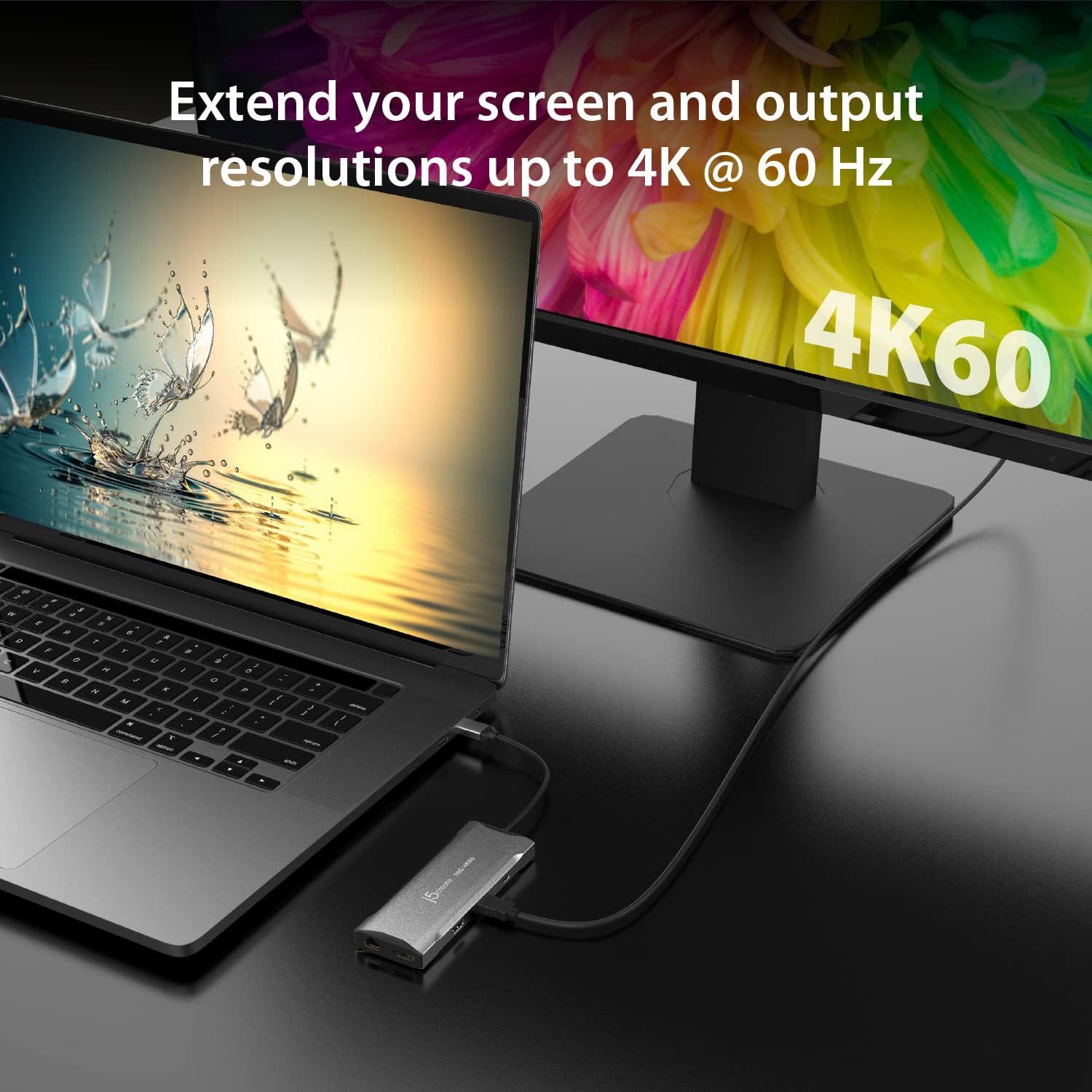
Image: A laptop connected to an external monitor displaying 4K resolution at 60Hz, demonstrating the video output capability of the JCD397 hub.
Maintenance
To ensure the longevity and optimal performance of your j5create JCD397, follow these maintenance guidelines:
- Cleaning: Use a soft, dry cloth to clean the exterior of the hub. Avoid using liquid cleaners or solvents, as they may damage the device.
- Storage: Store the hub in a cool, dry place away from direct sunlight and extreme temperatures.
- Handling: Avoid dropping or subjecting the device to strong impacts. Do not attempt to disassemble the hub, as this will void the warranty.
- Cable Care: Do not bend or crimp the integrated USB-C cable excessively.
Troubleshooting
If you encounter issues with your JCD397, please refer to the following common problems and solutions:
- No Display Output:
- Ensure the USB-C cable from the hub is securely connected to your laptop.
- Verify that your laptop's USB-C port supports DisplayPort Alternate Mode (Alt Mode) and Multi-Stream Transport (MST).
- Check that display cables (HDMI/DP) are firmly connected to both the hub and the monitors.
- Confirm that your monitors are powered on and set to the correct input source.
- For macOS users, remember that external displays will mirror each other in extended mode.
- Slow USB Data Transfer:
- Ensure your connected USB devices and cables are USB 3.2 Gen 2 compatible for 10Gbps speeds.
- Avoid connecting high-power devices to multiple USB ports simultaneously without external power to the hub.
- Laptop Not Charging via PD:
- Verify that your USB-C power adapter is connected to the PD port on the hub.
- Ensure your power adapter provides sufficient wattage for your laptop (up to 100W supported by the hub).
- Confirm your laptop's USB-C port supports Power Delivery input.
- Ethernet Connection Issues:
- Check the Ethernet cable connection to both the hub and your router/modem.
- Verify network settings on your computer.
- Hub Feels Warm:
- It is normal for the hub to become warm during operation, especially when multiple ports are in use or when charging. Ensure adequate ventilation around the device. If it becomes excessively hot, disconnect it and contact support.
Specifications
| Feature | Specification |
|---|---|
| Model | JCD397 |
| Product Dimensions | 2.17 x 5.83 x 0.67 inches |
| Item Weight | 0.32 ounces |
| Brand | j5create |
| Color | Space Gray |
| Hardware Interface | USB |
| Display Outputs | 2x HDMI, 1x DisplayPort (4K @ 60Hz max) |
| USB Data Ports | 2x USB-C 10Gbps, 1x USB Type-A 10Gbps |
| Power Delivery | Up to 100W Pass-Through |
| Ethernet | Gigabit Ethernet |
| Card Reader | SD & microSD 4.0 (UHS-II, up to 312 MB/s) |
| Compatible Devices | Laptops with USB-C (DisplayPort 1.4 & MST support recommended) |
Warranty and Support
j5create products are designed for reliability and performance. For information regarding warranty coverage, please refer to the warranty card included with your product or visit the official j5create website. If you require technical assistance or have questions not covered in this manual, please contact j5create customer support.
Contact Information:
Please refer to the j5create official website for the most current support contact details, including phone numbers and email addresses.


