
GlocalMe UPP Blue 4G Mobile Hotspot Device User Manual
Model: UPP Blue | Brand: GlocalMe
1. Product Overview
The GlocalMe UPP Blue is a portable 4G mobile hotspot device designed to provide reliable internet connectivity in over 200 countries and regions. Utilizing Cloud SIM technology, it eliminates the need for physical SIM cards and offers flexible, pay-as-you-go data plans. This device allows you to connect multiple devices simultaneously, making it ideal for travel, remote work, or home use.

Figure 1.1: GlocalMe UPP Blue 4G Mobile Hotspot Device
Key Features
- Global Coverage: Access to 4G LTE networks in over 200 countries and regions.
- SIM-Free: No physical SIM card required, simplifying setup and usage.
- Flexible Data Plans: Pay-as-you-go options with no contracts or monthly fees.
- Multi-Device Connectivity: Share internet with up to 8 devices simultaneously.
- Long Battery Life: Up to 13 hours of continuous use with a 3000mAh battery.
- Ultra-Slim and Lightweight: Compact design for easy portability.

Figure 1.2: Global 4G WiFi Hotspot coverage in over 200 countries.
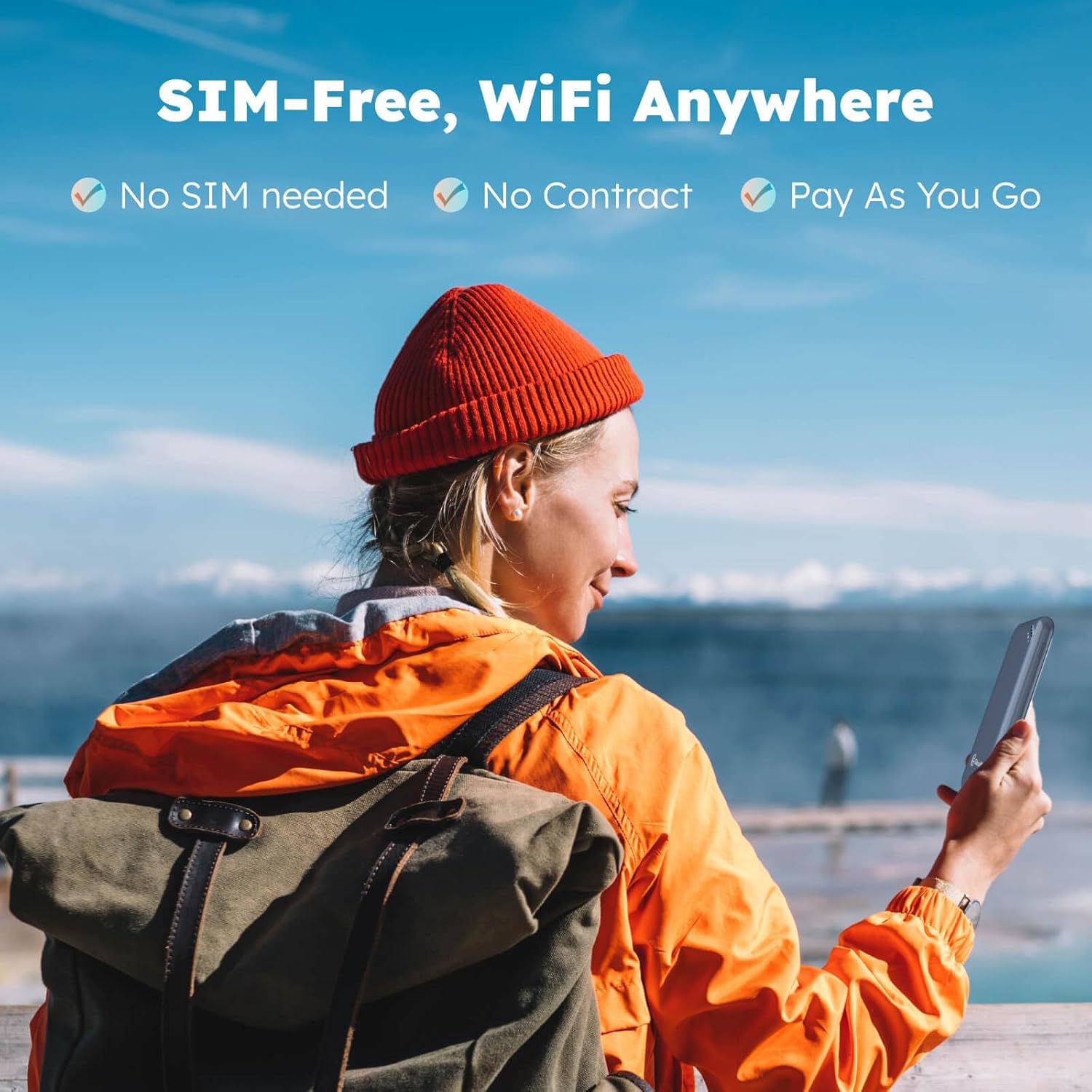
Figure 1.3: SIM-Free, WiFi Anywhere functionality.

Figure 1.4: Device supports sharing internet with up to 8 devices.

Figure 1.5: Long battery life for extended use.

Figure 1.6: Ultra-slim and lightweight design for portability.
Product Video Overview
Video 1.1: An official overview of the GlocalMe UPP 4G LTE Mobile Hotspot, demonstrating its features and ease of use.
2. Setup Guide
Follow these steps to set up your GlocalMe UPP Blue device and get connected.
2.1 Initial Device Activation
- Unpack the Device: Remove the GlocalMe UPP Blue device and any included accessories from its packaging.
- Power On: Press and hold the power button on the device until the indicator lights illuminate.
- Charge the Device: For optimal performance, ensure the device is fully charged using the provided USB cable and a compatible power adapter (not included).
2.2 GlocalMe App Installation and Device Linking
The GlocalMe app is essential for managing your hotspot and purchasing data plans.
- Download the App: Scan the QR code on the device packaging or search for "GlocalMe" in your mobile device's app store (App Store for iOS, Google Play Store for Android).
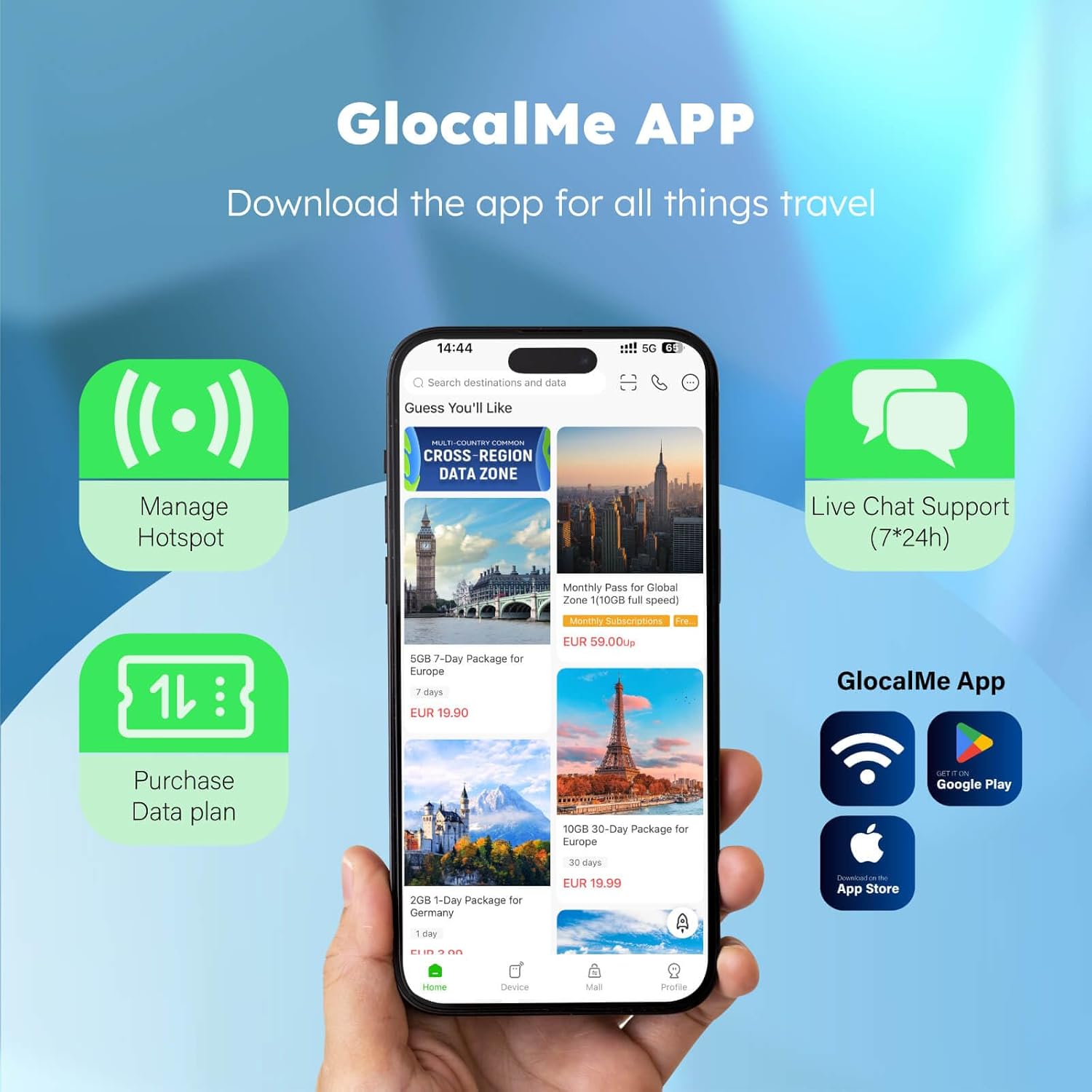
Figure 2.1: Download the GlocalMe App for managing your device.
- Create an Account: Open the GlocalMe app and follow the on-screen instructions to create a new account or log in if you already have one.
- Link Your Device: In the GlocalMe app, navigate to the "My Device" section. Select the option to add a device by scanning the QR code located on the back of your GlocalMe UPP Blue hotspot. Alternatively, you can manually enter the device's serial number.
2.3 Connecting to Wi-Fi
Once your device is linked, you can connect your other devices to its Wi-Fi network.
- Find Network Name (SSID): The Wi-Fi network name (SSID) and password are typically found on a sticker on the back of your GlocalMe UPP Blue device.
- Connect Your Device: On your phone, tablet, or laptop, go to Wi-Fi settings, select the GlocalMe network name, and enter the password.
- Access Internet: Once connected, your device will have internet access. You can purchase data packages through the GlocalMe app as needed.

Figure 2.2: Visual quick start guide for device setup and app linking.
3. Operating Instructions
This section covers the basic operation of your GlocalMe UPP Blue device.
3.1 Power On/Off
- Power On: Press and hold the power button for approximately 3 seconds until the indicator lights turn on.
- Power Off: Press and hold the power button for approximately 3 seconds until the indicator lights turn off.
3.2 Managing Data Plans
All data plan purchases and management are done through the GlocalMe mobile application.
- Browse Plans: Open the GlocalMe app and navigate to the "Store" or "Data Plans" section. You can browse various local and global data packages.
- Purchase Data: Select your desired data package and complete the purchase using the payment methods available in the app.
- Monitor Usage: The app allows you to monitor your real-time data usage and remaining balance.

Figure 3.1: Example of flexible and affordable data plans available in the GlocalMe App.
3.3 Cloud SIM Technology
The GlocalMe UPP Blue utilizes advanced Cloud SIM technology to automatically select the best available network in your location, ensuring optimal connectivity without manual intervention.

Figure 3.2: Cloud SIM technology automatically switches to the best signal network.
4. Maintenance
Proper maintenance ensures the longevity and optimal performance of your GlocalMe UPP Blue device.
- Cleaning: Use a soft, dry cloth to clean the device. Avoid using liquid cleaners or aerosols.
- Storage: Store the device in a cool, dry place away from direct sunlight and extreme temperatures.
- Battery Care: To preserve battery health, avoid fully discharging the device frequently. If storing for extended periods, charge the battery to about 50% and recharge every few months.
- Software Updates: Regularly check the GlocalMe app for firmware updates. Keeping your device's software up-to-date ensures the latest features and security enhancements.
5. Troubleshooting
If you encounter issues with your GlocalMe UPP Blue, refer to the following common problems and solutions.
5.1 No Internet Connection
- Check Device Status: Ensure the GlocalMe device is powered on and has sufficient battery.
- Verify Data Plan: Open the GlocalMe app to confirm you have an active data plan with available data balance.
- Signal Strength: Check the signal indicator on the device. If the signal is weak, try moving to an area with better network coverage.
- Reboot Device: Power off the GlocalMe device, wait 10 seconds, and then power it back on.
- Re-link Device: If issues persist, try unlinking and re-linking the device in the GlocalMe app.
5.2 Slow Internet Speed
- Network Congestion: Internet speeds can vary based on network traffic and location.
- Number of Connected Devices: Too many devices connected simultaneously can reduce individual speeds. Disconnect unnecessary devices.
- Device Placement: Ensure the hotspot is in an open area, away from obstructions that might interfere with the signal.
- Data Plan Speed: Some data plans may have speed limitations after a certain amount of high-speed data is consumed. Check your plan details in the app.
5.3 Device Not Turning On
- Charge Battery: Connect the device to a power source and allow it to charge for at least 30 minutes before attempting to power it on again.
- Check Cable/Adapter: Ensure the charging cable and adapter are working correctly. Try a different cable or adapter if available.
6. Specifications
Detailed technical specifications for the GlocalMe UPP Blue 4G Mobile Hotspot Device.
| Feature | Description |
|---|---|
| Model Name | UPP Blue |
| Product Dimensions | 2.54 x 0.47 x 4.72 inches |
| Item Weight | 0.005 ounces |
| Manufacturer | GlocalMe |
| Country of Origin | China |
| Special Feature | WPS |
| Frequency Band Class | Single-Band |
| Wireless Communication Standard | 802.11n, 802.11b, 802.11a, 802.11ac, 802.11g |
| Compatible Devices | Personal Computer |
| Frequency | 2.4 GHz |
| Connectivity Technology | Wi-Fi |
| Antenna Type | Fixed |
7. Warranty and Support
7.1 Product Warranty
The GlocalMe UPP Blue device comes with a standard manufacturer's warranty. For specific details regarding warranty coverage, duration, and terms, please refer to the warranty card included in your product packaging or visit the official GlocalMe website.
7.2 Customer Support
For any technical assistance, troubleshooting not covered in this manual, or inquiries regarding your device or data plans, please contact GlocalMe customer support:
- Via GlocalMe App: The GlocalMe app provides a live chat support feature (7*24h) for immediate assistance.
- Online Resources: Visit the official GlocalMe website at glocalme.com/manuals for additional manuals, FAQs, and support information.