1. Introduction
This manual provides detailed instructions for the safe and efficient use of your BOOX Note Air2 Plus ePaper Tablet. Please read this manual thoroughly before operating the device and retain it for future reference.
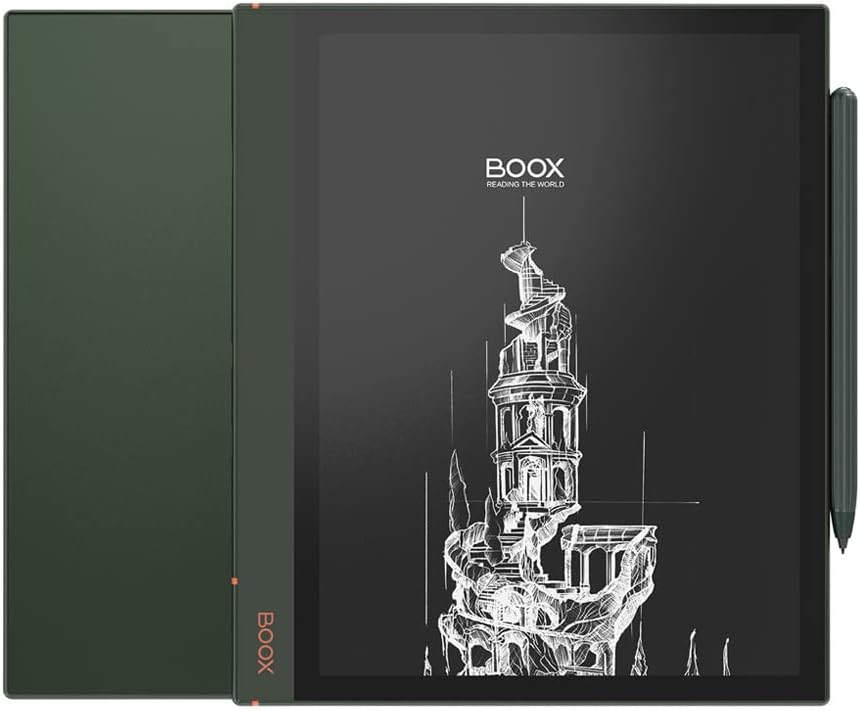
Image 1.1: The BOOX Note Air2 Plus ePaper Tablet, shown with its protective cover and stylus.
2. Device Overview
Familiarize yourself with the physical components of your BOOX Note Air2 Plus tablet.
2.1 Physical Dimensions
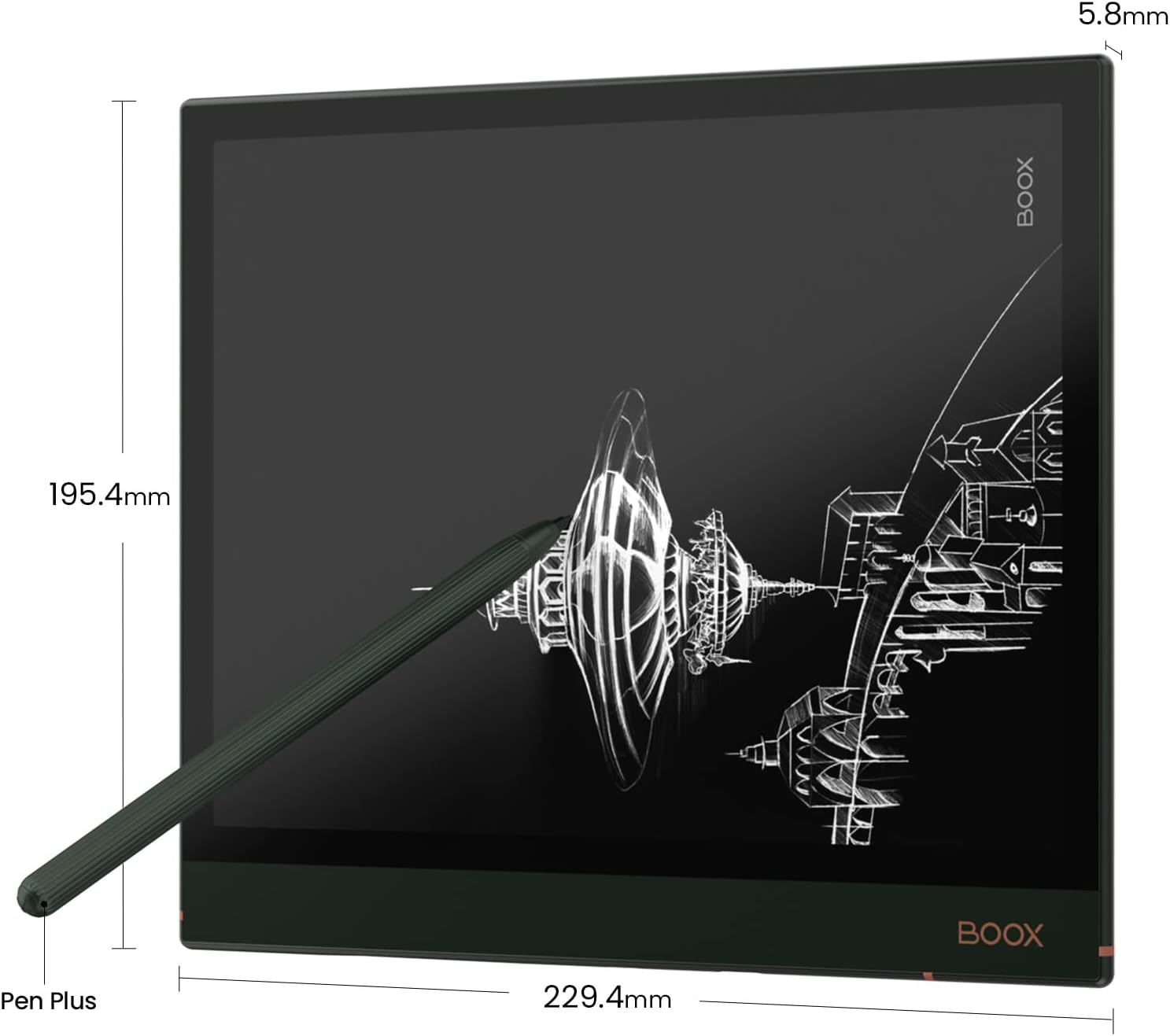
Image 2.1: Diagram illustrating the dimensions of the BOOX Note Air2 Plus tablet (229.4mm x 195.4mm x 5.8mm) and the Pen Plus stylus.
The device measures 229.4mm x 195.4mm x 5.8mm and weighs approximately 445g. It features a USB Type-C port for charging and data transfer, and a power button.
2.2 Internal Components
- Screen: 10.3" HD Carta glass screen with flat cover-lens, 1404x1872 resolution (227 dpi).
- Touch: BOOX Pen Plus stylus touch (4096 levels pressure sensitivity) and capacitive touch.
- Processor: Advanced octa-core processor.
- Memory: 4GB LPDDR4X RAM, 64GB UFS2.1 ROM.
- Connectivity: Wi-Fi (2.4GHz + 5GHz), Bluetooth 5.0.
- Front Light: With CTM (Color Temperature Management) for warm and cold light.
- Operating System: Android 11.0.
- Audio: Integrated speaker and microphone. USB-C earphone jack.
- Battery: 3700mAh Polymer Li-on, offering up to 5 weeks standby time.
3. Setup
3.1 Initial Power On and Charging
- Charge the Device: Before first use, connect the BOOX Note Air2 Plus to a power source using the provided USB Type-C cable and a compatible charger. The device will indicate charging status.
- Power On: Press and hold the power button located on the side of the device until the BOOX logo appears on the screen.
- Initial Configuration: Follow the on-screen prompts to select your language, connect to a Wi-Fi network, and set up your BOOX account.
3.2 Wi-Fi and Bluetooth Connection
- Wi-Fi: Navigate to Settings > Network > Wi-Fi to connect to an available network.
- Bluetooth: Navigate to Settings > Connected devices > Bluetooth to pair with Bluetooth accessories.
4. Operating Instructions
4.1 Basic Navigation
The BOOX Note Air2 Plus supports both capacitive touch for finger gestures and stylus touch for precise input.
- Swipe: Use finger swipes to navigate through pages, menus, and content.
- Tap: Tap icons or text to select items or open applications.
- Stylus: Use the BOOX Pen Plus for writing, drawing, and precise selections.
4.2 Reading Documents
The device supports a wide range of document formats, including PDF (reflowable), PPT, EPUB, TXT, DJVU, HTML, RTF, FB2, DOC, MOBI, CHM, and more. Image formats like PNG, JPG, TIFF, BMP are also supported.

Image 4.1: A user holding the BOOX Note Air2 Plus, reading a document with handwritten annotations visible on the ePaper display.
4.3 Note-Taking and Annotation
The BOOX Pen Plus stylus offers 4096 levels of pressure sensitivity for a natural writing experience. The device's note-taking application allows for various features.

Image 4.2: A close-up view of the BOOX Note Air2 Plus screen displaying the note-taking interface, including options for managing layers and adding new layers to a sketch.
- Writing: Use the stylus to write directly on the screen.
- Layers: Organize your notes and drawings using multiple layers within the note-taking application.
- Tools: Access various pen types, erasers, and other drawing tools from the on-screen menu.

Image 4.3: A user actively writing a list of notes on the BOOX Note Air2 Plus tablet, demonstrating its utility for organizing thoughts and tasks.
4.4 App Installation
Running on Android 11.0, the BOOX Note Air2 Plus allows installation of third-party applications from the BOOX Store or other compatible Android app stores.

Image 4.4: The BOOX Note Air2 Plus screen showing a selection of application icons available for download, categorized under 'Recommended for you' and 'Editors' Choice apps'.
4.5 Front Light Adjustment
The device features a front light with CTM (Color Temperature Management), allowing adjustment between warm and cold light tones for comfortable reading in various lighting conditions. Access these settings through the quick settings panel or display settings.

Image 4.5: Two BOOX Note Air2 Plus tablets demonstrating the adjustable front light feature, with one screen showing a warm light setting and the other a cooler light setting.
5. Maintenance
5.1 Cleaning the Device
To clean the screen and body of your BOOX Note Air2 Plus, use a soft, lint-free cloth. For stubborn marks, slightly dampen the cloth with water. Avoid using harsh chemicals or abrasive materials.
5.2 Software Updates
Regularly check for software updates to ensure optimal performance and access to new features. Navigate to Settings > Firmware Update to check for and install available updates.
6. Troubleshooting
- Device not turning on: Ensure the device is sufficiently charged. Connect it to a power source and allow it to charge for at least 30 minutes before attempting to power it on again.
- Screen not responding: Perform a soft reset by holding the power button for 10-15 seconds. If the issue persists, ensure the screen is clean and free of debris.
- Stylus not working: Check if the stylus nib is properly inserted. If the issue is persistent, try restarting the device.
- Wi-Fi connection issues: Verify your Wi-Fi password and ensure the device is within range of the router. Try restarting both the device and your Wi-Fi router.
- Applications crashing: Ensure your device's firmware is up to date. If a specific app is causing issues, try clearing its cache or reinstalling it.
7. Specifications
Detailed technical specifications for the BOOX Note Air2 Plus ePaper Tablet.
| Feature | Specification |
|---|---|
| Screen | 10.3" HD Carta glass, 1404x1872 (227 dpi) |
| Touch | BOOX Pen Plus stylus (4096 levels) + capacitive touch |
| CPU | Advanced octa-core processor |
| RAM | 4GB LPDDR4X |
| ROM | 64GB UFS2.1 |
| Connectivity | Wi-Fi (2.4GHz + 5GHz), BT 5.0 |
| Front Light | CTM (Warm and Cold) |
| Operating System | Android 11.0 |
| Document Formats | PDF (reflowable), PPT, EPUB, TXT, DJVU, HTML, RTF, FB2, DOC, MOBI, CHM... |
| Image Formats | PNG, JPG, TIFF, BMP |
| Audio Formats | WAV, MP3 |
| Expansion Interface | USB Type-C (supports OTG) |
| Battery | 3700mAh Polymer Li-on |
| Dimensions | 229.4 x 195.4 x 5.8 mm |
| Weight | ≤445g |
8. Warranty and Support
For warranty information and technical support, please refer to the official BOOX website or contact your retailer. Keep your purchase receipt as proof of purchase.
BOOX is committed to providing at least 3-year firmware updates for every product and 10GB of free cloud storage for every user.


