Introduction
This user manual provides essential information for setting up, operating, and maintaining your Samsung 43-inch 4K Ultra HD Smart LED TV, model UA43BU8000KLXL. Please read this manual thoroughly to ensure safe and efficient use of your television.
The Samsung UA43BU8000KLXL features a 4K Ultra HD LED panel, powered by the Crystal Processor 4K, delivering vibrant visuals with Dynamic Crystal Color. Its AirSlim design offers a sleek profile, and the Tizen operating system provides access to a wide range of smart features via the Smart Hub.
Key Features Overview

Image: Overview of key features including Dynamic Crystal Color, Crystal Processor 4K, AirSlim design, OTS Lite, Adaptive Sound, Voice Assistant, Smart Hub, and TV Plus.
- Dynamic Crystal Color: Experience a wide spectrum of colors for vivid picture quality.
- Crystal Processor 4K: Powerful upscaling ensures you get up to 4K resolution for the content you love.
- AirSlim Design: An ultra-thin profile that blends seamlessly with your interior.
- Smart Hub: Centralized access to streaming services, apps, and connected devices.
- Adaptive Sound: Audio optimization based on content type and room environment.
- Voice Assistant: Integrated support for voice commands (Alexa & Bixby).
Setup Guide
1. Unpacking and Component Check
Carefully remove the television and all components from the packaging. Ensure all items listed below are present:
- 1 LED TV
- 1 Power Cord
- 1 Remote Control
- 2 Stand-Top (for table-top installation)
2. Stand Installation (Table-Top)
If you plan to place the TV on a table or cabinet, attach the included stand-top components. Ensure the stand is securely fastened to prevent the TV from tipping.
- Place the TV screen-down on a soft, flat surface to prevent scratches.
- Align the stand bases with the corresponding slots on the bottom of the TV.
- Secure the stands using the provided screws. Refer to the diagram for correct orientation.

Image: Dimensions of the Samsung 43-inch TV, illustrating height with stand (59.9 cm) and without stand (55.99 cm), and width (96.55 cm).
3. Wall Mounting (Optional)
For wall mounting, a compatible VESA wall mount kit (sold separately) is required. Consult a professional for installation to ensure safety and proper mounting.
Note: The TV supports both wall mount and table mount configurations.
4. Connecting External Devices
Your Samsung TV offers multiple connectivity options for various devices.
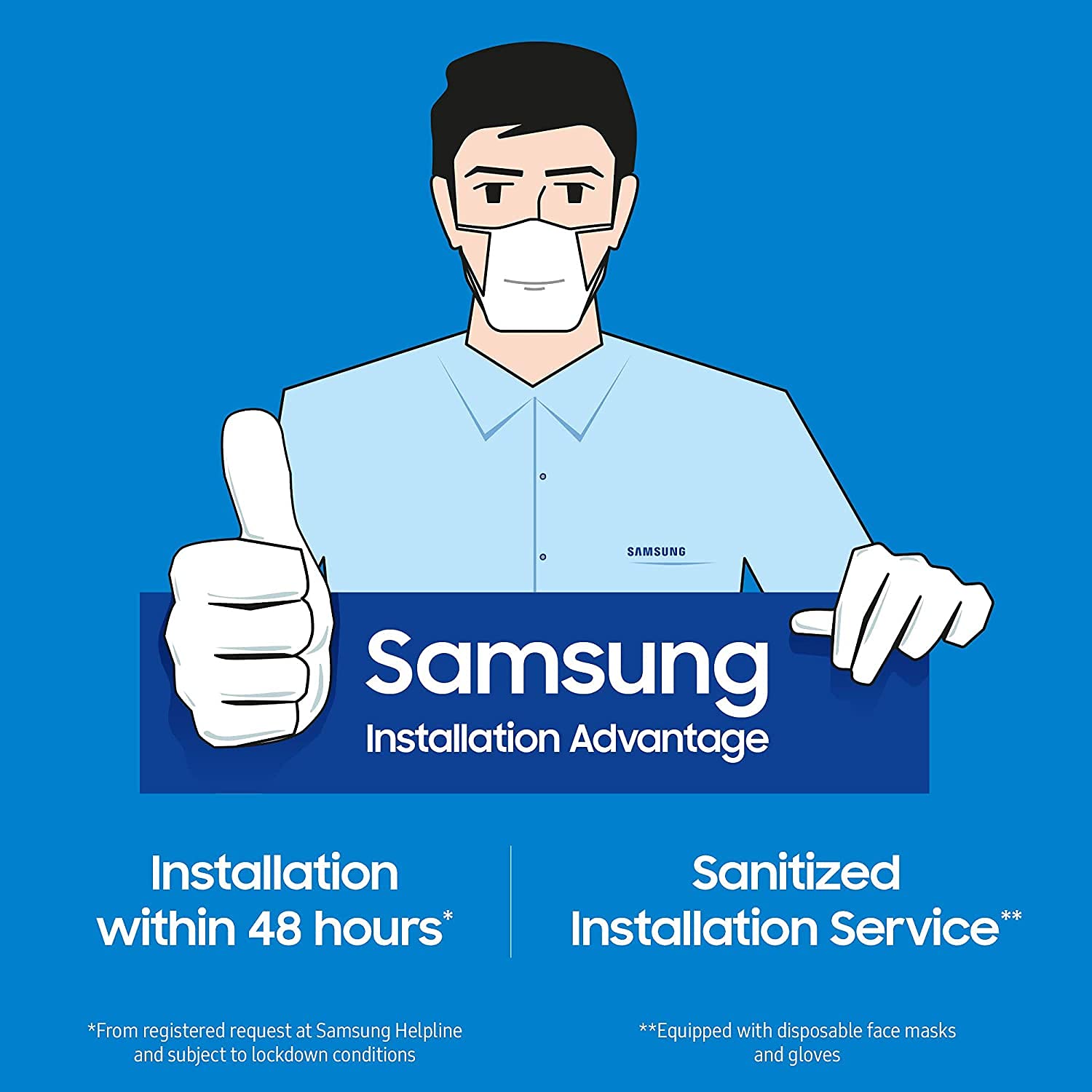
Image: Rear view of the TV's connectivity panel, highlighting HDMI (3 ports), USB (2 ports), LAN, and Digital Audio Out (Optical) ports.
- HDMI Ports (3): Connect set-top boxes, Blu-ray players, gaming consoles, or other HDMI-enabled devices.
- USB Ports (2): Connect USB storage devices for media playback or other USB peripherals.
- LAN Port: For wired internet connection.
- Digital Audio Out (Optical): Connect to a soundbar or home theater system for enhanced audio.
- Antenna/Cable Input: Connect your antenna or cable TV feed.
5. Power Connection
Connect the power cord to the TV's power input and then plug it into a wall outlet. The TV will enter standby mode.
6. Initial Setup
Upon first power-on, the TV will guide you through the initial setup process. This typically includes:
- Language Selection: Choose your preferred language.
- Network Connection: Connect to your Wi-Fi network or use a wired Ethernet connection.
- Smart Hub Setup: Log in to your Samsung account or create a new one to access smart features and apps.
- Channel Scan: Scan for available broadcast channels.
Operating Your Samsung Smart TV
1. Remote Control Functions
The included remote control provides access to all TV functions, including smart features and voice commands.

Image: The Samsung Smart Remote, highlighting the Voice Assistant button for Alexa and Bixby, and dedicated hotkeys for Netflix, Prime Video, Disney+ Hotstar, and Samsung TV Plus.
- Power Button: Turns the TV on or off.
- Voice Assistant Button: Activates voice commands (Alexa, Bixby).
- Navigation Pad: Use to navigate menus and select items.
- Volume Up/Down: Adjusts the TV volume.
- Channel Up/Down: Changes TV channels.
- Smart Hub Button: Accesses the Smart Hub interface.
- Hotkey Buttons: Dedicated buttons for quick access to popular streaming services like Netflix, Prime Video, and Disney+ Hotstar.
2. Smart Hub and Applications
The Smart Hub is your gateway to a world of entertainment and smart features. It provides access to streaming apps, live TV, and connected devices.

Image: The Smart Hub interface on the Samsung TV, showing popular movies and shows, and icons for streaming apps such as YouTube, Netflix, Prime Video, Google Play Movies & TV, YuppTV, Zee5, Disney+ Hotstar, Apple TV, Spotify, SonyLIV, Voot, Eros Now, BIGFLIX, and ALTBalaji.
- Accessing Smart Hub: Press the Smart Hub button on your remote.
- Navigating Apps: Use the navigation pad to browse and select applications.
- App Store: Download and install additional apps from the Samsung App Store.
3. Smart TV Features
- Mobile to TV Mirroring (Screen Mirroring): Share content from your smartphone or tablet to the TV screen.
- DLNA: Access media files from compatible devices on your home network.
- Tap View: Quickly mirror your phone's screen by tapping it against the TV.
- Bluetooth Low Energy: Connect compatible Bluetooth devices like headphones or speakers.
- WiFi Direct: Connect devices directly to the TV without a router.
- TV Sound to Mobile: Listen to TV audio on your mobile device.
- Sound Mirroring: Mirror audio from your mobile device to the TV.
- Wireless Dex: Extend your Samsung smartphone experience to the TV.
- Auto Game Mode (ALLM): Automatically optimizes settings for gaming, reducing input lag.
Display and Audio Features
1. Display Technology
- 4K Ultra HD Resolution (3840 x 2160): Delivers four times the pixels of Full HD for incredible detail and clarity.
- Dynamic Crystal Color: Provides a wider color gamut, resulting in richer, more lifelike images.
- Certified HDR 10+: Enhances contrast and color accuracy, revealing more detail in both bright and dark scenes.
- Crystal Processor 4K: An advanced processor that optimizes picture quality, upscales content to 4K, and fine-tunes color and contrast.
- UHD Dimming: Divides the screen into small blocks to optimize sharpness, color, and contrast levels.
- Motion Xcelerator: Provides clear picture with smooth performance by automatically estimating and compensating frames for the content source.

Image: A lush, colorful scene demonstrating the vividness of Dynamic Crystal Color.

Image: A visual representation of the Samsung Crystal UHD Processor 4K, indicating its role in enhancing picture quality.

Image: A motorcycle race scene illustrating the smooth motion provided by Motion Xcelerator technology.
2. Audio Features
- 20 Watts Output - 2 Channel: Delivers clear and powerful stereo sound.
- Dolby Digital Plus: Provides immersive surround sound experience.
- Adaptive Sound: Analyzes the content and adjusts the sound settings to provide the best audio experience for movies, sports, or news.

Image: Visual representation of sound waves, depicting the Adaptive Sound feature that optimizes audio based on content.
Maintenance
1. Cleaning Your TV
To maintain the clarity and longevity of your screen, follow these cleaning guidelines:
- Always unplug the TV before cleaning.
- Use a soft, lint-free microfiber cloth.
- For screen cleaning, gently wipe the screen to remove dust. For stubborn marks, lightly dampen the cloth with distilled water or a specialized screen cleaner (ensure it's safe for LED screens) and wipe gently. Do not spray liquid directly onto the screen.
- For the frame and stand, use a dry, soft cloth.
- Avoid using abrasive cleaners, alcohol, benzene, or thinners, as these can damage the TV's surface.
2. Software Updates
Regularly update your TV's software to ensure optimal performance, security, and access to new features.
- Ensure your TV is connected to the internet.
- Navigate to Settings > Support > Software Update.
- Select Update Now to check for and install available updates.
- You can also enable Auto Update for automatic background updates.
Troubleshooting
If you encounter issues with your TV, refer to the following common solutions before contacting customer support.
1. No Power
- Ensure the power cord is securely plugged into both the TV and a working wall outlet.
- Check if the wall outlet is functioning by plugging in another device.
- Press the power button on the TV itself (usually located on the bottom or back) to rule out a remote control issue.
2. No Picture / Distorted Picture
- Verify that the correct input source is selected (e.g., HDMI 1, HDMI 2).
- Check all cable connections (HDMI, antenna) between the TV and external devices. Ensure they are firmly seated.
- If using a set-top box or other device, ensure it is powered on and functioning correctly.
- Try restarting the TV and any connected devices.
3. No Sound / Distorted Sound
- Check the TV's volume level and ensure it is not muted.
- If using external speakers or a soundbar, ensure they are powered on and correctly connected. Check their volume levels.
- Verify the audio output setting on the TV (e.g., TV Speaker, Optical, HDMI ARC).
- If using an external device, check its audio output settings.
4. Remote Control Not Working
- Ensure there are no obstructions between the remote and the TV's remote sensor.
- Check the batteries in the remote control and replace them if necessary.
- If it's a Smart Remote, try re-pairing it with the TV (refer to the TV's on-screen guide for pairing instructions).
5. Network Connection Issues
- Ensure your Wi-Fi router is powered on and functioning.
- Restart your router and modem.
- Go to Settings > General > Network > Network Status to diagnose the connection.
- Try connecting the TV to the internet via an Ethernet cable if Wi-Fi issues persist.
6. Factory Reset
If problems persist, a factory reset can resolve many software-related issues. Warning: This will erase all your settings and installed apps.
- Navigate to Settings > General > Reset.
- Enter your PIN (default is 0000).
- Confirm the reset. The TV will restart and go through the initial setup process again.
Specifications
| Feature | Detail |
|---|---|
| Brand | Samsung |
| Model Number | UA43BU8000KLXL |
| Screen Size | 43 Inches (108 cm) |
| Display Technology | LED |
| Resolution | 4K Ultra HD (3840 x 2160) |
| Refresh Rate | 50 Hertz |
| Operating System | Tizen |
| Graphics Coprocessor | Crystal Processor 4K |
| HDMI Ports | 3 |
| USB Ports | 2 |
| Connectivity Technology | Ethernet, HDMI, USB, Wi-Fi, Bluetooth |
| Sound Output | 20 Watts, 2 Channel |
| Speaker Configuration | Dolby Digital Plus |
| Product Dimensions (with stand) | 96.6 x 20.6 x 59.9 cm (LxWxH) |
| Item Weight | 8.4 kg |
| Power Source | AC (125 Volts) |
Warranty and Support
1. Warranty Information
Your Samsung TV comes with a 2-year comprehensive warranty on the product. This includes a 1-year standard warranty and an additional 1-year extended warranty provided by Samsung from the date of purchase.
To avail warranty services, please retain your purchase invoice.
2. Installation Service
Samsung offers an installation advantage service, which includes installation within 48 hours of a registered request at the Samsung Helpline. This service also includes a sanitized installation process, with technicians equipped with disposable face masks and gloves.

Image: Samsung Installation Advantage service, highlighting installation within 48 hours and a sanitized service by technicians wearing masks and gloves.
3. Customer Support
For further assistance, technical support, or to register an installation request, please contact Samsung customer service. Refer to your purchase documentation or the official Samsung website for the most current contact information.
You can also access the user manual and product details section on the brand's website.


