
1. Product Overview
The NEARITY HP20 is a wired computer headset designed for clear communication in office, business, and communication environments. It features dual built-in noise-canceling microphones and offers versatile connectivity options for various devices.

Image: The NEARITY HP20 Wired Computer Headset, showcasing its on-ear design and adjustable microphone boom.
2. What's in the Box
The package for your NEARITY HP20 headset includes the following items:
- NEARITY HP20 Wired Computer Headset
- Ear Cushions (pre-installed or as spares)
3. Setup and Connectivity
The NEARITY HP20 headset offers plug-and-play functionality, making setup straightforward.
3.1 Connecting to Your Device
- Identify the appropriate USB port on your computer, tablet, or laptop (USB-A or USB-C).
- Connect the headset's USB cable directly into the chosen port.
- The device should automatically recognize the headset. No additional drivers are typically required.
- Adjust your device's audio settings to ensure the NEARITY HP20 is selected as the input (microphone) and output (speaker) device.
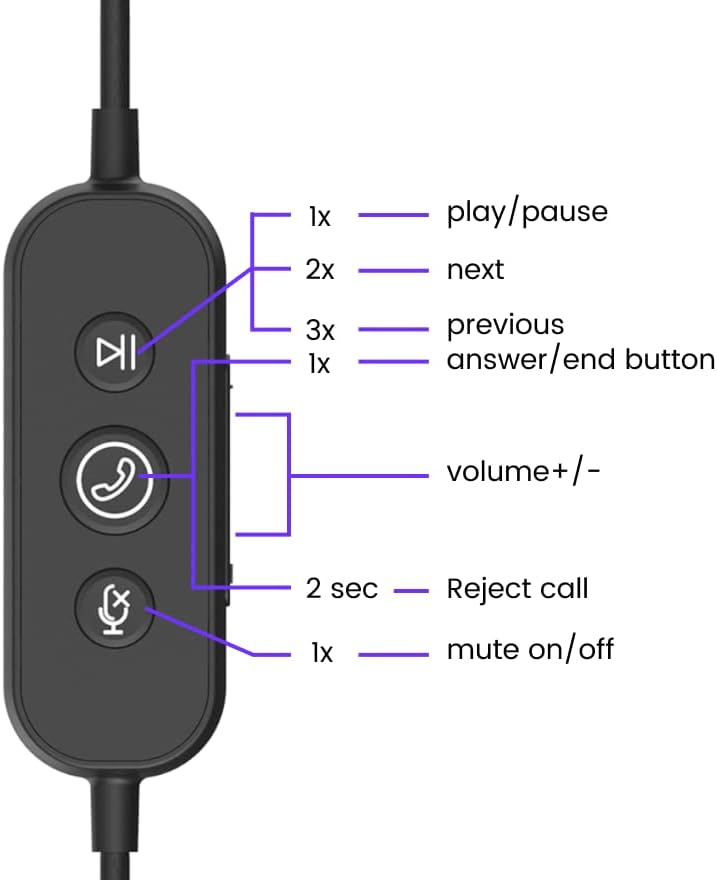
Image: Close-up of the headset's USB-A and USB-C connectors, illustrating its dual connectivity options.
3.2 Device Compatibility
The HP20 headset is compatible with a wide range of operating systems and communication platforms:
- Operating Systems: Windows, macOS, Linux, Chromebook.
- Devices: Computers, Tablets, Mobile Devices (via USB-C).
- Communication Platforms: Google Hangouts, Zoom, Skype, BlueJeans, Slack, WhatsApp, Microsoft Teams, Cisco, Webex, Tauria, GoToMeeting, FaceTime.

Image: Icons representing laptop and tablet devices, highlighting the headset's broad compatibility.

Image: A graphic illustrating the universal compatibility of the headset with various communication platforms and operating systems.
4. Operating Instructions
The HP20 headset features an in-line control unit for easy management of calls and audio playback.
4.1 In-line Control Functions

Image: Detailed view of the in-line control unit, showing button functions and corresponding actions.
- Play/Pause: Press 1x (once) to play or pause audio.
- Next Track: Press 2x (twice) to skip to the next track.
- Previous Track: Press 3x (thrice) to go to the previous track.
- Answer/End Call: Press 1x (once) to answer an incoming call or end an active call.
- Volume Control: Use the dedicated volume buttons to increase (+) or decrease (-) the audio volume.
- Reject Call: Press and hold for 2 seconds to reject an incoming call.
- Mute On/Off: Press 1x (once) to mute or unmute the microphone.
4.2 Microphone Usage
The microphone boom is rotatable up to 150 degrees, allowing you to position it optimally for voice capture. Ensure the microphone is positioned close to your mouth for the best audio quality.

Image: Diagram showing the 150-degree rotation capability of the microphone boom for flexible positioning.
5. Key Features
- Dual Noise-Canceling Microphones: Equipped with ECM and MEMS noise-canceling microphones to effectively block unwanted background noise, ensuring clear voice transmission.
- ProperClean™ Technology: Utilizes deep learning to address echo and noise issues, aiming to make remote meetings feel like face-to-face interactions.
- Comfortable Design: Features pillow-soft ear cushions and a padded headband for extended wear comfort. The over-ear style provides a secure fit.
- Universal Connectivity: Supports both USB-A and USB-C connections for broad compatibility with various devices and operating systems.
- In-line Controls: Convenient access to volume adjustment, mute, call answer/end, and media playback controls.

Image: The NEARITY HP20 headset highlighting its noise reduction capabilities with ProperClean technology, showing various noise sources being filtered.

Image: A man using the HP20 headset in an outdoor setting, illustrating how AI technology cancels ambient noise for clear communication.

Image: A visual representation of the headset's comfort features, including a 150° rotatable microphone, pillow-soft ear cushions, and an adjustable headband.
6. Specifications
| Feature | Detail |
|---|---|
| Model Number | HP20 |
| Connectivity Technology | Wired |
| Headphones Jack | USB (USB-A and USB-C options) |
| Ear Placement | On Ear |
| Noise Control | Active Noise Cancellation (Dual-mic AI) |
| Microphone | Included, Rotatable (150°) |
| Control Type | Volume Control, Mute, Call Answer/End, Media Playback (Inline) |
| Material | Fabric (Ear Cushions) |
| Product Dimensions | 7 x 6.5 x 2.7 inches |
| Item Weight | 13.4 ounces |
| Manufacturer | NEARITY |
| Date First Available | April 18, 2022 |
7. Maintenance
To ensure the longevity and optimal performance of your NEARITY HP20 headset, follow these maintenance guidelines:
- Cleaning: Gently wipe the ear cushions and headband with a soft, damp cloth. Avoid using harsh chemicals or abrasive materials.
- Storage: Store the headset in a clean, dry place away from extreme temperatures and direct sunlight. Avoid tangling the cable.
- Handling: Do not pull on the cable to disconnect the headset. Always grasp the USB connector. Avoid dropping the headset or subjecting it to strong impacts.
8. Troubleshooting
If you encounter issues with your NEARITY HP20 headset, refer to the following common troubleshooting steps:
- No Audio/Microphone Not Working:
- Ensure the headset is securely plugged into the USB port.
- Check your device's audio settings to confirm the NEARITY HP20 is selected as the default input and output device.
- Verify the microphone is not muted using the in-line control.
- Try connecting the headset to a different USB port or another device to rule out port or device-specific issues.
- Poor Audio Quality:
- Adjust the volume levels on both the in-line control and your device.
- Ensure the microphone is positioned correctly near your mouth.
- Check for any software updates for your operating system or communication applications.
- Background Noise During Calls:
- The headset features noise-canceling microphones, but extreme background noise may still be audible. Try to use the headset in a quieter environment if possible.
- Ensure the microphone is not obstructed.
9. Official Product Videos
Watch these official videos for more information on the NEARITY HP20 Wired Computer Headset.
NEARITY HP20 Wired Computer Headset Overview
Video: An overview of the NEARITY HP20 Wired Computer Headset, highlighting its features, design, and connectivity. This video demonstrates the headset's key functionalities and benefits for users seeking clear communication.
10. Warranty and Support
For warranty information, technical support, or further assistance with your NEARITY HP20 headset, please refer to the official NEARITY website or contact their customer service directly. Details regarding warranty periods and support channels are typically provided with your purchase documentation or on the manufacturer's product page.
You can also visit the NEARITY Store on Amazon for additional product information and support resources.