
1. Introduction
The AdaLov CPE380 is a 5.8G wireless bridge system designed to extend network connectivity over long distances, up to 3 kilometers in open spaces. This device operates as an outdoor Customer Premises Equipment (CPE) unit, featuring a 14dBi high-gain antenna and supporting 24V Power over Ethernet (PoE) injection. It includes two LAN RJ45 ports for flexible connectivity. The CPE380 is ideal for creating point-to-point wireless links, enabling network extension between buildings or for surveillance camera systems.
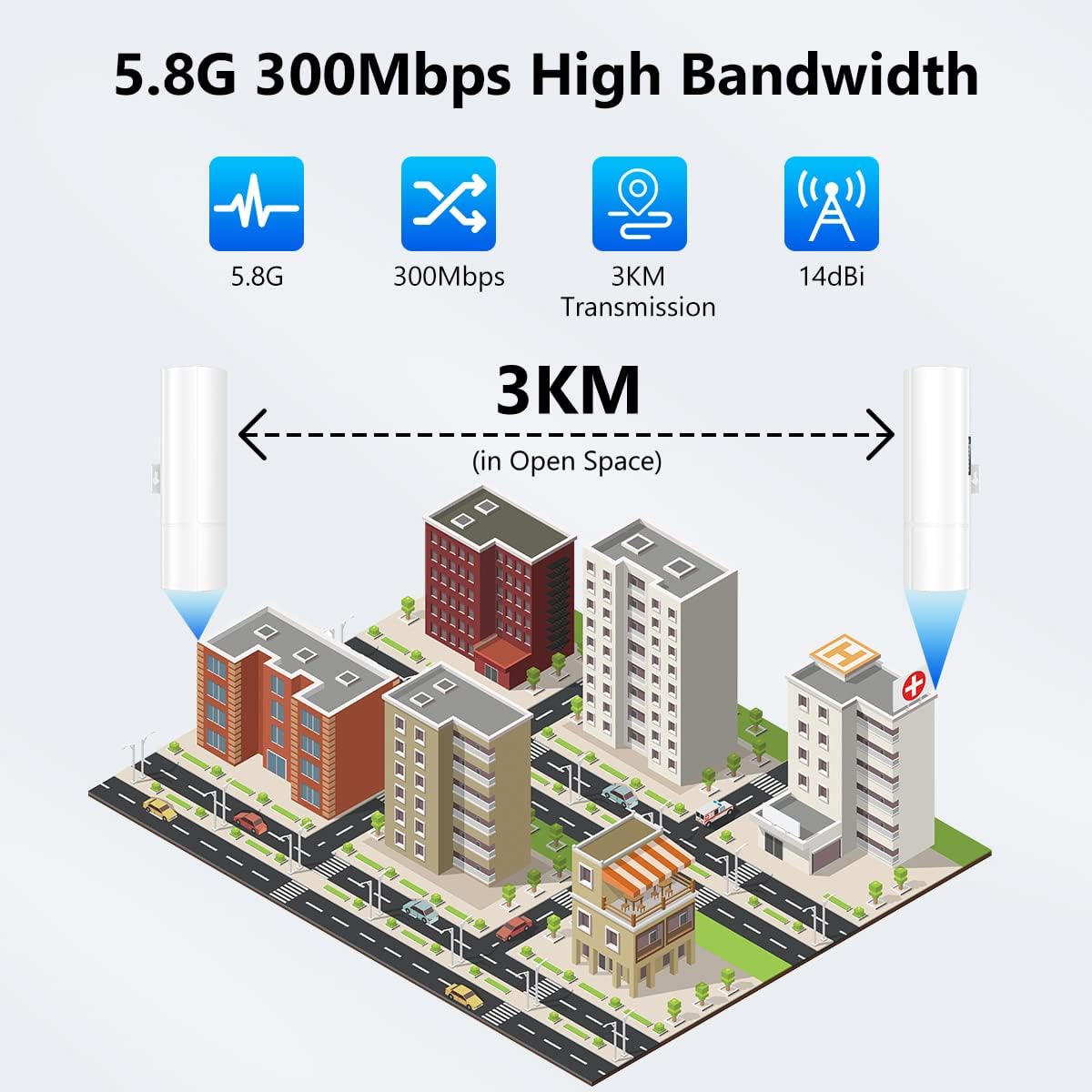
Figure 1: AdaLov CPE380 facilitating 3KM wireless transmission between buildings.
2. What's in the Box
The AdaLov CPE380 package includes the following components:
- 2 x CPE380 Wireless Bridges
- 2 x PoE Adapters
- 2 x Metal Cable Ties (for mounting)
- 2 x Network Cables
- 1 x User Manual

Figure 2: Package contents of the AdaLov CPE380 Wireless Bridge.
3. Setup Instructions
Follow these steps to set up your AdaLov CPE380 wireless bridges for a point-to-point connection:
- Connect PoE Adapters: Connect one end of a network cable to the 'PoE' port on each PoE adapter. Connect the other end of the network cable from the 'PoE' port to the 'WAN/LAN' port on each CPE380 wireless bridge.
- Power On: Plug both PoE adapters into a power outlet. The LED indicators on the CPE380 units will light up.
- Configure Master and Slave Bridges:
- Identify the A/B switch on each CPE380 unit (located near the ports).
- Push the switch on one wireless bridge to the 'A' side. This unit will function as the Master bridge.
- Push the switch on the other wireless bridge to the 'B' side. This unit will function as the Slave bridge.
- Pairing the Bridges:
- Ensure both Master and Slave bridges are powered on and their A/B switches are correctly set.
- Press the 'RESET' button on both units simultaneously. The LED display will show a number. Use the 'RESET' button to set both units to the same number (e.g., '8').
- Wait for approximately 50-60 seconds for the pairing process to complete. The numbered LED light and the 'Link' indicator on the side of both units will become solid, indicating a successful connection.
- Connect to Network:
- Connect a network cable from your main router or network switch to the 'LAN' port of the Master bridge's PoE adapter.
- Connect a network cable from the 'LAN' port of the Slave bridge's PoE adapter to your end device (e.g., IP camera, computer, NVR).

Figure 3: AdaLov CPE380 port layout and A/B switch.
Video: Point-to-Point Setup by Dialing
Video 1: This video demonstrates the step-by-step process of setting up the AdaLov CPE380 wireless bridges for a point-to-point connection using the dialing method. It covers connecting the PoE adapters, setting the A/B switches, and pairing the devices.
4. Operating the Wireless Bridge
Once configured, the AdaLov CPE380 operates automatically to provide extended network coverage. The Master bridge transmits the network signal, and the Slave bridge receives it, distributing connectivity to connected devices.
- 5.8G Technology: The device utilizes 5.8G frequency, which offers better anti-interference performance compared to 2.4G, ensuring stable and reliable data transmission.
- Transmission Distance: Capable of transmitting data up to 3 kilometers (in open space) with its 14dBi antenna, making it suitable for long-range applications.
- Data Transfer Rate: Supports a maximum wired network speed of 100Mbps, with a transmission speed between the two bridges of up to 300Mbps.
- PoE Support: Power over Ethernet simplifies installation by allowing power and data to be transmitted over a single Ethernet cable.

Figure 4: Comparison of 2.4G and 5.8G frequency bands.

Figure 5: Example of point-to-point connection for wireless coverage.
5. Maintenance
The AdaLov CPE380 is built with durable ABS material, providing resistance against rain, thunder, freezing temperatures, and sun exposure. To ensure optimal performance and longevity:
- Regular Inspection: Periodically check the physical condition of the units and cables for any signs of damage or wear.
- Cleanliness: Keep the devices clean and free from dust or debris, especially around the ports and LED indicators.
- Secure Connections: Ensure all network cables and power connections are securely fastened.
- Environmental Protection: While designed for outdoor use, ensure the protective covers for the ports are properly sealed to prevent moisture ingress.

Figure 6: AdaLov CPE380 weather resistance.
6. Troubleshooting
If you encounter issues with your AdaLov CPE380, try the following troubleshooting steps:
- No Power: Check if the PoE adapters are securely plugged into a working power outlet and if the power cables are correctly connected to the CPE units.
- No Link/Connection:
- Verify that both Master and Slave bridges are powered on.
- Ensure the A/B switches are correctly set (one to 'A', one to 'B').
- Confirm that both units are set to the same number via the 'RESET' button for pairing.
- Check for clear line of sight between the two bridges. Obstructions can significantly degrade signal quality.
- Ensure network cables are properly connected to the 'WAN/LAN' ports on the bridges and the 'LAN' ports on the PoE adapters.
- Slow Speed:
- Check the signal strength indicators on the side of the CPE units. If the signal is weak, adjust the alignment of the bridges for better line of sight.
- Ensure your main internet connection is stable and providing adequate speed. The wireless bridge extends your existing network, it does not improve the source internet speed.
- Minimize interference from other 5.8G devices if possible.
- No Internet Access on End Device:
- Confirm that the Master bridge is correctly connected to your main router/network.
- Ensure the Slave bridge is properly connected to your end device.
- Check the network settings on your end device.
If these steps do not resolve the issue, please refer to the detailed user manual or contact customer support.
7. Specifications
| Feature | Specification |
|---|---|
| Brand | AdaLov |
| Model Number | CPE380 |
| Wireless Communication Standard | 5.8 GHz Radio Frequency |
| Data Transfer Rate | 300 Megabits Per Second (between bridges) |
| Wired Speed | Up to 100 Megabits Per Second |
| Frequency Band Class | Single-Band |
| Antenna Gain | 14dBi |
| Transmission Distance | Up to 3KM (in open space) |
| Power Input | 24V PoE Injector |
| LAN Ports | 2 x RJ45 Ports |
| Special Features | Access Point Mode, Point to Point, Point to Multi-Point, LED Indicator |
| Material | ABS (Rain, Thunder, Freeze, Sun Resistant) |
| Package Dimensions | 11.77 x 11.5 x 2.8 inches |
| Item Weight | 2.29 pounds |
8. Warranty and Support
For any product-related inquiries or assistance, please feel free to contact AdaLov customer support. We are committed to providing 100% satisfaction and will do our best to help you with any issues you may encounter.
Specific warranty details are not provided in this manual. Please refer to the product packaging or the official AdaLov website for comprehensive warranty information.


