
1. Introduction
The JRHC HC-651D is a versatile USB wired barcode scanner designed for efficient data acquisition in various environments such as retail stores, supermarkets, warehouses, and libraries. This device supports both 1D and 2D barcodes, including QR codes, and offers a plug-and-play experience for ease of use. Its robust design ensures durability, while advanced decoding capabilities provide fast and accurate scanning.

The main product image shows the black and white handheld barcode scanner connected via a USB cable.

An overview image showcasing key features of the JRHC wired barcode scanner, including plug-and-play setup, high-speed data transmission, lightweight design, and high decoding accuracy for various barcode types on screens and physical items.
2. Setup
The JRHC HC-651D barcode scanner is designed for simple and immediate use. No complex driver installations or software setups are required.
2.1 Connecting the Scanner
- Locate an available USB port on your computer (PC, Laptop).
- Plug the USB cable from the scanner into the USB port.
- The scanner will automatically be recognized by your operating system (Windows, Mac, Android, Linux).
- Once connected, the scanner is ready for use with applications such as Quickbook, Word, Excel, and Novell.
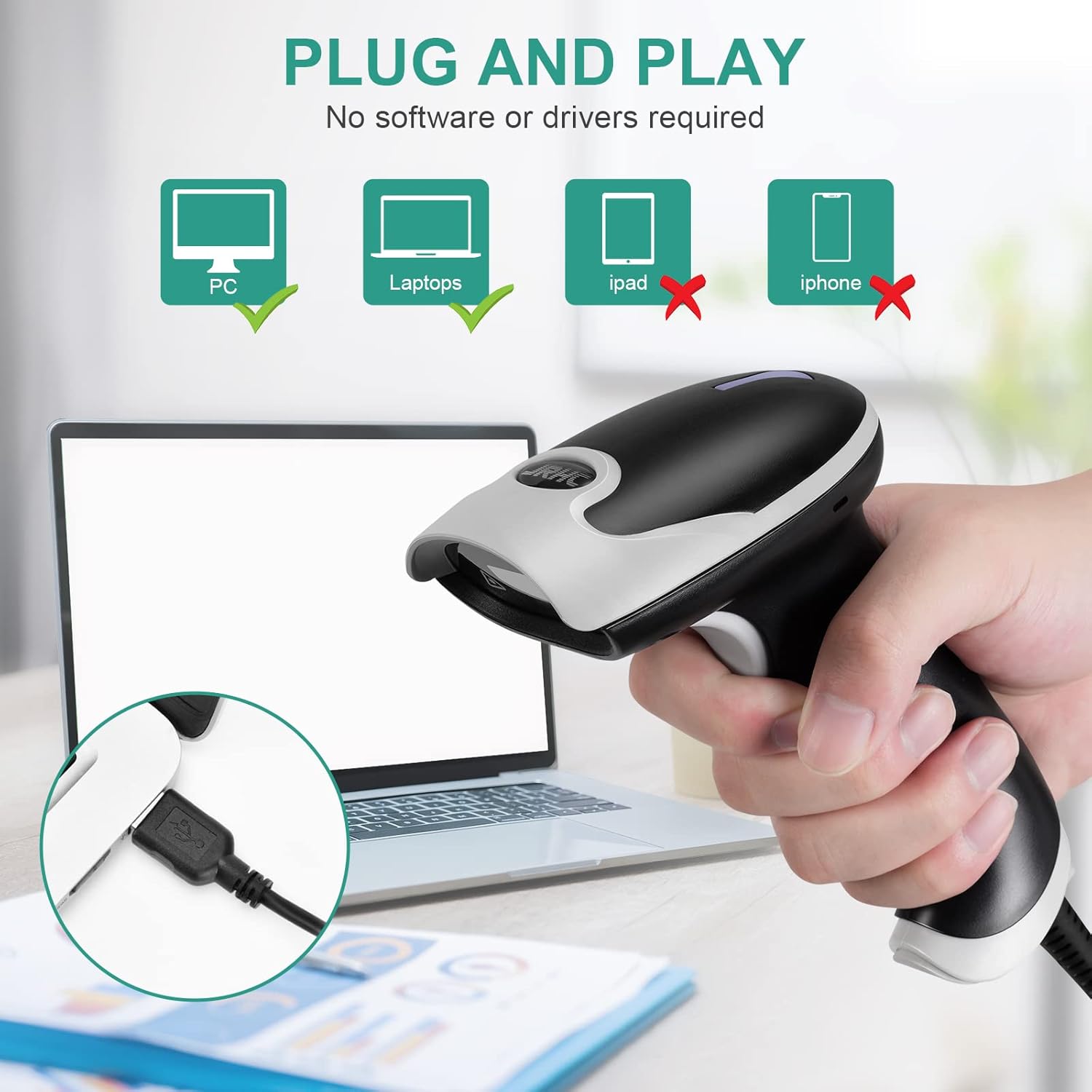
This image demonstrates the scanner's plug-and-play functionality, showing it connected to a laptop. It highlights compatibility with PCs and laptops, while indicating non-compatibility with iPads and iPhones.

An image demonstrating the scanner's broad compatibility, showing it works with Linux, Windows, and MacOS systems via a USB wired connection, emphasizing its plug-and-play nature.
3. Operating Instructions
The HC-651D scanner offers powerful decoding capabilities and flexible scanning modes to suit various operational needs.
3.1 Supported Barcode Types
This scanner can read a wide range of 1D and 2D barcodes from both printed materials and electronic screens (e-coupons, e-tickets).
- 1D Barcodes: EAN, UPC, Code 39, Code 128, UCC/EAN 128, Codeabar, Interleaved 2 of 5, ITF-6, ITF-14, ISBN, ISSN, MSI-Plessey, GS1 packets, Code 11, Industrial 25, Matrix 2 of 5, etc.
- 2D Barcodes: QR Code, DataMatrix, PDF417, Aztec Code, Maxi Code.
The scanner is particularly effective at reading ultra-long, colored, damaged, or distorted barcodes.
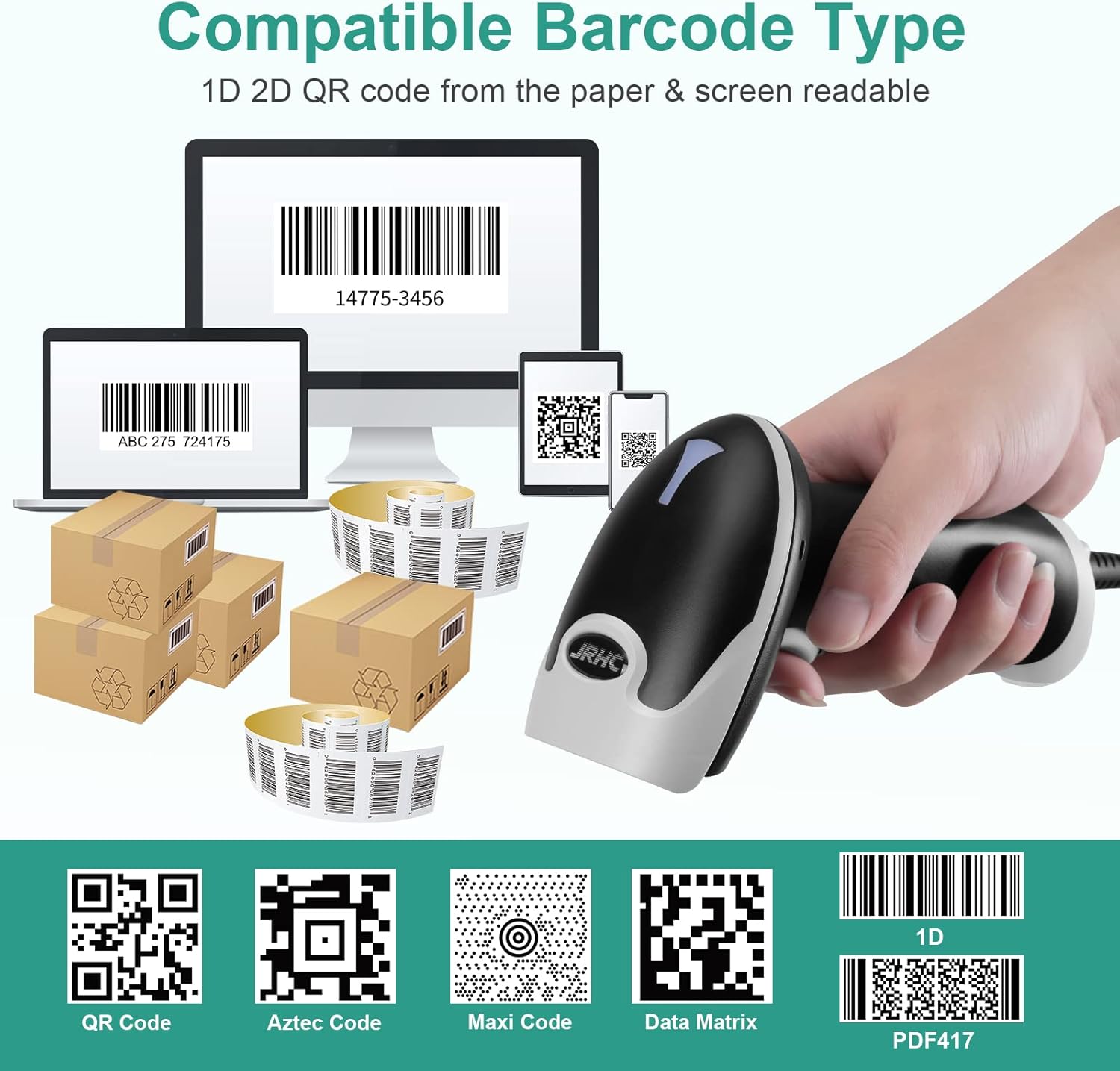
The image displays the scanner's ability to read multiple barcode types, including 1D, 2D, and QR codes from both paper and digital screens. Examples of QR Code, Aztec Code, Maxi Code, Data Matrix, and PDF417 are shown.
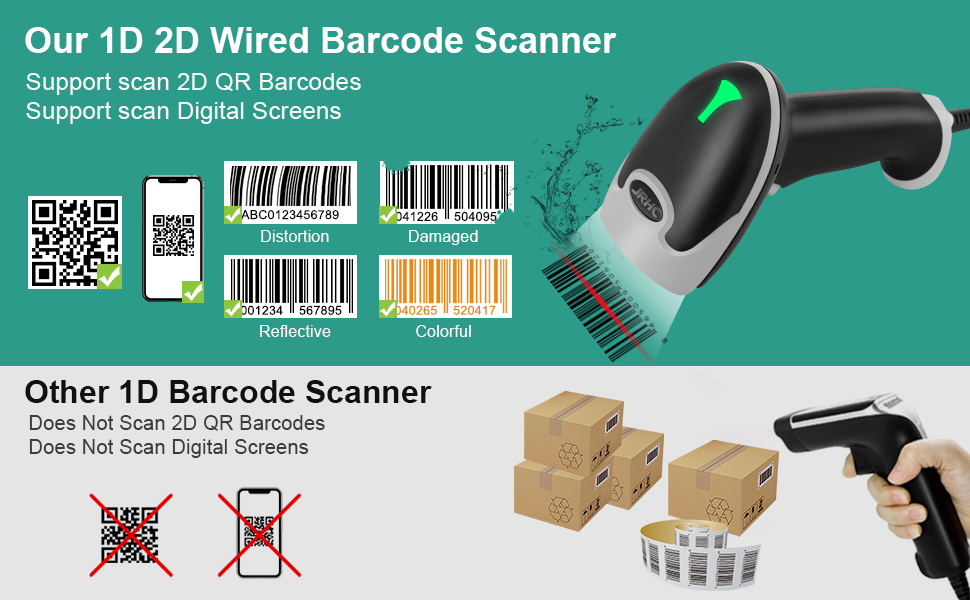
This image illustrates the scanner's advanced decoding capabilities, showing its ability to scan 2D QR barcodes and digital screens, even if the barcodes are distorted, damaged, reflective, or colorful. It contrasts this with other 1D scanners that cannot scan 2D or digital screen barcodes.
3.2 Scanning Modes
The scanner supports three distinct scanning modes:
- Manual Trigger Mode: Press the trigger button to initiate a scan.
- Continuous Scan Mode: The scanner continuously emits a scan beam, reading barcodes as they pass through the field of view without needing to press the trigger.
- Auto-sensing Scan Mode: The scanner automatically detects a barcode within its range and activates the scan beam to read it.

The image demonstrates the three available scanning modes: Manual Trigger Mode (user presses button), Continuous Scan Mode (scans constantly), and Auto-sensing Scan Mode (scans when a barcode is detected).

A small image depicting the scanner held in a hand, highlighting the availability of three distinct scanning modes.
3.3 Data Editing Functions
The scanner supports configurable options to modify scanned data:
- Add Prefix: Insert characters before the scanned data.
- Add Suffix: Insert characters after the scanned data.
- Insert in Middle: Add characters at a specific position within the scanned data.
- Hide Front/End: Conceal a specified number of characters from the beginning or end of the scanned data.

This image shows examples of how the scanner's powerful editing functions can modify scanned data, such as adding prefixes, suffixes, inserting text in the middle, or hiding parts of the barcode data.
3.4 Beep Settings
You can configure the scanner's audible feedback (beep) to be either on or off, depending on your preference and working environment.

A graphic illustrating the scanner's beep setting options, allowing users to turn the scanning sound on or off.
3.5 Performance
The scanner features a highly sensitive and accurate scanning head, powered by a 32-bit high-speed CPU, enabling fast data transfer at up to 300 scans per second and 1500 PPI resolution.

A graphic illustrating that the scanner is powered by a 32-bit high-speed CPU for efficient performance.
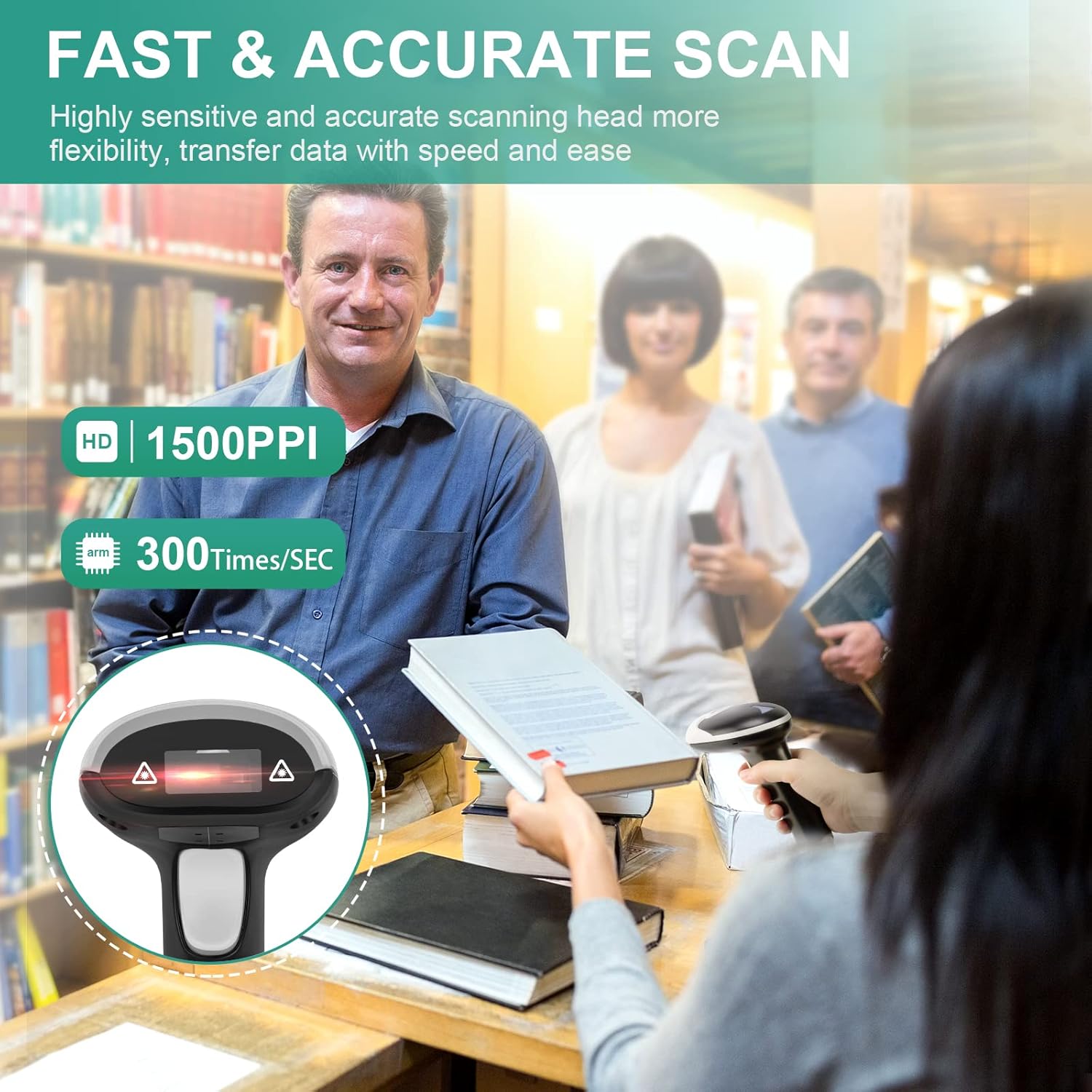
This image shows the scanner being used by a librarian to scan a book, emphasizing its fast and accurate scanning capabilities with a resolution of 1500 PPI and a speed of 300 scans per second.
4. Maintenance
To ensure the longevity and optimal performance of your JRHC HC-651D barcode scanner, follow these maintenance guidelines:
4.1 Durability and Protection
The scanner features a rugged and shockproof design, constructed from high-quality ABS material with anti-shock silicone. It is designed to withstand repeated drops from up to 5 feet (1.5 meters) onto concrete floors.

This image illustrates the scanner's durable design with anti-shock silicone (IP54 rated), showing it withstanding a drop onto a cracked surface. It also indicates support for multiple languages: English, Spanish, German, Japanese, French, and Italian.
4.2 Cleaning
Regularly clean the scanner's window and exterior to prevent dust and debris from affecting scanning performance. Use a soft, dry, lint-free cloth. Avoid using abrasive cleaners or solvents.
5. Troubleshooting
If you encounter issues with your JRHC HC-651D barcode scanner, refer to the following common troubleshooting steps:
- Scanner Not Responding:
- Ensure the USB cable is securely connected to both the scanner and the computer.
- Try plugging the scanner into a different USB port on your computer.
- Test the scanner on a different computer to rule out computer-specific issues.
- Unable to Scan Barcodes:
- Ensure the barcode is clean, clear, and not excessively damaged or distorted.
- Adjust the distance between the scanner and the barcode. The optimal scanning distance can vary.
- Try different scanning modes (Manual, Continuous, Auto-sensing) to see if one works better for your specific barcode type or environment.
- Verify that the application you are using is active and ready to receive input.
- Incorrect Data Scanned:
- Check if any data editing functions (prefix, suffix, etc.) are enabled that might be altering the output. Refer to the operating instructions for configuration.
- Ensure the barcode is fully visible and not partially obscured during scanning.
6. Specifications
| Feature | Detail |
|---|---|
| Model Number | HC-651D |
| Brand | JRHC |
| Connectivity Technology | USB Cable |
| Power Source | USB |
| Compatible Devices | Desktop, Laptop (Windows, Mac, Android, Linux) |
| Item Weight | 9.6 ounces |
| Package Dimensions | 8.7 x 3.82 x 3.46 inches |
| Decoding Capabilities | 1D (EAN, UPC, Code 39, Code 128, etc.), 2D (QR, DataMatrix, PDF417, etc.) |
| Cable Length | 1.8 meters (approx. 5.9 feet) |
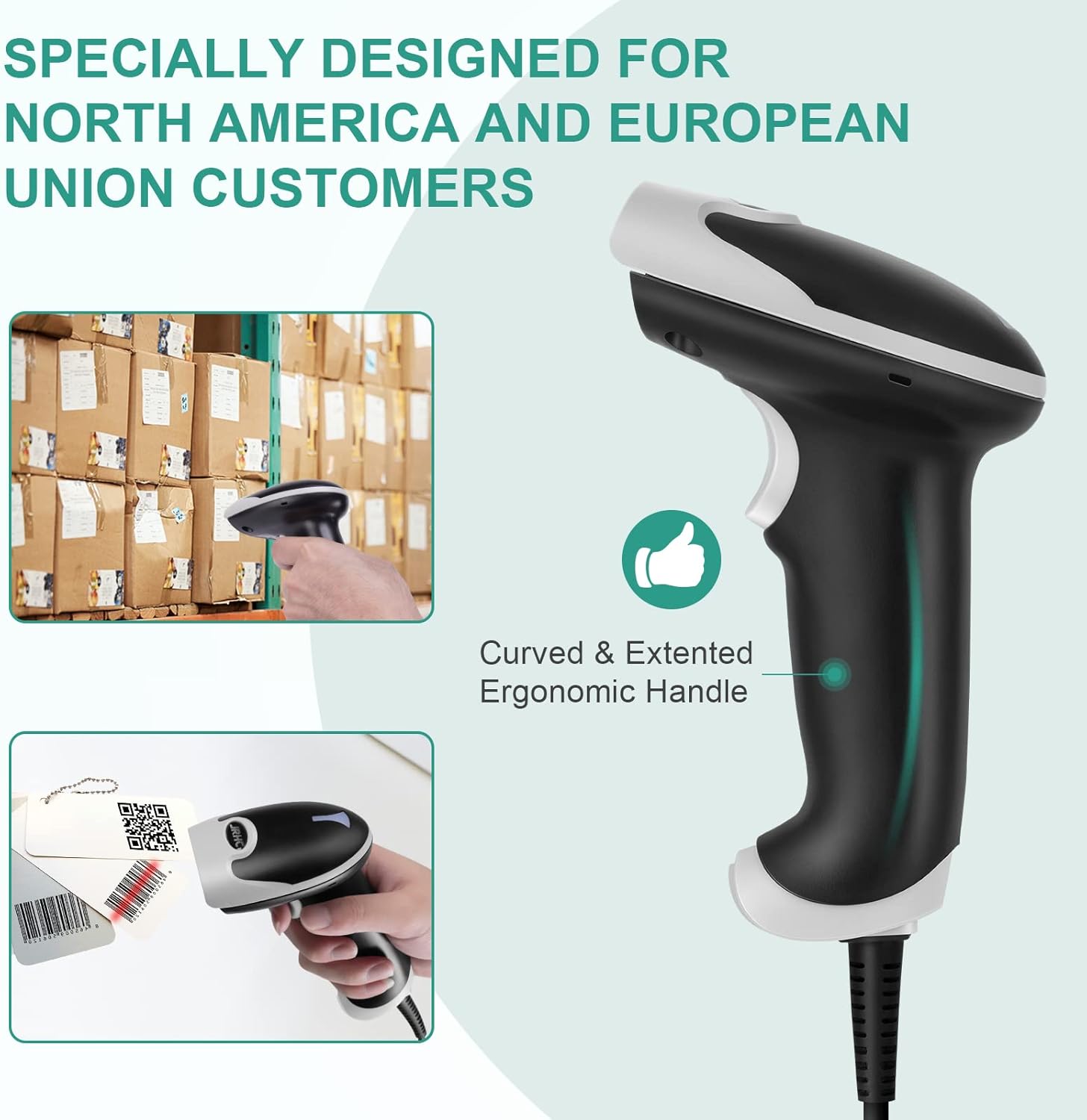
The image highlights the ergonomic design of the scanner, featuring a curved and extended handle for comfortable grip during prolonged use.

An image depicting the wide range of applications for the JRHC barcode scanner, showing it in use in a supermarket, warehouse, retail store, for express delivery, in a bookstore, and a pharmacy. The image also shows the scanner itself with a 1.8m cable length.
7. Warranty and Support
JRHC products are manufactured to high-quality standards. For specific warranty information, please refer to the documentation included with your purchase or contact JRHC customer support.
7.1 Customer Support
For further assistance, technical support, or inquiries, please visit the official JRHC store or contact their customer service department.
JRHC Store: JRHC Official Store on Amazon
