
Introduction
The Losfom WD2 2K Body Camera is a versatile 2-in-1 device designed for both body-worn and dash camera applications. It captures high-resolution video with audio, features night vision capabilities, and offers extended battery life, making it suitable for various uses including law enforcement, personal security, and vehicle recording.
Package Contents

Image: The Losfom WD2 Body Camera along with its included accessories, such as the car suction cup bracket, long clip, short clip, 128GB memory card, car charger, wall charger, USB-C cable, card readers, and user manual.
- Losfom WD2 Body Camera
- Car Suction Cup Bracket
- Long Clip
- Short Clip
- 128GB Memory Card (pre-installed or included)
- Car Charger
- Wall Charger
- USB-C Cable
- Card Readers (2 units)
- User Manual
Product Features
High Resolution Video

Image: Illustrates the 2K high-resolution video capability of the camera when used as a dash cam, showing clear road views and key features like 1440P/30fps, 128GB storage, 11 hours recording, loop recording, IR night vision, and 170° wide angle.
The WD2 camera supports up to 2K (1440P) video recording at 30 frames per second, ensuring clear and detailed footage. It also offers 1080P and 720P resolution modes for flexible recording options.

Image: A visual comparison demonstrating the superior clarity of 1440P video compared to 1080P, highlighting the enhanced detail in the 2K resolution.
Infrared Night Vision

Image: Depicts the camera's super night vision capability, showing a clear view of a road at night, emphasizing its ability to record even when the car engine is off.
Equipped with infrared night vision, the camera can capture clear footage in low-light conditions, ensuring important details are not missed, even at night.
Extended Battery Life

Image: Highlights the camera's built-in 3100mAh battery, providing up to 11 hours of continuous recording (1080P, IR Off) on a full charge, with a charging time of 5 hours.
The built-in 3100mAh battery provides up to 11 hours of continuous recording (at 1080P with IR off) on a single charge, ideal for long shifts or extended use.
170° Ultra Wide Angle Lens
Capture a broader perspective with the 170-degree ultra-wide-angle lens, minimizing blind spots and providing comprehensive coverage of your surroundings.
Loop Recording
The camera supports seamless loop recording, automatically overwriting the oldest unlocked video files when the memory card is full, ensuring continuous recording without manual intervention.
Versatile Mounting Options
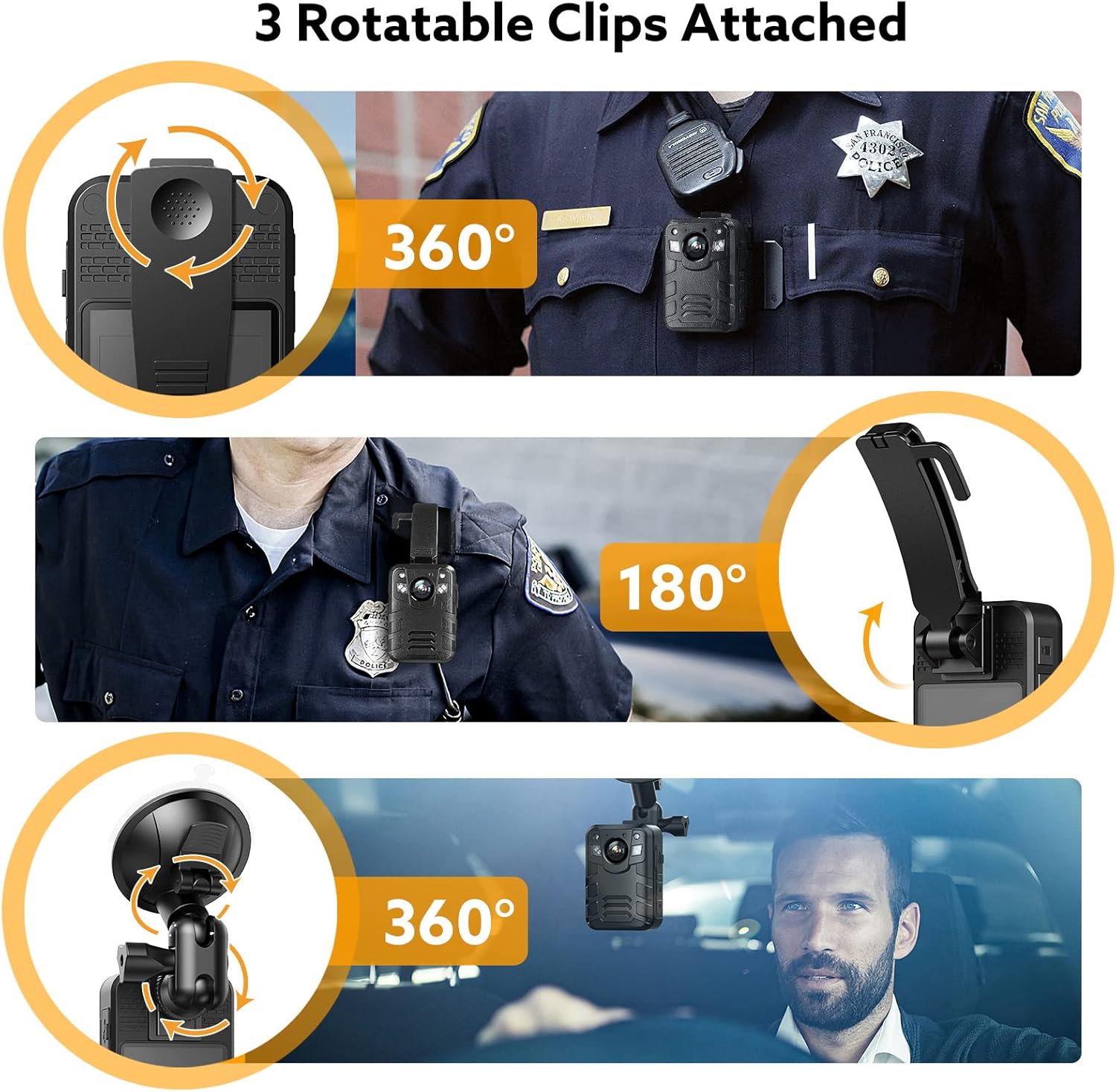
Image: Shows the three rotatable clips (long clip, short clip, and suction cup mount) that allow for 360° and 180° rotation, enabling flexible attachment to uniforms, backpacks, or vehicle windshields.
Comes with multiple rotatable clips and a suction cup mount, allowing for flexible attachment as a body-worn camera (on uniforms, backpacks) or as a dash camera in a vehicle.
Product Overview

Image: Detailed view of the Losfom WD2 camera highlighting its various buttons and interfaces, including the TF Card slot, Reset Hole, USB/Charging Interface, White Light/Alarm Button, UP/IR Night Button, Down/Laser Light Button, Power On/Off Button, Photo Button, Audio Button, and Video Button.
| Component | Function |
|---|---|
| Power On / Off Button | Press and hold to power the device on or off. |
| Photo Button | Press to capture still images. |
| Audio Button | Press to start or stop audio recording. |
| Video Button | Press to start or stop video recording. |
| USB / Charging Interface | Connects to charger or computer for data transfer. |
| TF Card Slot | Insert microSD card for storage. |
| Reset Hole | Use a pin to press the Reset Hole if the device becomes unresponsive. |
| White Light / Alarm Button | Activates white light or alarm function. |
| UP / IR Night Button | Navigates menu up; activates infrared night vision. |
| Down / Laser Light Button | Navigates menu down; activates laser light. |
Setup
1. Charging the Battery
Before first use, fully charge the camera. Connect the USB-C cable to the camera's charging interface and the other end to the wall charger or car charger. The charging indicator will show the charging status. A full charge takes approximately 5 hours.
2. Inserting the Memory Card
The camera comes with a 128GB memory card. Locate the TF Card slot on the side of the camera. Gently insert the memory card until it clicks into place. Ensure the card is inserted in the correct orientation. The camera supports up to 256GB memory cards.

Image: Illustrates the process of inserting the 128GB SD card into the camera's designated slot.
3. Attaching the Suction Cup Mount (for Dash Cam Use)
- Install the screw connect to bracket: Unscrew the snap from the suction cup bracket and install the screw.
- Press the clip down your finger: Press down the clip on the bracket to prepare for attachment.
- Attach the bracket to the camera: Align the camera with the bracket and slide it into place until it securely locks.
- Clean the windshield: Ensure the area on your car's windshield where you intend to mount the camera is clean and dry.
- Lock the snap and sucked the device to windshield: Press the suction cup firmly against the cleaned windshield and then push the locking lever down to secure it.

Image: A step-by-step visual guide on how to install the car suction cup bracket onto the camera and then attach it to the car's windshield.
Video: Demonstrates the installation process of the suction cup mount for dash cam use, including attaching the bracket to the camera and securing it to the windshield. It also shows the two methods for recording in dash cam mode: without a cable and with a cable connected to the car charger.
Operating Instructions
Power On/Off
- To power on: Press and hold the Power On/Off Button until the screen lights up.
- To power off: Press and hold the Power On/Off Button until the screen turns off.
Recording Video
- To start recording: Press the Video Button. A red indicator will typically appear on the screen to confirm recording is active.
- To stop recording: Press the Video Button again.
Taking Photos
- To take a photo: Press the Photo Button.
Audio Recording
- To start/stop audio recording: Press the Audio Button.
Activating Night Vision
- To activate infrared night vision: Press the UP / IR Night Button.
Dash Cam Mode Recording
The WD2 camera supports two methods for recording when used as a dash cam:
- Method 1: No Cable Record
First, ensure the Dash Cam Mode is turned on in the camera settings. Then, simply press the Video Button to start recording. The camera will use its internal battery.
- Method 2: Cable Connect Record
First, ensure the Dash Cam Mode is turned on in the camera settings. Then, connect the car charger to your vehicle's power outlet and connect the USB-C cable to the camera. The camera will automatically start recording when connected and powered.
Maintenance
- Cleaning: Use a soft, dry cloth to clean the camera body. For the lens, use a specialized lens cleaning cloth and solution to avoid scratches.
- Storage: Store the camera in a cool, dry place away from direct sunlight and extreme temperatures.
- Battery Care: To prolong battery life, avoid fully discharging the battery frequently. Charge the camera regularly, even if not in use, to maintain battery health.
- Firmware Updates: Check the Losfom official website periodically for any available firmware updates to ensure optimal performance and new features.
Troubleshooting
| Problem | Possible Cause / Solution |
|---|---|
| Camera does not turn on. | Battery is depleted. Charge the camera fully. Device needs reset. Use a pin to press the Reset Hole. |
| Video quality is poor. | Lens is dirty. Clean the lens with a soft cloth. Low light conditions. Ensure Night Vision is activated if needed. Incorrect resolution setting. Check settings and select 1440P for best quality. |
| Camera stops recording unexpectedly. | Memory card is full. Loop recording should overwrite old files, but check if it's enabled. Battery is low. Charge the camera. Memory card error. Reformat the card (backup data first) or try a new card. |
| Cannot transfer files to computer. | Incorrect USB mode. Ensure the camera is in mass storage mode when connected. Faulty USB cable. Try a different USB-C cable. Driver issue. Try connecting to a different USB port or computer. |
| Battery life is shorter than expected. | Continuous IR Night Vision or high-resolution recording consumes more power. Battery degradation over time. |
Specifications
| Feature | Detail |
|---|---|
| Brand | Losfom |
| Model | WD2 |
| Video Capture Resolution | 1440P (2K), 1080P, 720P |
| Screen Size | 2 inches |
| Lens Angle | 170° Ultra Wide Angle |
| Battery Capacity | 3100mAh |
| Recording Time | Up to 11 hours (1080P, IR Off) |
| Charging Time | Approx. 5 hours |
| Flash Memory Type | SD (128GB included, supports up to 256GB) |
| Connectivity Technology | USB |
| Special Features | Infrared Night Vision, Loop Recording, Motion Detection (implied by dash cam features) |
| Item Weight | 1.1 pounds (approx. 499g) |
| Color | Black |
Warranty and Support
Losfom is committed to providing high-quality products and customer satisfaction. For specific warranty information, technical support, or service inquiries, please refer to the contact information provided in the included user manual or visit the official Losfom website. Losfom strives to provide professional, efficient, and high-quality camera products.
You can visit the Losfom Store for more information: Losfom Store

