
1. Introduction to Cricut Joy
The Cricut Joy is a compact and versatile smart cutting machine designed for quick and easy DIY projects. Its small size (approximately 8.4 inches x 4.25 inches x 5.5 inches) makes it highly portable and convenient for storage, allowing users to personalize, organize, and customize various items with ease. This machine is ideal for creating custom cards, small decor projects, and decals.
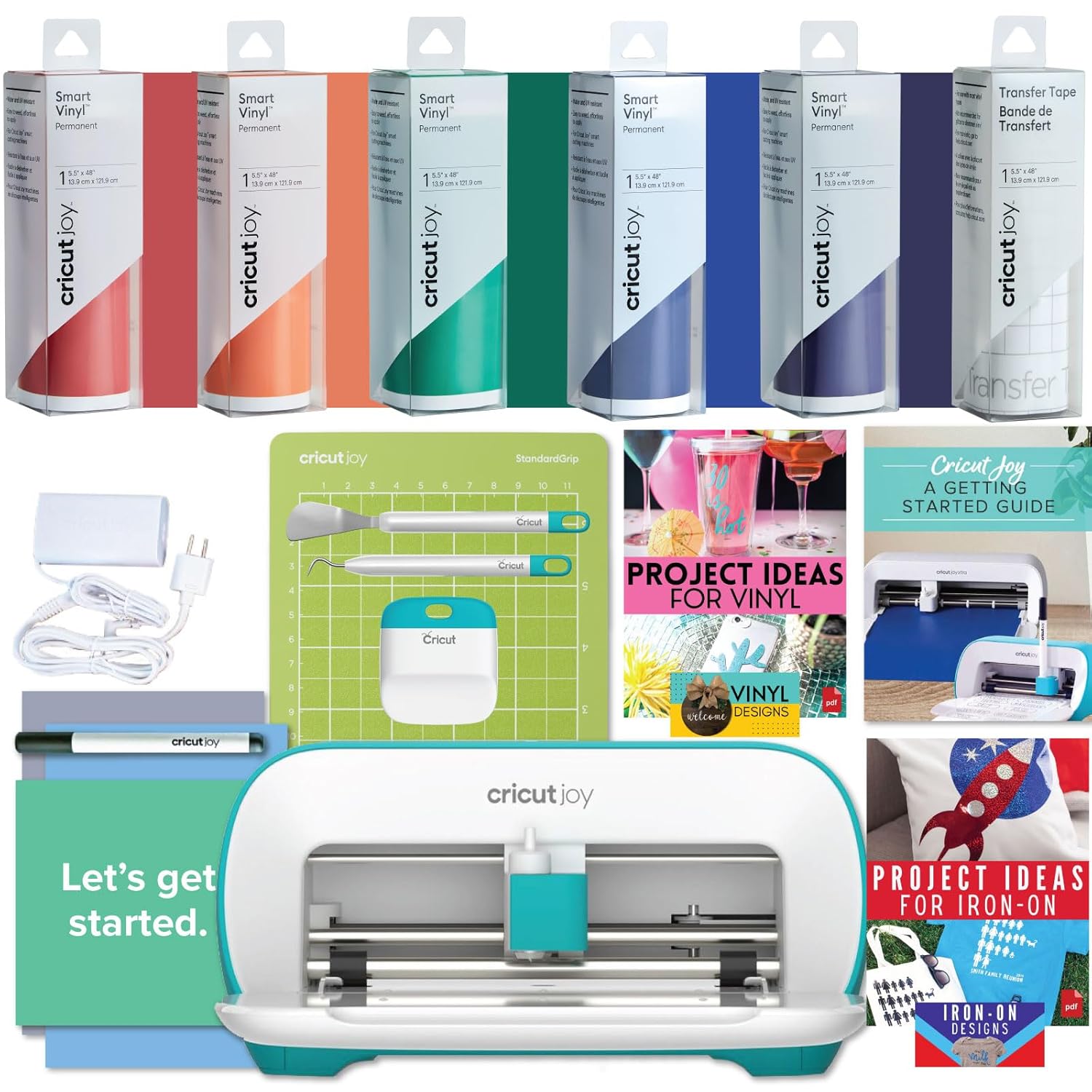
Figure 1: Cricut Joy Machine and included accessories for crafting.

Figure 2: The compact and portable design of the Cricut Joy, highlighting its dimensions.
2. Setup and Connectivity
The Cricut Joy machine operates exclusively via Bluetooth connectivity. To begin, ensure your device (phone, tablet, or computer) has Bluetooth wireless capability and a high-speed internet connection. The machine does not feature a physical power button; it automatically powers on when plugged in.
2.1 Powering On
- Connect the power cord to the back of the Cricut Joy machine.
- Plug the other end of the power cord into a wall outlet.
- The machine will automatically power on, indicated by a flashing light on top.
2.2 Bluetooth Connection
The Cricut Joy connects wirelessly to your device. Ensure your Cricut Joy machine is powered on and within 10-15 feet of your Bluetooth-enabled device.

Figure 3: Bluetooth connectivity allows wireless operation of the Cricut Joy.
2.3 Initial Setup and App Download
For initial setup and project design, you will need to download the free Cricut Design Space app. This app is compatible with iOS, Mac, Windows (excluding Windows 7 and 8), and Android operating systems.
- Go to cricut.com/setup on your device.
- Follow the on-screen instructions to download and install the Cricut Design Space app.
- Within the app, navigate to "Machine Setup" and select "Cricut Joy".
- Ensure Bluetooth is enabled on your device and connect to the Cricut Joy.
- The app will guide you through any necessary machine updates to ensure you have the latest features.
Video 1: Detailed instructions on connecting your Cricut Joy to Bluetooth and setting up the Design Space app.
3. Operating Instructions
The Cricut Joy is designed to simplify crafting. Once connected, you can use the Design Space app to create and send projects to your machine for cutting, writing, or foiling.
3.1 Project Creation and Execution
- Open the Cricut Design Space app on your connected device.
- Select or create your desired project. The app offers various templates and design tools.
- Choose the material you will be using (e.g., Smart Vinyl, paper, iron-on).
- Load the material into the Cricut Joy machine as prompted by the app. For Smart Materials, no cutting mat is needed. For other materials, use the appropriate Cricut Joy cutting mat.
- Insert the correct tool (blade for cutting, pen for writing, or foil transfer tool for foiling) into the machine's clamp.
- Follow the app's instructions to start your project.
Video 2: Demonstration of creating a DIY invitation card using the Cricut Joy machine.

Figure 4: The Cricut Joy's capabilities include writing, drawing, and foiling with specialized tools.
4. Materials Compatibility
The Cricut Joy cuts over 50 different materials, including vinyl, iron-on, paper, Infusible Ink, and writable labels. Always check the material packaging for "Cricut Joy" compatibility to ensure optimal results. The machine is designed for smaller-scale projects, making it perfect for handmade cards, small decals, and labels.

Figure 5: Examples of materials compatible with the Cricut Joy machine.
4.1 Long Cuts
With Smart Materials, the Cricut Joy can make continuous cuts up to 20 feet long and individual shapes up to 4 feet long, expanding possibilities for larger designs without a mat.

Figure 6: The Cricut Joy's capability to make long cuts with Smart Materials.
5. Key Features
- Cuts 50+ materials.
- Compatible with Smart Materials.
- Bluetooth wireless technology for seamless connection.
- Works with Cricut Design Space app for project creation.
- Small, compact, and portable size for easy use and storage.
- Can write, draw, and foil using specific tools.

Figure 7: Overview of the Cricut Joy's primary features.
6. Specifications
| Feature | Detail |
|---|---|
| Product Dimensions | 5.5"D x 8.4"W x 5.5"H |
| Item Model Number | zJoyM8V4 |
| Brand | Cricut |
| Material | Plastic |
| Active Surface Area | 8.4 inches x 4.25 inches |
| Connectivity | Bluetooth Only |
7. What's in the Box
- 1x Cricut Joy Machine
- 1x Joy Smart Vinyl Roll (Rainbow shades may vary)
- 1x Transfer Tape
- 1x Starter Tool Set
- 1x Cricut Joy eBook (access details provided with purchase)
- Blade and Housing (pre-installed in machine)
- Pen
- Cutting Mat
8. Maintenance
To ensure the longevity and optimal performance of your Cricut Joy machine, regular maintenance is recommended:
- Clean the Blade and Housing: Periodically remove the blade and housing to clear any debris or material fragments.
- Clean the Cutting Mat: Use a scraper tool to gently remove small pieces of material from your cutting mat after each use to maintain its stickiness.
- Store Properly: When not in use, close the machine's lid to protect internal components from dust. Store cutting mats with their protective covers.
- Software Updates: Regularly check for and install software updates for the Cricut Design Space app and your machine's firmware to access new features and improvements.
9. Troubleshooting
If you encounter issues with your Cricut Joy, consider the following common troubleshooting steps:
- Connectivity Issues: Ensure Bluetooth is enabled on your device and the machine is within range. Restart both your device and the Cricut Joy.
- Material Not Cutting Properly: Verify that you are using the correct material setting in Design Space for your chosen material. Check if the blade is clean and properly installed. Replace the blade if it appears dull or damaged.
- Material Not Loading: Ensure the material is aligned correctly and pushed gently against the rollers. Clean the rollers if they appear dirty.
- App Freezing/Crashing: Close and restart the Design Space app. Ensure your device's operating system is up to date.
10. Warranty and Support
The Cricut Joy Machine includes an Original Cricut Manufacturer 12-month Machine Warranty. For detailed warranty information, product support, or to access the Cricut Joy eBook, please refer to the documentation included in your product packaging or visit the official Cricut support website.
Online Support: help.cricut.com
Manufacturer: Cricut