
X9 Performance HU-XI-201
X9 Colorful Keyboard and Mouse Wireless Combo User Manual
Model: HU-XI-201
Introduction
This manual provides comprehensive instructions for the setup, operation, maintenance, and troubleshooting of your X9 Colorful Wireless Keyboard and Mouse Combo. Designed for comfort and efficiency, this combo offers a seamless wireless experience for your computer, PC, laptop, or Chromebook.

Figure 1: X9 Colorful Wireless Keyboard and Mouse Combo (Brown)
This image displays the complete X9 wireless keyboard and mouse set in a brown color scheme, highlighting its aesthetic design and compact form factor.
Setup
- Unpack the Contents: Carefully remove the keyboard, mouse, and USB receiver from the packaging. Batteries (1 AAA for keyboard, 1 AA for mouse) are included and may be pre-installed or require insertion.
- Insert Batteries (if necessary):
- For the keyboard, locate the battery compartment on the underside and insert 1 AAA battery, ensuring correct polarity.
- For the mouse, locate the battery compartment on the underside and insert 1 AA battery, ensuring correct polarity.
- Connect the USB Receiver: Locate the 2.4G USB dongle, typically stored in the mouse's battery compartment. Insert this single USB dongle into an available USB-A port on your computer, PC, laptop, or Chromebook.
- Automatic Connection: The keyboard and mouse are designed for plug-and-play functionality. They should automatically connect to your device within seconds. No additional drivers are required.
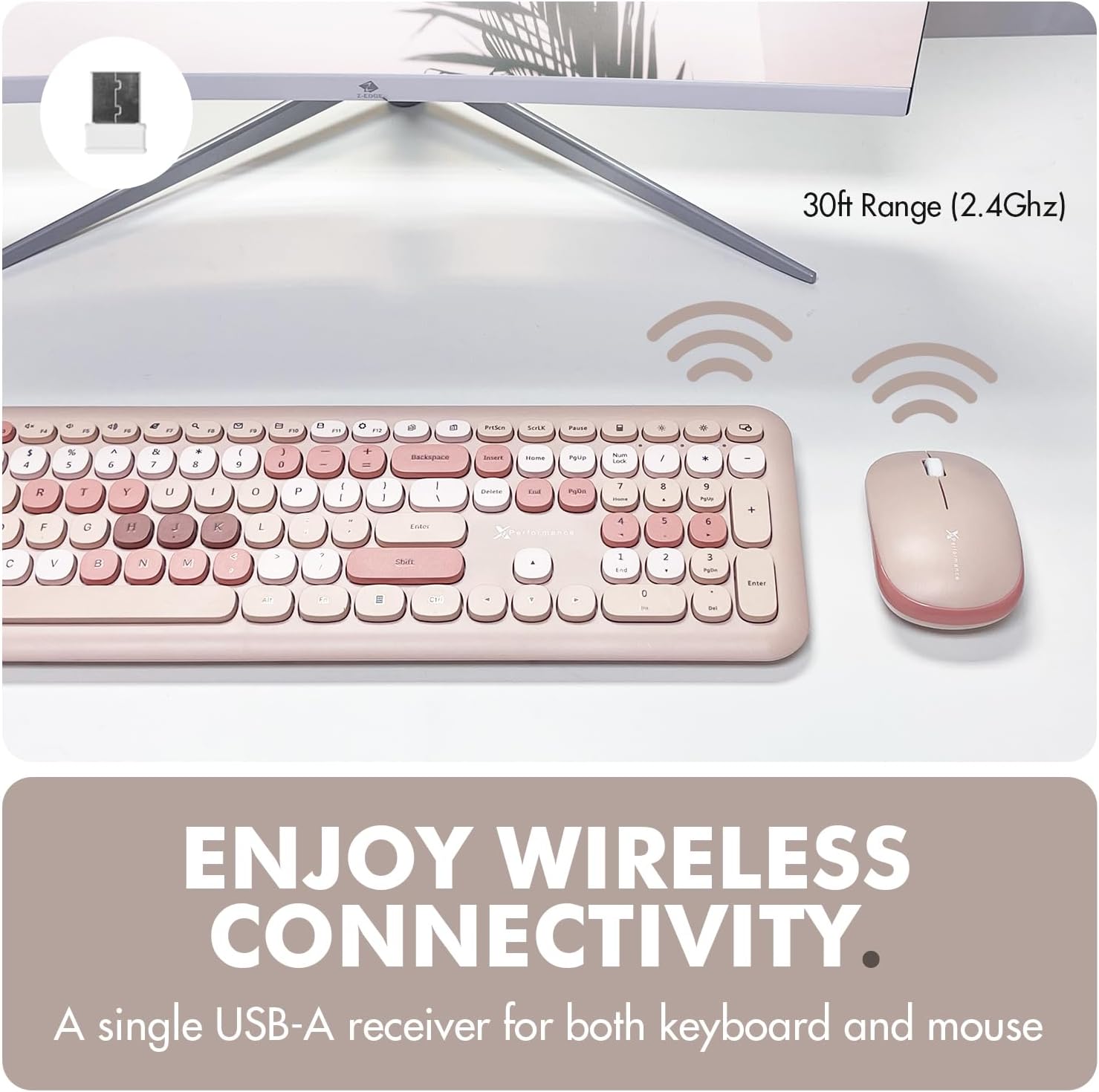
Figure 2: Wireless Connectivity Setup
This image illustrates the 2.4GHz wireless connection between the keyboard and mouse and the computer via a single USB-A receiver, emphasizing the 30ft operating range.

Figure 3: Device Compatibility
This image shows the keyboard and mouse combo on a desk, with icons indicating compatibility with Windows PC and Chrome OS devices.
Operating Instructions
Keyboard Operation
The X9 keyboard features a full-size layout with 110 rounded keys, providing a comfortable and tactile typing experience. It includes 18 shortcut/media keys for quick access to common functions.
- Standard Typing: Use the alphanumeric keys for text input.
- Function Keys (F1-F12): These keys often have dual functions. The primary function is typically accessed directly, while the secondary (media/shortcut) function is accessed by pressing the Fn key simultaneously with the desired function key. Refer to the keycap legends for specific shortcut functions (e.g., volume control, media playback, brightness adjustment).
- Integrated Typing Angle: The keyboard features an integrated kickstand for a comfortable typing angle, reducing strain during long hours of use.
- Anti-Scratch Rubber Inserts: The underside of the keyboard includes rubber inserts to improve stability and prevent scratches on your desk surface.

Figure 4: Multi-functional Shortcut Keys
This image highlights the various shortcut and media keys available on the X9 keyboard, such as volume control, media playback, and system functions.

Figure 5: Integrated Typing Angle
This image illustrates the side profile of the keyboard, showing its integrated kickstand which provides an ergonomic typing angle for user comfort.

Figure 6: Anti-Scratch Rubber Inserts
This image displays the underside of the keyboard, highlighting the rubber inserts designed to prevent slipping and protect surfaces.
Mouse Operation
The X9 mouse features a familiar 3-button layout with a scroll wheel and a 1200 DPI optical sensor for precise navigation.
- Left Click: Primary selection and activation.
- Right Click: Accesses contextual menus.
- Scroll Wheel: Used for vertical scrolling and can also function as a middle click button.
- 1200 DPI Optical Sensor: Provides balanced cursor sensitivity for smooth and accurate movement.
- Ambidextrous Design: The mouse features a small, ambidextrous body designed to fit comfortably in various hand sizes.

Figure 7: Mouse Power States
This image illustrates the different operational states of the mouse: working, stand-by, auto-sleep, and how to activate it by pressing a button.

Figure 8: 1200 DPI Optical Sensor
This image shows the underside of the mouse, highlighting the optical sensor that provides precise tracking and movement.
Auto Power Saving Feature
Both the keyboard and mouse are equipped with an auto power-saving feature to conserve battery life. They will enter a sleep mode after a period of inactivity. To wake them up, simply press any key on the keyboard or click any button on the mouse.

Figure 9: Auto Power Saving
This image displays the keyboard and mouse on a desk, with a battery icon indicating the auto power-saving function that helps extend battery life.
Maintenance
- Cleaning:
To clean the keyboard and mouse, use a soft, lint-free cloth slightly dampened with water or a mild cleaning solution. Avoid excessive moisture and abrasive cleaners. For the keyboard, you can use compressed air to remove debris from between the keys.
- Battery Replacement:
When the keyboard or mouse becomes unresponsive or exhibits intermittent connectivity, it may be time to replace the batteries. The keyboard uses 1 AAA battery, and the mouse uses 1 AA battery. Ensure correct polarity when inserting new batteries.
- Storage:
Store the keyboard and mouse in a cool, dry place away from direct sunlight and extreme temperatures when not in use for extended periods.
Troubleshooting
| Problem | Possible Cause | Solution |
|---|---|---|
| Keyboard/Mouse not responding | Low batteries; USB receiver not properly connected; device in sleep mode. | Replace batteries. Ensure USB receiver is firmly plugged into a working USB port. Press any key/button to wake the device. |
| Intermittent connection or lag | Interference; USB receiver too far from devices; USB receiver plugged into laptop instead of dock (if applicable). | Move devices closer to the USB receiver (within 30ft). Try plugging the USB receiver into a different USB port, especially on a docking station if using external monitors, to minimize interference. Ensure no large metal objects are between the devices and receiver. |
| Keys or mouse buttons feel sticky/unresponsive | Debris under keys; worn-out components. | Clean the keyboard and mouse as per maintenance instructions. If the issue persists, contact customer support. |
| Mouse cursor erratic or not moving smoothly | Dirty optical sensor; unsuitable surface; low battery. | Clean the optical sensor on the underside of the mouse. Use the mouse on a clean, non-reflective surface or a mouse pad. Replace batteries. |
Specifications
| Feature | Detail |
|---|---|
| Brand | X9 Performance |
| Model Number | HU-XI-201 |
| Connectivity Technology | 2.4GHz Wireless RF |
| Wireless Range | Up to 30 feet |
| Keyboard Keys | 110 (Rounded Keys, 18 Shortcut/Media Keys) |
| Mouse DPI | 1200 DPI Optical Sensor |
| Keyboard Battery | 1 AAA battery (included) |
| Mouse Battery | 1 AA battery (included) |
| Compatible Devices | Laptop, Personal Computer (Windows & Chrome OS) |
| Package Dimensions | 17.6 x 5.6 x 2.5 inches |
| Item Weight | 1.52 pounds |

Figure 10: Key Features at a Glance
This image provides a quick summary table of the product's key features, including power source, connectivity, backlight, key type, and compatibility.

Figure 11: Product Dimensions
This image provides detailed measurements for both the keyboard and the mouse, indicating their physical size.
Warranty and Support
X9 Performance stands behind its products. Your X9 Colorful Wireless Keyboard and Mouse Combo is backed by a 2-year support period.
For any questions, technical assistance, or warranty claims, please contact X9 Performance customer support through the retailer's platform or visit the official X9 Performance website for contact details.
Please retain your proof of purchase for warranty purposes.
Ask a question about this manual
Ask about setup, troubleshooting, compatibility, parts, safety, or missing instructions. Manuals+ will review the question and use this page’s manual context to help answer it.