1. Introduction
The Ducky One 3 series mechanical keyboard is designed with QUACK Mechanics, focusing on aesthetics, hot-swappable functionality, sound dampening, and high-quality stabilizers. This 60% form factor keyboard offers a compact design without compromising performance, featuring Cherry Speed Silver Switches and durable PBT Doubleshot keycaps.
Key Features:
- Ducky's QUACK Mechanics design philosophy for enhanced performance and aesthetics.
- Dual-layer hot-swappable PCB with exclusive Kailh yellow hot-swap sockets.
- Low-profile One 3 case design.
- Dual-layer high-grade silicone and EVA foam sound dampeners for improved acoustics.
- Thick PBT Double-shot seamless keycaps for durability and clear legends.
- Per-key programmable RGB backlighting.
- 3-level adjustable feet for ergonomic comfort.
- Detachable braided USB-C cable for easy connectivity and portability.
- Improved PCB design, V2 stabilizers, and remapped macro layout.
- N-key rollover for accurate and simultaneous key presses.
2. What's in the Box
- Ducky One 3 Black 60% Mechanical Keyboard
- Keycap Puller
- USB Cable (detachable braided USB-C)
- Ducky Channel Sticker
- Accent Keys (additional keycaps for customization)

3. Setup
- Connect the Keyboard: Plug the detachable USB-C end of the provided cable into the USB-C port on the back of the keyboard. Connect the USB-A end of the cable to an available USB port on your computer.
- Initial Power On: The keyboard should automatically power on and the RGB backlighting will illuminate.
- Adjust Keyboard Angle: Utilize the 3-level adjustable feet located on the underside of the keyboard to set your preferred typing angle.


4. Operating Instructions
4.1 Basic Usage
The Ducky One 3 keyboard functions as a standard 60% mechanical keyboard. All primary keys (letters, numbers, basic punctuation) operate as expected. Due to its compact size, some functions are accessed via combination keys.
4.2 Function Layer (Fn Key)
Many keys have secondary functions printed on their front or side. To access these functions, hold down the Fn key (located on the bottom right) and then press the desired key. Common Fn combinations include:
- Fn + Number Row: Accesses F1-F12 keys.
- Fn + Arrow Keys: Controls cursor movement (if dedicated arrow keys are not present).
- Fn + Media Keys: Controls volume, playback, etc. (refer to keycap legends).
4.3 RGB Backlighting Customization
The Ducky One 3 features per-key programmable RGB backlighting. Specific key combinations (often involving the Fn key and other designated keys) allow you to change lighting modes, colors, brightness, and speed. Refer to the official Ducky software or the keyboard's quick start guide for detailed instructions on RGB customization patterns and controls.

5. Maintenance
5.1 Cleaning the Keyboard
- General Cleaning: Use a soft, lint-free cloth slightly dampened with water or a mild cleaning solution to wipe down the keycaps and case. Avoid excessive moisture.
- Deep Cleaning (Keycaps): Use the included keycap puller to carefully remove keycaps. Clean the keycaps with warm, soapy water, rinse thoroughly, and ensure they are completely dry before reattaching.
- Cleaning Under Keycaps: Use compressed air to blow out dust and debris from between the switches. A small brush can also be used to dislodge stubborn particles.
5.2 Hot-Swappable Switches
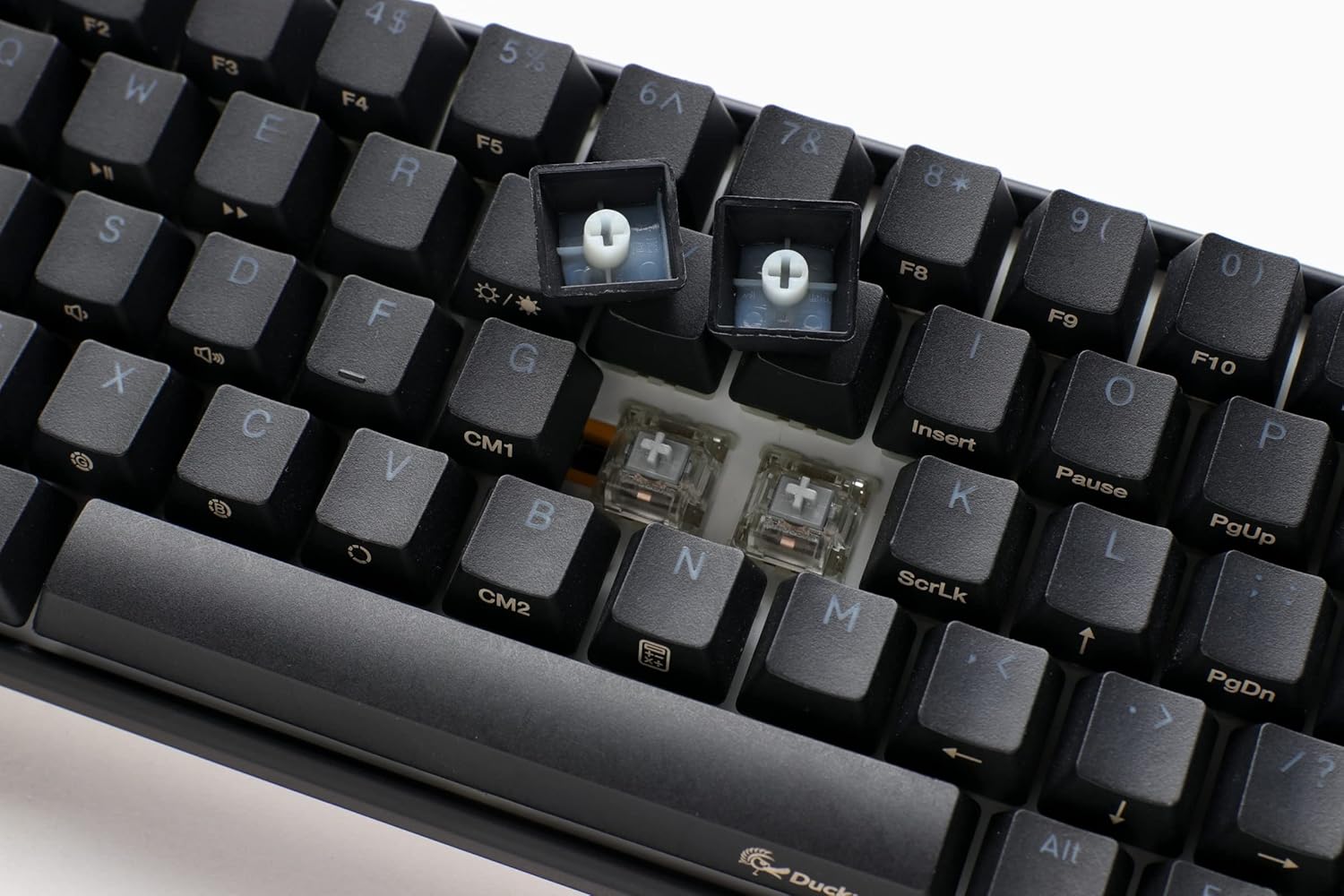
The Ducky One 3 features a hot-swappable PCB, allowing you to change switches without soldering. This model comes with Cherry Speed Silver Switches, but you can replace them with other compatible 3-pin or 5-pin mechanical switches.
- Removing a Switch: Use a switch puller (not included, but a keycap puller can sometimes assist) to gently grip the top and bottom clips of the switch and pull it straight up.
- Installing a New Switch: Align the pins of the new switch with the holes on the PCB. Gently push the switch down until it clicks into place. Ensure the switch is seated correctly and the pins are not bent.
6. Troubleshooting
- Keyboard Not Responding:
- Ensure the USB-C cable is securely connected to both the keyboard and the computer.
- Try connecting the keyboard to a different USB port on your computer.
- Test the keyboard on another computer if possible to rule out a computer-specific issue.
- RGB Lights Not Working/Incorrect:
- Check the keyboard's manual or Ducky's website for specific key combinations to reset or cycle through RGB modes.
- Ensure Ducky's software (if installed) is up-to-date and correctly configured.
- Keys Not Registering or Double-Typing (Chattering):
- Carefully remove the keycap and switch for the affected key. Inspect the switch for any visible damage or debris.
- If the switch is hot-swappable, try replacing it with a new one or swapping it with a less frequently used key to diagnose if the switch itself is faulty.
- Ensure the switch is fully seated in the PCB.
7. Specifications
| Feature | Detail |
|---|---|
| Product Dimensions | 12.2 x 4.33 x 1.57 inches |
| Item Weight | 1.31 pounds |
| Manufacturer | Ducky Channel |
| ASIN | B09Y2J5VDB |
| Item Model Number | DKON2161ST-PUSPDCLAWSC1 |
| Brand | Ducky |
| Compatible Devices | PC |
| Connectivity Technology | USB-C |
| Keyboard Description | Mechanical |
| Recommended Uses | Everyday Use |
| Special Features | Backlit, Ducky V2 Stabilizer, Hot-Swappable, Internal Sound Dampening, Quack Mechanics |
| Color | Cherry MX Silver (Switch Type) / Black (Keyboard Color) |
| Keyboard Backlighting | RGB |
| Material | Plastic |
8. Official Product Videos
Ducky One 3 Overview
Video: An official overview of the Ducky One 3 keyboard, detailing its features, design, and functionality. This video provides a visual guide to the product's highlights.
Ducky One 3 Black or White
Video: A comparison video showcasing the Ducky One 3 keyboard in both black and white color options, highlighting their aesthetic differences.
9. Warranty and Support
For warranty information, technical support, or further assistance, please refer to the official Ducky Channel website or contact their customer service directly. Keep your purchase receipt as proof of purchase for warranty claims.
You can visit the Ducky Store on Amazon for more product information and resources.


