1. Introduction
This manual provides detailed instructions for the setup, operation, maintenance, and troubleshooting of your Ducky One 3 Mini 60% Mechanical Keyboard. Please read this manual thoroughly to ensure proper use and to maximize your keyboard's performance and longevity.

Image: The Ducky One 3 Mini 60% Mechanical Keyboard, showcasing its compact layout and vibrant RGB backlighting.
2. Package Contents
Before proceeding with the setup, please verify that all items listed below are present in your package:
- Ducky One 3 Mini 60% Mechanical Keyboard
- Detachable Braided USB-C Cable
- Keycap Puller
- Ducky Channel Sticker
- Accent Keycaps (additional colored keycaps for customization)
3. Setup Guide
3.1 Connecting the Keyboard
- Locate the USB-C port on the back of your Ducky One 3 Mini keyboard.
- Connect the smaller end of the provided USB-C cable to the keyboard's USB-C port.
- Connect the larger USB-A end of the cable to an available USB port on your computer.
- The keyboard will automatically be detected by your operating system. No additional drivers are typically required for basic functionality.

Image: The detachable braided USB-C cable being connected to the keyboard's port, illustrating the connection process.
3.2 Adjusting Keyboard Height
The Ducky One 3 Mini features 3-level adjustable feet to customize the typing angle for optimal comfort.
- Flip the keyboard over to access the feet on the underside.
- Extend the feet to your preferred height. There are two sets of feet for three different angles.

Image: The underside of the Ducky One 3 Mini keyboard, highlighting the adjustable feet that allow for three different typing angles.
4. Operating Instructions
4.1 Basic Keyboard Functions
The Ducky One 3 Mini is a 60% layout keyboard, meaning some keys share functions. The Fn key is used to access secondary functions printed on the front or side of keycaps.
- Primary Keys: Standard alphanumeric keys function as labeled.
- Secondary Functions: Hold down the Fn key and press the desired key to activate its secondary function (e.g., arrow keys, F-row keys, Home, End, Page Up/Down).
4.2 RGB Lighting Control
The keyboard features per-key programmable RGB lighting. Specific key combinations (often involving Fn and other keys) are used to cycle through lighting modes, adjust brightness, and change colors. Refer to the Ducky official website or included quick guide for detailed RGB control commands.
4.3 Macro Programming
The Ducky One 3 Mini supports macro programming, allowing you to assign complex sequences of key presses to a single key. The remapped macro layout provides flexibility for custom commands. Detailed instructions for macro recording and assignment can be found in the comprehensive Ducky software or online resources.
4.4 Hot-Swappable Switches
This keyboard is equipped with hot-swappable Kailh Yellow Sockets, allowing you to change mechanical switches without soldering. This feature enables customization of typing feel and sound.
- Use the included keycap puller to remove the keycap.
- Use a switch puller (not included, but often bundled with switches) to gently remove the switch from its socket.
- Align the pins of the new switch with the holes in the socket and press firmly until it clicks into place. Ensure pins are not bent.
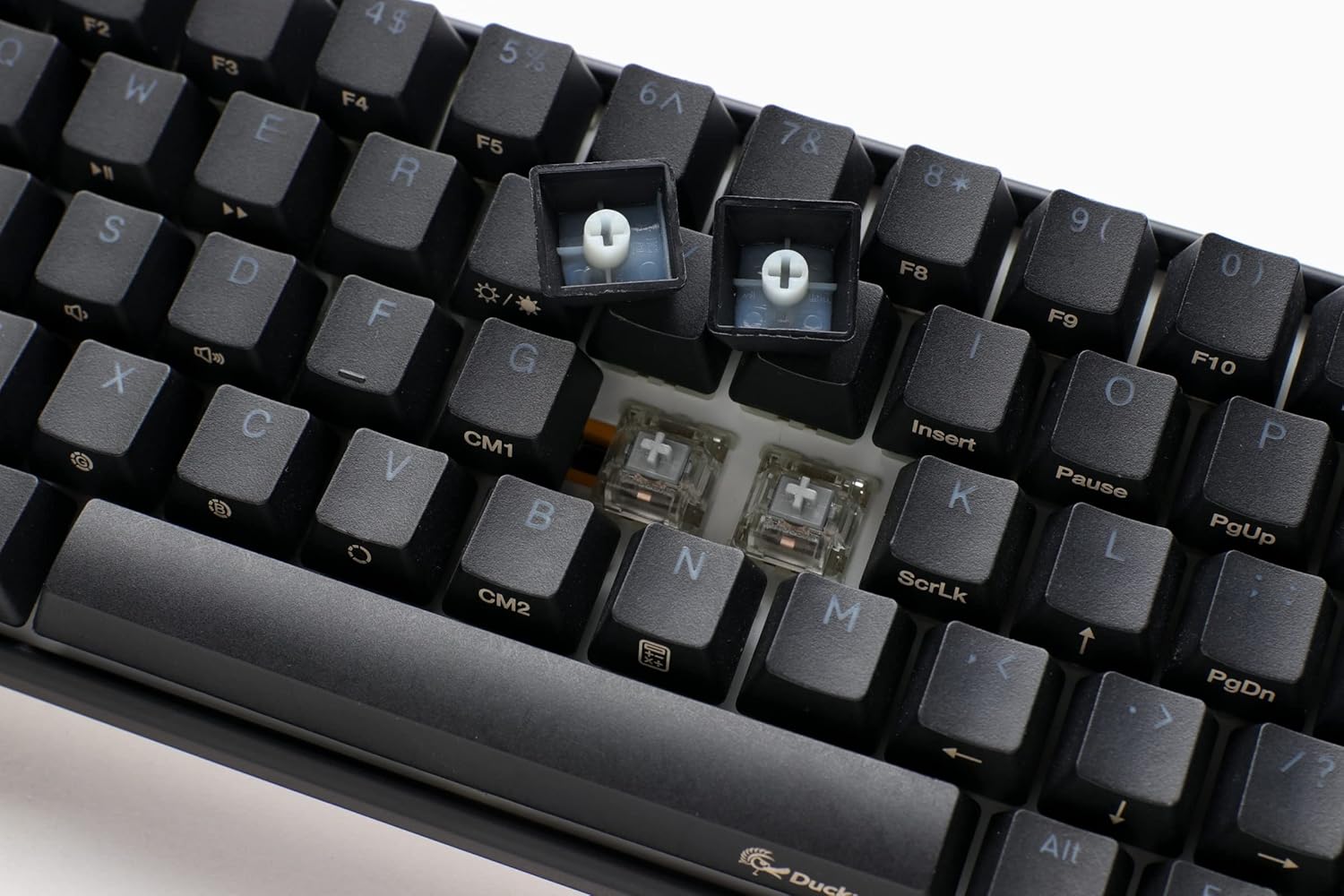
Image: A close-up view of the keyboard with several keycaps removed, revealing the hot-swappable mechanical switches beneath, ready for replacement or customization.
4.5 Product Overview Video
For a visual overview of the Ducky One 3 series features and design philosophy, please watch the official product video below.
Video: An official overview of the Ducky One 3 keyboard series, detailing its design, features, and the 'QUACK Mechanics' philosophy. This video provides a visual guide to the product's capabilities.
5. Maintenance
5.1 Cleaning the Keyboard
Regular cleaning helps maintain the keyboard's appearance and functionality.
- Keycaps: Use the included keycap puller to carefully remove keycaps. Clean them with a mild soap solution and a soft cloth, then ensure they are completely dry before reattaching.
- Keyboard Body: Use a soft, lint-free cloth, slightly dampened with water or a mild cleaning solution, to wipe down the keyboard body. Avoid excessive moisture.
- Between Switches: Use compressed air to remove dust and debris from between the switches.

Image: The Ducky One 3 Mini keyboard featuring a custom spacebar with an intricate design, highlighting the potential for aesthetic customization and the ease of keycap removal for cleaning.
5.2 Switch and Stabilizer Care
The Ducky One 3 Mini features V2 stabilizers for improved stability and sound. While hot-swappable, proper care of switches and stabilizers can prevent issues.
- Avoid spilling liquids on the keyboard.
- When replacing switches, ensure they are inserted straight to prevent bending pins.
6. Troubleshooting
If you encounter issues with your Ducky One 3 Mini keyboard, refer to the following common troubleshooting steps:
- Keyboard Not Responding:
- Ensure the USB-C cable is securely connected to both the keyboard and the computer.
- Try connecting the keyboard to a different USB port on your computer.
- Test the keyboard on another computer if possible to rule out a system-specific issue.
- RGB Lighting Not Working:
- Check the keyboard's manual or Ducky's website for the correct key combinations to activate and adjust RGB lighting.
- Ensure no software conflicts are interfering with the lighting controls.
- Keys Not Registering or Double-Typing (Chatter):
- Due to the hot-swappable design, try removing and re-inserting the affected switch to ensure proper seating.
- If the issue persists, consider replacing the switch with a new one.
- Ensure the keyboard is clean and free of debris that might obstruct switch operation.
- N-Key Rollover (NKRO) Issues:
- The Ducky One 3 Mini supports N-key rollover, meaning all key presses are registered simultaneously. If you experience issues, ensure your operating system and any gaming software are not interfering with this feature.
For further assistance, please visit the official Ducky support website or contact their customer service.
7. Specifications
| Feature | Detail |
|---|---|
| Model Number | DKON2161ST-SUSPDCLAWSC1 |
| Layout | 60% |
| Switch Type | Cherry MX Silent Red (Hot-Swappable) |
| Keycaps | High-Density PBT Double-shot Seamless Keycaps |
| Backlighting | Per-key Programmable RGB |
| Connectivity | Detachable USB-C |
| Special Features | QUACK Mechanics Design, Silicone Plate Dampener, EVA Foam Case Dampener, Ducky V2 Stabilizers, 3-Level Adjustable Feet, N-Key Rollover |
| Product Dimensions | 12.2 x 4.33 x 1.57 inches |
| Item Weight | 1.31 pounds |
8. Warranty and Support
Ducky products are manufactured to high-quality standards. This product is covered by a limited warranty against manufacturing defects. The specific terms and duration of your warranty may vary by region and retailer. Please retain your proof of purchase for warranty claims.
For technical support, warranty information, or service inquiries, please visit the official Ducky website or contact your local Ducky distributor or retailer. You can often find FAQs, driver downloads, and contact information on the official Ducky support pages.
Online Resources:
- Ducky Official Website: www.duckychannel.com.tw
- Ducky Store on Amazon: Visit the Ducky Store


