
UGREEN 90395
UGREEN Wireless Ergonomic Mouse User Manual
Model: 90395
1. Product Overview
The UGREEN Wireless Ergonomic Mouse (Model: 90395) is designed for comfortable and efficient use across various devices. It features dual-mode connectivity (2.4GHz wireless and Bluetooth 5.0), adjustable DPI settings, and a silent click design, making it suitable for office and general computing tasks.

Figure 1: UGREEN Wireless Ergonomic Mouse and its 2.4GHz USB receiver.
Package Contents:
- UGREEN Wireless Ergonomic Mouse
- 2.4GHz USB Receiver
- User Manual (this document)
- (Note: AA battery not included)
2. Getting Started
2.1 Installing the Battery
- Locate the battery compartment on the underside of the mouse.
- Open the battery compartment cover.
- Insert one (1) AA battery, ensuring correct polarity (+/-).
- Close the battery compartment cover securely.
2.2 Connecting the Mouse
The UGREEN mouse supports two connection modes: 2.4GHz wireless via USB receiver and Bluetooth 5.0. You can switch between these modes using the button on the mouse.

Figure 2: The mouse supports both 2.4GHz wireless (via USB dongle) and Bluetooth 5.0 connections.
2.2.1 2.4GHz Wireless Connection
- Take out the 2.4GHz USB receiver from the battery compartment of the mouse.
- Plug the USB receiver into an available USB port on your computer or device.
- Turn on the mouse. The mouse should automatically connect to the receiver.
- If the mouse does not connect, press the mode switch button on the mouse to ensure it is in 2.4GHz mode (indicated by a green light).

Figure 3: The mode switch button allows easy toggling between 2.4GHz and Bluetooth connections.
2.2.2 Bluetooth 5.0 Connection
- Turn on the mouse.
- Press and hold the mode switch button on the mouse until the indicator light turns blue, indicating Bluetooth pairing mode.
- On your device (PC, Mac, Tablet, Smartphone), go to Bluetooth settings.
- Search for new devices and select "UGREEN Mouse" (or similar) from the list.
- Follow any on-screen prompts to complete the pairing process.
The mouse is compatible with Windows, macOS, Linux, Android, and iOS operating systems.

Figure 4: The mouse offers broad compatibility with personal computers, smartphones, and tablets across multiple operating systems.
3. Operating Instructions
3.1 Button Functions
The UGREEN mouse features 6 active buttons for enhanced productivity:
- Left Click Button: Standard primary click function.
- Right Click Button: Standard secondary click function.
- Scroll Wheel: For vertical scrolling. Can also be pressed for middle-click functionality.
- DPI Button: Adjusts the mouse sensitivity (DPI).
- Side Buttons (Forward/Backward): Used for navigation, such as browsing web pages.

Figure 5: The two side buttons provide convenient navigation for web browsing and other applications.
3.2 Adjusting DPI Sensitivity
The mouse offers four adjustable DPI levels: 1000, 1600, 2000, and 4000. Press the DPI button located behind the scroll wheel to cycle through these settings. A higher DPI setting results in faster cursor movement on screen.

Figure 6: Easily switch between four DPI settings to match your preference and screen resolution.
3.3 Surface Compatibility
The mouse's high-precision optical sensor allows it to operate effectively on various surfaces, including paper, fabric, and resin. However, for optimal performance on transparent glass surfaces, a mouse pad is recommended.

Figure 7: The mouse is designed to work on a wide range of surfaces without requiring a mouse pad, except for transparent glass.
4. Maintenance
Proper maintenance ensures the longevity and optimal performance of your UGREEN mouse.
- Cleaning: Use a soft, dry cloth to clean the mouse. For stubborn dirt, a slightly damp cloth can be used, but ensure no moisture enters the internal components. Avoid harsh chemicals or abrasive cleaners.
- Battery Replacement: Replace the AA battery when the mouse's performance degrades or the indicator light signals low battery. Dispose of used batteries responsibly according to local regulations.
- Storage: When not in use for extended periods, turn off the mouse to conserve battery life. Store it in a cool, dry place away from direct sunlight and extreme temperatures.
5. Troubleshooting
| Problem | Possible Cause | Solution |
|---|---|---|
| Mouse not responding (2.4GHz) | Low battery; USB receiver not properly connected; Incorrect mode selected. | Replace battery; Re-insert USB receiver; Ensure mouse is in 2.4GHz mode (green light). |
| Mouse not responding (Bluetooth) | Low battery; Not paired; Incorrect mode selected; Device Bluetooth off. | Replace battery; Re-pair the mouse (blue light); Ensure mouse is in Bluetooth mode; Turn on device Bluetooth. |
| Cursor movement is erratic or jumpy | Dirty optical sensor; Unsuitable surface; Interference. | Clean the optical sensor; Use a mouse pad or a different surface; Move closer to the receiver/device. |
| Side buttons not working | Application specific; Software issue. | Ensure the application supports forward/backward navigation; Restart the application or computer. |
6. Specifications
| Feature | Detail |
|---|---|
| Model Number | 90395 |
| Brand | UGREEN |
| Color | Black |
| Connectivity | 2.4GHz Wireless (via USB receiver), Bluetooth 5.0 |
| DPI Levels | 1000, 1600, 2000, 4000 (Adjustable) |
| Number of Buttons | 6 (Left, Right, Scroll Wheel, DPI, Forward, Backward) |
| Movement Detection | Optical |
| Hand Orientation | Right-handed ergonomic design |
| Battery Type | 1 x AA Battery |
| Estimated Battery Life | Up to 18 months |
| Compatible Operating Systems | Windows, macOS, Linux, Android, iOS |
| Dimensions (Approx.) | 120 mm (Length) x 72.2 mm (Width) x 42.5 mm (Height) |
| Special Features | Silent Click, Ergonomic Design, Dual Mode Connection |
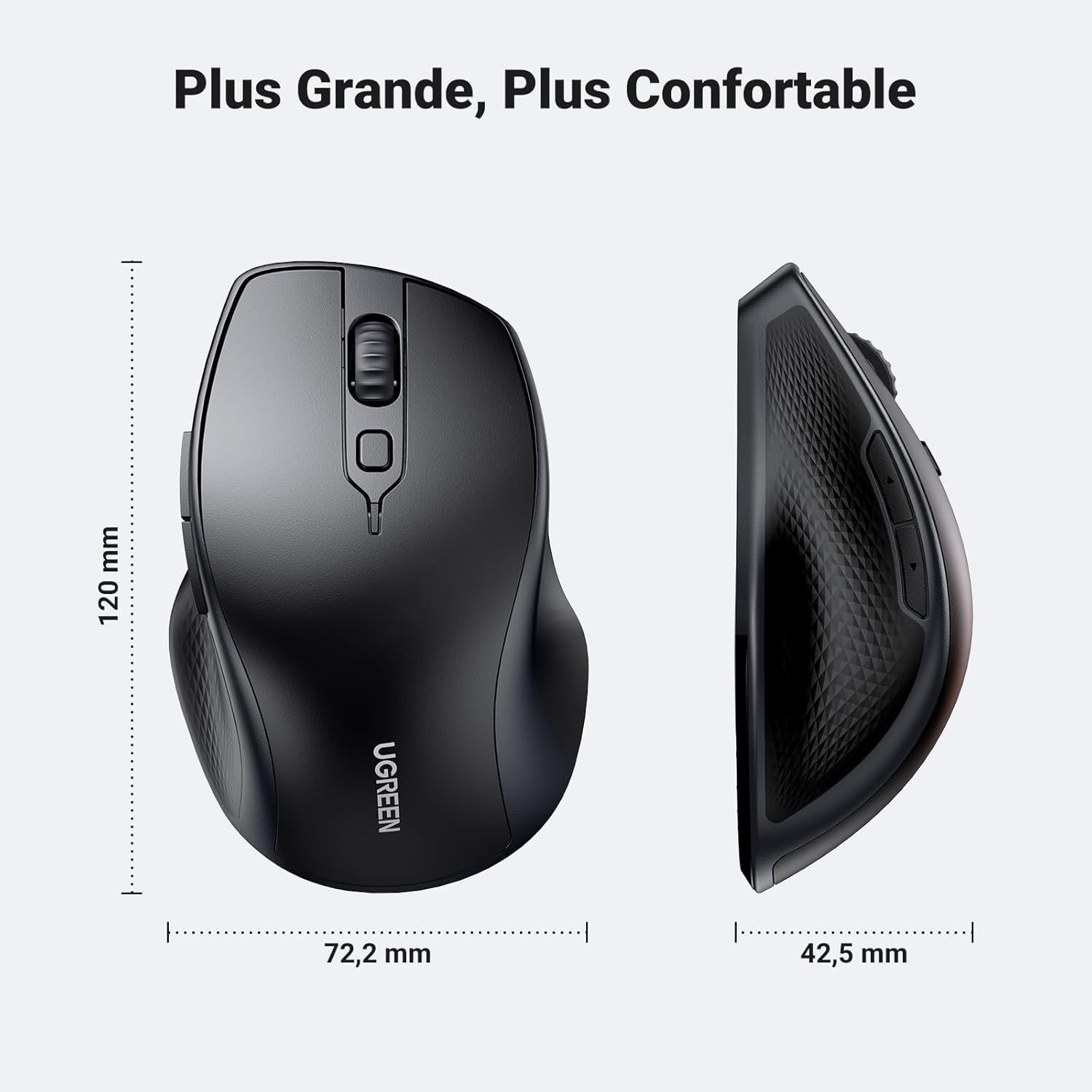
Figure 8: Approximate dimensions of the UGREEN Wireless Ergonomic Mouse.
7. Warranty and Support
Information regarding product warranty and customer support was not available in the provided data. Please refer to the product packaging or the official UGREEN website for the most up-to-date warranty terms and support contact information.
For further assistance, you may visit the UGREEN official store: UGREEN Store on Amazon.