Introduction
This manual provides detailed instructions for the setup, operation, and maintenance of your PUSOKEI Rechargeable Bluetooth Keyboard and Mouse Combo. Please read this manual thoroughly before using the product to ensure optimal performance and longevity.

Image: The compact keyboard and mouse combo neatly stored in a bag alongside a tablet and smartphone, demonstrating its portability.
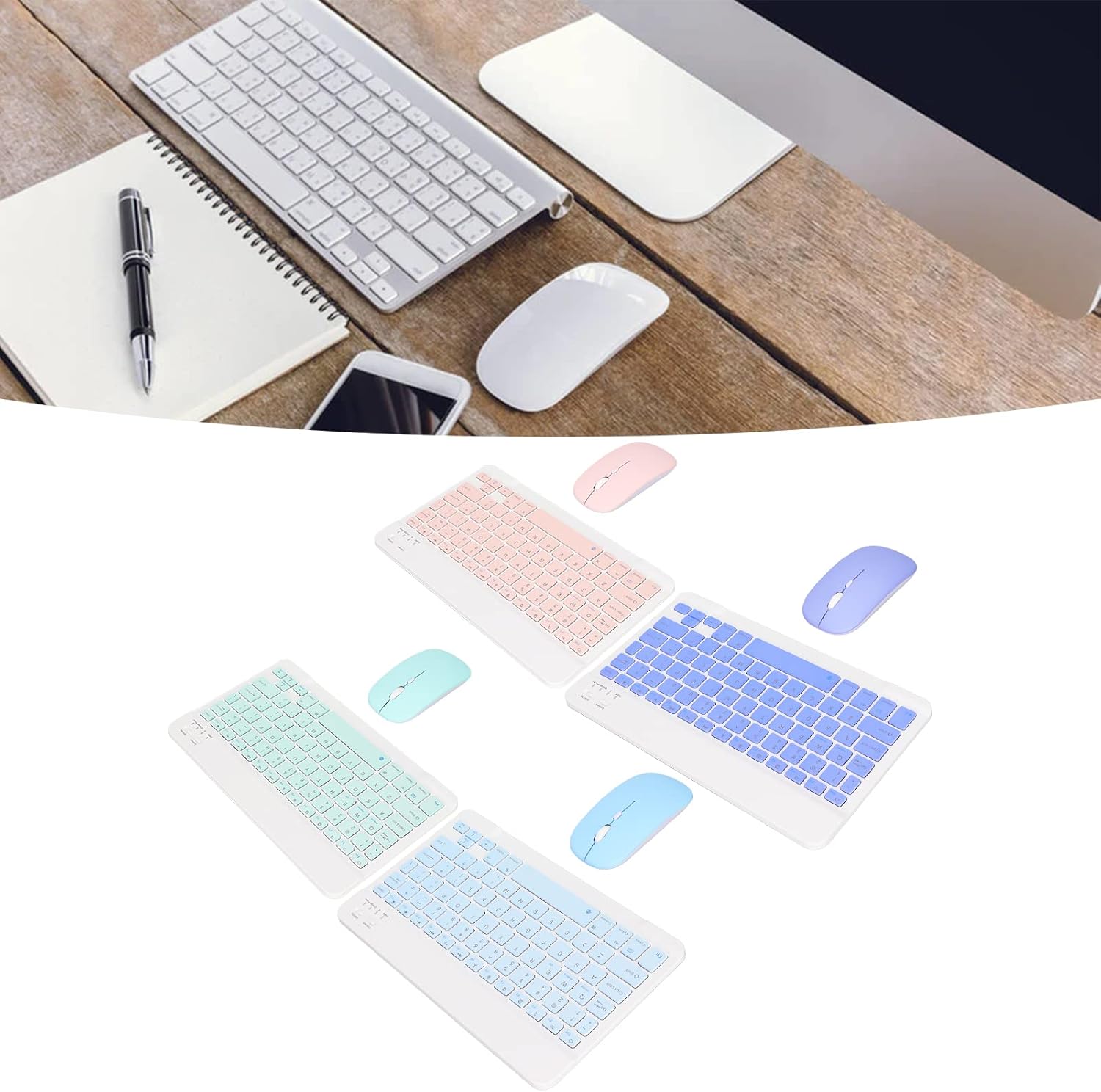
Image: A display of the PUSOKEI keyboard and mouse combo available in various color options.

Image: The PUSOKEI Rechargeable Bluetooth Keyboard and Mouse Combo, featuring a white keyboard with pink keys, a pink ultra-slim mouse, and a USB charging cable.
Setup Instructions
1. Charging the Devices
Both the keyboard and mouse feature built-in rechargeable batteries. Before first use, ensure both devices are fully charged.
- Connect the provided USB charging cable to the charging port on the keyboard and mouse.
- Connect the other end of the USB cable to a standard USB power source (e.g., computer USB port, USB wall adapter).
- The charging indicator light will illuminate during charging and turn off when fully charged.

Image: Close-up of the keyboard's charging port and a battery icon indicating charging status.

Image: A detailed view of the micro USB charging port on the device.
2. Bluetooth Pairing
The keyboard and mouse connect wirelessly via Bluetooth. Follow these steps to pair them with your device:
- Power On: Locate the ON/OFF switch on both the keyboard and the mouse and slide it to the "ON" position.
- Activate Pairing Mode (Keyboard): Press the "Connect" button on the keyboard. The Bluetooth indicator light will start blinking, indicating it is in pairing mode.
- Activate Pairing Mode (Mouse): The mouse typically enters pairing mode automatically when powered on. If not, check for a small button on the underside or a specific key combination.
- Enable Bluetooth on Your Device: On your computer, tablet, or smartphone, go to the Bluetooth settings.
- Search for Devices: Your device will scan for available Bluetooth devices. Look for "Bluetooth Keyboard" and "Bluetooth Mouse" (or similar names).
- Connect: Select each device from the list to pair. You may be prompted to enter a code displayed on your screen for the keyboard.

Image: Close-up of the keyboard's 'Connect' button and 'OFF/ON' switch, essential for initiating Bluetooth pairing.

Image: The keyboard shown alongside a smartphone and a tablet, illustrating its wide compatibility with mobile and tablet devices.

Image: An illustration showing the keyboard connected to a smartphone, laptop, and tablet, highlighting its multi-device compatibility.
Operating Instructions
Keyboard Functions
- Operating System Switching: The keyboard supports multiple operating systems. Use the following key combinations to switch modes for optimal functionality:
- Fn + Q: For Android devices
- Fn + W: For Windows devices
- Fn + E: For iOS/Mac devices
- Function Keys: The top row of keys (F1-F12) can be used as standard function keys or media control keys. Press the Fn key simultaneously with the desired function key to activate its secondary function (e.g., volume control, playback).
- Typing Experience: The keyboard features a scissor-foot structure for comfortable and responsive typing.

Image: A close-up view of a single keyboard key, revealing the underlying scissor-foot mechanism designed for comfortable and precise typing.

Image: A close-up view of the keyboard's keys, highlighting the clear keycap legends and layout.
Mouse Functions
- DPI Adjustment: The mouse offers three adjustable DPI settings (800-1200-1600) to control cursor sensitivity. Press the DPI button (usually located near the scroll wheel) to cycle through the settings.
- Ergonomic Design: The ultra-thin and quiet mouse is designed for comfortable use during daily office tasks and gaming.

Image: The keyboard and mouse positioned on a desk with a laptop, illustrating the mouse's adjustable DPI settings for various tasks.
Maintenance
- Cleaning: Use a soft, dry cloth to clean the surfaces of the keyboard and mouse. For stubborn dirt, a slightly damp cloth with mild soap can be used, ensuring no liquid enters the devices.
- Battery Care: To prolong battery life, avoid fully discharging the devices frequently. Recharge them when the battery indicator is low. If storing for an extended period, charge them to about 50% and recharge every few months.
- Storage: Store the devices in a cool, dry place away from direct sunlight and extreme temperatures.
Troubleshooting
Common Issues and Solutions
- Device not pairing:
- Ensure both the keyboard and mouse are fully charged and powered on.
- Make sure Bluetooth is enabled on your host device (computer, tablet, phone).
- Press the "Connect" button on the keyboard to enter pairing mode.
- Remove any previously paired instances of the keyboard/mouse from your device's Bluetooth settings and attempt to pair again.
- Ensure the devices are within the 10-meter operating range.
- Keys or mouse unresponsive:
- Check battery levels and recharge if necessary.
- Ensure the devices are still connected via Bluetooth. Re-pair if the connection is lost.
- Restart your host device.
- Incorrect characters typed (keyboard):
- Verify that the keyboard is set to the correct operating system mode (Fn+Q for Android, Fn+W for Windows, Fn+E for iOS/Mac).
Specifications
| Feature | Detail |
|---|---|
| Brand | PUSOKEI |
| Connectivity Technology | Bluetooth, USB (for charging) |
| Special Feature | Rechargeable |
| Compatible Devices | Laptop, Personal Computer, Mobile Phones, Tablets (iOS, Android, Windows) |
| Mouse DPI Settings | 800-1200-1600 adjustable |
| Keyboard Key Structure | Scissor-foot |
| Operating Range | Up to 10 meters |
| Item Weight | 10.5 ounces (approx.) |
| Package Dimensions | 9.84 x 7.09 x 1.97 inches (approx.) |
Warranty and Support
For warranty information or technical support, please refer to the documentation included with your purchase or contact PUSOKEI customer service through the retailer where the product was purchased.


