
TECGUUD J7S
Contents
TECGUUD Video Doorbell Camera Wireless with Chime
Model: J7S
User Manual
1. Introduction
Thank you for choosing the TECGUUD Video Doorbell Camera. This wireless doorbell system provides enhanced home security with features such as 2K HD video, PIR motion detection, night vision, and two-way audio communication. This manual will guide you through the installation, operation, and maintenance of your new device.
Please read this manual thoroughly before use and retain it for future reference.
2. Safety Information
- Ensure the device is installed in a location protected from extreme weather conditions, although it is IP65 waterproof.
- Do not attempt to disassemble or repair the device yourself. Refer all servicing to qualified personnel.
- Use only the specified power source and charging accessories.
- Keep the device and its components out of reach of children.
- Avoid placing the doorbell in direct sunlight for prolonged periods, as this may affect performance.
3. Package Contents
Verify that all items are present in your package:
- TECGUUD Video Doorbell Camera
- Wireless Chime Unit
- Mounting Bracket
- Mounting Screws and Wall Anchors
- USB Charging Cable
- User Manual (this document)
- Pre-installed 32GB Micro-SD Card
- Lithium Ion Battery (included)

This image displays the TECGUUD wireless video doorbell and its accompanying indoor chime unit. The doorbell is sleek and black, featuring a camera lens, a motion sensor, and a blue illuminated doorbell button. The chime unit is a compact black square with a textured speaker grille and the TECGUUD logo.
4. Product Overview
The TECGUUD Video Doorbell is designed for ease of use and robust performance. Key components include:
- 2K HD Camera: Provides clear, high-resolution video footage.
- PIR Motion Sensor: Detects human movement to trigger recordings and alerts.
- Infrared Night Vision: Ensures clear visibility up to 16 feet in low-light conditions.
- Two-Way Audio: Allows real-time communication with visitors.
- Wireless Chime: Alerts you indoors when the doorbell is pressed.
- Local & Cloud Storage: Supports 32GB Micro-SD card (pre-installed) and optional cloud storage.
- Anti-Theft Trigger: Activates an alarm if tampering is detected.
- IP65 Waterproof Rating: Designed to withstand various weather conditions.

A person is shown interacting with the TECGUUD video doorbell mounted on a door. Overlayed icons highlight key features: 2K QuadHD resolution, a 145-degree wide view angle, two-way intercom functionality, motion detection, dual voltage compatibility, and wireless chime support.
5. Setup Guide
5.1 Charging the Doorbell Battery
Before initial use, fully charge the doorbell battery using the provided USB cable. Connect the cable to the doorbell's charging port and a standard USB power adapter (not included). The indicator light will show charging status and turn off when fully charged. A full charge typically takes 6-8 hours.
5.2 App Download and Account Creation
Search for the "TECGUUD Smart" app (or similar, based on common doorbell apps) in your smartphone's app store (iOS App Store or Google Play Store). Download and install the app. Follow the on-screen instructions to create a new account and log in.
5.3 Device Pairing
- Open the TECGUUD Smart app and tap "Add Device" or the "+" icon.
- Select "Video Doorbell" from the device list.
- Power on the doorbell. The indicator light will flash, indicating it's in pairing mode.
- Follow the app's instructions to connect the doorbell to your 2.4GHz Wi-Fi network. Ensure your phone is connected to the same Wi-Fi network.
- Scan the QR code displayed on your phone screen with the doorbell camera. Hold the phone approximately 15-20 cm (6-8 inches) from the camera until you hear a confirmation sound.
- Once connected, name your doorbell and complete the setup process in the app.
5.4 Installation (Mounting)
- Choose a suitable location near your front door, ensuring a clear view and good Wi-Fi signal. The recommended height is approximately 1.2-1.5 meters (4-5 feet) from the ground.
- Place the mounting bracket against the wall and mark the drill holes.
- Drill holes using an appropriate drill bit (e.g., 6mm for wall anchors). Insert the wall anchors if installing on masonry or stucco.
- Secure the mounting bracket to the wall using the provided screws.
- Slide the doorbell onto the mounting bracket until it clicks into place. Ensure it is securely fastened.
5.5 Chime Unit Setup
- Plug the wireless chime unit into a standard wall outlet indoors, preferably centrally located for optimal sound distribution.
- Press the pairing button on the chime unit (refer to chime's specific instructions if available, typically a small button).
- Press the doorbell button on the video doorbell. The chime unit should ring, indicating successful pairing.
- You can select different chime melodies and adjust the volume through the chime unit's buttons or the app.

The wireless chime unit is shown on a table. An accompanying diagram illustrates the chime's signal coverage throughout a house, indicating its ability to alert users to visitors from various rooms. The chime boasts a 120dB sound level and uses AG13 button cells.
6. Operating Instructions
6.1 Live View
Open the TECGUUD Smart app and select your doorbell from the device list to access the live video feed. This allows you to see and hear what's happening at your door in real-time.

Two smartphone screens display a side-by-side comparison of video quality. The top screen shows a sharper 2K Quad HD image, while the bottom screen shows a 1080P Full HD image, highlighting the superior clarity offered by the 2K resolution.
6.2 Two-Way Audio and Voice Change
While in live view or during a call, tap the microphone icon in the app to speak to your visitor. Tap it again to mute. The doorbell supports voice change features (e.g., Original, Clown, Uncle) which can be selected within the app settings to enhance privacy or for fun interactions.

This image illustrates the two-way audio feature, showing a delivery person at the door and a user viewing the feed on a smartphone. The doorbell supports voice change options, including 'Original', 'Clown', and 'Uncle', to enhance privacy and security during communication.
6.3 Motion Detection (PIR & AI Pedestrian)
The doorbell utilizes Passive Infrared (PIR) and intelligent AI pedestrian detection to accurately identify human movement. When motion is detected, the doorbell will automatically record video and send a push notification to your smartphone. You can adjust motion sensitivity and detection zones in the app settings to minimize false alerts.

An illustration of a house with the doorbell installed, showing motion detection zones. Icons represent intelligent AI pedestrian detection, a 145-degree wide view angle, an anti-theft siren alarm, and anti-theft notification pushes, indicating advanced security capabilities.
6.4 Night Vision
The doorbell automatically switches to infrared night vision mode in low-light conditions, providing clear black-and-white video footage up to 16 feet. This ensures continuous monitoring day and night.

This image demonstrates the doorbell's ability to provide clear viewing day and night. One side shows a bright daytime scene, while the other depicts a dark night scene with the doorbell's infrared night vision active, offering up to 16 feet of visibility and operating within -4°F to 122°F.
6.5 Anti-Theft Features
The doorbell is equipped with an anti-theft trigger. If the doorbell is tampered with or forcibly removed from its mounting bracket, an alarm will sound, and a notification will be sent to your phone. This feature helps deter theft and alerts you to potential security breaches.
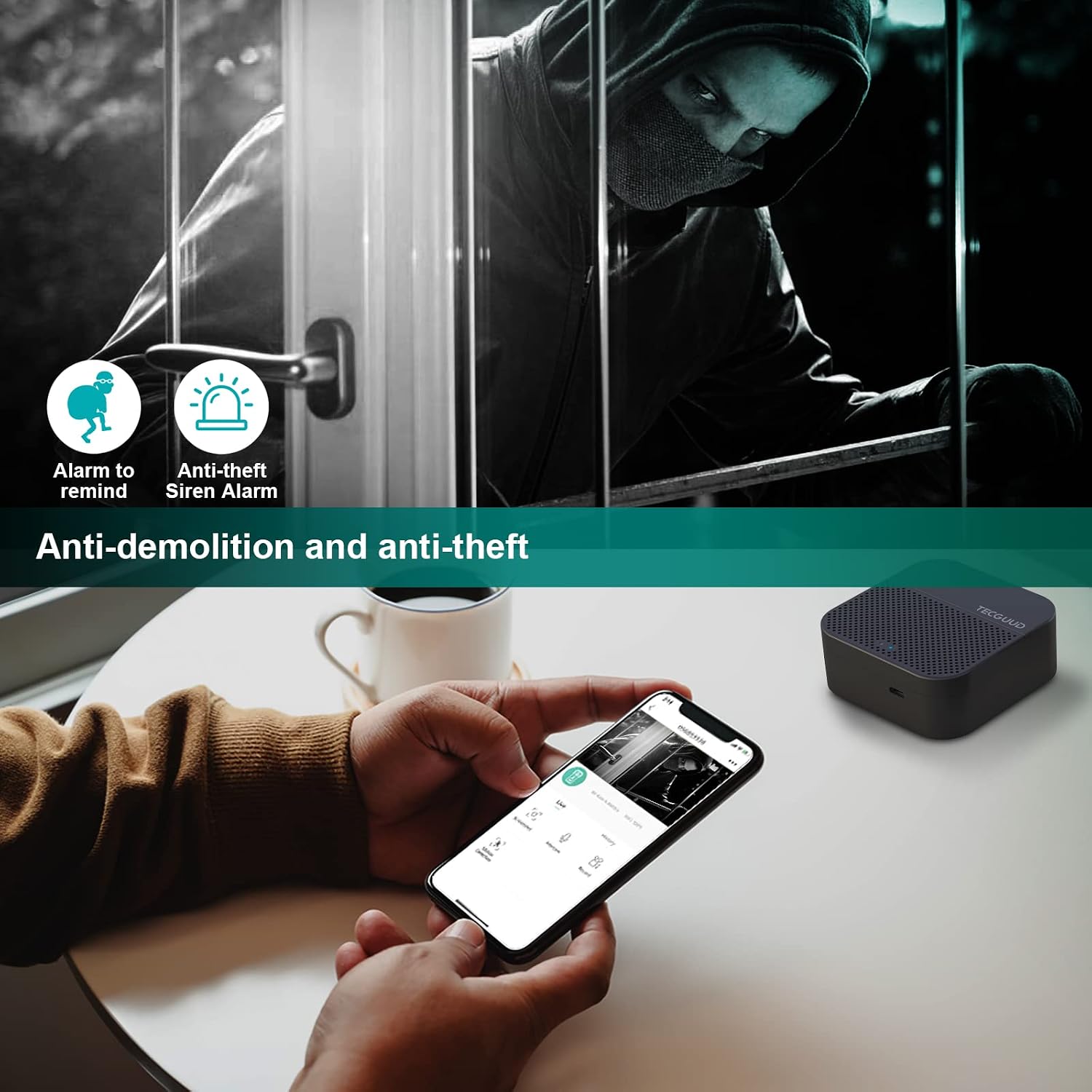
This image depicts a scenario where the doorbell's anti-theft features are active, showing an alarm icon and a siren icon. It illustrates how the doorbell can detect tampering or removal attempts, triggering an alarm to deter theft and notify the user.
6.6 Storage Options (SD Card & Cloud)
The doorbell supports local storage via a pre-installed 32GB Micro-SD card, allowing continuous recording or event-triggered recordings. Additionally, a 7-day free trial for cloud storage is available, providing an off-site backup for your video footage. Cloud storage plans can be subscribed to through the app after the trial period.

The image highlights the storage capabilities of the doorbell, showing a Micro-SD card slot. It supports up to 32GB of local storage with a pre-installed Micro-SD card and offers a 7-day free trial for cloud storage, providing flexible options for video recording.
7. Maintenance
- Battery Charging: Recharge the doorbell battery when the app indicates low battery or when performance degrades. The battery life varies based on usage and motion detection frequency.
- Cleaning: Periodically wipe the camera lens and the doorbell's exterior with a soft, damp cloth to remove dust and dirt. Do not use harsh chemicals or abrasive cleaners.
- Firmware Updates: Check the TECGUUD Smart app regularly for firmware updates. Keeping your doorbell's firmware updated ensures optimal performance, new features, and security enhancements. Follow the in-app instructions for updates.
- SD Card Management: If using local storage, periodically review and manage recordings on the Micro-SD card. The card will overwrite older footage when full.
8. Troubleshooting
| Problem | Possible Cause / Solution |
|---|---|
| Doorbell not connecting to Wi-Fi |
|
| No motion detection alerts |
|
| Poor video quality |
|
| Chime not ringing |
|
| Doorbell battery drains quickly |
|
9. Specifications
| Feature | Detail |
|---|---|
| Model Number | J7S |
| Material | Metal |
| Dimensions (Doorbell) | Approx. 5.6 x 3.6 x 13.5 cm |
| Weight | Approx. 440 g |
| Connectivity | Wireless (2.4GHz Wi-Fi) |
| Video Resolution | 2K HD (Quad HD) |
| Viewing Angle | 160 Degrees |
| Night Vision Range | Up to 16 ft (Infrared) |
| Motion Detection | PIR & AI Pedestrian Detection |
| Power Source | Battery Powered (1 Lithium Ion battery included) |
| Storage | 32GB Micro-SD Card (pre-installed), Cloud Storage (optional) |
| Waterproof Rating | IP65 |
| Operating Temperature | -4°F to 122°F (-20°C to 50°C) |
| Compatible Devices | Smartphone, Tablet (Android, iOS) |
10. Warranty and Support
TECGUUD products are designed and manufactured to the highest quality standards. For warranty information, technical support, or customer service inquiries, please refer to the warranty card included in your package or visit the official TECGUUD website. Please have your model number (J7S) and purchase details ready when contacting support.
Website: www.tecguud.com (Example URL, replace if actual URL is known)
Email: support@tecguud.com (Example Email, replace if actual Email is known)
Ask a question about this manual
Ask about setup, troubleshooting, compatibility, parts, safety, or missing instructions. Manuals+ will review the question and use this page’s manual context to help answer it.