
iGPSPORT iGS630
Contents
iGPSPORT iGS630 GPS Bike Computer User Manual
Model: iGS630
Introduction
The iGPSPORT iGS630 is an advanced GPS bike computer designed to enhance your cycling experience with comprehensive data tracking, precise navigation, and smart connectivity. This manual provides essential information for setting up, operating, maintaining, and troubleshooting your device.
Key Features
- Global GPS Coverage: Supports 5 satellites positioning (GPS+Beidou+GLONASS+GALILEO+QZSS) for faster and more accurate data.
- MAP Navigation: Global offline map download, multiple route saving, route preview, and turn prompts.
- Off Course Warning: Notifies you if you veer off your planned route.
- 150+ Riding Data: Tracks speed, distance, grade, cadence, calories, time, temperature, and more.
- iClimb Function: Climbing route preview and segment data recording.
- Data Analysis and Sharing: Connects to iGPSPORT APP for data analysis and sharing to Strava, Komoot, etc.
- Real-time Tracking: Displays teammates' locations for group rides.
- ANT+/Bluetooth 5.0 Dual Protocol: Connects with various sensors (speed, cadence, heart rate) and smartwatches.
Setup
1. Initial Device Activation and Language Selection
Upon first power-on, the device will guide you through initial setup. Select your preferred language and units of measure (e.g., Kilometers or Miles).

Image: iGS630 language selection screen. Users can choose from various languages including English, Spanish, French, Polish, Portuguese, and German.

Image: iGS630 unit selection screen. Options for measurement units include Kilometers and Miles.
2. Installing the Bike Mount
Securely attach the iGS630 bike mount to your bicycle's handlebars or stem. Ensure it is firmly in place to prevent movement during rides.
Video: This video demonstrates the proper procedure for installing the iGS630 bike mount onto your bicycle's handlebars or stem, ensuring a secure fit.
3. First Time Use and Pairing Sensors
For detailed instructions on using the device for the first time and pairing it with external sensors (such as speed, cadence, or heart rate monitors), refer to the video below. The iGS630 supports ANT+ and Bluetooth 5.0 dual protocols for wide compatibility.
Video: This video provides a step-by-step guide on how to use the iGS630 for the first time, including initial setup and pairing with various ANT+ and Bluetooth sensors.

Image: The iGS630 screen showing real-time cycling data such as speed, cadence, power, and heart rate, demonstrating its ability to connect with multiple sensors.

Image: A diagram illustrating the wide compatibility of the iGS630 with various ANT+ and Bluetooth devices, including speed sensors, cadence sensors, heart rate monitors, smartwatches, and mobile applications.
Operating Instructions
1. Navigation and Route Import
The iGS630 supports global offline map downloads and allows you to save multiple routes. You can preview routes and receive turn-by-turn prompts. Routes can be imported via the iGPSPORT app.

Image: The iGS630 screen showing an active map navigation with real-time speed and distance metrics at the bottom.
Video: This video demonstrates how to import routes to the iGS630 using the Android iGPSPORT application, including checking route details and sending them to the device.
Video: This video illustrates the process of importing routes to the iGS630 using the iOS iGPSPORT application, detailing how to manage and transfer routes for navigation.
The device also features an off-course warning system to keep you on track.
2. iClimb Function
Utilize the iClimb function to preview climbing routes, plan your physical exertion, and record data by segment. This feature helps you manage your energy efficiently on hilly terrains.

Image: The iGS630 screen showing the iClimb function, which provides details about the current climb, including distance to top, ascent remaining, speed, and grade.
3. Indoor Training Mode
The iGS630 supports indoor training, allowing you to follow free training courses or customize your own. This mode helps you maintain your fitness regimen regardless of outdoor conditions.

Image: The iGS630 screen in indoor training mode, showing heart rate zones, workout steps, elapsed time, and distance covered during an indoor cycling session.
4. Shimano Di2 Connection
For users with Shimano Di2 electronic shifting systems, the iGS630 can connect and display gear information. Refer to the video for detailed connection and setup instructions.
Video: This video provides comprehensive instructions on how to connect and set up your iGS630 with a Shimano Di2 electronic shifting system.
5. Radar Light Integration
The iGS630 can connect with compatible radar lights to monitor vehicles approaching from behind, providing real-time warnings to enhance your safety on the road.

Image: The iGS630 screen showing integration with a radar light, displaying vehicle proximity warnings alongside standard cycling metrics like speed, cadence, power, and heart rate.
Maintenance
1. Cleaning the Device
Wipe the device with a soft, damp cloth. Avoid using harsh chemicals or abrasive materials that could damage the screen or casing. Ensure the charging port cover is securely closed to maintain water resistance.
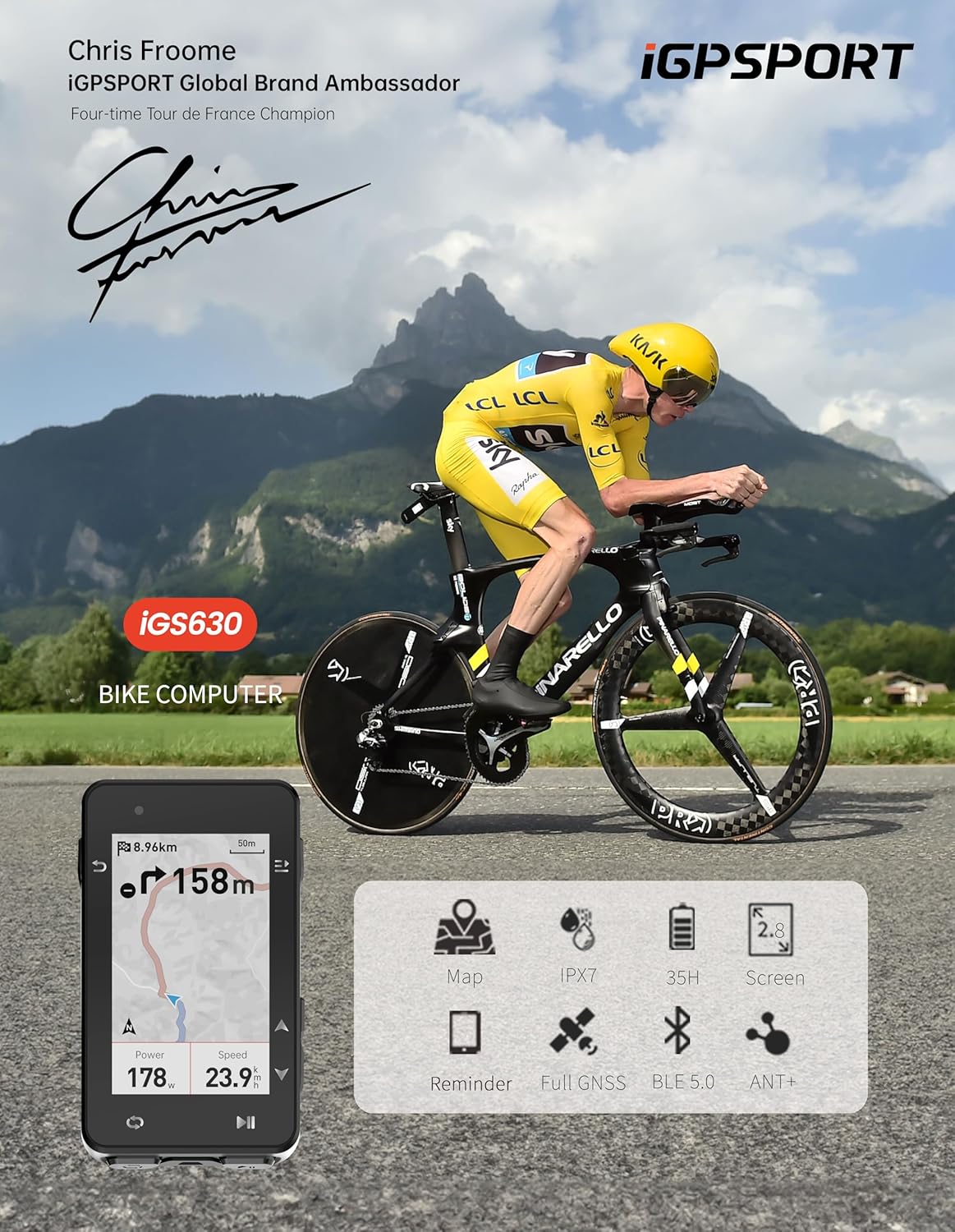
Image: The iGS630 being splashed with water, illustrating its IPX7 waterproof rating, which means it can withstand immersion in water up to 1 meter for 30 minutes.
2. Battery Life and Charging
The iGS630 features an ultra-long battery life of approximately 35 hours. Charge the device using the provided Type-C USB cable. Ensure the device is fully charged before long rides.

Image: The iGS630 screen showing battery percentage and indicating charging via its Type-C port, highlighting its long battery life.
3. Firmware Updates
Regularly check for firmware updates via the iGPSPORT app to ensure optimal performance and access to new features. Updates are typically painless and improve device functionality.
Troubleshooting
- Device Not Powering On: Ensure the device is fully charged. If it still doesn't power on, try holding the power button for 10-15 seconds for a hard reset.
- GPS Signal Issues: Ensure you are in an open area with a clear view of the sky. Allow a few minutes for the device to acquire satellite signals.
- Sensor Not Connecting:
- Check if the sensor's battery is charged.
- Ensure the sensor is awake (e.g., by spinning the wheel for speed/cadence sensors).
- Verify that Bluetooth or ANT+ is enabled on the iGS630.
- Try re-pairing the sensor through the device settings.
- Off-Course Warning Issues: Ensure the route is properly loaded and activated. If you intentionally deviate, the warning will persist until you return to the route.
- Data Sync Issues with App: Ensure your phone has an active internet connection and Bluetooth is enabled. Restart both the device and the app if issues persist.
- Screen Dimming/Readability: If the auto-dim feature makes the display hard to read, especially with polarized sunglasses, adjust the backlight settings to full brightness in the device menu.
Specifications
| Feature | Detail |
|---|---|
| Brand | iGPSPORT |
| Model Name | iGS630 Bike Computer |
| Screen Size | 2.8 Inches |
| Display Type | LCD |
| Display Resolution | 240x400 |
| Battery Life | 35 Hours |
| Item Weight | 90 Grams |
| Product Dimensions | 2.05"L x 0.65"W x 3.62"H |
| Connectivity Technology | Bluetooth, ANT+ |
| Sensor Type | GPS Sensor, GLONASS Sensor, Accelerometer, Barometric Altimeter, Galileo Sensor, Ambient Light Sensor |
| International Protection Rating | IPX7 |
| Material | Plastic |
| Mounting Type | Handlebar Mount |
Warranty and Support
The iGPSPORT iGS630 Bike Computer comes with a 1 Year Warranty from the date of purchase.
For any questions, concerns, or technical support, please contact iGPSPORT customer service. Their team aims to respond within 24 hours.
You can also visit the official iGPSPORT store on Amazon for more information and resources: iGPSPORT Amazon Store
Documents and downloads
Ask a question about this manual
Ask about setup, troubleshooting, compatibility, parts, safety, or missing instructions. Manuals+ will review the question and use this page’s manual context to help answer it.