
1. Product Overview
The LAUNCH Creader Elite for GM is a professional-grade bi-directional OBD2 scanner designed specifically for GM vehicles (Buick, Chevrolet, Cadillac, GMC, Alpheon, Ravon, Pontiac, Saturn, Hummer, Oldsmobile, Holden, Daewoo, Workhorse). This diagnostic tool offers comprehensive full system diagnostics, all special reset functions, and full OBD2 modes for a wide range of vehicle models from 1996 to 2025. Featuring a 4-inch HD touchscreen and Android 5.0 system, it provides a user-friendly interface and lifetime free WiFi updates.

Image 1: Front view of the LAUNCH Creader Elite for GM OBD2 Scanner. The device is orange and black with a color touchscreen display.
2. What's in the Box
- 1 * Scan Tool fit for GM
- 1 * Type C Charging Cable
- 1 * OBD2 Connector Cable
- 1 * User Manual
- 1 * Quick Start Guide

Image 2: Contents of the LAUNCH Creader Elite for GM package, including the main unit, cables, and documentation.
3. Setup and Getting Started
- Charging the Device: Connect the scanner to a power source using the provided Type C Charging Cable. Ensure the device is fully charged before first use.
- Initial Setup: Upon first power-on, select your preferred language and time zone.
- Network Connection: Connect the device to a Wi-Fi network for software updates and online features. Navigate to 'Settings' > 'Network' to configure Wi-Fi. Note: Some older Wi-Fi security protocols (WPA) may be required for connection.
- Software Update: It is highly recommended to update the software immediately after connecting to Wi-Fi. Go to 'Upgrade' on the main menu and download all available updates. This ensures access to the latest vehicle models and functions.
- Vehicle Connection: Locate your vehicle's OBD2 port (typically under the dashboard). Connect the OBD2 Connector Cable from the scanner to the vehicle's OBD2 port. Ensure the vehicle's ignition is turned ON (engine can be off).
4. Operating Instructions
4.1 Full System Diagnostics
The Creader Elite for GM supports full system diagnostics for GM vehicles, including Engine (ENG), ABS, SAS, SRS, TPMS, EPB, BMS, and Fuel Systems. This allows for reading and clearing codes, viewing live data, and retrieving ECU version information across all major vehicle systems.

Image 3: Screenshot showing a quick diagnosis and detailed report generated by the scanner.
4.2 Bi-Directional Control (Active Test)
Perform active tests to send commands to various vehicle systems and components to test their operational status. This function helps in quickly identifying faulty components without using the vehicle's controls.

Image 4: Visual representation of bi-directional control, showing the scanner interacting with vehicle actuators and sensors. Examples include fuel injector pump, A/C clutch, door/window lock test, and radiator fan control.
4.3 Special Reset Functions for GM
Access a wide array of special reset functions tailored for GM vehicles. These include, but are not limited to, Brake Reset, Oil Reset, Steering Angle Sensor (SAS) Calibration, Suspension Reset, Seat Calibration, Battery Matching, Throttle Relearn, EPB Reset, Injector Coding, DPF Regeneration, Gearbox Adaptive, BMS Reset, Crankshaft Relearn, ABS Bleeding, and TPMS Diagnostic. The availability of specific functions may vary by car model and year.

Image 5: Overview of various service functions available for Chevrolet, Buick, Cadillac, and GMC vehicles, such as Brake Reset, Oil Reset, and Throttle Relearn.
4.4 OBD2 Functions for All Brands
In addition to GM-specific features, the scanner also functions as a universal OBD2 code reader for all car brands manufactured after 1996. It supports all 10 OBD2 modes, allowing you to read and erase generic trouble codes, view freeze frame data, check I/M readiness, and perform O2 sensor tests.
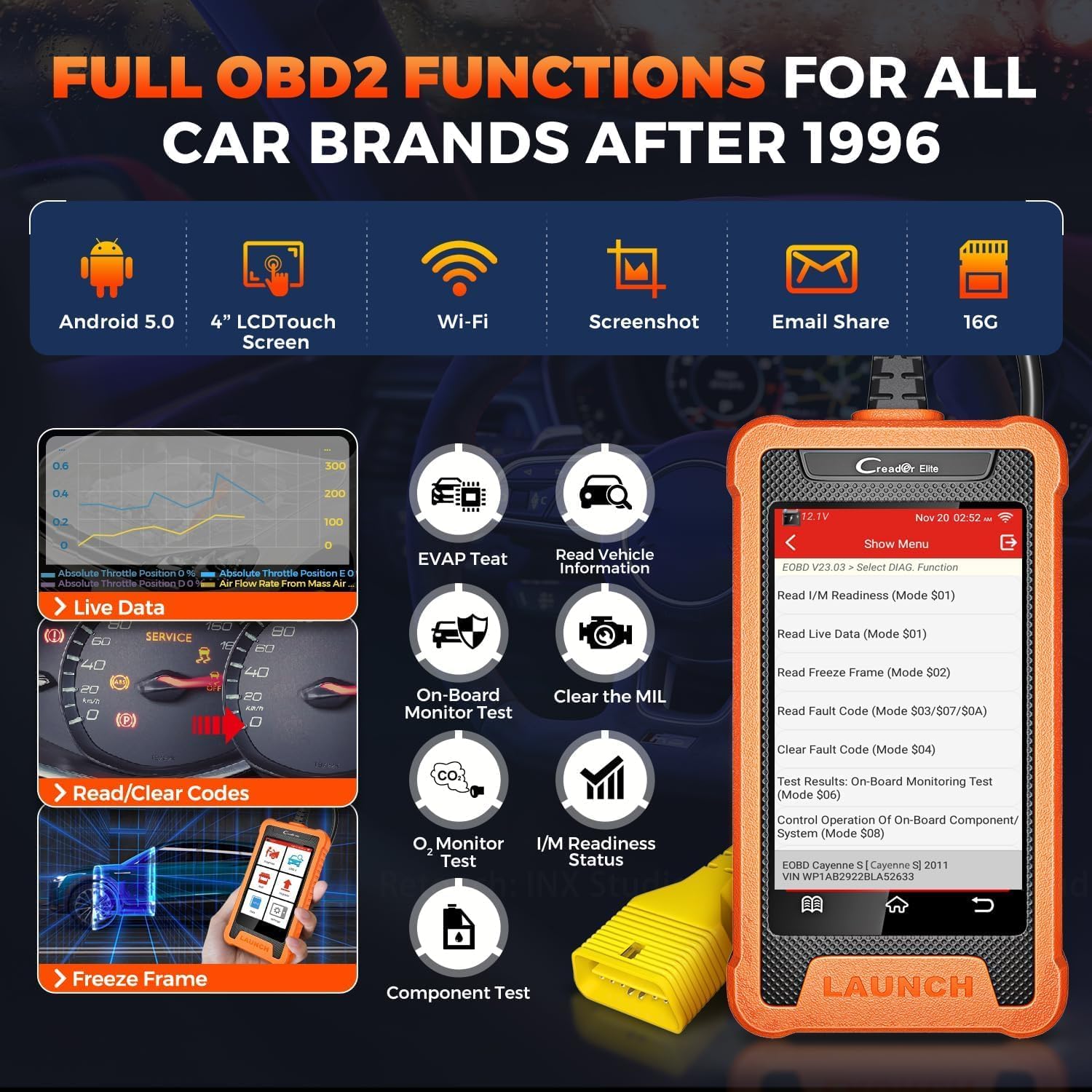
Image 6: Display of the scanner's main menu showing options for Diagnose, OBD II, Reset, Upgrade, Mall, and Settings, highlighting its universal OBD2 capabilities.
4.5 AutoVIN Scan
The AutoVIN Scan feature automatically identifies vehicle information (VIN, year, make, model) for most vehicles (2006+), streamlining the diagnostic process. If AutoVIN fails, manual VIN entry is supported.

Image 7: The scanner displaying the AutoVIN scan result, showing the VIN, year, make, and model of a Chevrolet Equinox.
4.6 Live Data Stream
View live data streams in text or graph format for multiple parameters simultaneously (4-in-1 graphing). This helps in real-time monitoring of vehicle performance and identifying intermittent issues.

Image 8: A collage of user-friendly features, including 4-in-1 live data streaming, real-time battery voltage display, and diagnostic report sharing.
4.7 ADAS Calibration
The tool supports ADAS (Advanced Driver-Assistance Systems) calibration for camera-based and radar-based systems, including LKA (Lane Keeping Assist), ACC (Adaptive Cruise Control), LDW (Lane Departure Warning), and AVM (Around View Monitor) systems. Note that not all resets are available for all models and years.
4.8 Personalization and Customization
The scanner offers advanced personalization and customization options for GM vehicles, allowing users to modify certain vehicle settings and behaviors. This includes functions like Battery Register, Compression Test, Cylinder Power Balance, Throttle Position Reset, Brake Reset, Oil Life Reset, Fuel Composition Reset, and Fuel Trim Reset.
4.9 Quick Operation Guide on Launch X431 GM Scanner
Video 1: A quick operation guide demonstrating how to use the Launch X431 GM scanner for various diagnostic tasks. This video provides a visual walkthrough of the scanner's interface and basic functions.
4.10 How to Reset a Free Special Function on Scanner
Video 2: This video demonstrates the process of resetting a special function on the scanner. It guides users through the menu options to access and perform specific resets.
5. Maintenance
- Software Updates: Regularly check for and install software updates via Wi-Fi to ensure compatibility with the latest vehicle models and access new features.
- Cleaning: Use a soft, damp cloth to clean the device. Avoid harsh chemicals or abrasive materials.
- Storage: Store the scanner in a dry, cool place away from direct sunlight and extreme temperatures.
- Cable Care: Inspect the OBD2 connector cable regularly for any signs of wear or damage. Replace if necessary to ensure reliable connection.
6. Troubleshooting
- Device Not Powering On: Ensure the device is fully charged or connected to a power source. Check the Type C charging cable for damage.
- No Communication with Vehicle:
- Verify the OBD2 connector cable is securely plugged into both the scanner and the vehicle's OBD2 port.
- Ensure the vehicle's ignition is turned ON.
- Check if the vehicle's battery voltage is sufficient (displayed on the scanner).
- Confirm the vehicle model and year are correctly selected in the diagnostic menu.
- Wi-Fi Connection Issues:
- Ensure the Wi-Fi network is within range and the password is correct.
- Check your router settings; some older devices may require WPA security instead of WPA2.
- AutoVIN Not Working: If AutoVIN fails, manually enter the VIN. Ensure the vehicle's ignition is on.
- Functions Not Available for Specific Vehicle: Not all special functions are available for every vehicle model and year. Consult the compatibility list or contact support with your vehicle's details.
7. Specifications
| Specification | Value |
|---|---|
| Brand | LAUNCH |
| Power Source | Corded Electric |
| Operating System | Android 5.0 |
| Screen Size | 4 Inches |
| Automotive Fit Type | Vehicle Specific Fit (GM) |
| UPC | 884508007859 |
| Supported Vehicles | GM vehicles 1996-2025 (excluding EV, may require CANFD adapter for 21-25 GM) |
| Languages | 11 Menu Options |
8. Warranty and Support
This product comes with a 5-year manufacturer warranty. For any service problems, suggestions, or support, please contact your local dealer first. You can also contact LAUNCH HQ via email at overseas.service@cnlaunch.com or sales@cnlaunch.com. The device supports lifetime free WiFi updates.