1. Introduction and Overview
Thank you for choosing the INNOCN 27M2U 27-inch 4K Mini LED HDR1000 Computer Monitor. This manual provides essential information for setting up, operating, and maintaining your monitor. Please read it thoroughly before use.
The INNOCN 27M2U features a stunning 27-inch 4K UHD (3840 x 2160) IPS panel with Mini-LED backlight technology, delivering HDR1000 with 1,000 cd/m2 peak brightness for exceptional contrast and vibrant colors. It boasts 99% DCI-P3 and 99% Adobe RGB color gamut coverage with a Delta E of less than 2, ensuring professional-grade color accuracy. Connectivity options include USB-C with 90W Power Delivery, two HDMI 2.0 ports, and one DisplayPort 1.4. The monitor also includes a built-in automatic lighting sensor for adaptive brightness and offers extensive ergonomic adjustments.
2. What's in the Box
Please check the contents of your package to ensure all items are present:
- 1 x INNOCN 27M2U 4K Monitor
- 1 x Monitor Stand
- 1 x Monitor Base
- 1 x Power Supply (Adapter + Cable)
- 1 x DP Cable
- 1 x HDMI Cable
- 1 x USB Type-C Cable
- 1 x Instruction Manual
- 1 x Color Collaboration Report
3. Setup Instructions
Follow these steps to assemble and connect your monitor:
- Assemble the Stand: Attach the monitor stand to the monitor base securely.
- Attach Monitor to Stand: Carefully align the monitor panel with the assembled stand and secure it. The design allows for easy, tool-free assembly.
- Connect Power: Connect the power supply to the monitor and then plug it into a power outlet.
- Connect to Device: Use the provided DP, HDMI, or USB Type-C cable to connect your computer, laptop, tablet, phone, or gaming console to the monitor. For USB-C, ensure your device supports video output and power delivery.

Figure 1: INNOCN 27M2U Monitor set up on a desk.
4. Connectivity
The INNOCN 27M2U monitor offers versatile connectivity options:
- USB-C (x1): Supports video input and up to 90W Power Delivery for charging compatible devices.
- DisplayPort 1.4 (x1): For high-resolution video input.
- HDMI 2.0 (x2): Two ports for various video input sources.
- 3.5mm Audio Jack (x1): For connecting headphones or external speakers.

Figure 2: Rear view of the monitor showing various input ports.
5. Physical Adjustments
The monitor stand provides extensive ergonomic adjustments for optimal viewing comfort:
- Height Adjustment: Raise or lower the monitor by up to 100mm (approximately 5 inches).
- Tilt: Adjust the screen angle 5° forwards and 20° backwards.
- Swivel: Rotate the screen 45° to the left and 45° to the right.
- Pivot: Rotate the screen 90° to the left or right for portrait mode viewing.
- VESA Compatibility: Supports 100x100mm VESA mounts for alternative mounting solutions.
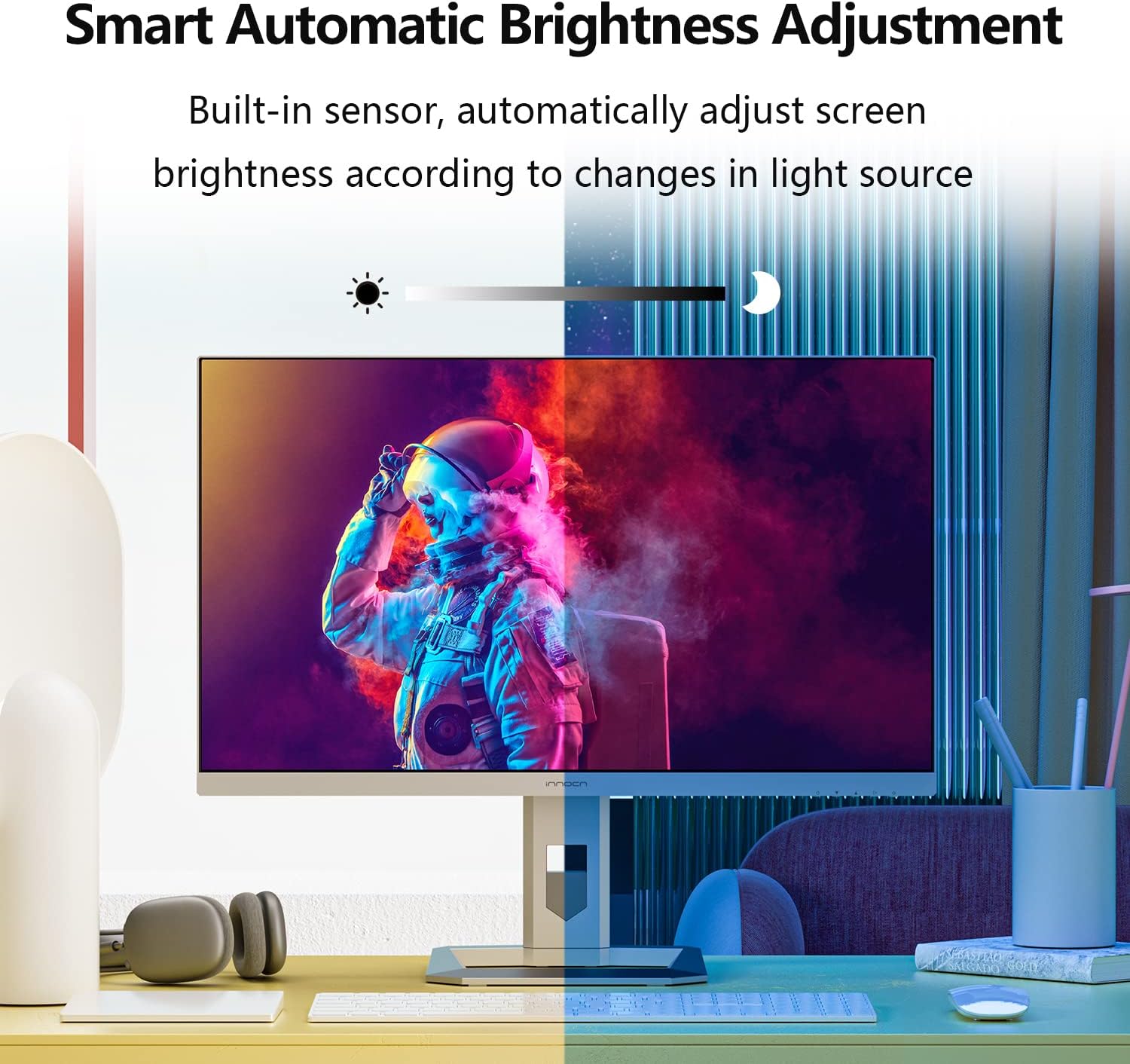
Figure 3: Monitor demonstrating its full range of ergonomic adjustments.
6. Operating Instructions (OSD Menu)
The On-Screen Display (OSD) menu is controlled by buttons located on the bottom right-hand side of the monitor. Note that changing settings in one mode (Professional, Picture, Game) may disable options in others.
6.1 Professional Settings
- Color Gamut Modes: Standard, sRGB, Adobe, DCI-P3.
- Gamma Settings: Adjust the gamma curve.
- Color Temperature Settings: Natural, Design, Warm, Cool, User (RGB control).
- Sharpness: Adjust image sharpness.
- Shadow Balance: Adjust shadow detail.
- Low Blue Light: Reduce blue light emission for eye comfort.
- Hue/Saturation: Fine-tune color hue and saturation.
- Dynamic Brightness: Enable/disable dynamic brightness adjustment.
6.2 Picture Settings
- Brightness/Contrast: Adjust overall display brightness and contrast.
- Dynamic Contrast Ratio (DCR): Enhance contrast dynamically.
- Contextual Model: Movie, Reading, Night, Care Eyes modes.
- HDR Modes: Standard, Movie, Design.
- Aspect Ratio: Adjust display aspect ratio (e.g., Wide Screen).
6.3 Game Settings
- Game Modes: RTS/RPG, FPS Arena, MOBA Arena.
- Response Time: Off, Normal, Fast, Ultra Fast.
- Local Dimming: Enable/disable local dimming.
- Backlight Contrast: Adjust backlight contrast.
6.4 Picture-in-Picture (PIP/PBP)
Allows displaying content from two different sources simultaneously. Settings include signal source, audio source, position, size, and window swap.
6.5 OSD Settings
- Language: Select OSD menu language.
- OSD Time Out: Set how long the OSD menu remains on screen.
- OSD Position: Adjust the OSD menu's on-screen position.
- OSD Transparency: Adjust the transparency of the OSD menu.
- Hotkey Settings: Customize quick access buttons.
6.6 Other Settings
- Input Signal: Auto-detect or manually select input source.
- Volume: Adjust the volume of the built-in 5W speakers or audio output.
- Auto Power: Enable/disable auto power-off.
- Eyesafe/Remind: Eye comfort features.
- Light Sensor: Automatically adjusts screen brightness based on ambient light.
7. Key Features
- Mini-LED Backlight & HDR1000: The 27M2U features a Mini-LED backlight with 1,152 local dimming zones, achieving 1,000 cd/m2 peak brightness for deep blacks and bright whites, enhancing HDR content.
- Exceptional Color Accuracy: With 99% DCI-P3 and 99% Adobe RGB color gamut coverage and a factory-calibrated ΔE < 2, this monitor delivers precise and consistent colors, ideal for creative professionals.
- Automatic Brightness Sensor: A built-in sensor automatically adjusts screen brightness to match ambient lighting conditions, optimizing viewing comfort and reducing eye strain.
- Versatile Connectivity: Equipped with USB-C (90W PD), DisplayPort 1.4, and dual HDMI 2.0 ports, it easily connects to a wide range of devices including PCs, laptops, tablets, phones, and gaming consoles.
- Ergonomic Design: The stand offers height, tilt, swivel, and pivot adjustments, including a gravity sensor for automatic screen rotation, providing flexible viewing angles and improved ergonomics.
Video 1: Official product video showcasing the INNOCN 27M2U monitor's features and design.
8. Specifications
| Feature | Specification |
|---|---|
| Model Number | 27M2U |
| Screen Size | 27 Inches |
| Panel Type | IPS Mini-LED |
| Resolution | 3840 x 2160 (4K UHD) |
| Aspect Ratio | 16:9 |
| Refresh Rate | 60Hz |
| Response Time | 12ms (Gray-to-Gray) |
| Peak Brightness | 1000 cd/m2 (HDR1000) |
| Typical Brightness | 450 cd/m2 |
| Local Dimming Zones | 1152 |
| Color Gamut | 99% DCI-P3, 99% Adobe RGB, ΔE<2 |
| Connectivity | 1x USB-C (90W PD), 1x DisplayPort 1.4, 2x HDMI 2.0, 1x 3.5mm Audio Jack |
| Speakers | 2x 5W |
| Ergonomics | Height, Tilt, Swivel, Pivot, VESA 100x100mm |
| Dimensions (Product) | 2.6 x 24 x 14 inches |
| Weight | 21.6 pounds |
9. Maintenance and Care
- Cleaning: Use a soft, dry cloth to clean the screen. For stubborn marks, lightly dampen the cloth with water or a screen-cleaning solution. Avoid harsh chemicals.
- Handling: Always handle the monitor by its edges. Avoid pressing directly on the screen.
- Ventilation: Ensure proper ventilation around the monitor to prevent overheating. Do not block the ventilation openings.
- Storage: When not in use for extended periods, store the monitor in a cool, dry place, ideally in its original packaging.
10. Troubleshooting
- No Power: Ensure the power cable is securely connected to both the monitor and the power outlet. Check the power adapter and outlet.
- No Signal: Verify that the video cable (HDMI, DP, USB-C) is correctly connected to both the monitor and your source device. Select the correct input source via the OSD menu.
- Flickering/Distorted Image: Check the video cable for damage. Ensure your graphics card drivers are up to date. Try a different resolution or refresh rate.
- Color Issues: Reset color settings to default in the OSD menu. Ensure the correct color gamut mode is selected. If using HDR, verify HDR is enabled on your source device.
- Buttons Unresponsive: Power cycle the monitor. Ensure no objects are pressing against the buttons.
11. Safety Information
- Do not expose the monitor to rain or moisture.
- Do not open the monitor casing; there are no user-serviceable parts inside.
- Use only the power adapter supplied with the monitor.
- Avoid placing the monitor in direct sunlight or near heat sources.
- Keep the monitor away from strong magnetic fields.
12. Warranty and Support
Your INNOCN 27M2U monitor comes with a standard manufacturer's warranty. Please refer to the warranty card included in your package for specific terms and conditions. For technical support, product registration, or service inquiries, please visit the official INNOCN website or contact their customer service.
Online Support: Visit INNOCN Store on Amazon
What's in the Package: 1 x 27M2U 4K monitor + 1x DP cable + 1 x HDMI cable + 1 x USB Type-C cable + 1 x power supply + 1 x instruction + 1 x color collaboration report
Warranty Coverage: 12 Months Coverage (from feature bullets)
Returns: 30 Days Free Return (from A+ content)
Support: 24 Hours Specialist Support (from A+ content)


