Introduction
This manual provides essential information for setting up, operating, and maintaining your Samsung Galaxy Tab S8 Android Tablet. It covers key features, basic functions, and troubleshooting tips to help you maximize your device's potential for productivity and entertainment.
Package Contents
Verify that all items are present in your product packaging:
- Samsung Galaxy Tab S8 Tablet
- S Pen
- Quick Start Guide
- Data Cable (USB-C to USB-C)
- Ejection Pin
Device Overview
Familiarize yourself with the physical components and layout of your Galaxy Tab S8.
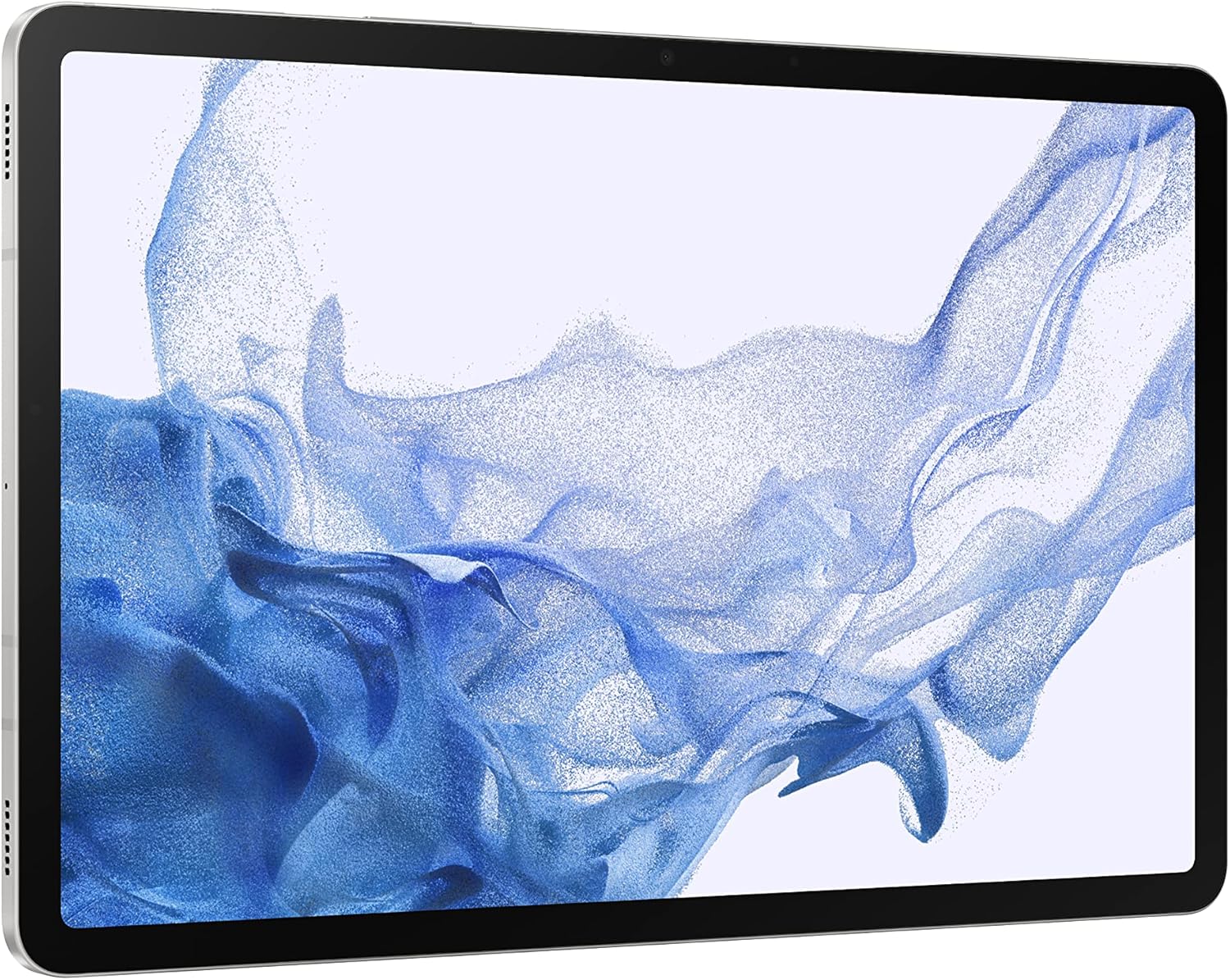
Figure 1: Front view of the Samsung Galaxy Tab S8, showcasing its 11-inch LCD display. The front-facing camera is visible at the top center when held horizontally.

Figure 2: Angled front view of the tablet, highlighting the side with the power button, volume rocker, and speaker grilles.

Figure 3: Rear view of the Samsung Galaxy Tab S8, showing the dual camera module and the magnetic strip for S Pen attachment.

Figure 4: The Samsung Galaxy Tab S8 displayed with its included S Pen, demonstrating the S Pen's interaction with the tablet's screen.
Physical Components:
- Display: 11-inch LCD screen.
- Power Button: Located on the top right edge (when held horizontally). Press and hold to power on/off or restart.
- Volume Buttons: Adjacent to the power button, used to adjust volume.
- USB-C Port: Located on the bottom edge, used for charging and data transfer.
- Speakers: Quad speakers for enhanced audio experience.
- Cameras: Front-facing camera for video calls and rear dual-camera system for photos and videos.
- S Pen Magnetic Strip: On the back, for attaching and charging the S Pen.
Setup
1. Initial Charging
Before first use, connect your Galaxy Tab S8 to a power outlet using the provided USB-C data cable and a compatible power adapter (sold separately for some regions) until fully charged. The tablet supports fast charging.
2. Powering On/Off
- To Power On: Press and hold the Power button until the Samsung logo appears.
- To Power Off: Press and hold the Power button, then tap "Power off" on the screen. Alternatively, swipe down from the top of the screen to open the Quick Panel, tap the Power icon, and select "Power off."
3. Initial Setup Wizard
Upon first power-on, follow the on-screen instructions to:
- Select your language.
- Connect to a Wi-Fi network.
- Sign in with your Google account or create a new one.
- Set up security features (PIN, pattern, password, fingerprint).
- Review and accept terms and conditions.
4. S Pen Pairing
The S Pen included with your Galaxy Tab S8 typically pairs automatically when attached to the magnetic strip on the back of the tablet. Ensure the S Pen is properly seated for charging and connectivity.
Operating
Basic Navigation
- Touch Gestures: Tap to select, swipe to scroll, pinch to zoom.
- Home Screen: Customize with widgets and app shortcuts.
- App Drawer: Swipe up from the home screen to access all installed applications.
- Quick Panel: Swipe down from the top of the screen to access quick settings and notifications.
Samsung DeX
Samsung DeX provides a desktop-like experience, allowing you to use your tablet with multiple windows, a taskbar, and drag-and-drop functionality. To activate DeX:
- Swipe down from the top of the screen to open the Quick Panel.
- Tap the "DeX" icon.
- Connect a keyboard and mouse (optional) for a full PC experience.
S Pen Usage
The S Pen offers precise input for writing, drawing, and navigation.
- Air Command: Hover the S Pen over the screen and press the S Pen button to open the Air Command menu for quick access to S Pen features like Create Note, Smart Select, and Screen Write.
- Writing/Drawing: Use the S Pen with compatible apps for natural writing and drawing.
- Air Actions: Control your tablet remotely using S Pen gestures (e.g., camera shutter, media control). Configure these in Settings > Advanced features > S Pen > Air actions.
Camera Functions
Open the Camera app to capture photos and videos. Tap the shutter button to take a picture or record a video. Switch between front and rear cameras as needed.
Battery Management
To optimize battery life:
- Adjust screen brightness.
- Enable power-saving modes in Settings > Battery and device care.
- Close unused apps running in the background.
- Disable Wi-Fi, Bluetooth, or GPS when not in use.
Maintenance
Cleaning Your Device
Use a soft, lint-free cloth to clean the screen and body of your tablet. Avoid abrasive materials or harsh chemicals. For stubborn smudges, slightly dampen the cloth with water or a screen cleaner specifically designed for electronics.
Software Updates
Regularly check for and install software updates to ensure optimal performance, security, and access to new features. Go to Settings > Software update > Download and install.
Storage Management
To manage your 128GB internal storage, regularly delete unnecessary files, uninstall unused apps, and consider using cloud storage services. You can check storage usage in Settings > Battery and device care > Storage.
Troubleshooting
If you encounter issues with your Galaxy Tab S8, refer to the following common solutions:
- Device Not Turning On: Ensure the battery is charged. Connect to a charger for at least 10 minutes, then try powering on.
- S Pen Not Responding: Ensure the S Pen is properly attached to the magnetic strip on the back of the tablet to charge and reconnect. Check S Pen settings in Settings > Advanced features > S Pen.
- Wi-Fi Connectivity Issues: Restart your tablet and your Wi-Fi router. Forget the network in Wi-Fi settings and reconnect.
- Apps Crashing/Freezing: Close and reopen the app. Clear the app's cache (Settings > Apps > [App Name] > Storage > Clear cache). If the issue persists, uninstall and reinstall the app.
- Slow Performance: Close background apps, clear cache, and ensure sufficient storage space. Restarting the tablet can also improve performance.
- Factory Reset: As a last resort, if issues persist, you may perform a factory data reset. This will erase all data on your tablet. Back up important data before proceeding. Go to Settings > General management > Reset > Factory data reset.
Specifications
| Feature | Detail |
|---|---|
| Model Name | Galaxy Tab S8 |
| Display Size | 11 Inches |
| Display Resolution | 2560 x 1600 Pixels (LCD) |
| Processor | Qualcomm Snapdragon (2.5 GHz) |
| RAM | 8 GB |
| Internal Storage | 128 GB |
| Operating System | Android |
| Rear Camera | 13 MP |
| Average Battery Life | Up to 14 Hours |
| Dimensions (LxWxH) | 9.99 x 6.51 x 0.25 inches |
| Item Weight | 1.1 pounds |
| Wireless Type | 802.11ax (Wi-Fi 6E) |
Warranty and Support
For detailed warranty information, please refer to the warranty card included with your purchase or visit the official Samsung support website. The warranty typically covers manufacturing defects for a specified period from the date of purchase.
For technical assistance, software updates, or service inquiries, please visit the official Samsung support website or contact their customer service. Keep your proof of purchase handy when seeking support.
Online Support: www.samsung.com/us/support/