
Introduction
This manual provides comprehensive instructions for the setup, operation, and maintenance of your Swann 1080p DVR Security System. This system includes an 8-channel DVR with a 1TB HDD and eight 1080p bullet surveillance cameras, designed for both indoor and outdoor use. Key features include color night vision, heat and motion detection, and remote access via the Swann Security App.

What's in the Box
Verify that all components listed below are included in your package:
- 8 x 1080p SwannForce Audio/Video Cams
- 1 x 8 Channel DVR with 1TB Hard Drive
- 1 x Ethernet Cable
- 8 x Extension Cables 60ft/18m
- Mounting Screws & Plugs
- 1 x Mouse
- 1 x Power Adapter & Splitter
- 1 x Quick Start Guide
- Theft Deterrent Stickers

Setup
1. DVR Connection
- Connect the DVR to a monitor using an HDMI or VGA cable.
- Connect the included mouse to a USB port on the DVR.
- Connect the DVR to your router using the Ethernet cable for network access and remote viewing.
- Connect the power adapter to the DVR and plug it into a power outlet. The DVR will power on automatically.
2. Camera Installation
- Choose suitable locations for your cameras, ensuring they cover desired areas and are within reach of power and video cables. The cameras are IP66 weatherproof, suitable for both indoor and outdoor use.
- Mount each camera securely using the provided mounting screws and plugs.
- Connect the video and power cables from each camera to the corresponding inputs on the DVR. Use the extension cables if necessary.
- Ensure all connections are secure.

Operating Instructions
Live View and Recording
Once powered on, the DVR will display the live feed from all connected cameras on the monitor. The system is pre-configured to record continuously to the 1TB hard drive.
Motion Detection and Alerts
The SwannForce cameras are equipped with True Detect™ PIR heat and motion sensors. When motion is detected, the system will trigger recording and can send notifications to your connected devices.

Color Night Vision and Flashing LEDs
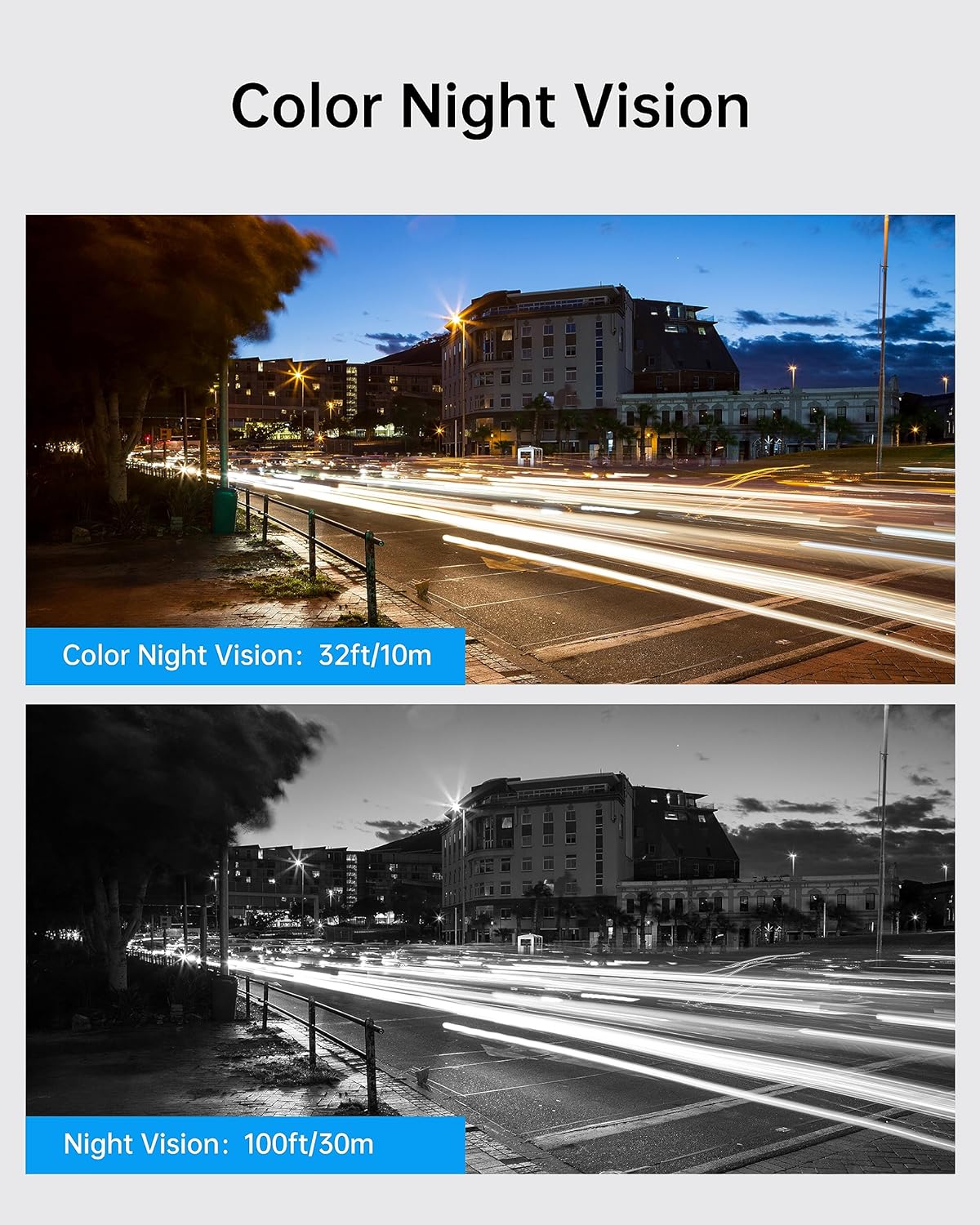
The cameras feature advanced color night vision for clear footage in low-light conditions. Integrated red and blue flashing LEDs can be activated to deter intruders.

Remote Access via Swann Security App
Download the Swann Security App on your smartphone or tablet (iOS/Android) to access live feeds, playback recorded footage, and receive instant notifications from anywhere. The system also supports integration with Google Assistant and Amazon Alexa.

Maintenance
- Cleaning: Regularly wipe the camera lenses and DVR unit with a soft, dry cloth to remove dust and smudges. Do not use harsh chemicals or abrasive cleaners.
- Firmware Updates: Check the Swann Security App or Swann website periodically for firmware updates to ensure optimal performance and security.
- Hard Drive Management: The 1TB HDD provides ample storage. The system will automatically overwrite the oldest footage when the drive is full. Back up important footage regularly.
- Cable Inspection: Periodically inspect all cables for wear, damage, or loose connections, especially for outdoor cameras.
Troubleshooting
| Problem | Possible Cause | Solution |
|---|---|---|
| No video display from camera | Loose cable connection, no power to camera, camera fault. | Check all video and power cable connections. Ensure power adapter is plugged in. Try connecting camera to a different DVR port. |
| DVR not powering on | Power adapter not connected, faulty power adapter. | Verify power adapter is securely connected to DVR and power outlet. Try a different power outlet. |
| Cannot access system remotely | No internet connection, incorrect app settings, firewall issues. | Ensure DVR is connected to the internet. Check app settings and network configuration. Consult your router's manual for port forwarding if necessary. |
| Poor night vision quality | Dirty lens, insufficient ambient light, infrared interference. | Clean the camera lens. Ensure there are no obstructions blocking the camera's view or reflecting infrared light. |
Specifications
- Model Number: SWDVK-846808MQB-US
- Video Capture Resolution: 1080p
- Number of Channels: 8
- Memory Storage Capacity: 1 TB (HDD)
- Connectivity Technology: Wired
- Special Feature: Night Vision (Color), Motion Detection, Flashing LEDs
- Weatherproof Rating: IP66
- Operating Temperature: -22°F to 122°F (-30°C to 50°C)
- Power Source: Corded Electric
- Compatible Devices: Smartphones (Android, iOS)
- Night Vision Range: Up to 100 Feet
- Audio: Integrated Microphone in each camera
Warranty & Support
Warranty Information
This Swann Security System comes with a 1-year manufacturer's warranty. Please retain your proof of purchase for warranty claims.
Customer Support
For technical assistance, product registration, or further information, please visit the official Swann support website or contact their customer service. You can find the latest contact details and FAQs on the Swann website.