
1. Introduction
This manual provides essential information for the proper use and maintenance of your Headwolf FPad 1 Android Tablet. Please read this guide thoroughly before operating the device to ensure optimal performance and longevity. The Headwolf FPad 1 is an 8-inch tablet designed for everyday use, featuring a responsive display and the Android 12 operating system.
2. Package Contents
Upon unboxing your Headwolf FPad 1 tablet, please verify that all the following items are included:
- Headwolf FPad 1 Tablet
- User Guide (this document)
- Power Adapter (USB-A wall charger)
- USB-A to USB-C Charging Cable
Note: The tablet may come with a pre-applied screen protector for immediate use.
3. Device Layout and Overview
Familiarize yourself with the physical components and ports of your Headwolf FPad 1 tablet.

Figure 3.1: Front and back view of the Headwolf FPad 1 Tablet.
3.1. Back Panel
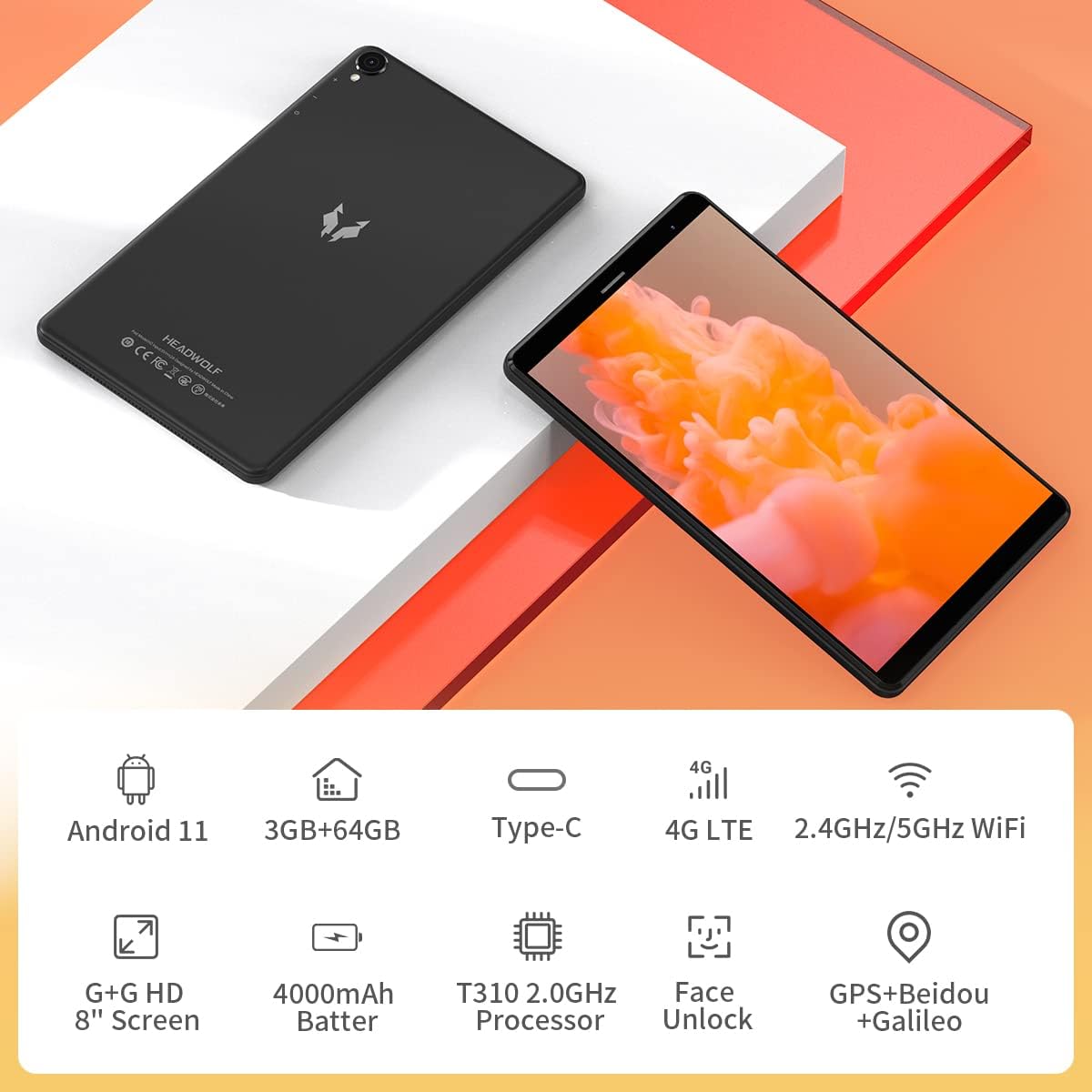
Figure 3.2: The back panel features the Headwolf logo, regulatory markings, and the rear camera module.
3.2. Front Panel

Figure 3.3: The front of the tablet displays the 8-inch screen, the front-facing camera, and an earpiece for calls.
3.3. Side Views and Ports

Figure 3.4: The side of the tablet includes the power button, volume rocker, 3.5mm headphone jack, SIM card slot, MicroSD card slot, and USB-C charging port.
- Power Button: Located on the right side, used to power on/off or wake/sleep the device.
- Volume Rocker: Adjacent to the power button, controls audio volume.
- Rear Camera: 5MP camera with LED flash, located on the back panel.
- Front Camera: 5MP camera, located on the front bezel above the screen.
- USB-C Port: For charging and data transfer, located on the top edge.
- 3.5mm Headphone Jack: For connecting wired headphones, located on the top edge.
- SIM Card Slot: Supports 4G LTE connectivity (check regional compatibility), located on the top edge.
- MicroSD Card Slot: For expandable storage, located on the top edge.
- Speakers: Located on the bottom edge.
4. Setup
4.1. Initial Power On
- Press and hold the Power Button on the right side of the tablet until the Headwolf logo appears on the screen.
- The tablet will boot up, displaying the Android welcome screen.
4.2. Language and Region Selection
Follow the on-screen prompts to select your preferred language and region. This will configure the tablet's default settings.
4.3. Network Connection
Connect your tablet to a Wi-Fi network to access the internet and complete the setup process. You may also insert a 4G LTE SIM card for mobile data connectivity (if supported in your region).
4.4. Google Account Setup
Sign in with your Google account or create a new one. This is necessary to download apps from the Google Play Store and access Google services.
5. Operating Instructions
5.1. Basic Navigation
- Touchscreen Gestures: Tap to select, swipe to scroll, pinch to zoom.
- Home Screen: Access your apps and widgets. Swipe left or right to navigate between screens.
- Notification Panel: Swipe down from the top of the screen to access notifications and quick settings.
5.2. Connectivity
- Wi-Fi: Go to Settings > Network & Internet > Wi-Fi to connect to available networks. The tablet supports 2.4GHz and 5GHz Wi-Fi.
- Bluetooth: Go to Settings > Connected devices > Bluetooth to pair with Bluetooth accessories (e.g., headphones, speakers). The tablet supports Bluetooth 5.0.
- 4G LTE: If a compatible SIM card is inserted, mobile data can be enabled via Settings > Network & Internet > Mobile network.
- GPS: The tablet has built-in GPS for navigation and location services.
5.3. Cameras
The Headwolf FPad 1 features 5MP front and rear cameras.

Figure 5.1: The tablet is equipped with dual 5MP cameras and supports face unlock.
- Taking Photos: Open the Camera app, select photo mode, and tap the shutter button.
- Recording Videos: In the Camera app, switch to video mode and tap the record button. Video recording is supported up to 1080p.
- Camera Settings: Adjust settings like filters, white balance, and composition lines within the Camera app.
5.4. Media Consumption
Enjoy videos, music, and e-books on your tablet's HD display.

Figure 5.2: The 8-inch HD IPS display provides a clear viewing experience for various media.
- Video Playback: Use pre-installed apps like YouTube or download others from the Play Store.
- Audio: The tablet features stereo speakers. For a more immersive experience, connect headphones via the 3.5mm jack or Bluetooth.
5.5. Gaming
The UNISOC T310 Quad-Core processor allows for smooth performance in most casual games. For graphically intensive games, performance may vary, and lower settings might be required for optimal gameplay.

Figure 5.3: The tablet's processor is capable of handling various gaming applications.
6. Maintenance
- Cleaning: Use a soft, lint-free cloth to clean the screen and body. Avoid harsh chemicals.
- Battery Care: To prolong battery life, avoid extreme temperatures and fully discharging the battery frequently.
- Software Updates: Regularly check for and install system updates to ensure optimal performance and security.
- Storage Management: Periodically clear unnecessary files and apps to free up internal storage. Consider using a MicroSD card for additional storage.
7. Troubleshooting
This section addresses common issues you might encounter with your Headwolf FPad 1 tablet.
7.1. Device Not Powering On
- Ensure the battery is charged. Connect the tablet to the power adapter and wait a few minutes before attempting to power it on again.
- Press and hold the Power Button for at least 10-15 seconds to perform a forced restart.
7.2. Slow Performance/Freezing
- Close unused applications running in the background.
- Clear cache data from apps and the system.
- Restart the tablet.
- Ensure sufficient free storage space.
7.3. Wi-Fi Connectivity Issues
- Toggle Wi-Fi off and on in Quick Settings or Settings.
- Restart your Wi-Fi router.
- Forget the network and reconnect.
7.4. Camera Quality
The 5MP cameras are designed for basic photography and video calls. For optimal results, ensure good lighting conditions. Camera performance may not be comparable to high-end smartphone cameras.
8. Specifications
| Feature | Specification |
|---|---|
| Brand | Headwolf |
| Model Name / Series | FPad 1 / F1 |
| Item Model Number | F2 |
| Operating System | Android 12 (some marketing may refer to Android 11) |
| Screen Size | 8 Inches |
| Display Resolution | 1280x800 HD IPS |
| Processor | UNISOC T310 Quad-Core A75 (2 GHz) |
| RAM | 3 GB |
| Internal Storage | 64 GB |
| Expandable Storage | MicroSD up to 512GB (some sources indicate up to 2TB) |
| Rear Camera | 5 MP |
| Front Camera | 5 MP |
| Battery Capacity | 4000mAh (up to 7-8 hours usage) |
| Charging Port | USB Type-C |
| Wireless Connectivity | 5G WiFi, Bluetooth 5.0, 4G LTE |
| Navigation | GPS, Beidou, Galileo |
| Dimensions (LxWxH) | 8.31 x 0.38 x 4.97 inches |
| Item Weight | 11.4 ounces (approx. 320g) |
| Color | Purple (as listed in specifications, though product images show black/grey) |
9. Warranty and Support
For warranty information and technical support, please refer to the documentation included with your purchase or visit the official Headwolf website. Keep your proof of purchase for any warranty claims.


