Introduction
Thank you for choosing the JieruiDeng Charging Wireless Mouse. This compact and silent optical mouse is designed for convenience and efficiency, perfect for laptops, notebooks, PCs, and computers. Featuring 2.4GHz wireless technology and a rechargeable battery, it offers a seamless and quiet user experience for home, office, or travel.

Image: The JieruiDeng Charging Wireless Mouse in yellow, shown with its USB receiver and a USB-C/Micro USB OTG adapter, highlighting its compact design and connectivity options.
Package Contents
Please check the package for the following items:
- 1 x Wireless Mouse
- 1 x USB Receiver
- 1 x USB Charging Cable
- 1 x Manual (this document)
Specifications
| Feature | Detail |
|---|---|
| Material | Plastic, Electronic Components |
| Resolution | 1200DPI |
| Number of Buttons | 4 (Left, Right, Scroll Wheel, One-click to Desktop) |
| Interface | USB |
| Wireless Transmission Frequency | 2.4GHz |
| Transmission Distance | 10m (33ft) |
| Working Method | Photoelectric |
| Battery Capacity | 600mAh (Rechargeable Lithium Battery) |
| Charging Time | 2 hours |
| Working Time | Approx. 60 days (depending on individual usage) |
| Dimensions (L x W x H) | 10cm x 6.3cm x 3.9cm (3.94" x 2.48" x 1.54") |
| Product Weight | 78g (2.75 oz) |
| System Requirement | Windows 98/Me/2000/XP/Vista/Win7/Win8/10/Vista, Mac OS or the latest version |
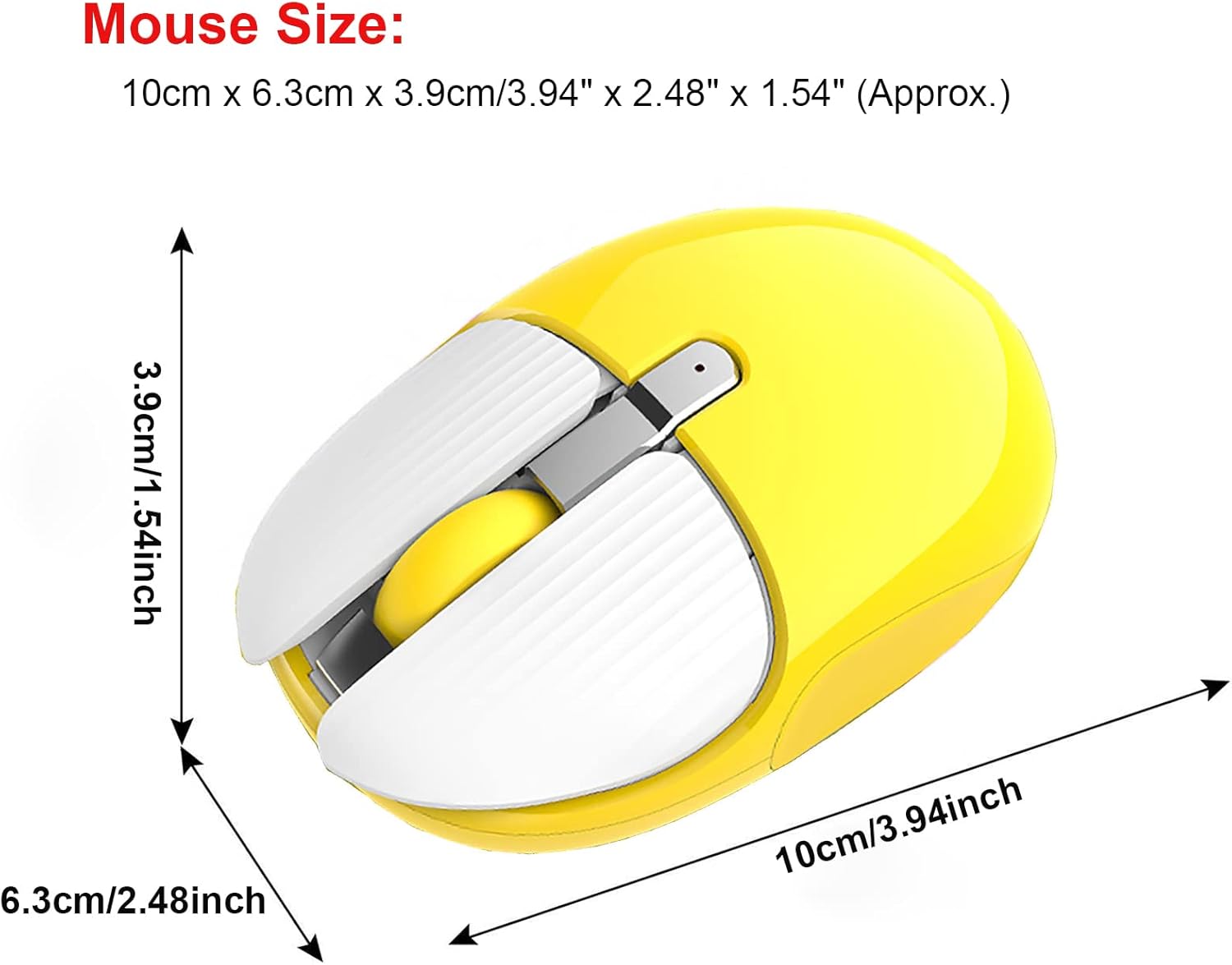
Image: A diagram illustrating the precise dimensions of the wireless mouse, measuring 10cm (3.94 inches) in length, 6.3cm (2.48 inches) in width, and 3.9cm (1.54 inches) in height.
Setup
Follow these steps to set up your JieruiDeng Wireless Mouse:
- Unpack the Mouse: Carefully remove the wireless mouse from its packaging.
- Locate USB Receiver: The mini USB receiver is conveniently stored in a magnetic compartment at the bottom of the mouse. Gently remove it.

Image: The underside of the mouse, indicating the Micro Charging Port (1), ON/OFF Switch (2), and the Magnetic Receiver Storage Compartment (3).
- Plug in Receiver: Insert the USB receiver into an available USB port on your computer, laptop, or notebook. The mouse is plug-and-play, requiring no additional drivers.
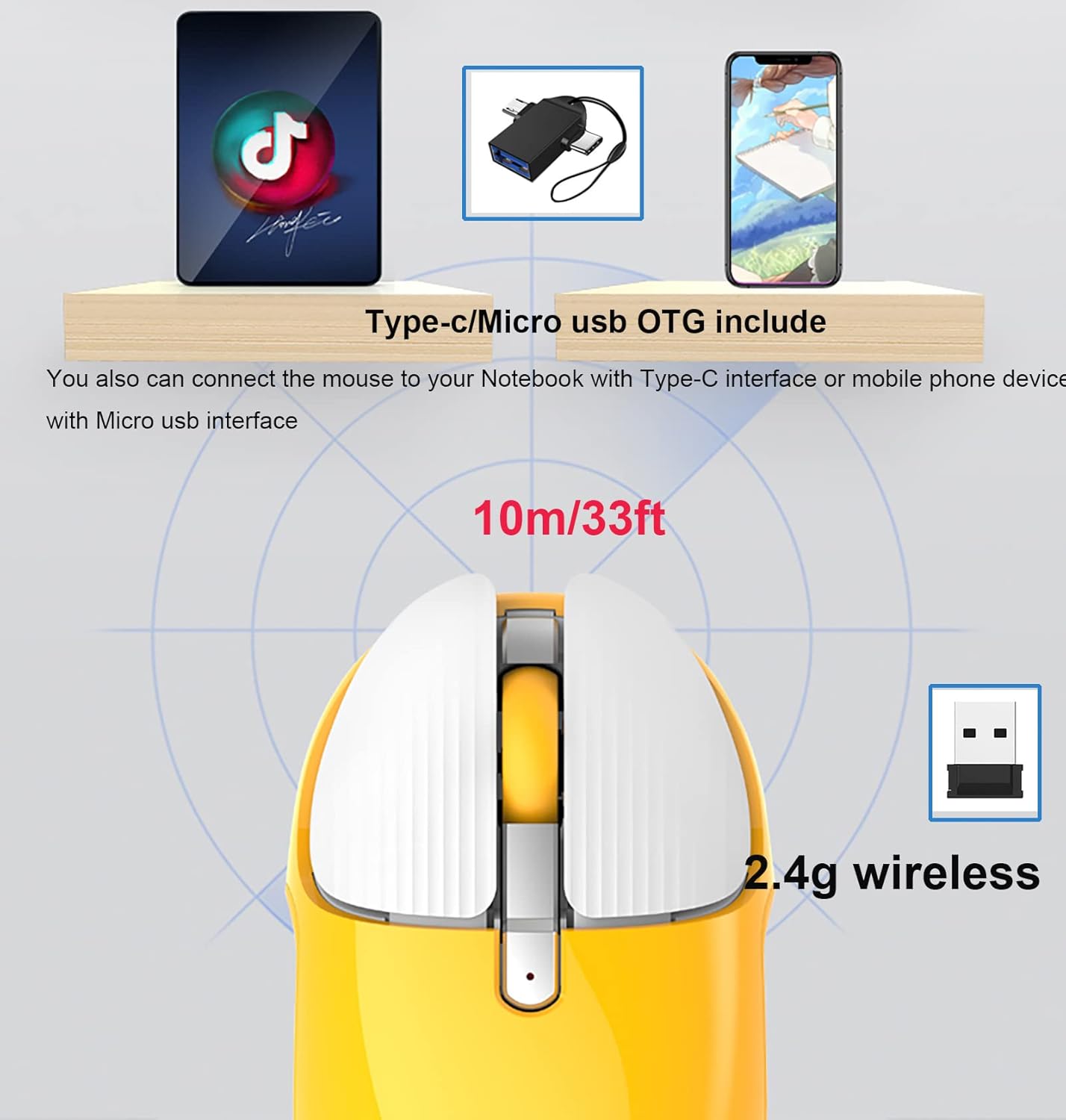
Image: This diagram illustrates the 2.4GHz wireless connection of the mouse to a computer via its USB receiver. It also shows how the included Type-C/Micro USB OTG adapter can be used to connect the mouse to notebooks with Type-C interfaces or mobile devices with Micro USB interfaces.
- Power On: Locate the ON/OFF switch at the bottom of the mouse and slide it to the "ON" position. The mouse is now ready for use.
Operating Instructions
Your JieruiDeng Wireless Mouse features a silent click design and multiple functional buttons for enhanced productivity:
- Left and Right Buttons: Standard mouse click functions. Designed for noiseless operation to minimize disturbance.
- Scroll Wheel: Used for scrolling up and down documents and web pages. The rubber roller provides a smooth and tactile scrolling experience.
- One-Click to Desktop Button: An innovative button that allows you to instantly return to your desktop, hiding all open windows. This feature is designed to protect your privacy and streamline your workflow.

Image: A detailed view of the mouse highlighting its functional buttons: the Left Button, Right Button, Rubber Roller, and the unique One-click to desktop button, along with a decorative Pearl Powder Inlay.
The mouse operates on a stable 2.4GHz wireless connection, providing a working distance of up to 10 meters (33 feet), ensuring reliable performance.
Maintenance
- Charging the Mouse: The mouse has a built-in 600mAh rechargeable lithium battery. When the cursor movement becomes delayed or erratic, it indicates a low battery. Connect the included USB charging cable to the micro charging port on the front of the mouse and plug the other end into a USB power source (e.g., computer USB port, USB wall adapter).
Note: It is recommended to avoid using the mouse while it is charging to ensure optimal charging efficiency and battery longevity. A full charge takes approximately 2 hours and can last up to 60 days depending on usage.
- Automatic Sleep Mode: To conserve battery life, the mouse will automatically enter sleep mode after a few minutes of inactivity. To wake it up, simply click any button.
- Cleaning: Use a soft, dry cloth to clean the exterior of the mouse. Avoid using harsh chemicals or abrasive materials.
- Receiver Storage: When not in use or during travel, store the USB receiver in its magnetic compartment at the bottom of the mouse to prevent loss.
Troubleshooting
- Mouse Not Responding / Cursor Delay:
- Ensure the USB receiver is securely plugged into a working USB port.
- Check if the mouse's ON/OFF switch is in the "ON" position.
- The battery might be low. Connect the mouse to the charging cable and allow it to charge for at least 15-30 minutes before trying again.
- Try plugging the USB receiver into a different USB port on your computer.
- Restart your computer.
- Wireless Connection Issues:
- Ensure the mouse is within the 10m (33ft) transmission range of the receiver.
- Avoid placing the mouse or receiver near strong sources of interference (e.g., other wireless devices, large metal objects).
- Buttons or Scroll Wheel Not Working:
- Ensure the mouse is charged and connected.
- Try restarting the mouse (turn OFF, then ON).
- Test the mouse on a different computer to rule out system-specific issues.
Warranty and Support
JieruiDeng products are manufactured with high-quality standards. For any issues or inquiries regarding your Charging Wireless Mouse, please contact the seller or manufacturer directly through the platform where you purchased the product. Please retain your proof of purchase for warranty claims.
For further assistance, refer to the contact information provided with your purchase or visit the official JieruiDeng support page if available.


