Introduction
This manual provides essential information for setting up, operating, maintaining, and troubleshooting your iBUYPOWER Pro Gaming PC Computer Desktop - SlateMR 1000W11. This system features an Intel Core i7-11700F 2.5GHz processor, Nvidia GeForce GTX 1660 Super 6GB graphics card, 16GB DDR4 RAM, a 480GB SSD plus 1TB HDD, RGB Fans, and is WiFi Ready with Windows 11 Home pre-installed.
Key features include: 4 x USB 3.0 ports, 2 x USB 2.0 ports, 1x RJ-45 Network Ethernet 10/100/1000, and HD Audio Jacks (Line in / Front Speaker / Microphone). The graphics card offers 1x HDMI and 3x Display Port outputs. The system also includes 802.11AC Wi-Fi connectivity.
What's in the Box
Upon opening your iBUYPOWER PC packaging, you should find the following items:
- iBUYPOWER Desktop PC
- Quick Start Guide
- iBUYPOWER USB Keyboard
- iBUYPOWER USB Mouse
- Power Cord
- Drivers Install CD’s (if applicable)
Video: iBUYPOWER Unboxing and Setup - My New Gaming PC Setup. This video demonstrates the unboxing process and initial setup steps for your iBUYPOWER PC, including removing packaging and connecting peripherals.
Setup Instructions
- Unboxing the PC: Carefully remove the PC box from its outer packaging. Lay the box on its side, open the flaps, and slide the PC out. Remove the top and bottom foam inserts.
- Accessing the Interior: Locate and remove the screws on the side panel of the PC case. Gently slide the side panel off to access the interior.
- Removing Internal Packing: Inside the PC, you will find shaped foam packing material. Carefully remove this foam from around the components. This foam protects internal parts during shipping. Keep this foam for future transportation if needed.
- Replacing the Side Panel: Once the internal packing is removed, replace the side panel and secure it with the screws.
- Connecting the Monitor: Locate the graphics card ports at the rear of the PC. Plug your monitor's display cable (HDMI or DisplayPort) into one of the available ports on the graphics card. Ensure it is plugged into the dedicated graphics card, not the motherboard's integrated graphics ports.
- Connecting Peripherals: Plug the USB cables for your iBUYPOWER keyboard and mouse into any available USB ports on the back of the PC.
- Connecting Power: Plug the power cord into the power supply unit (PSU) at the back of the PC, then plug the other end into a wall outlet or surge protector. Ensure the power switch on the PSU is in the 'On' position.

Image: Front view of the iBUYPOWER SlateMR 1000W11 Gaming PC, showcasing the illuminated RGB fans and sleek design.
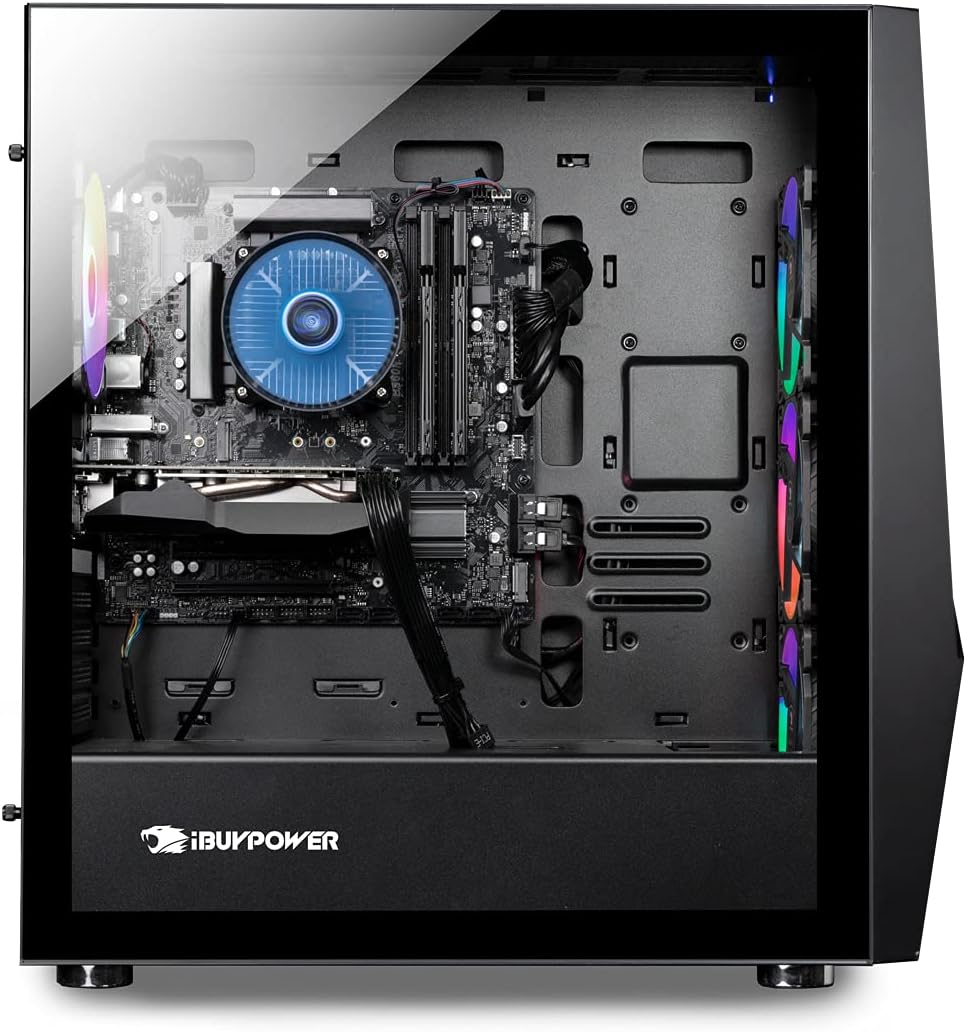
Image: Internal view of the iBUYPOWER SlateMR 1000W11 Gaming PC, highlighting the organized component layout including the CPU cooler, RAM modules, and graphics card.

Image: Rear view of the iBUYPOWER SlateMR 1000W11 Gaming PC, illustrating the available input/output ports for connecting peripherals and displays.
Operating Instructions
- Powering On: Press the power button located on the top front of the PC case. The system will boot up, and the RGB lighting will activate.
- Initial Windows Setup: Follow the on-screen prompts to complete the Windows 11 Home setup. This typically involves selecting your region, language, connecting to a network, and creating a user account.
- Connecting to Wi-Fi: During or after Windows setup, connect to your wireless network using the built-in 802.11AC Wi-Fi.
- Driver Installation: While most drivers are pre-installed, it is recommended to check for and install the latest graphics card drivers from the Nvidia website for optimal performance.
- Powering Off: To shut down the PC, click the Start button in Windows, then select Power > Shut down. Avoid simply unplugging the PC to prevent data loss or system corruption.
Maintenance
- Dust Cleaning: Regularly clean the interior of your PC to prevent dust buildup, which can lead to overheating. Use compressed air to clear dust from fans, heatsinks, and vents. Ensure the PC is powered off and unplugged before cleaning.
- Software Updates: Keep your operating system and drivers updated to ensure system stability, security, and optimal performance.
- Cable Management: Periodically check internal cable routing to ensure proper airflow and prevent cables from interfering with fans.
Troubleshooting
- No Display:
- Ensure the monitor cable is securely connected to the graphics card (not the motherboard).
- Verify the monitor is powered on and set to the correct input source.
- Check if the graphics card requires additional power cables from the PSU.
- PC Not Powering On:
- Confirm the power cord is firmly plugged into both the PC and the wall outlet.
- Check the power switch on the PSU is in the 'On' position.
- Test the outlet with another device to ensure it has power.
- System Instability/Crashes:
- Ensure all drivers, especially graphics drivers, are up to date.
- Check for proper ventilation and clean any dust buildup.
- Run a memory diagnostic tool to check for RAM issues.
Specifications
| Component | Detail |
|---|---|
| Processor | Intel Core i7-11700F 2.5GHz |
| Graphics Card | Nvidia GeForce GTX 1660 Super 6GB |
| RAM | 16 GB DDR4 |
| Storage | 480 GB SSD + 1 TB HDD |
| Operating System | Windows 11 Home |
| Wireless Connectivity | 802.11ac Wi-Fi |
| USB 3.0 Ports | 4 |
| USB 2.0 Ports | 2 |
| Ethernet | 1x RJ-45 Network Ethernet 10/100/1000 |
| Audio Jacks | Line in / Front Speaker / Microphone |
| Display Outputs | 1x HDMI, 3x Display Port |
| Dimensions (LxWxH) | 18.9 x 8.66 x 19.3 inches |
| Item Weight | 35.3 pounds |
Warranty and Support
Your iBUYPOWER PC comes with a 1 Year Parts and Labor Warranty. Additionally, iBUYPOWER provides Free Lifetime US Tech Support for your product.
For technical assistance or warranty claims, please refer to the contact information provided in your Quick Start Guide or visit the official iBUYPOWER support website.


