
Introduction
This manual provides detailed instructions for the setup, operation, and maintenance of your BISOFICE H5 Handheld POS Terminal. Please read this manual thoroughly before using the device to ensure proper functionality and to prevent damage. Keep this manual for future reference.
Product Overview
The BISOFICE H5 is a versatile handheld POS terminal designed for various business applications, integrating a barcode scanner, thermal printer, and robust communication capabilities within an Android 8.1 operating system.
Key Features:
- Android 8.1 OS for smooth and stable operation.
- Compact and wireless design with a 2550mAh rechargeable battery.
- Built-in 58mm thermal receipt printer with a printing speed of over 75mm/s.
- Intelligent payment terminal with 3G, WiFi, BT4.0, and WCDMA network support.
- 2MP focus camera for 1D/2D barcode scanning.
- 5.0-inch IPS touchscreen display (1280x720 resolution).
- NFC function compliant with ISO/ICE 14443 A & B protocol, supporting MIFARE standard cards.
General View:

Device Dimensions:

Handheld Operation:

NFC Functionality:
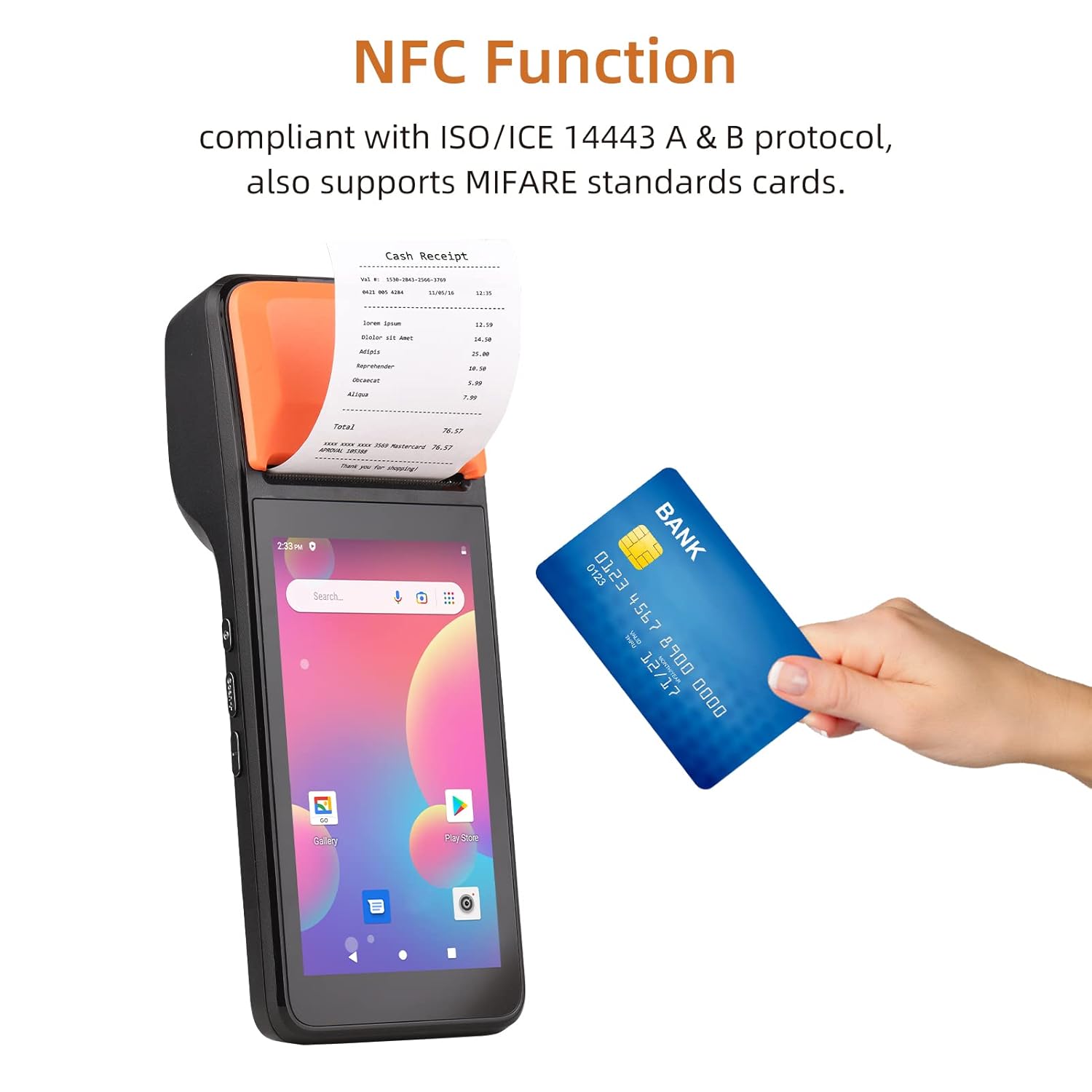
Thermal Printer Details:

Camera and Barcode Reader:

Specifications
The following table details the technical specifications of the BISOFICE H5 Handheld POS Terminal:
| Feature | Detail |
|---|---|
| Model | H5 |
| CPU | MTK Dual CPU, 4-core 1.3GHz |
| Operating System | Android 8.1 |
| Memory | 8GB ROM + 1GB RAM |
| Display | 5.0" HD IPS (1280x720), G+FF features, Touch Screen |
| Printer | High-speed 58mm thermal printer, >75mm/s print speed, 58x40mm paper roll |
| Rear Camera | 2 million focus camera (2MP), supports 1D/2D barcode recognition |
| Battery | 8.8V, 2550mAh Lithium ion polymer Battery |
| Charging Time | 2 hours |
| Discharging Time | 30 hours |
| Standby Time | 85 hours |
| Wireless Communication | GSM: B2/B3/B5/B8; WCDMA: B1/B2/B5/B8 |
| WiFi | 2.4G, support IEEE 802.11 a/b/g/n |
| Bluetooth | BT2.1/3.0/4.0 BLE |
| NFC | Yes, compliant with ISO/ICE 14443 A & B protocol |
| SIM Card Slot | Standard SIM card holder |
| Communication Interface | Type-C (supports OTG) |
| Charger Input/Output | Input: AC 100-240V, Output: 5V, 2A |
| Dimensions (LxWxH) | 20.83 x 7.62 x 8.89 cm |
| Item Weight | 499 g |
| Included Components | PDA Machine, Type-C Cable, Thermal Paper Roll |

Setup Guide
1. Charging the Device
Before first use, fully charge the device. Connect the provided Type-C cable to the device's charging port and the other end to the AC adapter. Plug the adapter into a power outlet. The charging indicator will illuminate. A full charge takes approximately 2 hours.
2. Installing the SIM Card (Optional)
If you require 3G network connectivity, install a standard SIM card:
- Locate the SIM card slot, usually under the battery cover or on the side.
- Insert the standard SIM card into the slot with the metal contacts facing down, ensuring it clicks into place.
- Close the cover securely.
3. Loading Thermal Paper Roll
The device uses 58mm wide thermal paper rolls with a maximum diameter of 40mm.
- Open the printer cover by gently pushing the latch or button.
- Insert the thermal paper roll with the printing surface facing the print head. Ensure the paper feeds smoothly.
- Pull a small amount of paper out past the cutting edge.
- Close the printer cover firmly until it clicks into place.
4. Powering On/Off
- To Power On: Press and hold the power button (typically on the side) until the screen illuminates.
- To Power Off: Press and hold the power button until a power-off menu appears. Select "Power off" and confirm.
Operating Instructions
1. Basic Android Navigation
The BISOFICE H5 operates on Android 8.1. Navigate using the 5.0-inch touchscreen:
- Tap: To select an item or open an application.
- Swipe: To scroll through lists or screens.
- Pinch: To zoom in or out (if supported by the application).
- Home Button: Returns to the home screen.
- Back Button: Returns to the previous screen.
- Recent Apps Button: Displays recently used applications.
2. Connecting to Networks
- Wi-Fi: Go to Settings > Network & Internet > Wi-Fi. Turn Wi-Fi on, select your desired network, and enter the password if prompted.
- 3G/Mobile Data: If a SIM card is installed, go to Settings > Network & Internet > Mobile network and ensure Mobile data is enabled.
- Bluetooth: Go to Settings > Connected devices > Bluetooth. Turn Bluetooth on to pair with other devices.
3. Using the Barcode Scanner
The device features a 2MP camera and CCD 1D reader for scanning barcodes.
- Open an application that supports barcode scanning (e.g., a POS application or a dedicated scanner app).
- Point the camera/scanner lens at the barcode, ensuring it is within the focus area.
- The device will typically emit a sound or vibrate upon successful scan.
4. Printing Receipts/Labels
The integrated thermal printer allows for quick printing of receipts or labels.
- Ensure thermal paper is correctly loaded.
- Within your POS or printing application, select the print option.
- Confirm print settings if prompted (e.g., number of copies).
- The device will automatically print the document. Tear off the receipt using the serrated edge.
5. Using NFC Function
The NFC function enables contactless transactions and data exchange.
- Ensure NFC is enabled in Settings > Connected devices > NFC.
- Open an application that supports NFC (e.g., a payment app).
- Hold the NFC-enabled card or device near the NFC reader area (typically near the printer section) until the transaction is confirmed.
Maintenance
1. Cleaning the Device
- Use a soft, dry, lint-free cloth to clean the exterior of the device.
- For the touchscreen, use a screen cleaner specifically designed for electronic displays. Do not spray cleaner directly onto the screen.
- Avoid using harsh chemicals, solvents, or abrasive materials.
2. Printer Head Maintenance
Regularly clean the thermal print head to ensure clear print quality.
- Power off the device before cleaning.
- Open the printer cover.
- Gently wipe the print head with an alcohol swab or a soft cloth dampened with isopropyl alcohol.
- Allow the print head to dry completely before closing the cover and powering on the device.
3. Battery Care
- Avoid exposing the device to extreme temperatures.
- Do not fully discharge the battery frequently. Charge it before it drops too low.
- If storing the device for an extended period, charge the battery to about 50% and store it in a cool, dry place.
Troubleshooting
| Problem | Possible Cause | Solution |
|---|---|---|
| Device does not power on. | Low battery; device crash. | Charge the device for at least 30 minutes. If still unresponsive, perform a forced restart (refer to device documentation for specific key combination, usually holding power button for 10-15 seconds). |
| Cannot print. | No paper; paper jammed; printer cover not closed; print head dirty; application error. | Check and load paper. Clear any paper jams. Ensure printer cover is securely closed. Clean the print head. Restart the printing application or the device. |
| Poor print quality. | Dirty print head; low quality thermal paper; paper loaded incorrectly. | Clean the print head. Use high-quality thermal paper. Ensure paper is loaded correctly with the thermal side facing the print head. |
| Barcode scanner not working. | Poor lighting; barcode damaged; scanner lens dirty; application not active. | Ensure adequate lighting. Check barcode for damage. Clean the scanner lens. Ensure the scanning application is open and active. |
| No network connection (Wi-Fi/3G). | Wi-Fi/Mobile data off; incorrect password; out of range; SIM card issue. | Check Wi-Fi/Mobile data settings. Re-enter Wi-Fi password. Move closer to the Wi-Fi router. Reinsert SIM card or check its activation status. |
Warranty and Support
For warranty information and technical support, please refer to the warranty card included with your product or contact BISOFICE customer service through their official website or the retailer where the product was purchased. Please have your product model (H5) and serial number ready when contacting support.