
1. Introduction
The Thermaltake Gravity i3 CPU Cooler is designed to provide an efficient and quiet cooling solution for Intel LGA 1700 and LGA 1851 sockets. Optimized for low-power processors, this cooler features a 92mm fan and an aluminum heatsink, offering a balance of compact size and effective thermal performance. This manual provides essential information for proper installation, operation, and maintenance of your CPU cooler.
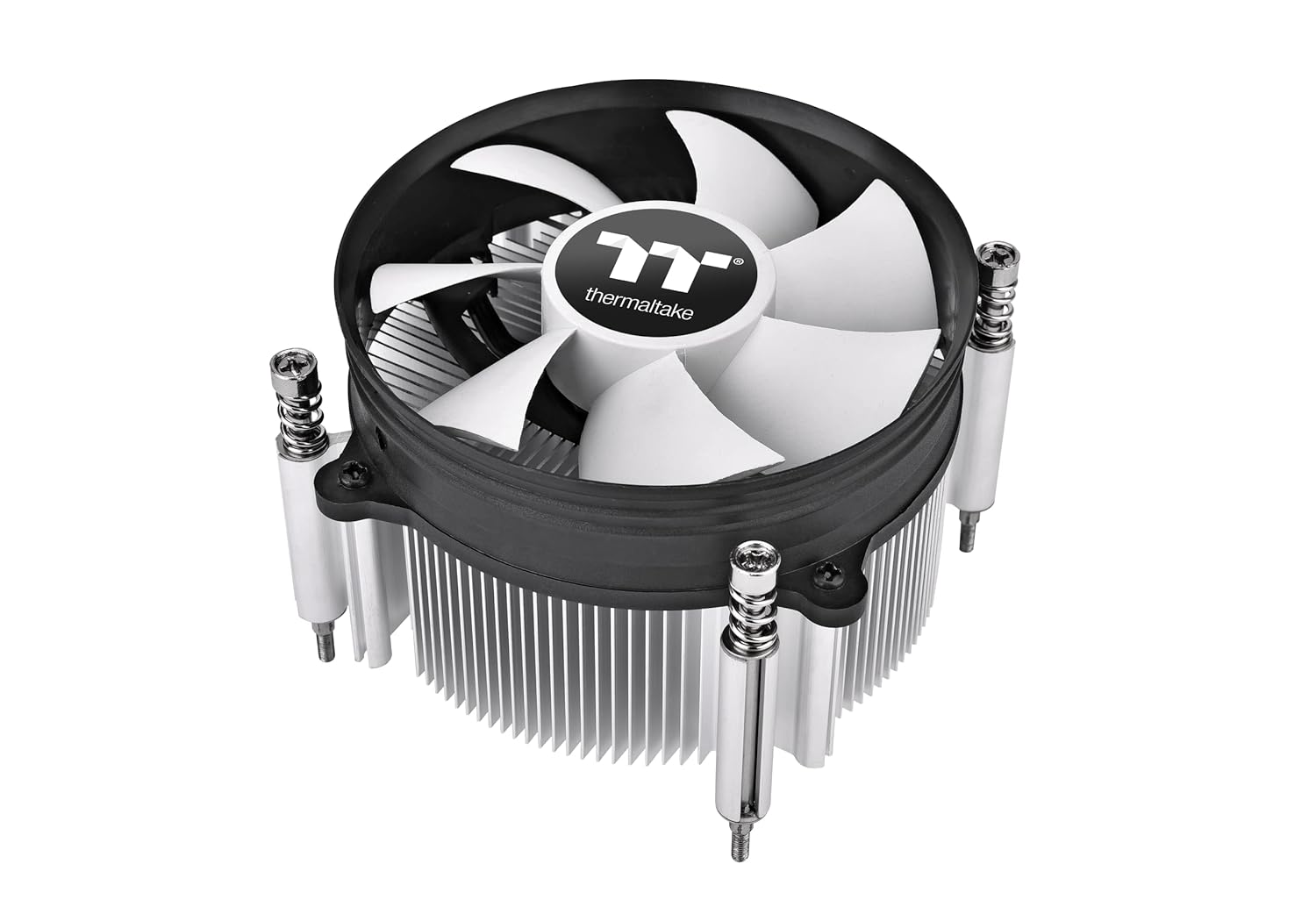
Figure 1: Thermaltake Gravity i3 CPU Cooler
2. Package Contents
Verify that all components are present in the package before proceeding with installation:
- Thermaltake Gravity i3 CPU Cooler (Fan and Heatsink assembly)
- Intel LGA 1700/1851 Mounting Bracket
- Thermal Paste Sachet
- Mounting Screws and Hardware

Figure 2: Included Mounting Hardware and Thermal Paste
3. Specifications
| Feature | Specification |
|---|---|
| Model Number | CL-P094-AL09WT-A |
| Compatibility | Intel LGA 1851/1700 |
| Dimensions (H x W x L) | 65.4 x 96.6 x 96.6 mm (2.58" H x 4.3" W x 4.4" L) |
| Heatsink Material | Aluminum |
| Fan Dimensions | 92 x 25 mm |
| Fan Speed | 1200~3500 RPM |
| Rated Voltage | 12 V |
| Start Voltage | 6 V |
| Rated Current | 0.25 A |
| Power Input | 3 W |
| Max Air Flow | 56.84 CFM (31.343 CFM listed in feature bullets, using higher value from description) |
| Air Pressure | 3.01 MM-H2O |
| Noise Level | 36.5 dBa (21.3 dBa listed in feature bullets, using higher value from description) |
| Life Time / Fan Life Time | 40,000 hours |
| Cooling Power | 95 W |
| Power Connector Type | 4-Pin |
4. Setup & Installation
Follow these steps for proper installation of your Thermaltake Gravity i3 CPU Cooler:
- Prepare the Motherboard: Ensure your motherboard is compatible with Intel LGA 1700 or LGA 1851 sockets. Clean the CPU surface thoroughly to remove any old thermal paste or debris.
- Apply Thermal Paste: Apply a small, pea-sized amount of the provided thermal paste to the center of your CPU's Integrated Heat Spreader (IHS). Do not spread it manually; the pressure from the cooler will distribute it evenly.
- Position the Mounting Bracket: Place the Intel mounting bracket onto the motherboard, aligning the holes with the CPU socket's backplate (if applicable) or mounting points.
- Install the Cooler: Carefully align the CPU cooler over the CPU, ensuring the mounting screws on the cooler align with the holes in the mounting bracket. Gently lower the cooler onto the CPU.
- Secure the Cooler: Tighten the four spring-loaded screws in a diagonal pattern (e.g., top-left, bottom-right, top-right, bottom-left) until they are finger-tight. Then, use a screwdriver to tighten them further, ensuring even pressure. Do not overtighten.
- Connect the Fan Cable: Locate the 4-pin CPU fan header on your motherboard. Connect the cooler's 4-pin fan cable to this header. Ensure it is securely connected for proper fan operation and speed control.
The cooler is designed for quick and easy installation, providing proper clearance for surrounding components.
5. Operating Instructions
Once installed, the Thermaltake Gravity i3 CPU Cooler operates automatically, adjusting its fan speed based on CPU temperature. The 4-pin PWM (Pulse Width Modulation) connector allows your motherboard to precisely control the fan speed, optimizing for both cooling performance and noise levels.
- Initial Power-On: Upon first power-on, the fan will spin up. Monitor your system's temperature using motherboard utilities or third-party software to ensure proper cooling.
- Fan Speed Control: Fan speed can be managed through your motherboard's BIOS/UEFI settings or dedicated software provided by your motherboard manufacturer. Adjust fan curves to balance cooling efficiency with acoustic preferences.
- Noise Level: The 7-bladed fan is designed for low noise operation, with a reported noise level of 36.5 dBa at maximum speed.

Figure 3: Top View of the 7-Bladed Fan
6. Maintenance
Regular maintenance ensures optimal performance and longevity of your CPU cooler:
- Dust Removal: Periodically clean the fan blades and heatsink fins to prevent dust buildup, which can impede airflow and reduce cooling efficiency. Use compressed air or a soft brush. Ensure the system is powered off before cleaning.
- Thermal Paste Check: If you notice a significant increase in CPU temperatures over time, consider reapplying thermal paste. This typically involves removing the cooler, cleaning off old paste from both the CPU and heatsink, and applying new paste.
7. Troubleshooting
If you encounter issues with your CPU cooler, consider the following:
- Fan Not Spinning:
- Check if the 4-pin fan cable is securely connected to the motherboard's CPU_FAN header.
- Verify fan settings in your motherboard's BIOS/UEFI.
- High CPU Temperatures:
- Ensure the cooler is properly seated and making good contact with the CPU.
- Confirm that thermal paste was applied correctly and is not dried out.
- Clean any dust buildup from the heatsink and fan.
- Check for adequate airflow within your PC case.
- Excessive Noise:
- Adjust fan speed settings in your motherboard's BIOS/UEFI.
- Ensure no cables are obstructing the fan blades.
8. Warranty & Support
The Thermaltake Gravity i3 CPU Cooler comes with a 2-year manufacturer's warranty. Please retain your proof of purchase for warranty claims.
For technical support, troubleshooting assistance, or warranty inquiries, please visit the official Thermaltake website or contact their customer service department. Refer to the product packaging or Thermaltake's official website for the most current support contact information.


